


HousingCompanion
- By
The ultimate Housing toolkit – shopping lists, vendor search, quick bar hotkeys, and one-click copy functions for effortless decorating.
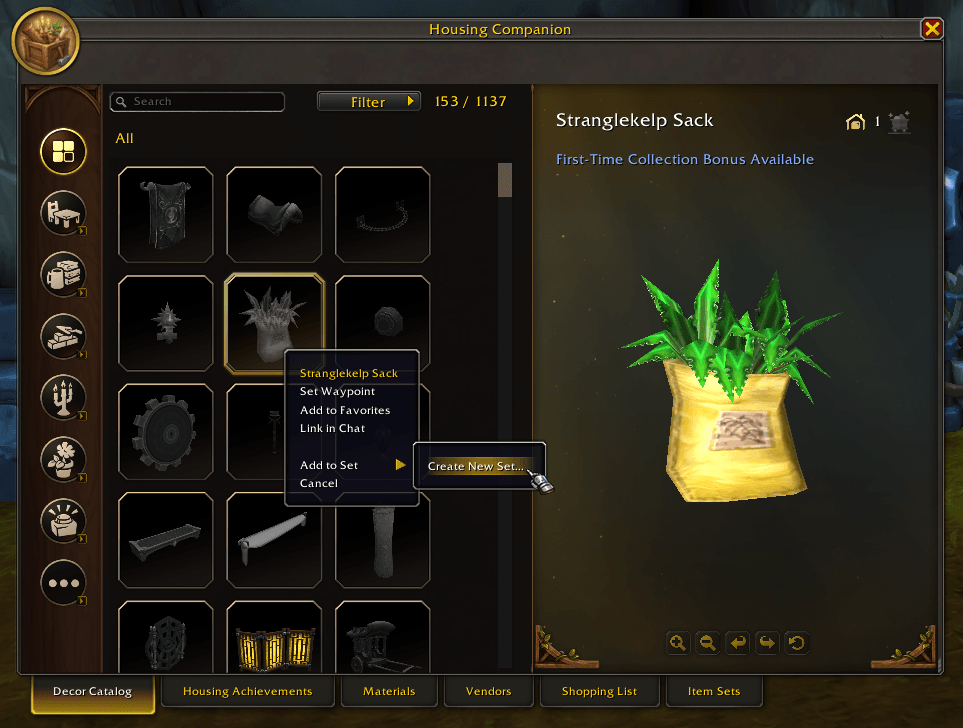
Main Window
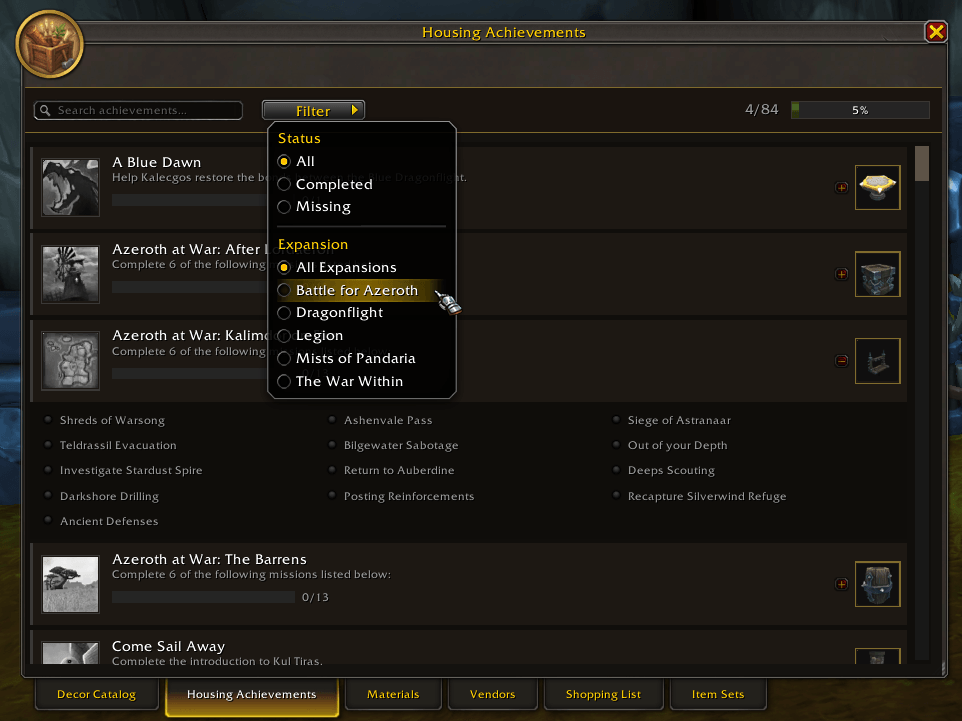
Achievements
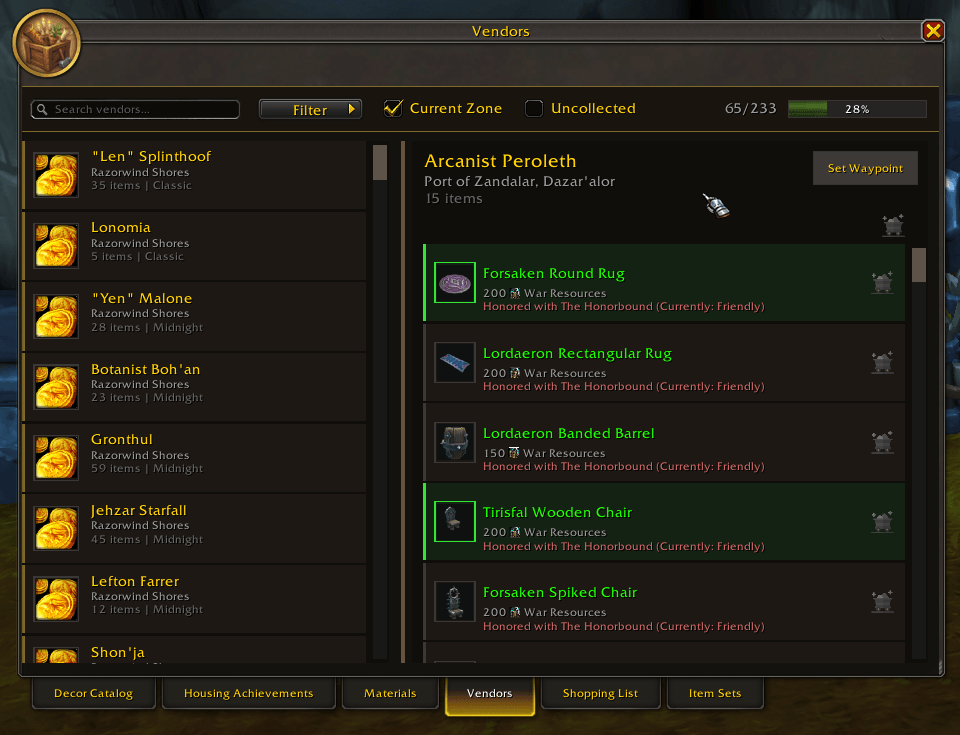
Vendor Search.png
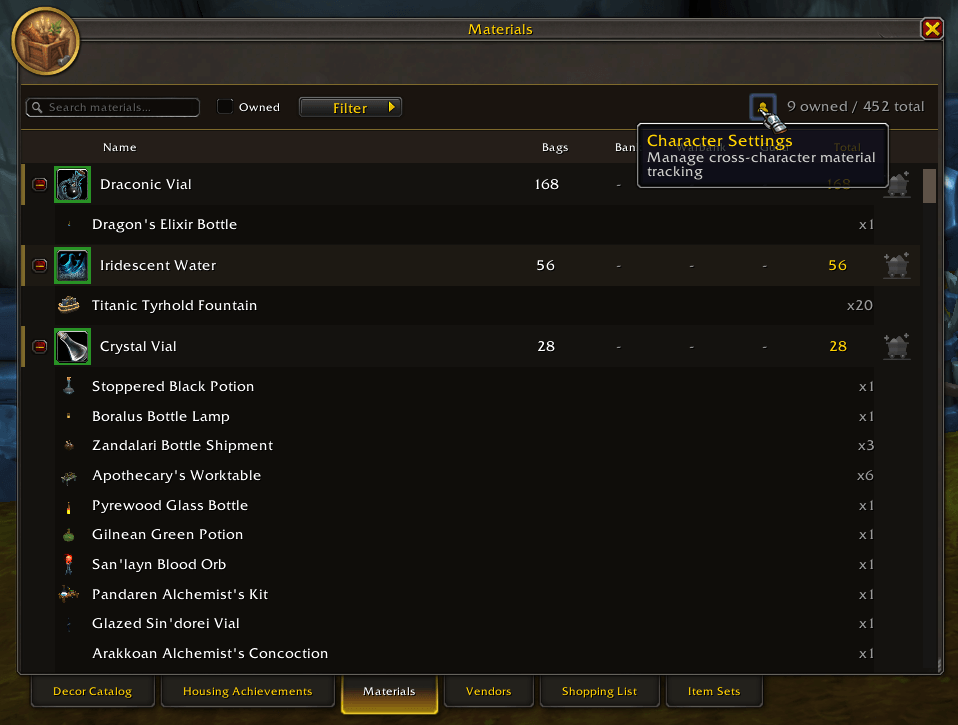
Materials.png
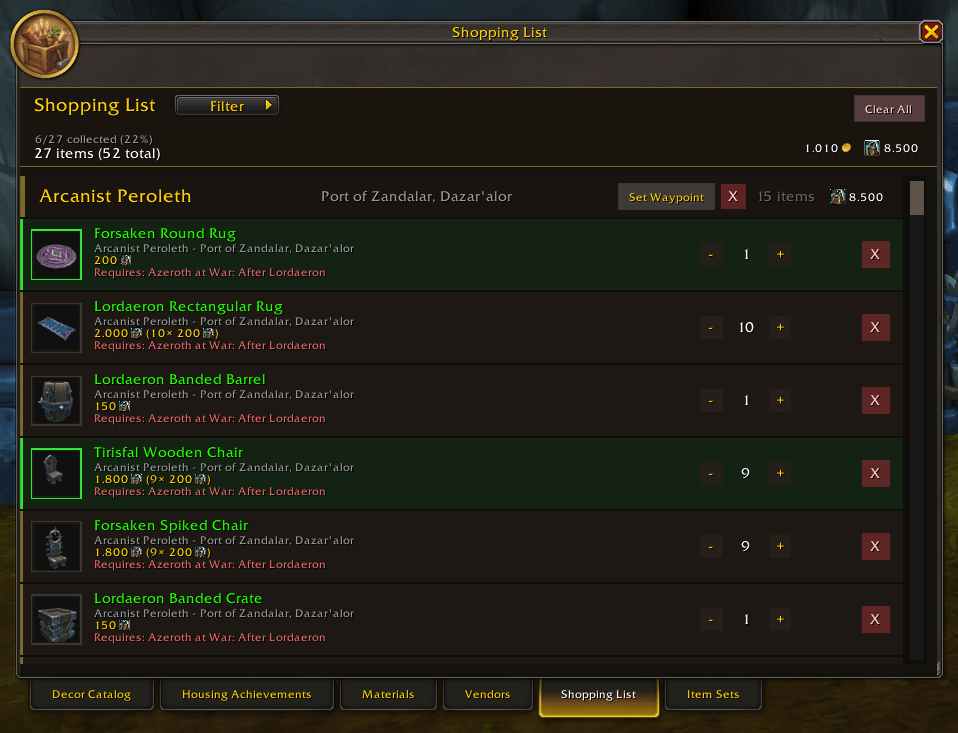
Shopping List.png
Description
Housing Companion
Housing Companion is your ultimate toolkit for all housing and decoration content in World of Warcraft. Whether you are a dedicated collector or preparing for future housing features, this addon helps you discover, track, and find every piece of furniture in Azeroth.
🪙 Looking up Auction House prices? Try AzerothAuctions

AzerothAuctions is a free, no-login World of Warcraft Auction House site: live prices, price history, realm comparisons, deals, and sniping lists you can export — for EU, US, KR and TW.
Handy for pricing your housing materials and decor straight from the Shopping List and Crafting tabs. → azerothauctions.com
Do you want to share your item set or request a new feature?

Key Features
Comprehensive Furniture Database
Explore a massive library of decoration items. We aggregate data from almost every source:
- Vendors: Find out exactly where to buy items and for which currency (Gold, Expansion Resources, Reputation).
- Professions: See which items are craftable and what materials are required.
- Quests & Achievements: Discover rewards you might have missed.
- Loot (Drops): Track items dropped by mobs, bosses, or rares.

Endeavors Tab
Track your neighborhood initiative progress at a glance:
- Task Overview: See all initiative tasks with XP and coupon rewards and completion status.
- Season Progress: Progress bar with days remaining right at the top of the tab.
- House Level & XP: House level and XP progress displayed prominently.
- Quick Stats Row: Coupons, XP earned, and XP cap status — cap indicator changes color (green/orange/red).
- Leaderboard: See who earned the most in your neighborhood.
- Activity Feed: Recent activity showing who completed what with XP amounts.
- Multi-House Support: Switch between houses with the dropdown selector.
- Best Next Endeavor: Highlights the top tasks to complete for maximum progress.
- Task Tracking: Track tasks directly from the tab or the objective tracker opens Housing Companion.
Achievement Tracker
Track your housing-related achievements in one place:
- Progress Overview: See all housing achievements with completion status and progress bars.
- Search & Filter: Find achievements by name with the search box, or use the consolidated filter button for expansion and status filters.
- Criteria Details: Expand any achievement to view individual criteria and track what's left to complete.
- Reward Preview: Click reward icons to preview furniture rewards in 3D before you earn them.
- Quick Navigation: Right-click any achievement item in the Catalog to jump directly to its achievement.
- Quick Clear: Reset all filters instantly with the X button.

Vendor Browser
Find every housing vendor and their inventory:
- Searchable Vendor List: Browse all housing vendors across every expansion.
- Zone Filter: Show only vendors in your current zone to quickly find nearby decorations.
- Uncollected Filter: Hide vendors where you've already collected everything.
- Filter Options: Use the consolidated filter button to filter by expansion or faction.
- Collection Progress: See your collection progress with the built-in progress bar.
- Full Inventory Display: View complete vendor inventories with item icons, prices, and currencies.
- Reputation Requirements: See which reputation you need for each item – color-coded green when met, red when not.
- Achievement Requirements: Items that require an achievement show the requirement in tooltips and the vendor list – green if completed, red if not.
- Multi-Currency Prices: Items with multiple costs display properly (e.g., "425 gold + 750 Ancient Mana").
- Item Preview: Click any item to preview it in the 3D model viewer.
- Direct Waypoints: Set waypoints directly to vendor locations with one click.

Housing Tools
Enhance your decorating workflow:
- Clipboard: Copy (Ctrl+C), Paste (Ctrl+V), and Duplicate (Ctrl+D) decorations while in the housing editor.
- Decoration Locking: Lock (Ctrl+L) decorations to prevent accidental selection or movement. Locked items show a visual indicator when hovered.
- HoverHUD: Visual hotkey hints seamlessly integrated below WoW's native instruction panel.
Rotation Controls
Precise rotation in Expert Mode (disabled by default - enable in Settings → Housing Mode):
- Axis Buttons: X, Y, and Z axis selection with visual indicator for current axis.
- Step Rotation: Click + or - to rotate by your configured step size (5°, 15°, 30°, 45°, or 90°).
- Degree Tracker: See exactly how much you've rotated each axis since selecting the decoration.
- Draggable Panel: Position the panel anywhere on screen for your optimal workflow.
- Configurable Steps: Choose your preferred rotation increment in Settings.
- Experimental Presets: Save and apply X/Y/Z rotation combinations with one click.
- Always reset the item first (using WoW's Reset button) before applying presets.
- Due to WoW API limitations, rotations have ~1-2° variance.
Quick Bar
Fast access to your favorite decorations:
- 9 Hotbars × 8 Slots: Press 1-8 to instantly place your favorite decorations, Ctrl+1-9 to switch hotbars.
- Safe Assignment: Press Shift+1-8 while hovering over a decoration to assign it to that slot.
- No Accidental Overwrites: Separate keybinds prevent replacing slots when placing items close together.
- Recent Slot: Always shows your last placed item for quick repetition.
- Visual Feedback: Gold borders for available items, red when out of stock.
- Persistent Storage: All hotbars and Recent history saved between sessions.

Dye Presets
Save and apply your favorite dye combinations:
- 12 Preset Slots: Save up to 12 dye color combinations with custom names.
- One-Click Save: Hover over a dyed decoration and click an empty slot to save its colors.
- Instant Apply: Click a preset to apply it to the selected decoration – works across different decoration types.
- Quick Hotkeys: Press ALT+1-9 in Customize Mode to apply presets instantly.
- Color Previews: Visual color blocks show each preset's dye palette at a glance.
- Auto-Open: Panel appears automatically when you open the Blizzard dye window.
- Rename & Organize: Right-click any preset to rename, overwrite, or delete it.
- Dye Shopping Cart: When previewing dyes you don't own, a shopping cart button adds all missing dyes to your Shopping List as Auction House items — shows estimated AH price with TSM or Auctionator.

Item Sets
Create custom collections to organize your decorations:
- Themed Groups: Organize items into sets like "Kitchen", "Garden", or "Holiday Decor".
- Custom Names & Icons: Give each set a unique name and choose an icon from your collected decorations.
- Icon Picker: Search icons by name to find the perfect set icon.
- Item Count Tracking: See how many items you have (placed + stored) for each set at a glance.
- Easy Adding: Right-click any item in the Catalog, Vendors, Shopping List, or Storage to add it to a set.
- Full Management: Edit set names and icons, remove items, or delete entire sets anytime.
- Persistent Storage: All sets saved between sessions.
- Import/Export: Share your sets with friends as copy-paste strings – perfect for Discord or community forums.
- Recording Mode: Automatically track decorations as you place them and add them to a set in real-time.

Recording Mode
Automatically track your decorating sessions:
- One-Click Start: Click the Recording button in the Item Sets tab or use
/hc recording. - Taskbar Button: Quick access button in the Housing Editor taskbar (next to Edit House Exterior).
- Target Set: Select which set to record to before starting.
- Auto-Tracking: Every decoration you place is automatically added to your set with quantities tracked.
- Pause & Resume: Take breaks without losing your progress.
- Duration Timer: See how long you've been decorating.
- Review Before Saving: Stop and save when done, or discard if you change your mind.
Blizzard UI Integration
Access Item Sets directly from the Housing Editor:
- Sets Button: New "Sets" button in the Storage Panel opens a docked panel for quick access.
- Right-Click Menu: Add any item to a set directly from Blizzard's decoration catalog.
- Browse & Place: View sets and their items without leaving the editor – click to start placing.
- Quick Bar Integration: Add entire sets to Quick Bar with one click.
- Create Sets In-Editor: Create new sets without leaving the Housing Editor.
- Seamless Workflow: Switch between Blizzard's UI and your sets effortlessly.

Material Tracker
Never lose track of your housing crafting materials again:
- Visual Indicators: Small icon overlays appear on housing materials in your bags, bank, warbank, guild bank, and at merchants.
- Customizable Appearance: Choose icon size (10-30px), position (any corner), and color with transparency.
- Enhanced Tooltips: Hover over any material to see which decorations use it and how many you need.
- Cross-Character Support: Track materials across all your alts with automatic inventory synchronization.
- Bag Addon Support: Works with Baganator, Bagnon, AdiBags, ArkInventory, and ElvUI bags.
Materials Tab
A dedicated inventory management tab for crafters:
- Complete Overview: See all 450+ housing crafting materials with counts per storage location.
- Location Breakdown: Columns for Bags, Bank, Warbank, Guild Bank, Alts, and Total.
- Smart Search: Filter materials by name instantly as you type.
- Location Filters: Toggle which storage locations to include in counts.
- Owned-Only Mode: Hide materials you don't have to focus on your inventory.
- Sortable Columns: Click any column header to sort by that location.
- Color-Coded Counts: Green (10+), blue (1-9), grey (none) for quick scanning.
- Character Panel: Manage which alts are included in cross-character totals.
- Tooltip Integration: Click any material to see the full item tooltip with recipe information.
Shopping List
Plan your decoration shopping trips:
- Star Items: Click the shopping cart icon on any vendor item to add it to your list.
- Profession Items: Add craftable items from the Decor Catalog as Auction House items.
- Price Tracking: See prices with currency icons (Gold, War Resources, Resonance Crystals, etc.).
- Vendor Totals: Each vendor header shows the combined cost of all items from that vendor.
- Global Totals: Top bar displays your total shopping cost across all vendors (up to 4 currencies).
- Quantity Control: Adjust quantities with +/- buttons, remove items with X.
- At-Vendor Integration: When visiting a vendor, see which items are available and buy directly.
- Auction House Integration: Search for AH items directly when both windows are open.
- Smart Purchase Detection: Automatically decreases quantity when you buy items from the Auction House.
- Auto-Open: Optionally opens Shopping List when you visit the Auction House (if you have AH items on your list).
- Persistent Storage: Shopping list saved between sessions.


Supported Languages
- English (enUS)
- German (deDE)
- French (frFR)
- Spanish - Spain (esES)
- Spanish - Latin America (esMX)
- Italian (itIT)
- Portuguese - Brazil (ptBR)
- Russian (ruRU)
- Korean (koKR)
- Simplified Chinese (zhCN)
- Traditional Chinese (zhTW)
Feedback & Support
Found a bug or have a feature request? Let me know!
HousingCompanion Team

Owner


![[Outdated] Remix Mail Helper project image](https://media.forgecdn.net/avatars/thumbnails/1005/862/256/256/638527527678279431.png)