


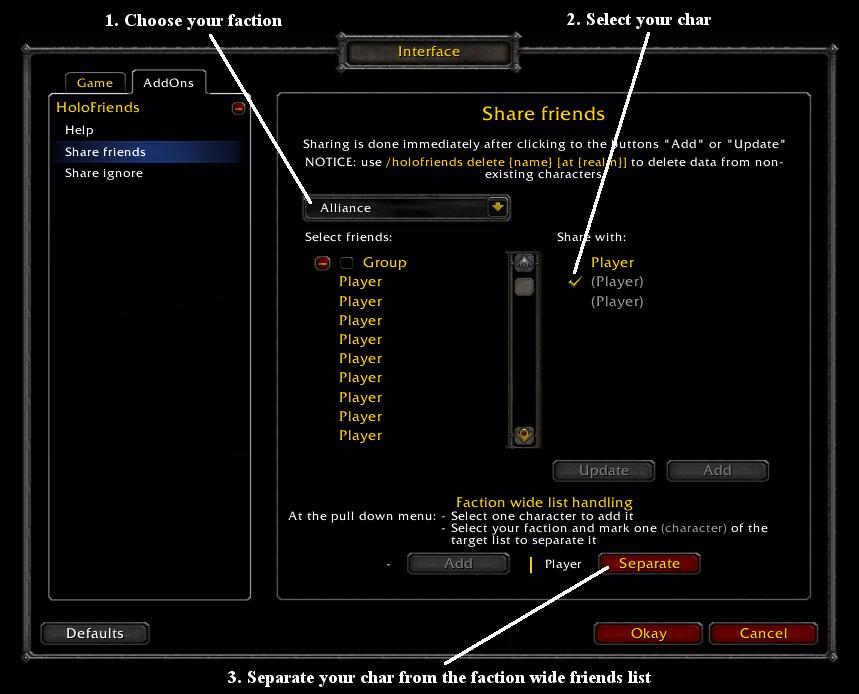
This show, how to separate a char from the faction wide list:
Choose the faction from the pull down menu at top.
Mark the char (name in brackets) to separate at the right list.
Click at the separate button at bottom of the frame.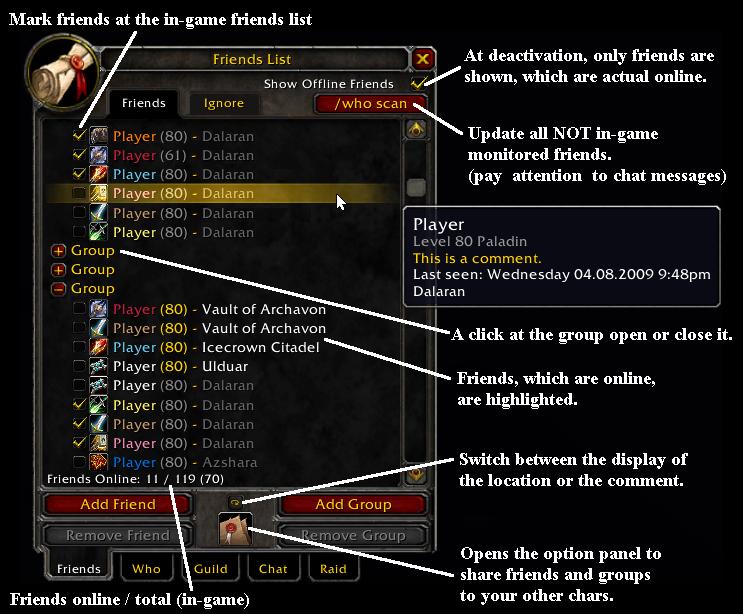
Friend list window: display all friends (online and offline)
This image include explanations to some functions.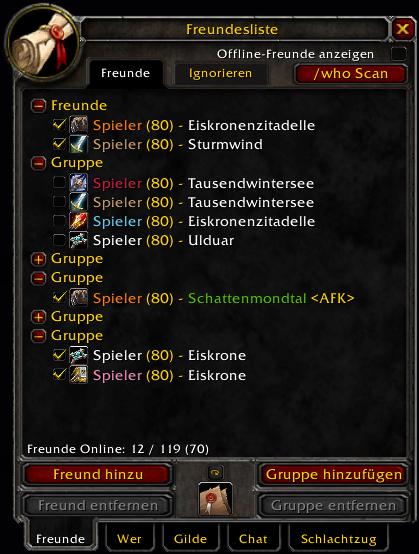
Fenster der Freundesliste: Anzeige nur der Online-Freunde
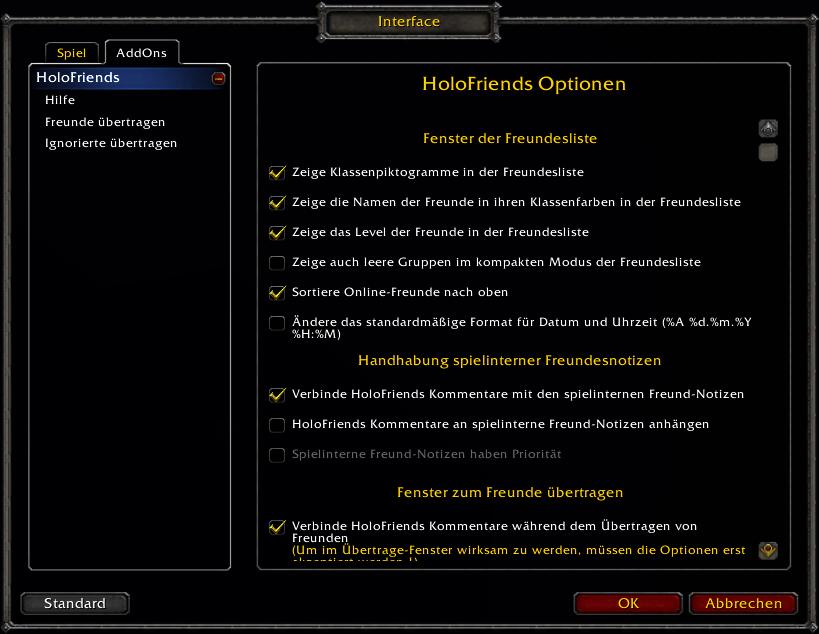
Das Fenster mit den Konfiguration im Interface-Optionen-Menü
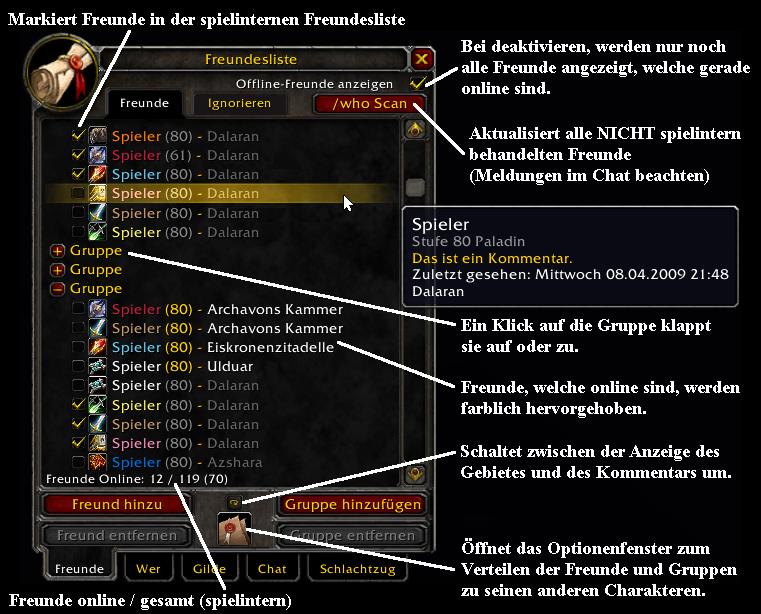
Fenster der Freundesliste: Anzeige aller Freunde (online und offline)
Diese Bild beinhaltet Erklärungen zur Funktion.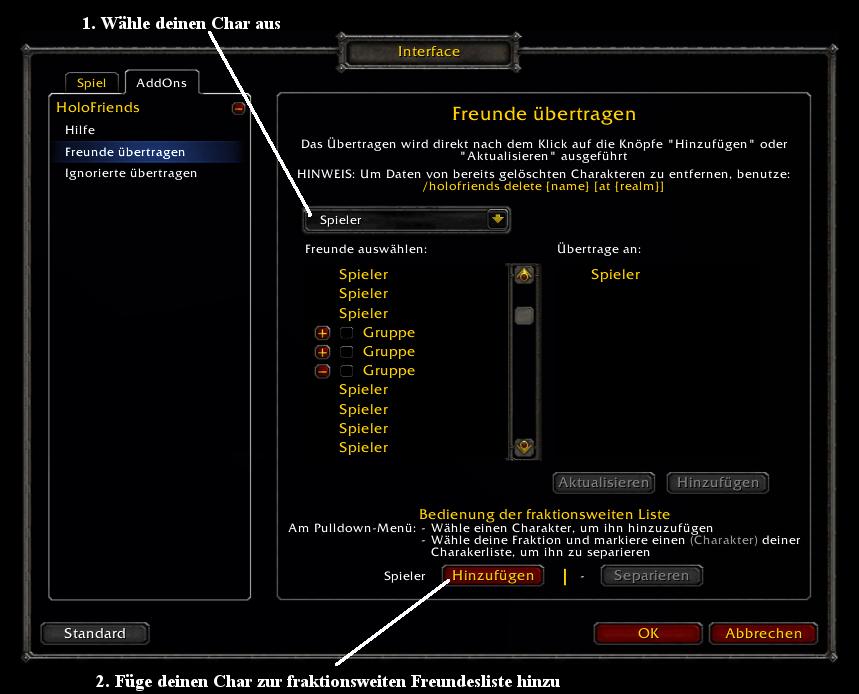
Das Zeigt, wie man einen Charakter zur fraktionsweiten Freundesliste hinzufügt:
Wähle den Charakter im Übertragenfenster im oberen Pulldown-Menü aus.
Keinen Eintrag in den 2 Listen markieren.
Im unteren Teil des Fensters auf den "Hinzufüg...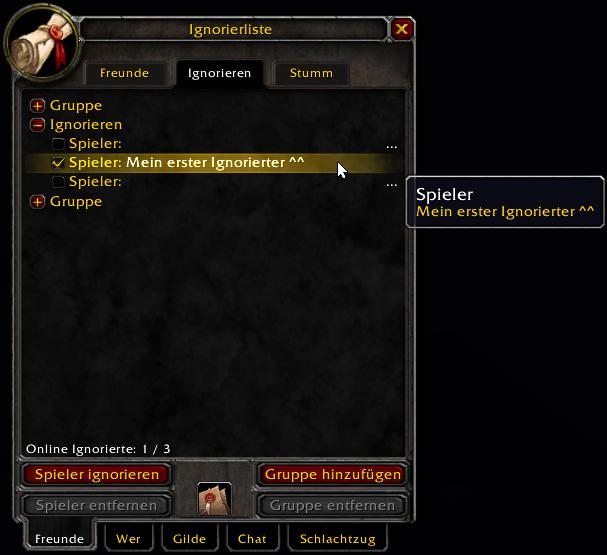
Die Ignorierenliste mit Gruppen
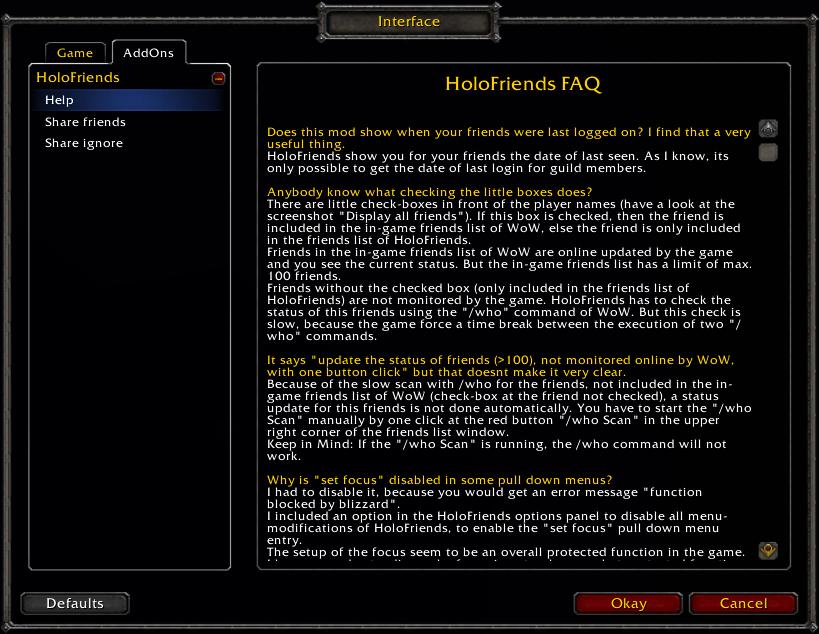
The help frame at the interface options panel.
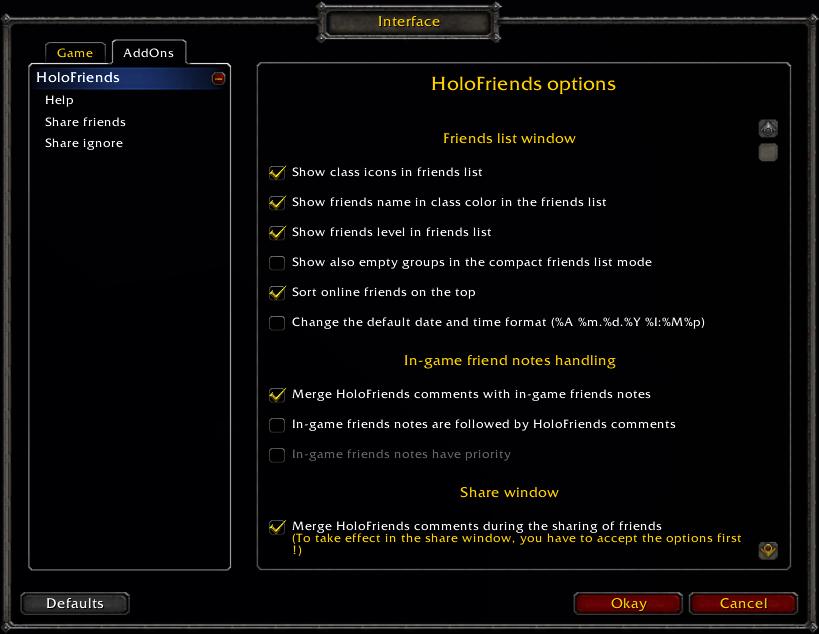
The configuration frame at the interface options panel.
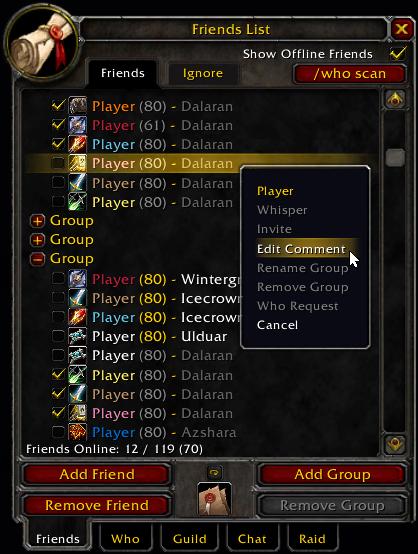
Friend list window: display all friends (online and offline)
A right click at a friend show the pull down menu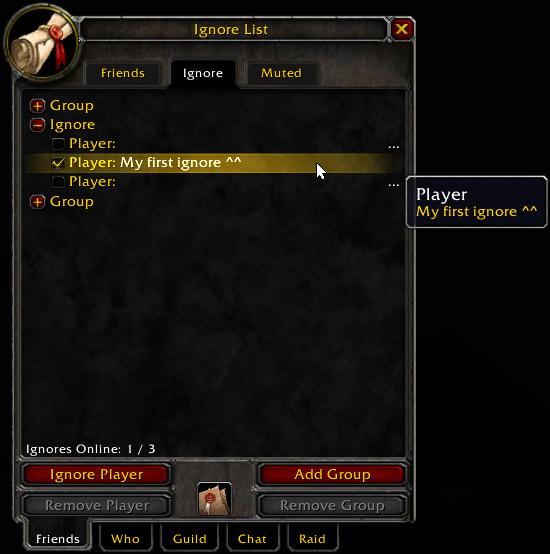
Ignore list with groups
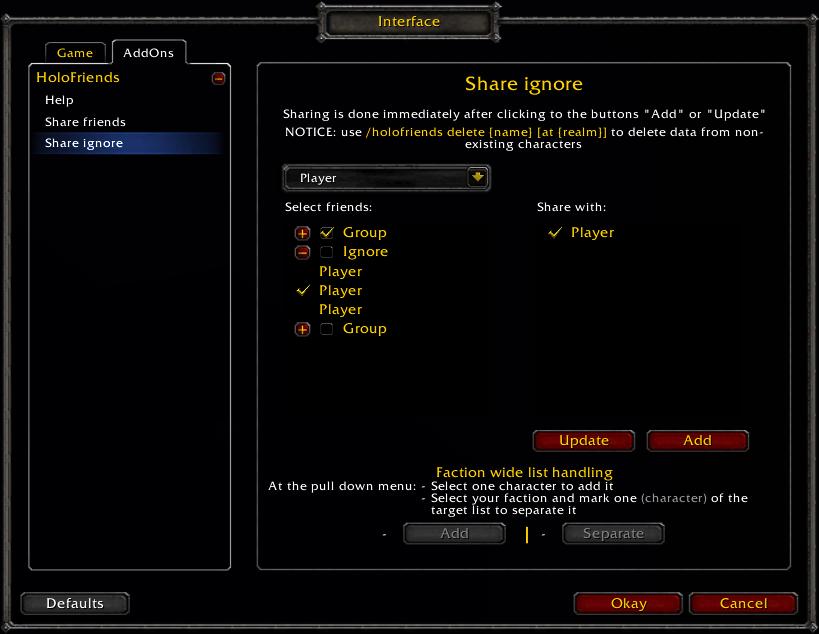
Share ignores with your alts.
See description to the screen "Share friends".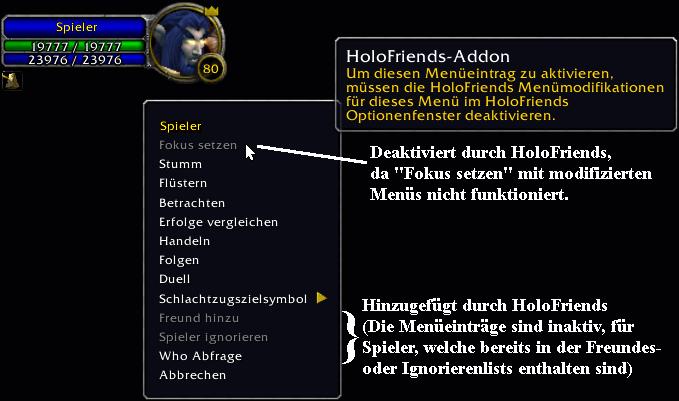
Einige Pulldown-Menüs werden durch HoloFriends modifiziert.
Das ermöglicht ein direktes Hinzufügen von Freunden und Ignorierten und die Ausführung eines who-Scans.
Aber einige geschützte Funktionen, wie das Setzen des Fokus, müssen dafür deak...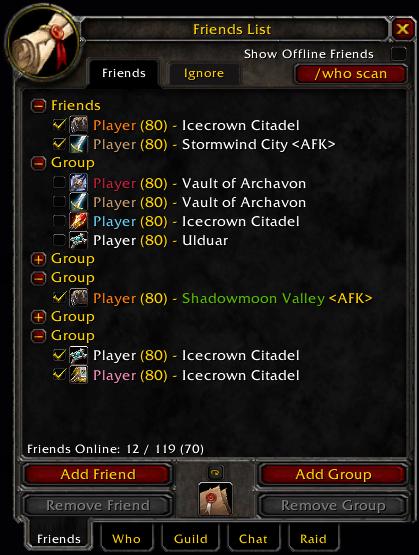
Friend list window: display online friends only
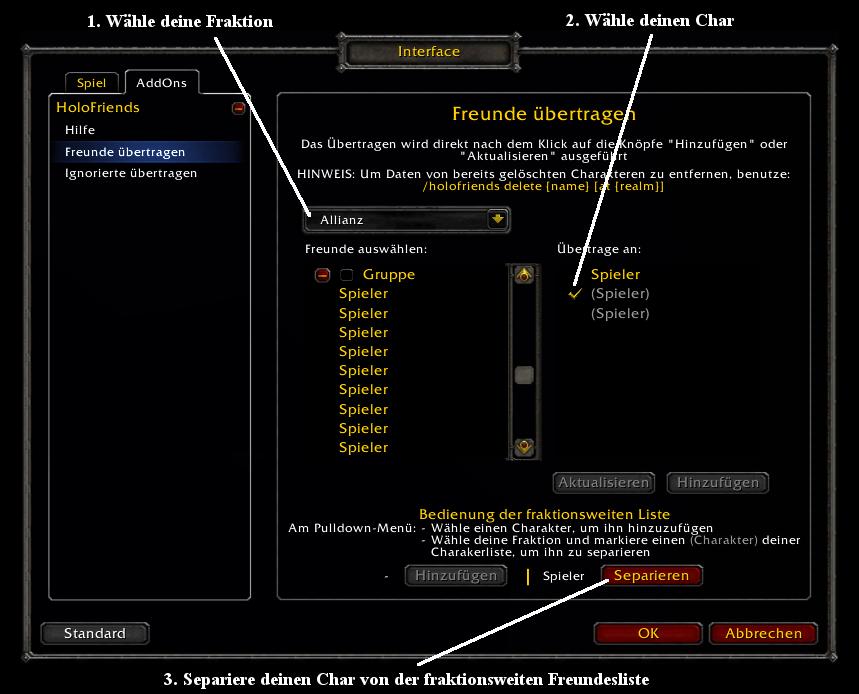
Das Zeigt,wie ein Charakter von der fraktionsweiten Liste separiert wird:
Wähle die Fraktion vom oberen Pulldown-Menü.
Markiere den zu separierenden Charakter (Name in Klammern) in der rechten Liste.
Klicke auf den "Separieren"-Knopf im u...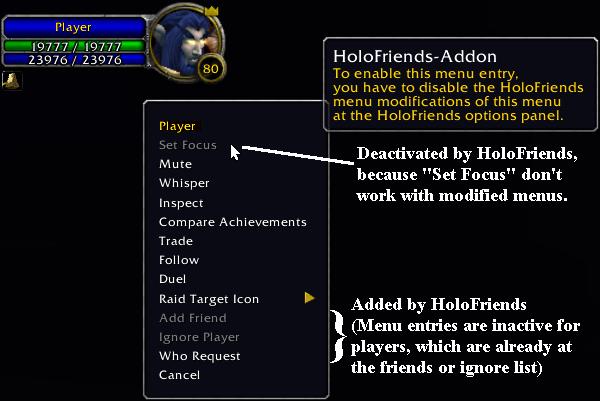
Some pull down menus are modified by HoloFriends.
This allow to add friends or ignores directly, and to perform a who-scan.
But some protected functions, like set focus, need to be disabled to allow this.
This menu modifications can be di...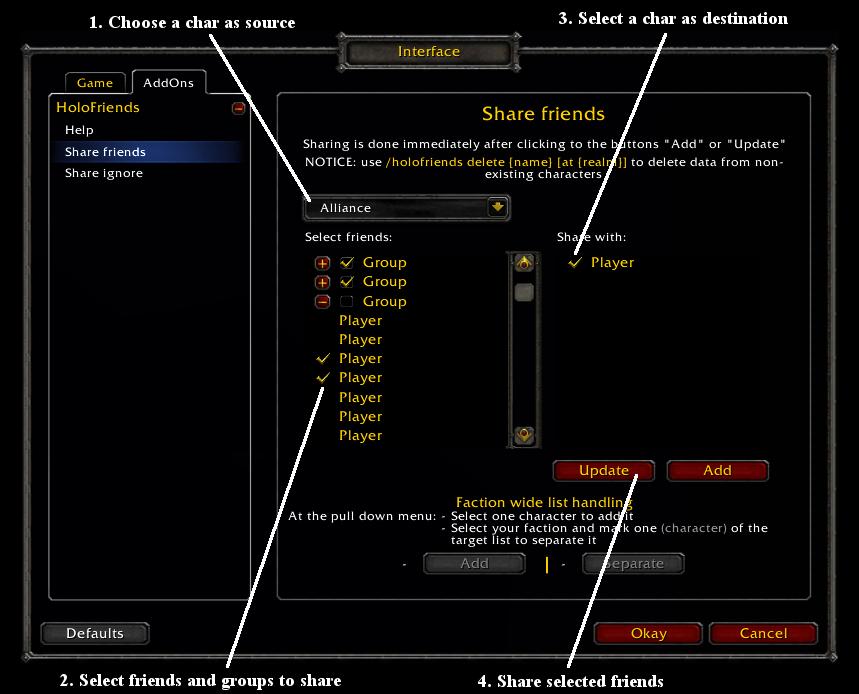
How to share friends with your alts:
Choose the char with the source friends list from the pull down menu at top.
Mark the friends or groups to share at the left list.
Mark the chars which should receive the friends at the right list.
...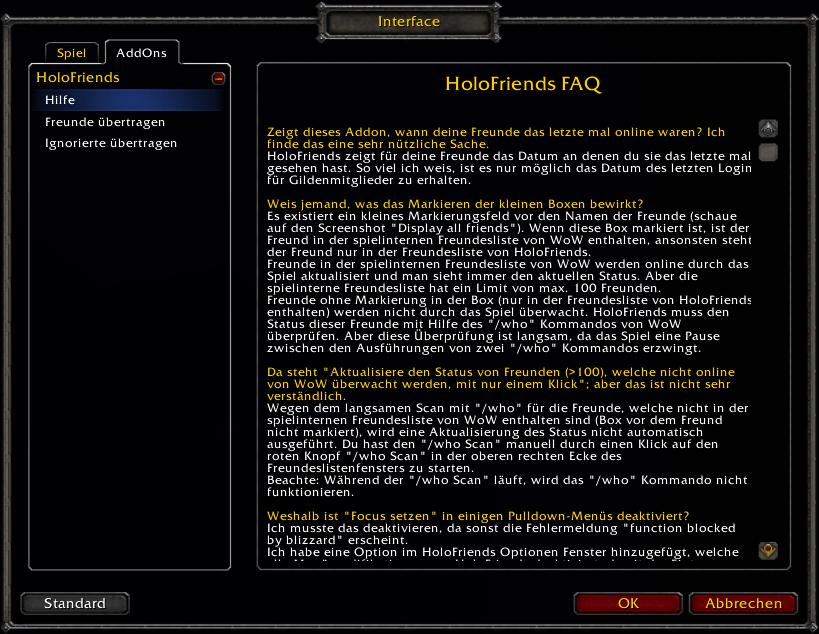
Das Hilfefenster im Interface-Optionen-Menü.
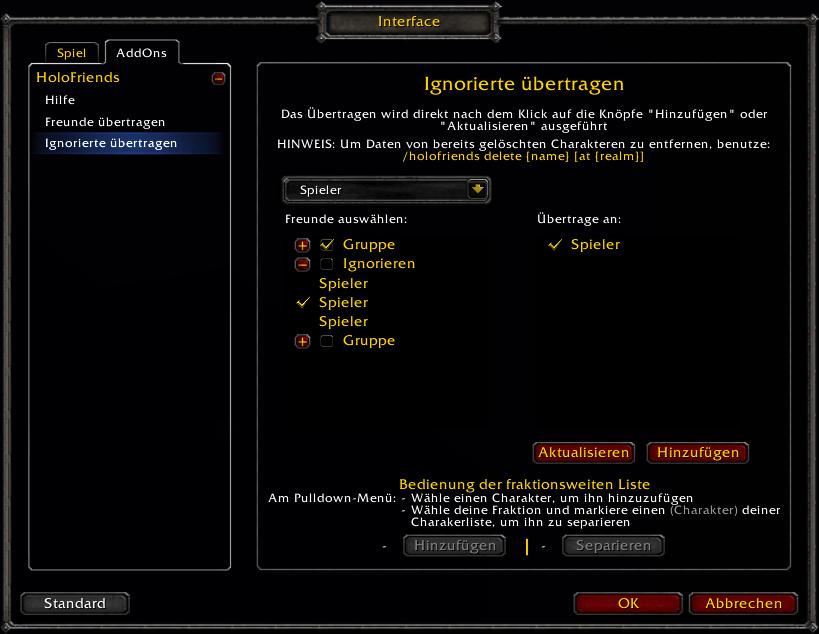
Gleiche Ignorierte mit deinen anderen Chars ab.
Siehe bei der Beschreibung von "Freunde Übertragen".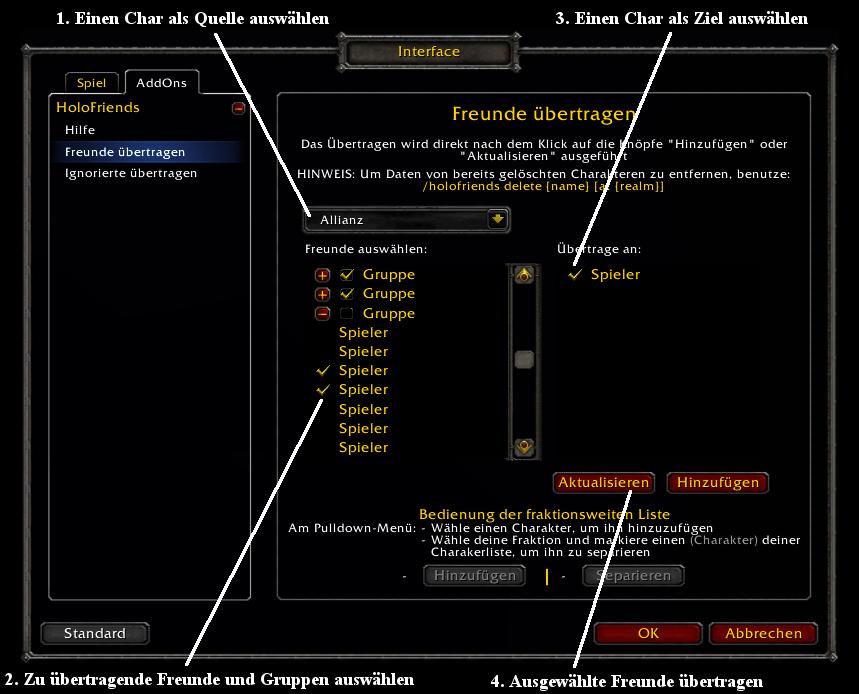
Wie werden Freunde zu anderen Chars übertragen:
Wähle den Char als Quelle der Freundesliste im oberen Pulldown-Menü aus.
Markiere die zu übertragenden Freunde oder Gruppen in der linken Liste.
Markiere die Chars, welche die Freunde erhalt...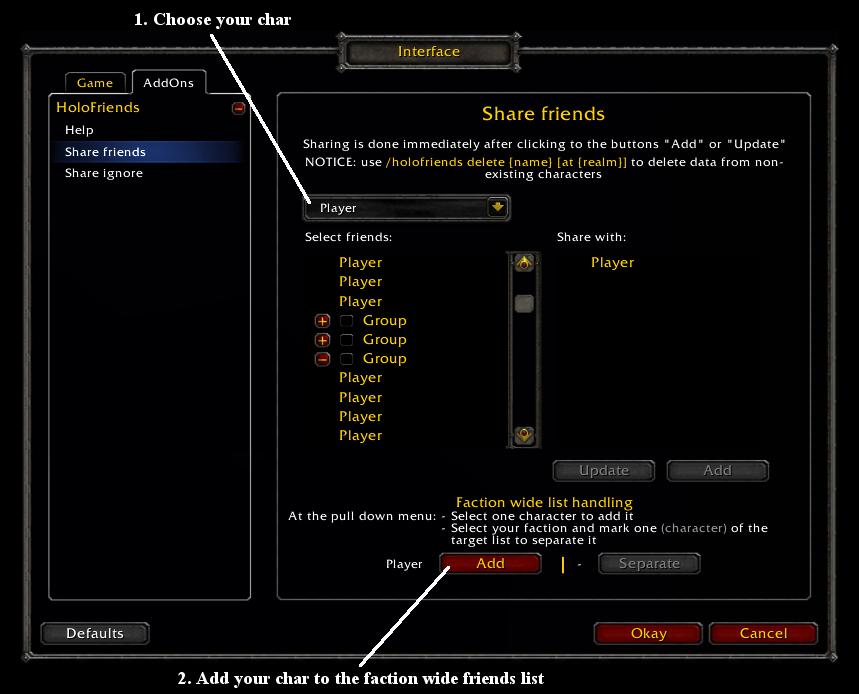
This show, how to add a char to the faction wide friends list:
Choose the char from the pull down menu on top of the share frame.
Do not mark any entry at the two lists.
Click at the add-button at the bottom of the frame.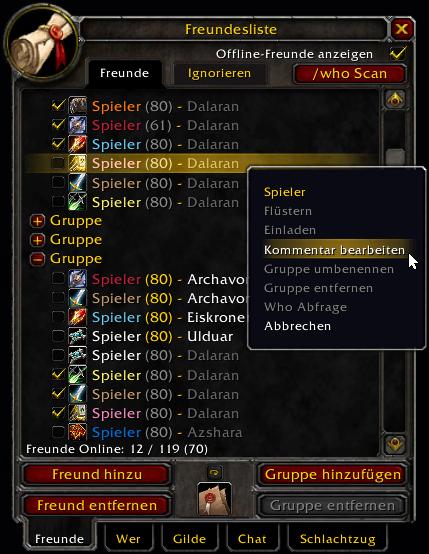
Fenster der Freundesliste: Anzeige aller Freunde (online und offline)
Ein Rechtsklick auf einen Freund zeigt dessen Pulldown-Menü.

