


Harvester
Vendor & Repair utility - Automate vendoring and repairing with a customizable list of junk items.
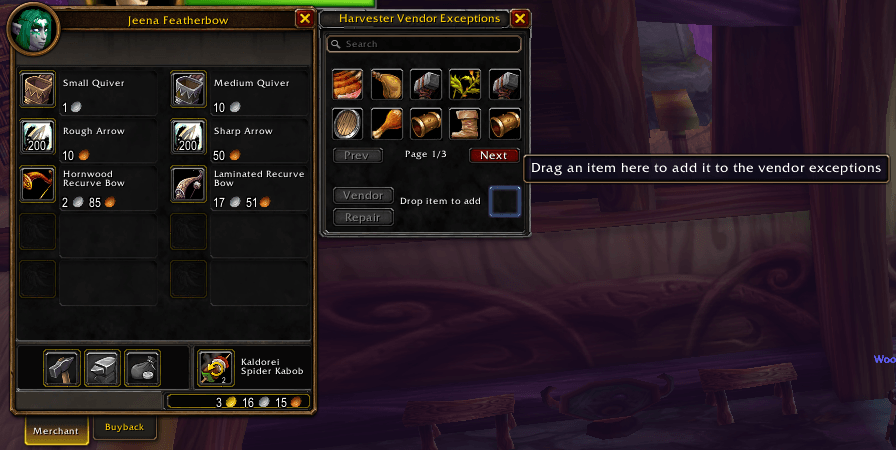
Merchant Helper frame
Description
Vendor & repair utility for World of Warcraft Forever.
When you open a merchant, Harvester can automatically sell your junk and repair your gear.
Even if you hide the Merchant Helper frame Harvester will still automate your visit if you choose.
Features:
Addon Options panel - Provides an alternative way to modify your exceptions list, view some basic statistics, and modify addon settings.
Merchant Helper frame - Allows you to drag and drop items from your inventory in order to add them to the vendor exceptions list. You can also view, modify, and search your list of exceptions.
Auto-vendor - Upon opening a merchant Harvester will sell your poor quality items, and items you have added to the exceptions list, up to 12 stacks at a time (this preserves the ability to buy them back if a mistake was made).
Vendor Assist - The Merchant Helper frame also had a 'Vendor' button. This button provides an alterante means of vendoring if Auto-vedor is disabled. This button also allows you to continue vendoring, 12 stacks at a time, should you have more than 12 stacks of items to vedor at once.
Auto-repair - After vendoring, in case you didn't have enough gold beforehand, Harvester will attempt to automatically repair all of your gear.
Repair Assist - The Merchant Helper frame also had a 'Repair' button. This button provides an alterante means of repairing if Auto-repair is disabled.
Vendor exceptions - Add those Kobold Mining Shovels and Shiny Fish Scales, if you're not a shaman, to the exceptions list and have them sold automatically along with your greys.
Usage:
/harvester or /harv - open the addon options panel.
Visit a vendor to see the Vendor Exceptions window. If you don't see the Merchant Helper frame check that Harvester is enabled under Addons and that the "Show with Merchant frame" is checked under Options -> Addons -> Harvester.
To add an item to the exceptions list:
From the Merchant Helper frame drag an item onto the drop slot to protect it from being treated as junk, we're not going to judge you for keeping Dripping Spider Mandibles, or to treat non-junk items, such as 'Shiny Fish Scales' as junk.
From the Addon Options -> Harvester -> Vendor Exceptions panel select the text box next to the 'Add' button and Shift-Click an item from your inventory, or type in the item id, then click the 'Add' button.
From the console type '/harvester add ' followed by the item link (shift-click the item), or itemID. ex. '/harvester add [Shiny Red Apple]' or '/harvester add 4536'
To remove an item from the exceptions list:
From the Merchant Helper frame click the icon of the item you want to remove from the exceptions list. You can search for the item by typing in the search box at the top of the Merchant Helper frame.
From the Addon Options -> Harvester -> Vendor Exceptions panel find the item in the list and click the corresponding 'Remove' button and the same row.
From the console type '/harvester remove ' followed by the item link (shift-click the item), or itemID. ex. '/harvester remove [Shiny Red Apple]' or '/harvester add 4536'
To toggle Auto-repair and Auto-vendor:
From the Addon Options -> Harvester panel click the appropriate checkbox. A checked box means the option is enabled.
From the console type '/Harvester toggle autorepair' or '/Harvester toggle autovendor' respectively.
To toggle showing the Merchant Helper frame:
From the Addon Options -> Harvester panel click the 'Show with merchant window' checkbox. This setting takes effect the next time you interact with a merchant.
From the console type '/Harvester toggle merchanthelper', this will take effect the next time you open a merchant. Additionally, if you are already at a merchant you can type '/Harvester show' to show the Merchant Helper frame if you have it hidden. '/Harvester hide' will hide it.
Harvester Team
