GuildPing
- By
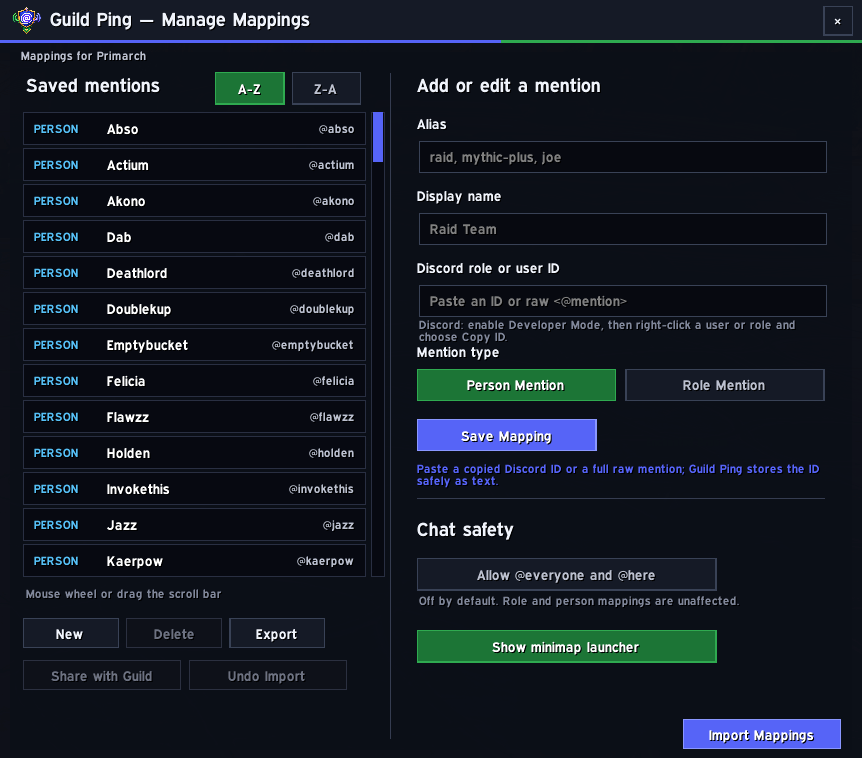
image.png
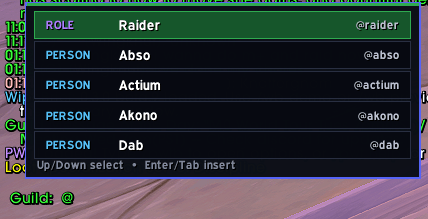
image-1.png
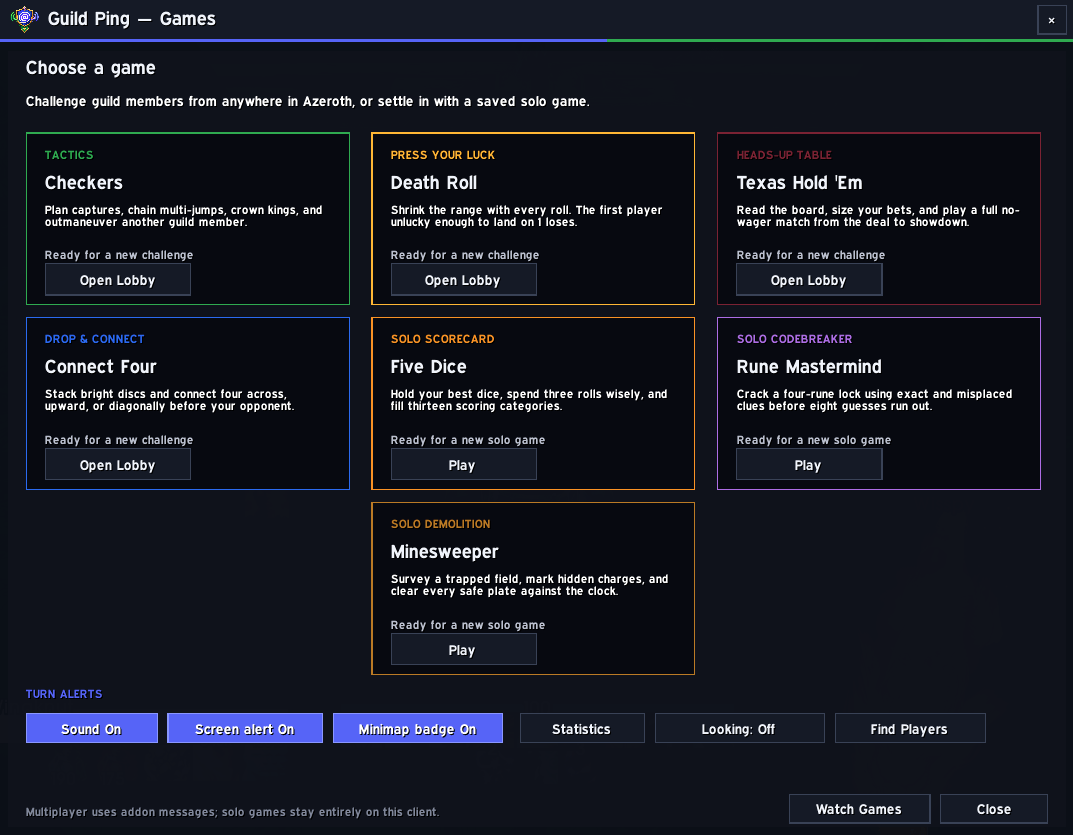
image-1.png
Description
Guild Ping
Guild Ping turns friendly aliases into Discord role and person mentions when you send a WoW guild-chat message through the official Discord bridge.
Getting started
- Connect Battle.net and Discord, then link your guild channel. Each player enables Discord under Game Menu → Options → Social; a guild leader or officer links the channel under Guild & Communities → Roster → Guild Settings → Discord Settings.
- Install Guild Ping for WoW Retail and enter
/reload. See CurseForge App — Getting Started if needed. - Enter
/gp manage, choose New, and add an alias such asraid. Paste the Discord ID, choose Person Mention or Role Mention, then choose Save Mapping. Person Mention is selected by default for new mappings. - In Guild or Guild Discord chat, type
@raid Need one healerand press Enter. Guild Ping converts the alias into Discord's raw mention format just before WoW sends it. - Optional: a guild leader or officer can choose Share with Guild in
/gp manage. The share enters each recipient's Inbox, where they can review additions and updates before approving it. Manual Export and Import Mappings remain available too. - Use the Guild Ping minimap logo as a shortcut: left-click opens the picker, right-click opens mapping management, and dragging moves it around the minimap. Press Escape to close any Guild Ping window.
Typing @ in Guild or Guild Discord chat also shows matching mappings. Use Up/Down to select a suggestion and Enter or Tab to insert it, or click it with the mouse.
Guild Ping keeps the raw Discord mention intact when sending and replaces configured mention tokens in the normal WoW chat frame with their friendly display names. For example, a configured raw user mention appears there as @Kaerpow while Discord still receives the functional mention.
The separate Guild & Communities history panel may still show raw Discord IDs. Blizzard exposes stored club messages to addons as opaque Kstrings, so addons cannot inspect or rewrite the visible message content in that panel. This does not affect the mention sent to Discord or the friendly display in the normal chat frame.
When Guild Ping detects a guildmate running a newer version, /gp and /gp manage show a red update notice along the bottom of the window. Version discovery uses WoW's private guild addon-message channel; it does not contact CurseForge or send chat messages visible to players.
Checkers
Guild Ping v0.1.5 includes a playable checkers game. Enter /gp checkers or choose Checkers from the Games hub to challenge an online guild member running the same version. Enter your own character name instead to start a local practice game and control both sides. Multiplayer challenges and moves use WoW's private guild addon-message channel, so both players can be in different zones.
The challenger plays Black and moves first. Pieces can be dragged to a highlighted destination or moved with the original click-to-select controls. Captures are optional, while a multi-jump must continue once its first capture is made. Legal movement, king promotion, blocked-position wins, resignation, turn sequencing, and board-state verification are enforced independently by both clients.
Death Roll
Guild Ping v0.1.5 also includes Death Roll. Players alternate rolling from 1 to the current maximum; each result becomes the next maximum, and the first player to roll 1 loses. Challenges offer starting ranges of 100, 1,000, or 10,000, while challenging your own character starts local practice. Results are independently verified by both clients, and each roll is presented with a tumbling dice-and-number animation.
Texas Hold 'Em
Guild Ping v0.1.6 adds complete two-player heads-up Texas Hold 'Em. Open /gp poker or choose Texas Hold 'Em from the Games hub, select a play-chip stack, and invite an online guild member—or enter your own name for local practice. The table enforces 10/20 blinds, rotating dealer position, pre-flop through river betting, folds, checks, calls, preset or custom raise-to amounts, all-ins, automatic showdowns, hand ranking, split pots, and match wins.
Poker messages use private addon whispers so only the challenged player receives their hole cards. The challenger hosts the shuffle for this casual guild table; play chips have no outside value, and Guild Ping does not track or transfer wagers.
Finished Checkers, Death Roll, Hold 'Em, and Connect Four games include Play Again. Practice restarts immediately, while multiplayer sends a new challenge to the same guild member with the original starting settings.
Connect Four
Guild Ping v0.1.7 adds Connect Four. Open /gp connectfour or choose it from the Games hub to challenge a guild member, or enter your own name for local practice. Yellow moves first; click any open column to send a disc tumbling into place and connect four horizontally, vertically, or diagonally. The winning connection pulses on the board, and games support synchronization, resignations, rematches, saved state, and turn alerts. An account-wide piece-color selector offers Default, Sky blue, Teal, Violet, and High-contrast white; it changes only the local player's side and never alters game messages or the opponent's display.
Five Dice
Five Dice is a saved solo scorecard game available through /gp fivedice or /gp dice. Roll up to three times per round, click individual dice to hold them, and commit one score across six number categories and seven combination categories. Live previews show exactly what every available category would score. The scorecard includes the 63-point upper-section bonus, animated rerolls, final totals, Play Again, best score, average score, and total-points statistics.
Rune Mastermind
Rune Mastermind is a saved solo codebreaking game available through /gp mastermind or /gp runes. Build a four-rune guess and use the exact and misplaced clues to crack the hidden lock within eight attempts; repeated runes are allowed. Each rune uses a distinct carved symbol and color, with letter labels on interactive selections for another non-color cue. Finished puzzles reveal the secret and track solves, misses, best attempt count, and average guesses.
Minesweeper
Guild Ping v0.1.9 adds a saved solo Minesweeper game through /gp minesweeper, /gp mines, or the Games hub. Choose a Beginner (9×9, 10 mines), Intermediate (16×16, 40 mines), or Expert (30×16, 99 mines) field. Left-click to survey a plate and right-click to place a flag; clicking a revealed number clears its remaining neighbors when the nearby flag count matches. The first survey always opens a mine-free 3×3 area. Finished fields track clears, detonations, total survey time, and the best clear time for every difficulty.
Game persistence and social features
- Active multiplayer and solo games survive
/reloadand logout. Multiplayer games automatically synchronize when both players return; stale saves can be retried with Resume or removed with Abandon Game and expire after 24 hours. - Optional turn sounds, screen alerts, and a blue minimap badge can be toggled from the Games hub.
- Statistics shows per-guild competitive records, solo scores, puzzle solves, and recent results. Hold 'Em also includes a scrollable hand history with public cards and betting actions.
- Looking to Play is opt-in, posts a one-time chat notice to guild members using Guild Ping, refreshes quietly every minute, and lets them send one-click challenges. Availability disappears automatically when stale.
- Watch Games lists advertised Checkers and Hold 'Em games. Poker spectator updates never contain either player's private hole cards.
Button guide
Mention picker
- Manage — closes the picker and opens the mapping manager.
- Help — prints a concise command and usage reference in the WoW chat window.
- Inbox — opens queued guild mapping shares. Its count shows how many shares are waiting.
- Mention result — clicking a role or person closes the picker and inserts its configured alias into the appropriate guild-chat box.
- Results scroll bar — drag the blue thumb to move through longer result lists. The mouse wheel also works anywhere over the picker.
- × — closes the window. You can also press Escape.
Minimap launcher
- Left-click — opens the searchable mention picker.
- Right-click — opens the mapping manager.
- Drag — moves the launcher around the minimap and remembers its position.
- Red number badge — shows how many incoming guild mapping shares are waiting.
- Show minimap launcher in
/gp manage— hides or restores the launcher.
Mapping manager
- New — clears the editor so you can create a new mapping.
- Delete — permanently removes the selected mapping. It is disabled until a saved mention is selected.
- Export — generates a
GP2export string containing the current guild's mappings, selects it, and opens a native copy dialog. Press Ctrl+C to copy it. - Share with Guild — available to the guild leader and officers. Sends the current guild mappings privately to Guild Ping users in the guild; recipients must review and approve the changes.
- Undo Import — restores the complete mapping set from immediately before the most recently approved import for this guild. A newer import replaces the previous undo point, and manually editing a mapping clears it.
- A-Z / Z-A — sorts Saved mentions by display name. The selected direction is shown in green and remembered for each guild.
- Saved mentions scroll bar — drag the blue thumb to move through longer lists. The mouse wheel continues to work anywhere over the manager.
- Person Mention — identifies the mapping as an individual Discord user. It is selected by default for new mappings, and the selected mention type is shown in green.
- Role Mention — identifies the mapping as a Discord role. The selected mention type is shown in green.
- Save Mapping — validates and saves the alias, display name, mention type, and Discord ID. When editing an existing mapping, it updates that entry.
- Allow @everyone and @here — toggles mass mentions. When off, Guild Ping changes them to
[everyone]and[here]before sending. Saved role and person mentions are unaffected. - Import Mappings — opens the import window. A valid Guild Ping string is reviewed before it can be merged into the current guild profile. Matching aliases can be updated without deleting unrelated mappings. Legacy
GP1exports remain supported. - Saved mention row — selects that mapping and loads it into the editor.
- × — closes the window. You can also press Escape.
Import review and export dialogs
- Review Changes — validates a pasted Guild Ping string and opens a non-destructive summary of additions, updates, unchanged entries, and skipped invalid or duplicate records.
- Apply Changes — applies the reviewed additions and updates. Guild-shared imports use the same review and never apply automatically.
- Cancel — closes the review without modifying mappings.
- Select All — highlights the entire text field for copying or replacement.
- Close — closes the native export-copy dialog.
- × — closes the import window. You can also press Escape.
Incoming-share inbox
- Shares are queued for the current play session instead of interrupting whatever the recipient is doing.
- Each entry shows its sender, the sender's current guild rank, received time, and live add/update/unchanged totals.
- Review opens the normal non-destructive import review. Applying it removes that entry from the inbox.
- Dismiss removes one share without changing mappings; Dismiss All clears the inbox.
- Chat alerts are delayed until combat ends. The picker and minimap badges still show the number waiting.
Commands
/gp— open the searchable picker./gp <alias> [message]— prepare a message in the native chat box./gp manage— manage mappings and safety settings./gp games— open the Guild Ping games hub./gp checkers— open Checkers directly./gp deathrollor/gp dr— open Death Roll directly./gp poker— open Texas Hold 'Em directly./gp connectfour,/gp connect4, or/gp c4— open Connect Four directly./gp fivedice,/gp five-dice, or/gp dice— open Five Dice directly./gp mastermind,/gp runemastermind, or/gp runes— open Rune Mastermind directly./gp minesweeper,/gp mines, or/gp sweeper— open Minesweeper directly./gp add role|user <alias> <Discord ID> [display name]— add a mapping without opening the manager./gp remove <alias>— remove a mapping./gp exportand/gp import— manually copy or review a mapping export./gp mass on|off— allow or block@everyoneand@here.
Finding Discord IDs
Follow Discord's ID guide: enable User Settings → Advanced → Developer Mode, then right-click a role or user and choose Copy ID. Paste the ID into Guild Ping; you can also paste a complete raw user (<@ID>) or role (<@&ID>) mention and Guild Ping will detect its type. See Discord's mention formats for the underlying syntax.
Discord IDs are stored as strings so their precision is never lost in Lua.
Safety
@everyone and @here are blocked by default. Guild Ping only prepares or transforms native chat text; it never posts on a timer or without a player sending a chat message.
GuildPing Team