GuildManager
- By
Screenshot 2026-10-11 021511.png
Screenshot 2026-10-11 021551.png
Screenshot 2026-10-11 021719.png
Screenshot 2026-10-11 021624.png
Screenshot 2026-10-11 021649.png
Description
Guild Manager
Guild Manager is a comprehensive World of Warcraft Retail addon for guild recruitment. It streamlines the process of finding unguilded players, sending personalized recruitment whispers, extending invitations, tracking player status, and maintaining a detailed history of all recruitment activities.
Purpose
Guild recruitment is time-consuming and error-prone. Guild Manager automates and organizes the core recruitment workflow:
- Find Players: Search WoW's
/whodatabase for unguilded players in your target level range. - Recruit: Send pre-configured recruitment messages to individual players or broadcast to your guild.
- Track Status: Monitor whether players have been whispered, invited, joined, or declined.
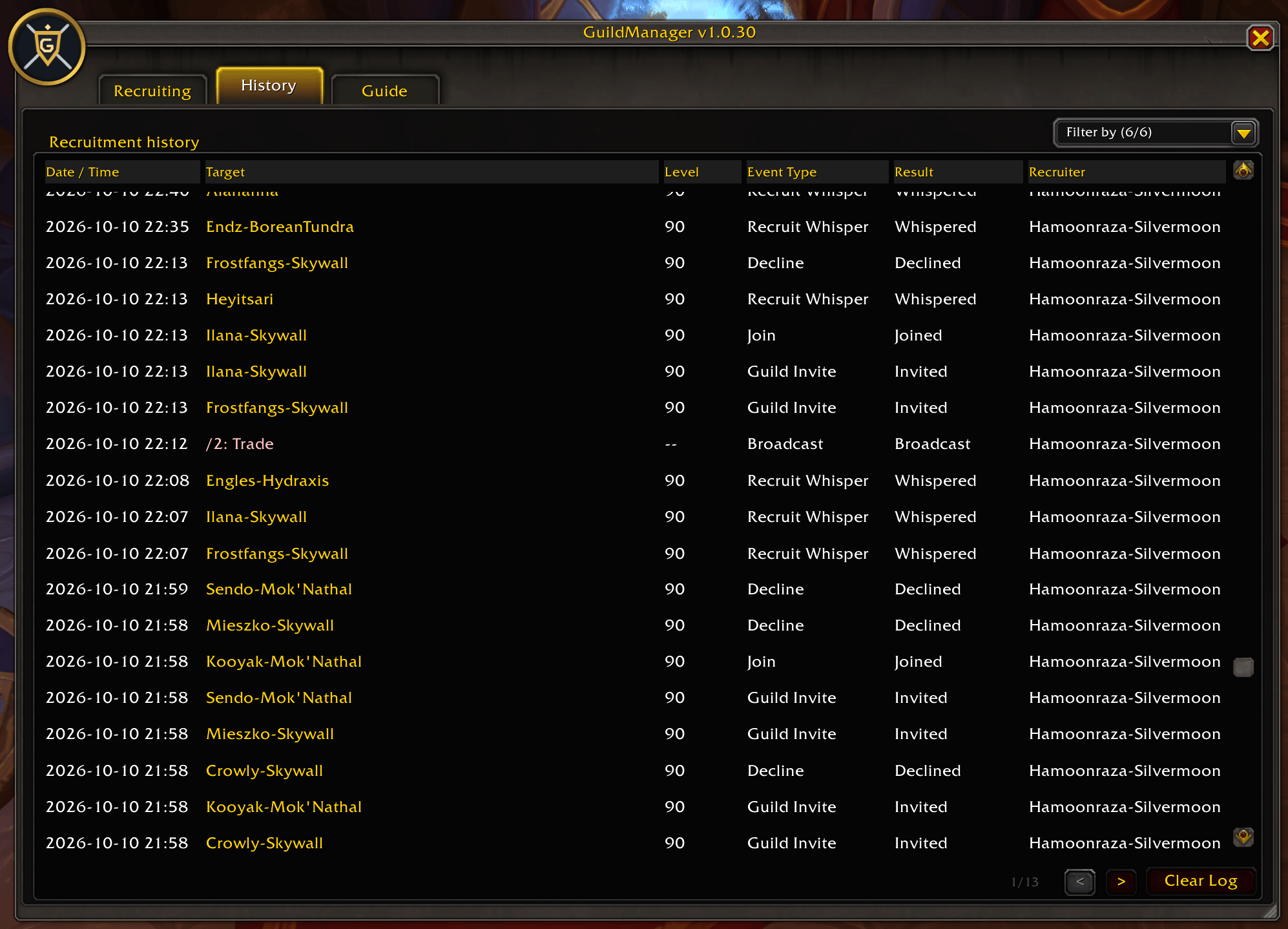
- Manage History: Review all recruitment activities with timestamps, recruiter names, and detailed logs.
- Per-Guild Profiles: Maintain separate recruitment messages and histories for each guild on your account.
Quick Start
Open the Addon
- Type
/gm– Opens the last viewed tab (Recruiting by default on first use) - Type
/gm recruit– Opens the Recruiting tab - Type
/gm history– Opens the History tab - Type
/gm guide– Opens the Guide tab - Type
/gm hide– Closes the window - Type
/gm help– Shows all available commands - Minimap Icon – Left-click opens Recruiting, right-click opens History, drag to reposition
First Time Setup
- Write your recruitment message in the Recruiting Message editor (up to 255 visible characters)
- Set your target player level range (e.g., 70-80)
- Click Search to find unguilded players
- Select a player and click Recruit to whisper them, or Invite to send a guild invite
- Check the History tab to review all recruitment activities
Features
Recruiting Tab
Finding Players
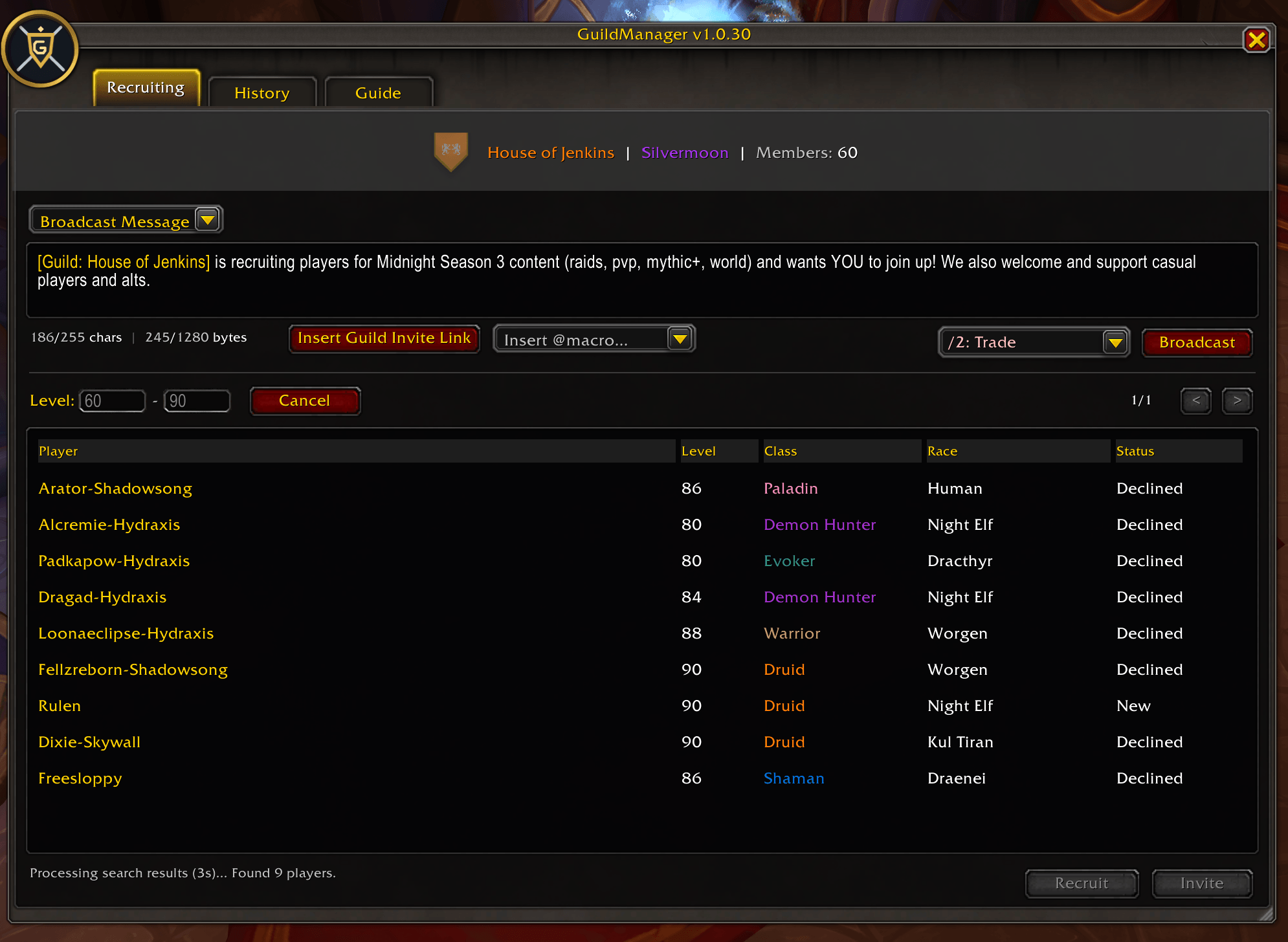
- Level-based Search: Enter minimum and maximum player levels, then click Search to query WoW's
/whoservice - Search Status: Real-time status message shows "Searching for guildless players level A to B…" initially, then "Processing search results (5s)…" with countdown timer
- Cancel Search: Click the Cancel button to stop an active search at any time; the button appears in place of the Search button while searching
- Search Completion: After 5 seconds of processing, displays "Found Z matching players total."
- Pagination: Results are displayed 10 per page with navigation arrows (
<and>) - Smart Results: Only guildless players are shown; results are fetched directly from the WoW server
Player Table
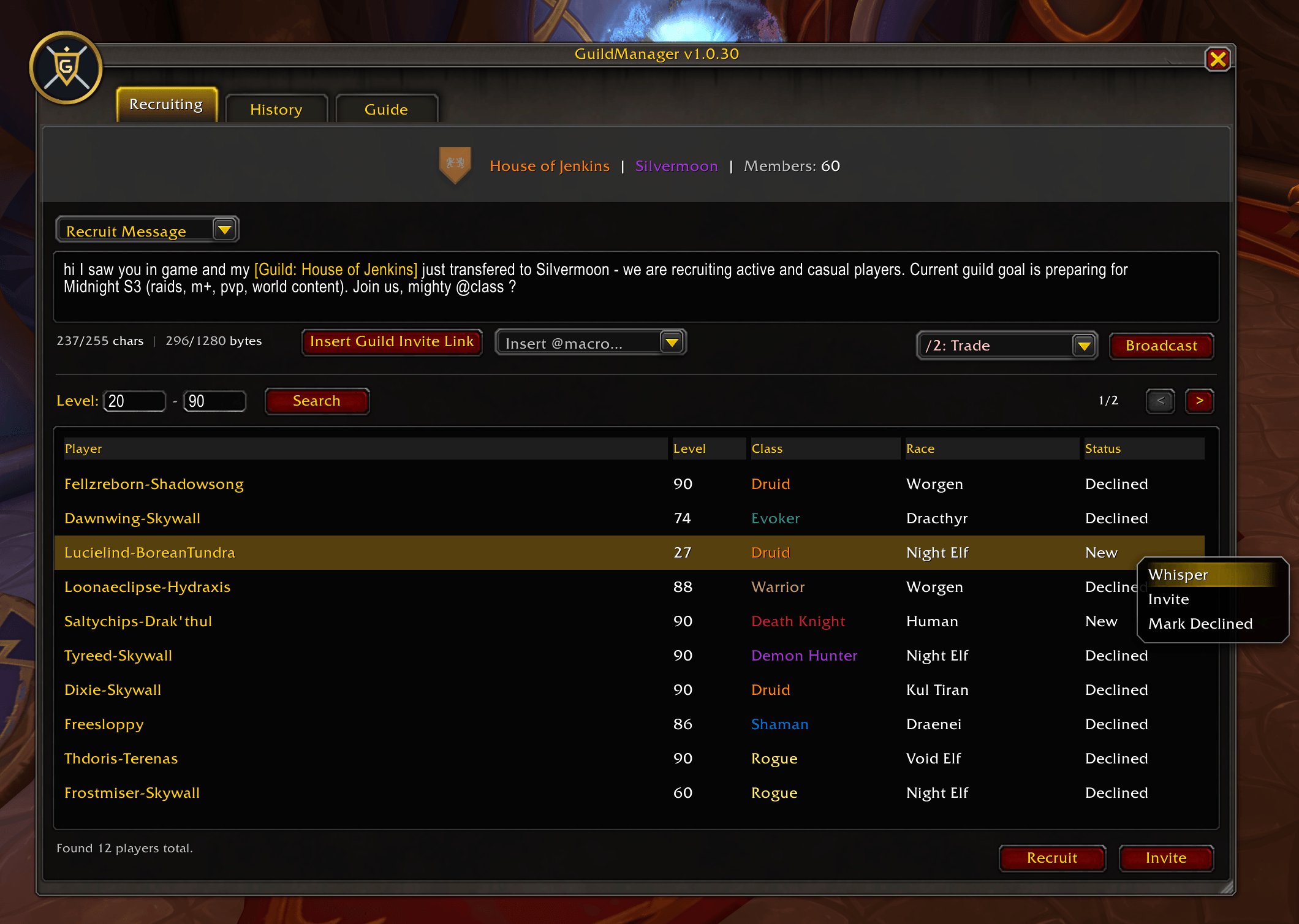
- Columns: Player-Realm, Level, Class (color-coded), Race, and Current Status
- Sorting: Click any column header to sort ascending, descending, or return to original server order
- Status Display: Shows the latest recorded status for each player (New, Whispered, Invited, Declined, Joined)
- Selection: Click a row to select a player; actions are disabled until a player is selected
Recruitment Actions
- Recruit Button: Sends your configured message as a whisper to the selected player and logs the action
- Invite Button: Sends a guild invitation to the selected player (does not send a message)
- Right-Click Menu: Quick actions including:
- Whisper / Invite / Mark Declined (for New players)
- Invite / Mark Declined (for Whispered players)
- Mark Declined / Reset (for Invited players)
- Re-Invite / Reset (for Declined players)
Message Formatting
- Message Editor: 3-line rich text editor with WoW hyperlink support
- Live Character Counter: Shows
N/255 Chars | N/1280 Bytesas you type - Character Limits: Enforces WoW's message caps (255 visible bytes, up to 1,280 total bytes with formatting)
- Guild Invite Link: Click Insert Guild Invite Link to embed a live Guild Finder link in your message (requires active Guild Finder listing)
- Hyperlink Support: Paste WoW item links, achievement links, and other hyperlinks directly into the message
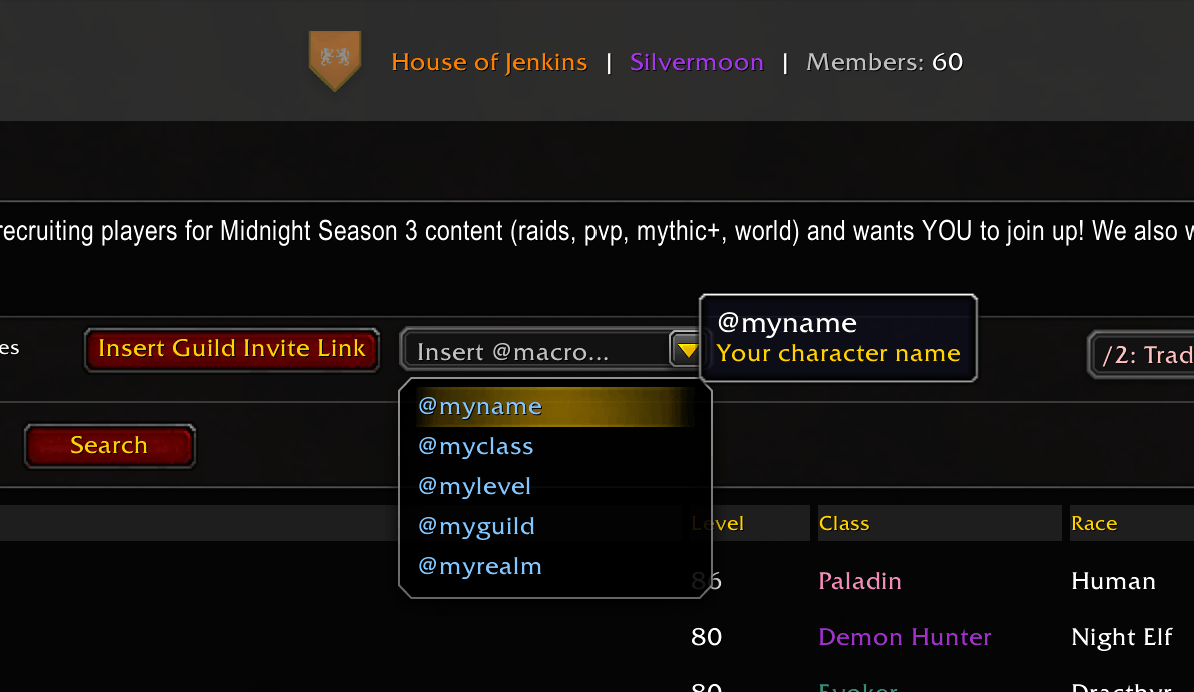
Template Variables
Personalize your recruitment and broadcast messages using template variables. Variables are replaced dynamically when the message is sent:
For Whisper Messages (individual player recruitment):
@player– Target player's name (without realm)@class– Target player's class name (e.g., "Warrior", "Mage")@level– Target player's level number@myname– Your character name@myclass– Your character's class name@mylevel– Your character's level number@myguild– Your guild name@myrealm– Your realm name
For Broadcast Messages (guild/channel broadcasts):
@myname– Your character name@myclass– Your character's class name@mylevel– Your character's level number@myguild– Your guild name@myrealm– Your realm name
Example Whisper:
Hey @player! Welcome to @myguild on @myrealm. Your class is @class and level @level. I'm @myclass level @mylevel.When sent to "Thrall", this becomes:
Hey Thrall! Welcome to <YourGuild> on <YourRealm>. Your class is Shaman and level 70. I'm Warrior level 70.Example Broadcast:
Recruiting for @myguild on @myrealm! I'm @myclass level @mylevel. New players welcome.When broadcast, this becomes:
Recruiting for <YourGuild> on <YourRealm>! I'm Warrior level 70. New players welcome.Error Handling: If a message contains a template variable that is not valid for the target (e.g., @player in a broadcast), the addon displays a red error message instead of sending the message.
Broadcast System
- Multi-Channel Broadcasting: Send your message to multiple chat targets from one dropdown
- Available Channels:
/s: Say– Same zone chat/y: Yell– Louder zone chat/p: Party– Current party members/i: Instance– Dungeon/Raid instance chat/g: Guild– All guild members/o: Guild Officers– Officer chat only- Joined Channels – Custom chat channels you've joined
- Colored Targets: Each target displays in its corresponding WoW chat color
- Availability: Unavailable targets (e.g., not in a guild, no party) are greyed out but remain selectable
- Last Target Memory: Your most recently used broadcast target is saved
History Tab
Activity Log
- Comprehensive Records: Every recruitment action is logged with timestamp, player name, level, event type, and recruiter character
- Pagination: Entries are displayed 100 per page with navigation arrows (
<and>) at the bottom right - Max 5000 Entries: Each guild profile retains up to 5000 historical entries
Columns
- Date/Time:
YYYY-MM-DD HH:MMformat - Target: Player name, or broadcast target label (colored by chat type, e.g.,
/2: Trade) - Level: Player's level when logged (blank for broadcast entries)
- Event Type: Recruit Whisper, Guild Invite, Broadcast, Decline, Join, or Reset
- Result: Any additional context (e.g., "Declined" status)
- Recruiter: Character name and realm of the recruiter who logged the action
Filtering & Sorting
- Event Filter: Use the dropdown to show/hide specific event types (Recruit Whisper, Invite, Broadcast, Decline, Join, Reset)
- Sorting: Click column headers to sort ascending, descending, or return to newest-first order
- Multi-Select Filter: Checkboxes allow showing multiple event types at once
Action Buttons
- Clear Log: Deletes all history entries for the current guild (with confirmation prompt)
- Status Reset: Reset a player's status back to "New" without deleting their history entries (right-click player in Recruiting tab)
Automatic Detection
- Decline Detection: System messages about declined invitations are automatically captured and logged
- Join Detection: Players who join the guild are automatically identified and logged (after initial guild roster snapshot)
- Level Tracking: Player levels from search results and guild roster are automatically recorded
Guild Profiles
Per-Guild Settings
Guild Manager maintains separate data for each guild on your account:
- Recruitment Message – Custom message per guild
- Level Range – Target player levels per guild
- History – All recruitment activities per guild
- Broadcast Target – Remembers last-used broadcast target per guild
- Filter Preferences – Event filter selections per guild
Profile Organization
- Profiles are keyed by Realm + Guild Name
- Characters on the same realm and in the same guild share these settings
- Switching to a different guild on the same realm automatically switches profiles
- Unguilded characters have their own
unguildedprofile
Data Migration
When updating Guild Manager, any legacy settings from earlier versions are automatically migrated to the new profile system (this happens only once, on first load).
Window Control
Interaction
- Drag to Move: Click and drag the title bar to reposition the window
- Resize: Drag the bottom-right corner to resize horizontally (780–1400px wide; height is fixed at 700px)
- Close: Click the X button or press ESC
- Focus: Click the window to bring it to the front; it will not stay permanently on top of other UI elements
Tab Navigation
- Recruiting Tab: Default tab for finding and recruiting players
- History Tab: Review all recruitment activity and manage player status
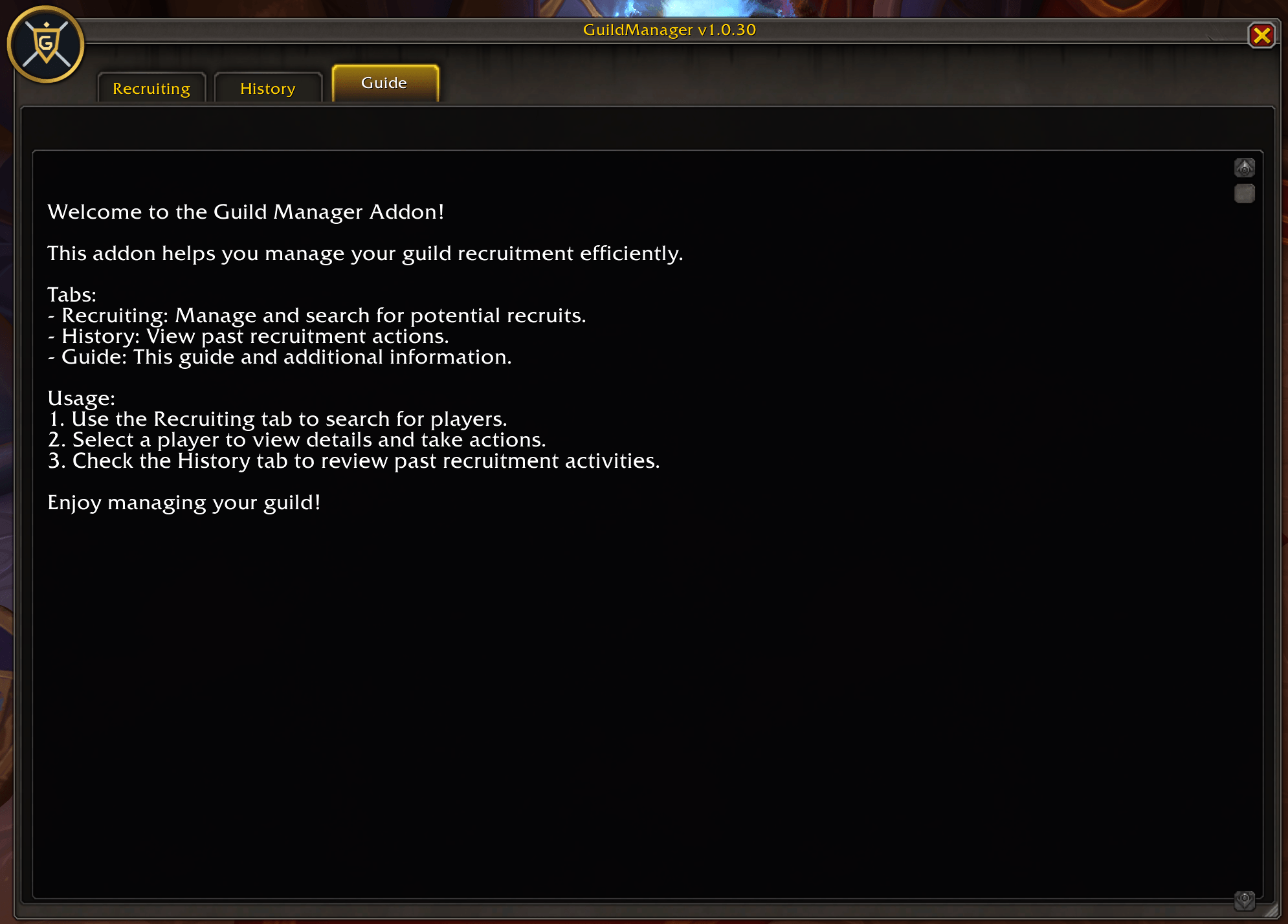
- Guide Tab: View a brief in-addon overview of the available tabs and workflow
Limits & Constraints
- Server Throttling: WoW's
/whoservice may return no results or partial results if the server is busy - Result Limits: Blizzard limits
/whoresults; very large searches may not return all matching players - Guild Finder Links: A live Guild Invite Link requires your guild to have an active Guild Finder listing; publish your guild in the in-game Guild Finder if a link is not available
- History Storage: Guild Manager retains up to 5000 entries per guild profile; oldest entries are removed first
Tips & Tricks
- Segment Your Search: Instead of searching 1–80, try 70–80, then 60–70, etc., to get better result coverage
- Personalize with Template Variables: Use
@player,@class,@level,@myclass,@mylevelin whispers and@myname,@myclass,@mylevel,@myguild,@myrealmin broadcasts for personalized messages that stand out - Broadcast After Whispers: Use Broadcast to send a friendly guild-wide message after recruiting to build community
- Check Status Before Re-Inviting: Use History to see if a player declined before attempting to re-invite
- Save Your Message: Your recruitment message is saved automatically per guild
- Multiple Guilds: If you manage multiple guilds, each has its own message and history; switch profiles by changing guilds
Support
For issues or feature requests, refer to the Guild Manager Lua addon file for implementation details or contact addon support.
Version: Retail 1.0.30 | Last Updated: 2026-10-11
GuildManager Team