GuildKit
- By
A lightweight toolkit that docks into your guild window: roster search, analytics, an activity feed, auto-invite, a ban list, and officer purge & rank tools — for leaders and members alike, on Retail, TBC, and Classic Era.
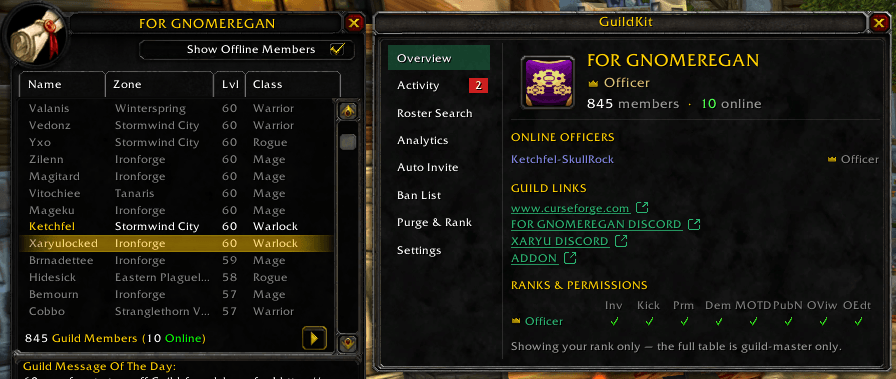
overview.png
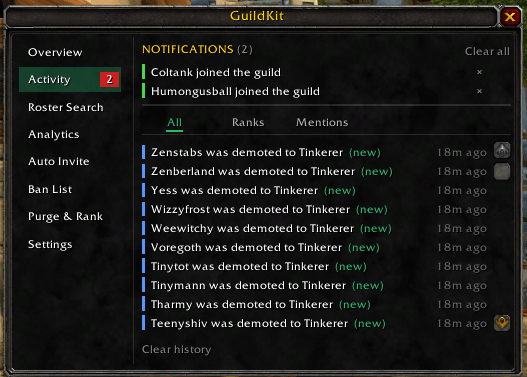
activity.png
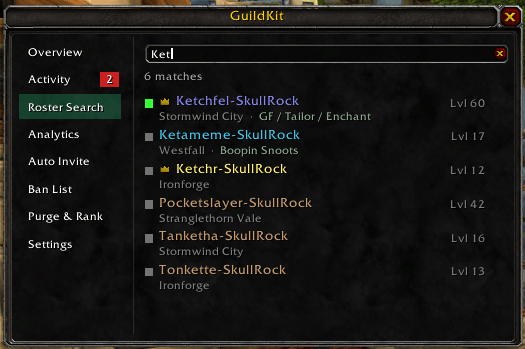
search.png
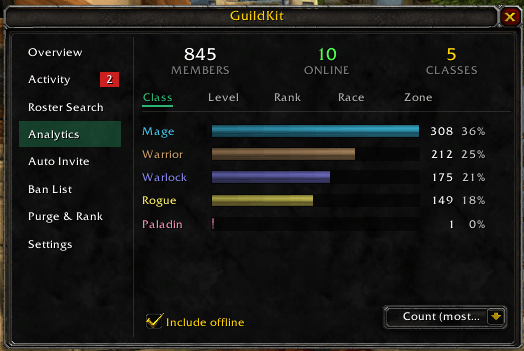
analytics.png
Description
Guild Kit
A lightweight toolkit that docks into your guild window with roster search, member analytics, a guild-activity feed, auto-invite, a ban list, and bulk purge/rank tools — for guild leaders and members alike. Works on Retail, TBC, and Classic Era.
A single panel docks beside your guild window with a sidebar to navigate between features.
Features
- Overview — your guild at a glance: name and member counts, your rank, the online officers, any links pulled from the guild MOTD/info (click to copy), and Your Permissions — the key rights your own rank holds.
- Roster Search — fast, results-only search across the roster by name, class (
mage), race (tauren), zone, level (exact, range, comparison, or lists like19, 60-70), and note. Left-click a result to whisper, right-click to kick, shift-click to ban; hover for details, including an offline member's last-online time. - Analytics — distribution charts for your guild with sub-tabs for Class, Level, Rank, Race, and Zone: a members / online / count summary and colored bars with counts and percentages. Useful for understanding the makeup of a large guild.
- Activity — a local feed of guild joins, level-ups, rank changes, and departures, plus a Mentions tab that flags when guild or officer chat name-drops you (or your own watch-words) while you're online. Flag the events you care about as Notifications — surfaced at the top of the page with a red count badge on the nav, dismissible per character. Everything stays on your client; nothing is shared or uploaded.
- Auto Invite — invite players who whisper a trigger phrase (default
ginv; set several, comma-separated), with optional name / level / class / race gates. Players on your Ban List are auto-rejected, and pending requests show a count badge on the nav so you notice them from any page. Off by default; requires guild invite permission. - Ban List — keep a per-guild blacklist with reasons; banned members are flagged when they're in the guild now. Click to queue them for a kick (or Ban & Kick), then press the action key to remove them (WoW requires a real key-press to run guild kicks). Requires guild remove permission.
- Purge & Rank (officers) — clean up or advance the roster using saved, named filters built from level, inactivity (days offline), note text, and rank criteria: define them once and re-run anytime, with a live match preview. Purge kicks members matching any checked filter; Promote / Demote moves matches to a destination rank (up or down). Mark keepers as protected (a list, exempt note keywords, or Ctrl-click a search result) and they're never touched. Always preview-then-confirm, never includes you or anyone at/above your rank, and runs on a key-press once you've reviewed. Requires guild kick, promote, or demote permission.
- Settings — preferences and guild-UI controls, including a switch between the Classic guild window and the modern Guild & Communities window, and which ranks count as officers on the Overview.
Usage
Open your guild panel (Classic or modern) and click the Guild Kit tab on the window, or type /gk anywhere — it opens the guild window for you if it's closed. Pick a feature from the sidebar on the left.
- Roster Search — type a name, class (
mage), race (tauren), zone, or level query (e.g.60,40-60,>50,19, 60-70); left-click a row to whisper, right-click to kick, shift-click to ban, Ctrl-click to protect from Purge & Rank. - Analytics — pick Class / Level / Rank / Race / Zone to switch the chart; use the Sort dropdown to order by count or natural order; toggle the Include offline checkbox to count everyone or only online members.
- Activity — browse All / Joins / Level-ups / Ranks / Leaves / Mentions; left-click a row to whisper (right-click to kick, shift-click to ban). Choose which events are tracked and which become Notifications (and your mention watch-words) under Settings → Activity.
- Auto Invite — enable it, set your trigger phrase(s) and any gates (name / level / class / race), then approve pending requests from the page (or a popup) — invites send on your click.
- Ban List — add a name + reason (or shift-click a search result); members you've banned are surfaced under "In Guild Now" when present. Click each member (or Kick All) to queue them, then press the action key shown to remove them.
- Purge & Rank — create a filter (or check a saved one) from level / inactivity / note / rank criteria, review the matched members, tick I reviewed these, then press the action key shown to act. Manage protected keepers on the Protected tab. Long lists take a few presses; for a multi-rank move, members step toward the destination over successive presses.
- Settings — tick Use Classic Guild UI to switch guild UI styles (prompts a UI reload); set your Officer Ranks for the Overview.
- Drag the panel by its title bar to reposition it.
Pages that need a guild permission you don't have (Auto Invite, Ban List, Purge & Rank) are greyed out in the sidebar.
Slash commands
| Command | Action |
|---|---|
/gk |
Toggle the panel (opens the guild window too if it's closed) |
/gk hide |
Close the panel |
/gk button |
Show/hide the Guild Kit tab on the guild frame |
/guildkit |
Same as /gk |
Installation
Copy the GuildKit folder into your Interface/AddOns directory for the client you play, then restart the game (or /reload).
WoW Forever beta note
The Forever beta client (1.60.x) has a bug where it doesn't read addon settings
files back when it starts, so settings reset every time you fully close the
game. Guild Kit works around as much of this as an addon can: your
settings are also saved per character and restored automatically, so they survive
/reload and logging out to character select. Restoring after a full client exit
isn't something an addon can fix — Blizzard has said they'll fix the underlying
bug. Other clients are unaffected.
GuildKit Team