


Graphics Overkill Forever
- By
Unlock WoW Forever’s hidden graphics settings with sliders, toggles, presets and profiles: thicker grass, longer view distance, less pop-in and sharper shadows.
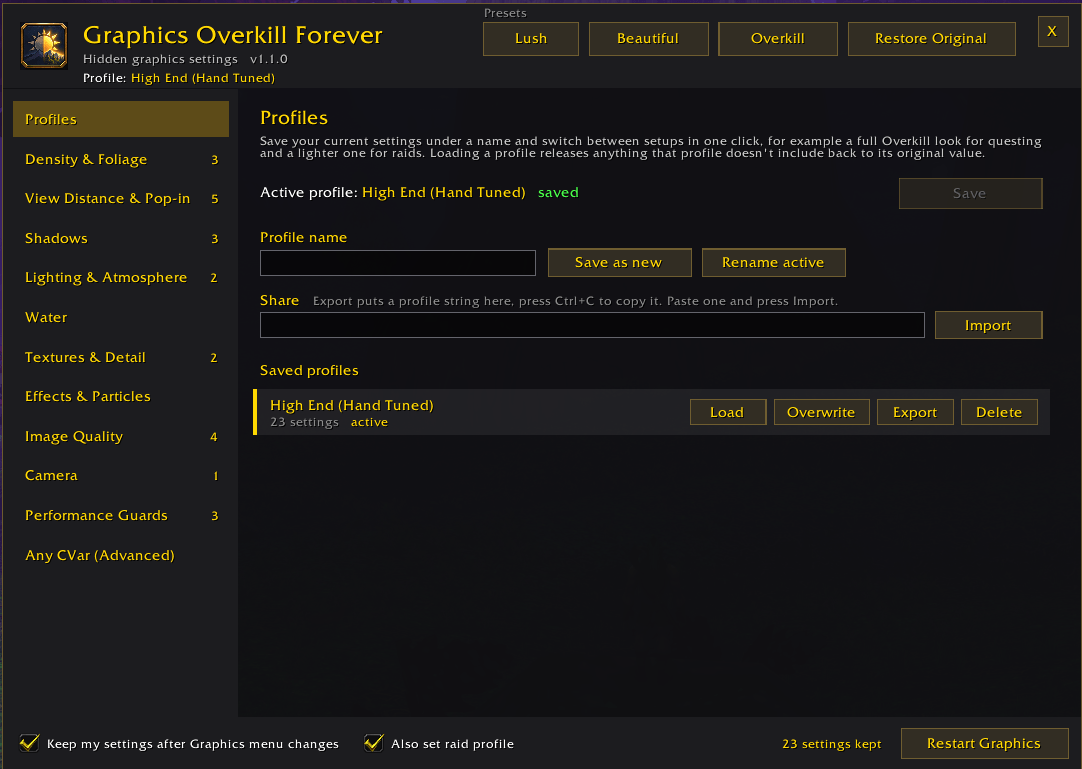
GFXO-Screenshot-1.png
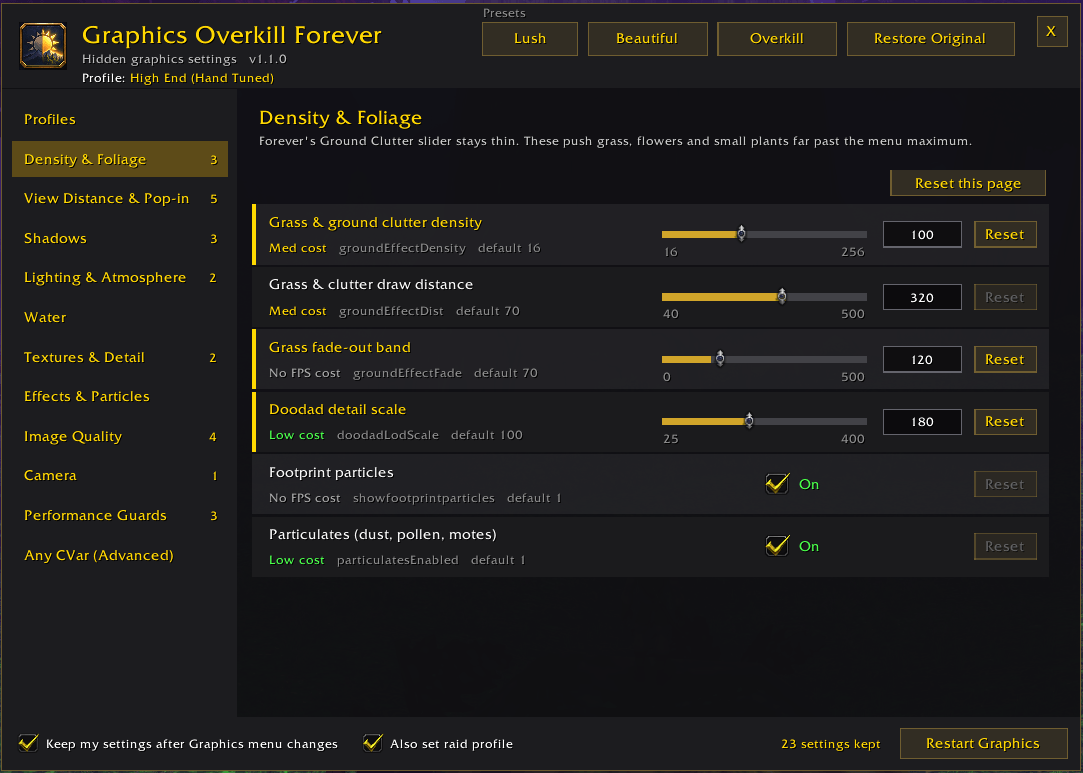
GFXO-Screenshot-2.png
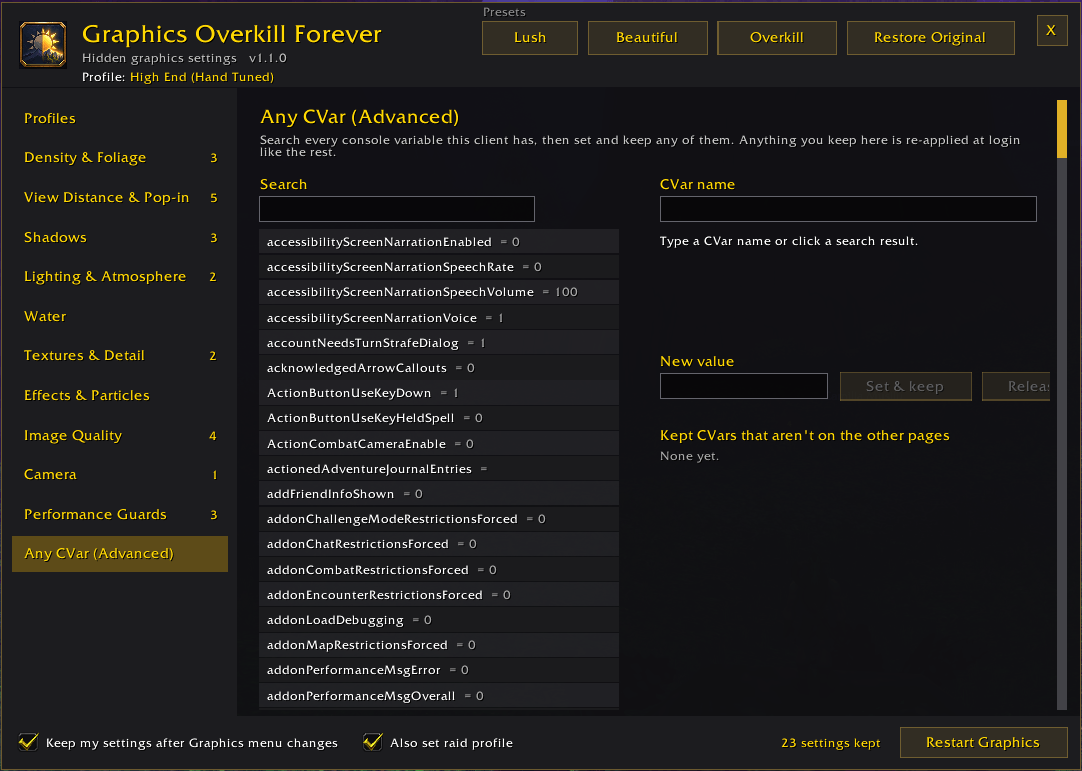
GFXO-Screenshot-3.png
Description
Graphics Overkill Forever
WoW Forever looks great, but its Graphics menu only exposes a fraction of what the engine can do. Dozens of console variables (CVars) control grass density, draw distance, object pop-in, shadow quality and more, and most players only reach them by pasting /console commands from forum posts.
Graphics Overkill Forever puts them all in one window with real sliders, checkboxes and descriptions, and makes sure your choices stick.
Features
- 80 hidden graphics settings across ten pages: Density & Foliage, View Distance & Pop-in, Shadows, Lighting & Atmosphere, Water, Textures & Detail, Effects & Particles, Image Quality, Camera and Performance Guards.
- Three presets. Lush gives thick grass, much less pop-in, a 5000-yard view distance and sharper shadows and textures. Beautiful is a hand-tuned setup with fuller grass, less pop-in, long terrain and building detail, ray-traced shadows and a very clean, anti-aliased image. Overkill pushes everything to the limit.
- Profiles. Save your setup under a name and switch between looks in one click, for example a full Overkill look for questing and a lighter one for raids. Share a profile with a friend as a single line of text.
- Your settings stick. Moving a slider in the game's own Graphics menu rewrites many of these values behind the scenes. Graphics Overkill Forever puts yours back right after, and again after every login and loading screen.
- Nothing is permanent. Every setting has a Reset button, and Restore Original puts back exactly what you had before you installed the addon.
- Honest about limits. If the engine won't accept a value, the row tells you what it kept instead.
- Detailed tooltips for every setting, with what it does, its current value, the game default, your original value and a rough FPS cost.
- Any CVar page to search all ~1,800 console variables in the client and keep any of them, not just the ones in the menu.
- Raid profile support. Optionally writes the same values to the game's separate raid graphics settings.
- Performance Guards page for the engine features that quietly lower detail to protect FPS, plus NVIDIA Reflex and other low latency modes.
How to open it
- Type /gfxo (or /overkill)
- Click it in the addon list button next to the minimap
- Or go to Options > AddOns > Graphics Overkill Forever
Commands
| Command | What it does |
|---|---|
/gfxo |
Open or close the window |
/gfxo lush / beautiful / overkill |
Apply a preset |
/gfxo restore |
Put every setting back to its original value |
/gfxo profile save <name> |
Save your current settings as a profile |
/gfxo profile load <name> |
Load a profile |
/gfxo profile |
List your profiles |
/gfxo list |
Show every setting Graphics Overkill Forever is managing |
/gfxo find <text> |
List console variables containing that text |
/gfxo gx |
Restart the graphics engine |
Good to know
- Higher settings cost FPS. Every row shows a rough cost so you can decide what's worth it. The Beautiful and Overkill presets are aimed at strong, current graphics cards.
- Some settings need a graphics restart (MSAA, for example). Use the Restart Graphics button at the bottom of the window.
- The two cinematic camera options are Blizzard "Action Camera" test settings. The game shows a one-time "experimental feature" popup when they're turned on. Press Accept.
- HDR, brightness, contrast and gamma aren't included because the game's own Graphics menu already covers them.
- Settings are account-wide, just like the game's own graphics options.
- WoW Forever is still evolving. If Blizzard removes or limits a setting in a future build, the addon greys that row out instead of throwing errors.
Feedback
Found a setting that should be in the menu, or a value the engine won't accept? Leave a comment on this page and include your /gfxo list output if you can.
Graphics Overkill Forever Team
