


GearSaver
GearSaver prevents accidental sale, disenchanting, or destruction of equipment-set items, and selected items, by detecting set items in your inventory and blocking those actions with warnings and UI overlays.
gs1.png
gs2.png
gs3.png
Description
What GearSaver does (short):
- GearSaver is like a little safety guard that puts a sticker on your important armor and weapons so you don't accidentally sell or break them.
- Compatible with Bagnon & Baganator
How the addon helps you (easy example):
- Imagine you have a favorite superhero costume in a toy box. GearSaver looks at your toy box and notices which toys belong to special outfits (equipment sets). If you try to throw away, sell, or break one of those special toys by mistake, GearSaver puts a big red cover over the toy and says “Stop!” so you don’t lose it.
The settings — what each one means, in simple words:
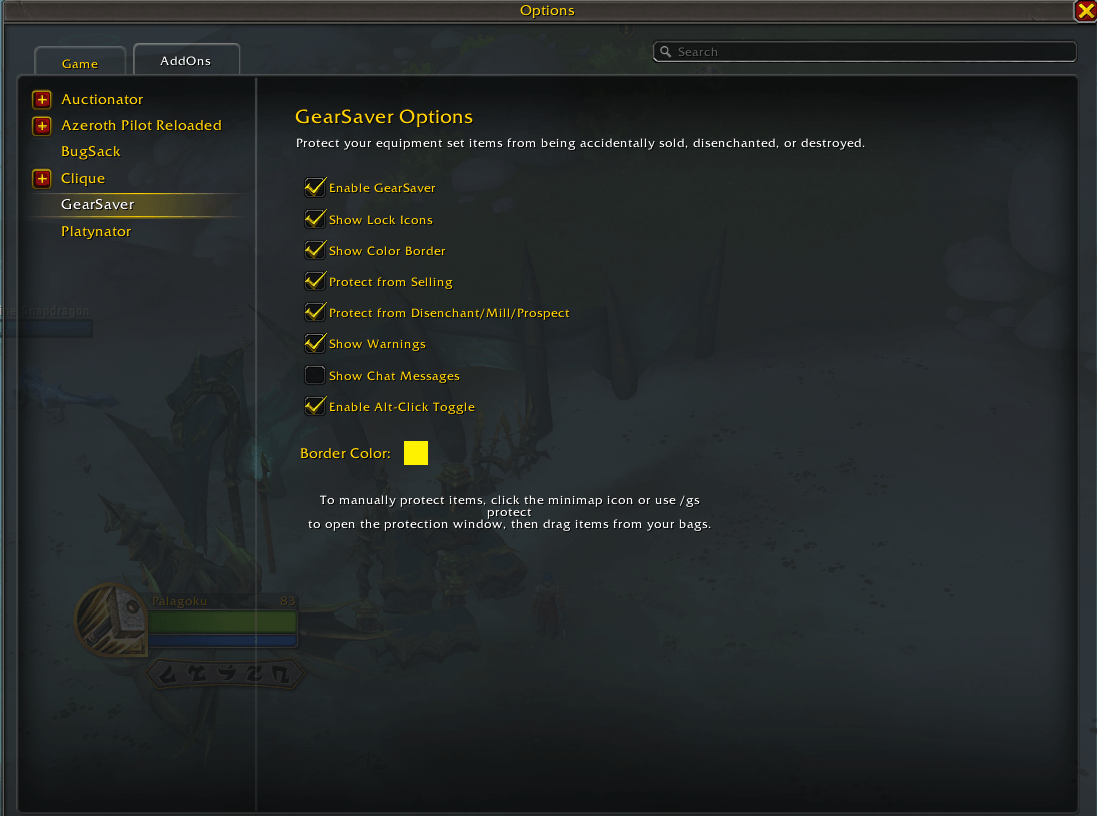
- Enabled: If this is turned on, GearSaver is awake and doing its job. If it's off, GearSaver naps and won’t stop anything.
- Show Warnings: When something important is about to get sold or destroyed, GearSaver will say a loud warning. Turn this on to hear the warnings.
- Show Chat Messages: GearSaver can tell you little messages in your chat window (like a friend whispering). Turn this on to see those messages.
- Protect From Sell: GearSaver blocks selling special gear to a shop. It’s like putting a lock on the toy before you give it to a store.
- Protect From Disenchant: This stops the game from turning your special item into other parts. Think of it like stopping someone from taking your toy apart to use the pieces.
- Protect From Destroy: This keeps you from accidentally smashing or throwing away the item. It’s like a safety bubble around your toy.
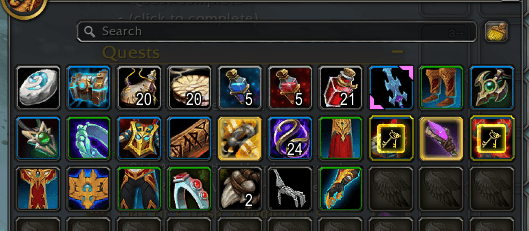
- Show Lock Icon: GearSaver can put a little lock picture on the item so you can see it’s protected — like a sticky note that says “Do not touch.”
- Show Color Border: If turned on, GearSaver draws a colored frame around the item so it stands out in your bag — like circling it with a bright marker.
- Enable Alt-Click: If you press the Alt key and click an item, you can tell GearSaver to protect or unprotect that item by hand. It’s a quick “yes/no” button for a single item.
- Border Color: This picks the color of that bright frame (for example, green). You can choose a color you like.
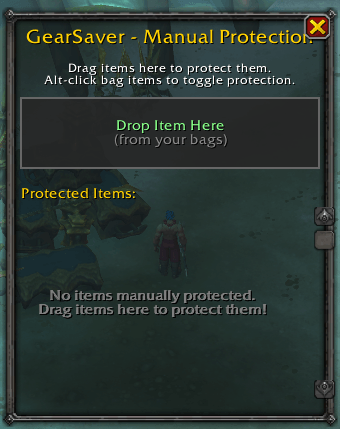
- Manual Protected Items: You can tell GearSaver “always protect this exact item” — like putting a permanent sticker on a favorite toy.
- Blacklisted Items: These are items you tell GearSaver to ignore even if they belong to a set — like saying “don’t protect this one toy even if it’s part of the outfit.”
- Minimap Icon: GearSaver can show a tiny button on your map so you can open its settings quickly, or hide the button if you don’t want it.
How GearSaver works inside the game — step by step:
- Finds your equipment sets:
- The addon checks what items are part of any of your saved outfits (equipment sets). It makes a list of those item IDs.
- Looks through your bags:
- It opens your backpack like scanning each box and finds the items that match the list.
- Marks protected items:
- For every item that matches, GearSaver remembers where it is (bag number and slot) and marks it as protected. It can also mark items you protected by hand.
- Shows warnings and blocks actions:
- If you try to sell, destroy, or disenchant a protected item, GearSaver will stop the action. It puts a red-tinted button or overlay over the item and shows a warning popup that says which set the item belongs to.
- Lets you proceed once if you choose:
- If you really want to do it, there’s a “Proceed Anyway” option that lets you do the action one time. GearSaver remembers that choice for a short time and then goes back to protecting the item.
- Updates when your sets or bags change:
- If you change an equipment set (add/remove items) or move items around in your bags, GearSaver rescans and updates its list so it stays correct.
- Manual controls:
- You can Alt-click an item to toggle protection by hand, add items to manual-protect list, or add them to the blacklist if you don’t want them protected.
Why this keeps you safe (simple reason):
- Players sometimes make mistakes and sell or break their favorite gear by accident. GearSaver acts like a child-proof lock so your special outfits stay safe.
A few friendly tips for kids:
- Turn on Show Warnings so the addon speaks up when something important happens.
- Use Alt-click to quickly protect a single item you really like.
- If GearSaver blocks something you meant to sell, use the “Proceed Anyway” option to allow it that one time.
That's it — GearSaver watches your gear, puts safety covers on special items, and reminds you before anything bad happens so your favorite outfits stay safe.
GearSaver Team

