GamePad Ready Set
- By
Switch the UI mode when a controller connects or disconnects, manages which addons and camera settings are set in GamePad mode
GamePadEnablePopup.png
RPGCamera1.png
RPGCamera2.png
RPGCamera3.png
Description
GamePad Ready Set
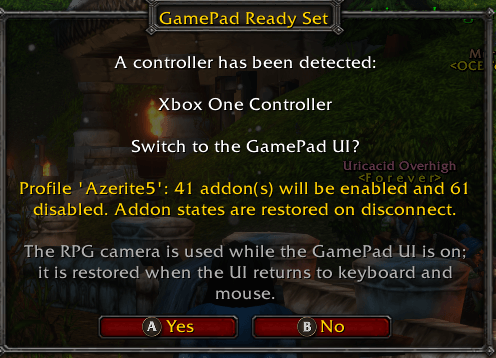
GamePad Ready Set makes switching between keyboard/mouse and WoW Forever's GamePad UI easier. When a controller connects, it asks whether to switch. When the controller disconnects, it offers to switch back.
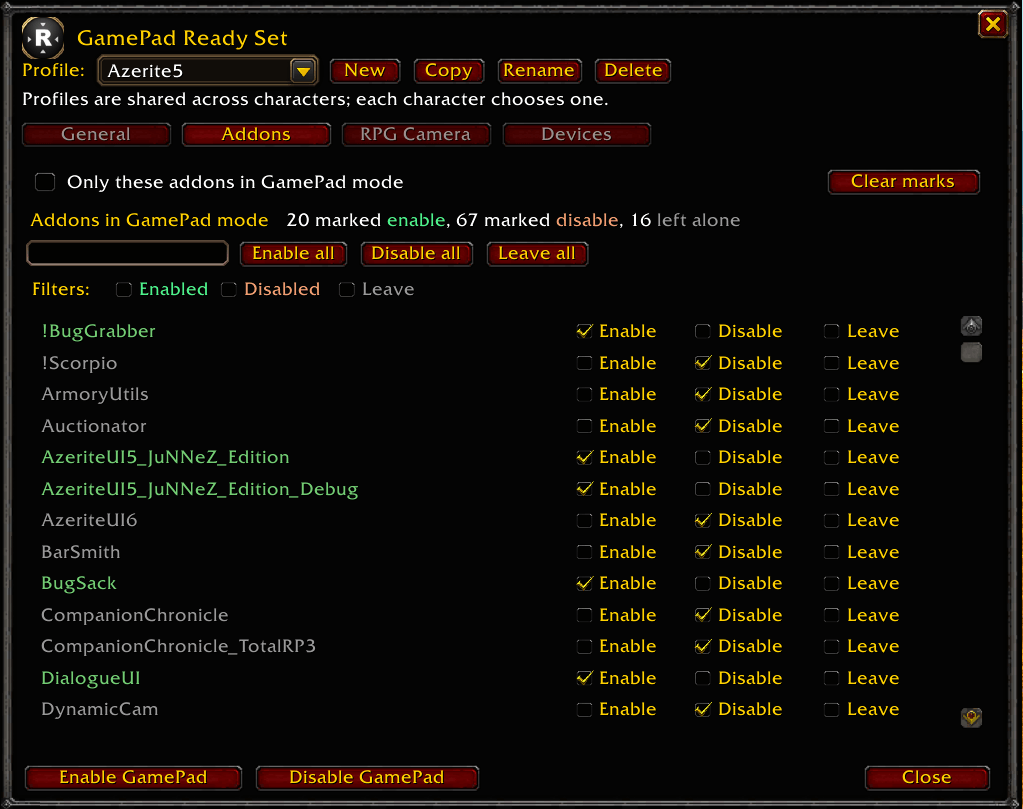
Choose which addons should be enabled, disabled, or left alone in GamePad mode using named profiles. The addon saves your normal addon setup and restores it when you're done.
Settings are in Game Menu > Options > AddOns > GamePad Ready Set, or left-click the minimap button.
Features
- Detects controllers connecting and disconnecting.
- Asks before switching the UI mode.
- Lets you mark each addon Enable, Disable, or Leave alone.
- Saves and restores your normal addon setup when the controller disconnects.
- Uses named profiles shared across characters, with a separate choice per character.
- Searchable addon list with filters for Enabled, Disabled, and Leave.
- Enable GamePad / Disable GamePad buttons for the whole setup.
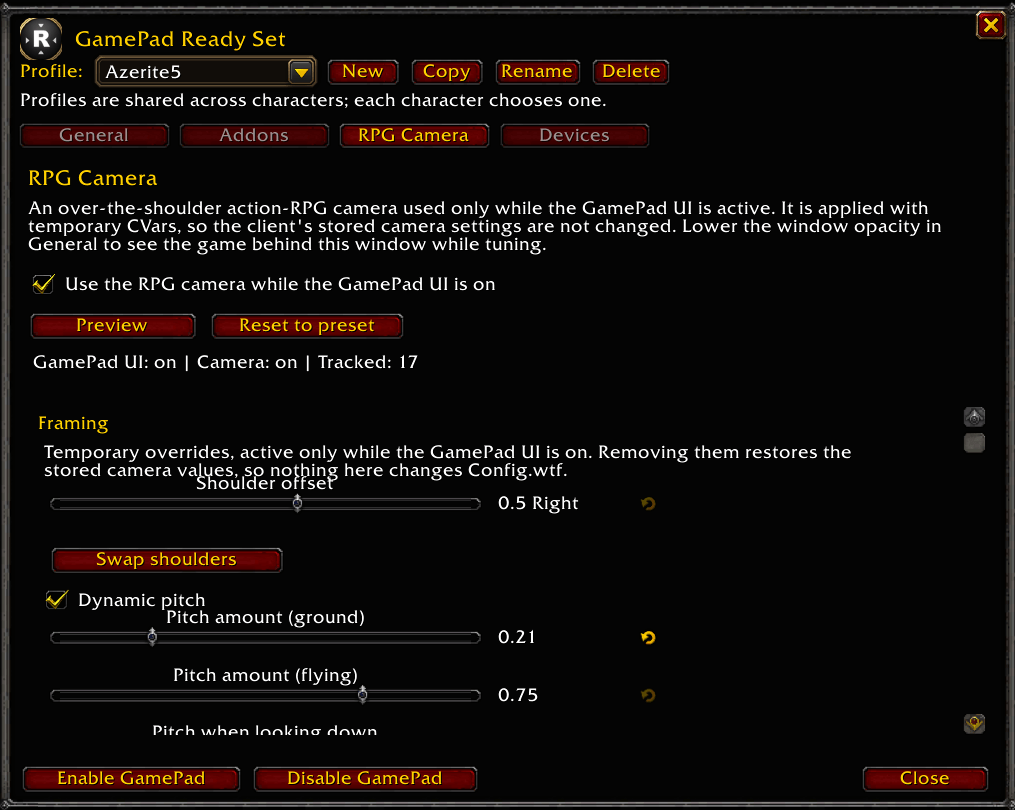
- Optional over-the-shoulder RPG camera while GamePad mode is on.
- Camera settings include shoulder offset, pitch, field of view, zoom, smooth camera, and optional gamepad camera and target-focus controls.
- Live camera preview and per-setting reset buttons.
- Restores your normal camera when GamePad mode ends.
- Detects camera conflicts with FableUI (formerly FaderGP), legacy FaderGP, and DynamicCam.
- Draggable minimap button with left-click settings, right-click quick menu, and middle-click GamePad mode.
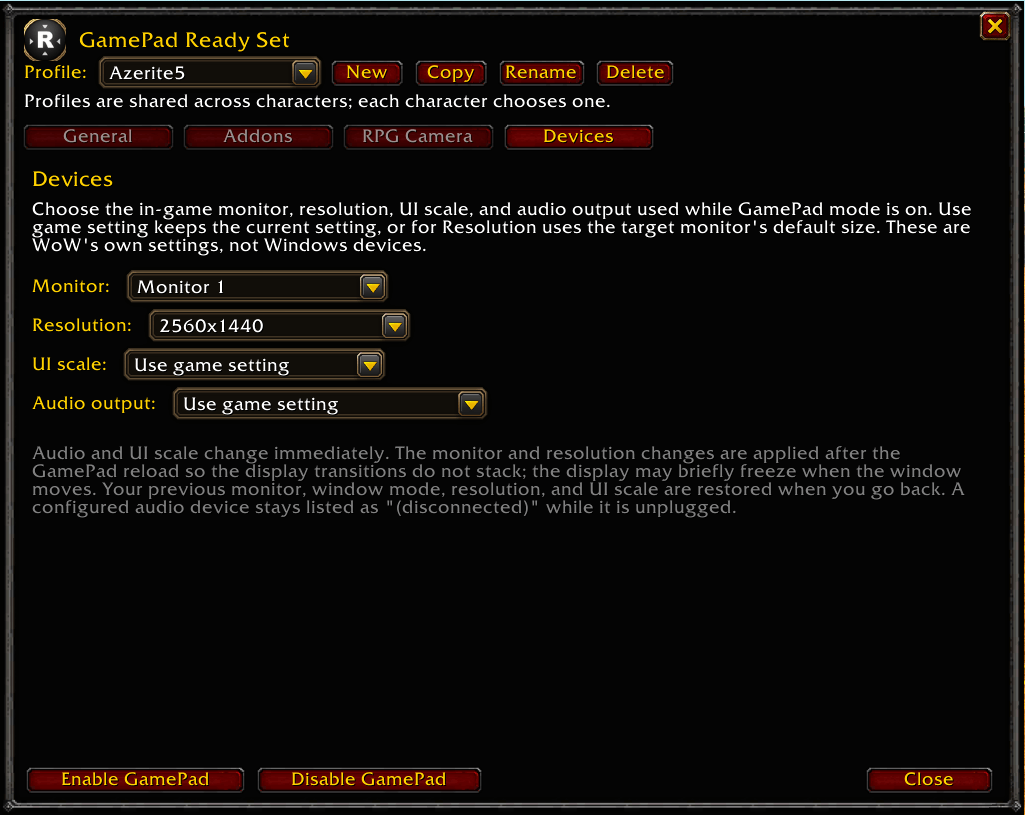
- Per-profile display, audio, and volume settings.
- Optional GPRS <profile> macros for switching profiles and GPRS Quick Menu for the quick menu.
Quick menu
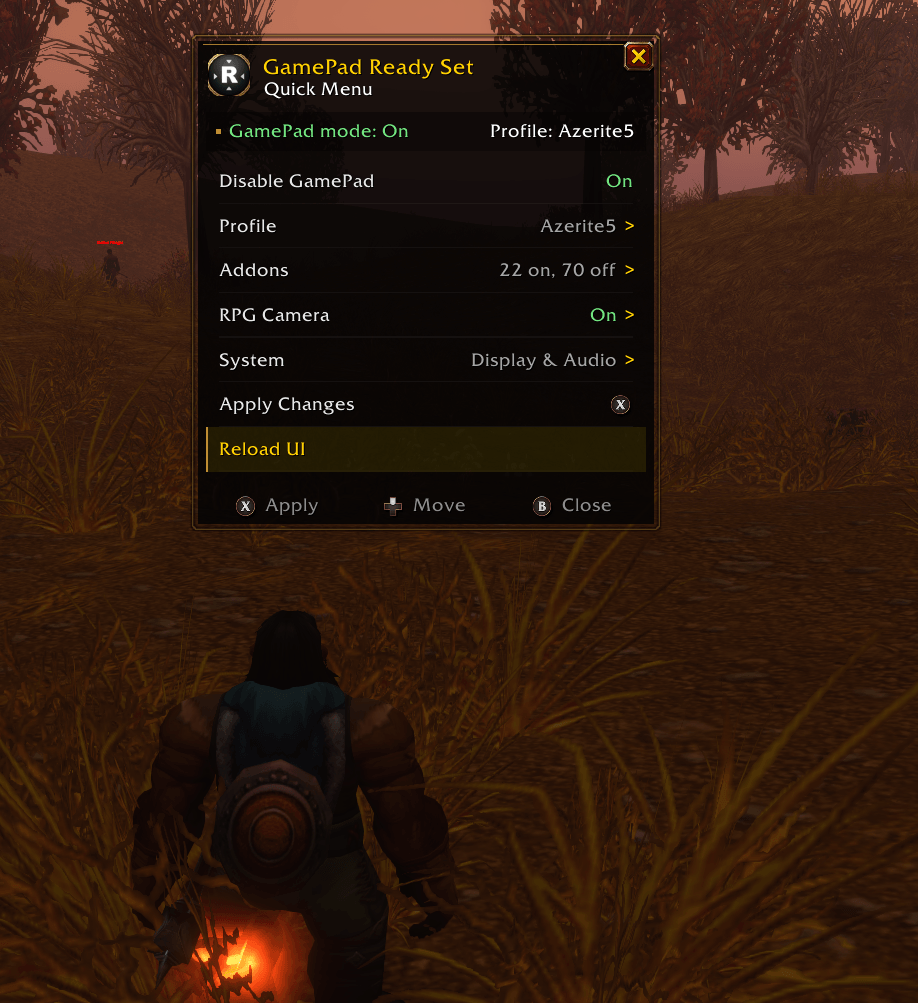
The quick menu is a compact, controller-first panel for the settings you change most often. It works with a controller, mouse, or keyboard.
Opening the quick menu
- Right-click the minimap button.
- Type /gprs menu (or /gamepadreadyset menu).
- Use the Quick Menu keybinding under GamePad Ready Set in the game's Key Bindings window.
- Or bind the GPRS Quick Menu macro to a controller button or action bar.
The Quick Menu keybinding defaults to the controller's View/Share (Select) button and works while GamePad mode is off and a controller is connected. With GamePad mode on, bind the GPRS Quick Menu macro to your controller instead.
The General tab also has:
- Open Macros — opens the game's macro window.
- Enable quick menu key — turn the key on or off. Turning it off frees the button.
- Detect controller connections — turn the connection prompts and chat messages on or off. The addon still watches the controller while this is off.
Macros and commands
- GPRS <profile> — optional profile macro. Switches to that profile and toggles GamePad mode.
- GPRS Quick Menu — runs /gprs menu. Created on login and can be bound to a controller chord or placed on an action bar.
The macros start with a descriptive comment, so they are easy to identify in the macro window.
Commands:
- /gprs — show the current mode and profile, plus short help.
- /gprs toggle — enable GamePad mode if off, disable it if on.
- /gprs on / /gprs off — enable or disable GamePad mode.
- /gprs menu — open the quick menu.
- /gprs key — show the quick menu key binding.
- /gprs profile — list profiles and mark the active one.
- /gprs profile <name> — use a profile for this character.
- /gamepadreadyset — long form of /gprs.
GamePad Ready Set Team