2026-11-09__0231-08.png
2026-11-09__0233-02.png
2026-11-09__0233-09.png
2026-11-09__1648-38.png
Description
Gamepad XIV
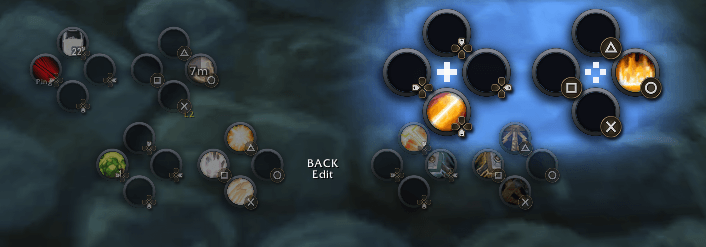
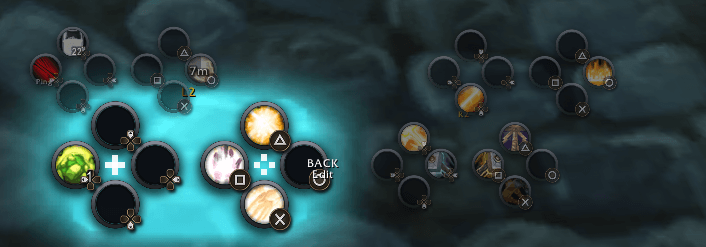
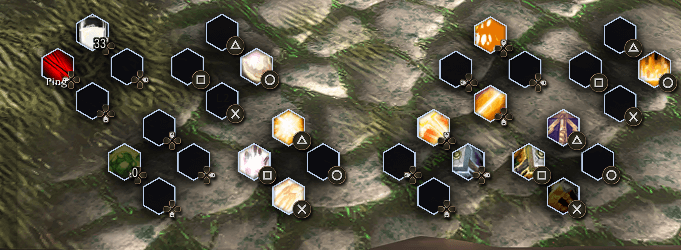
The addon brings Final Fantasy XIV's gamepad controls to World of Warcraft Forever: the cross hotbar, targeting, party selection, camera controls and more. It works on top of Forever's own Gamepad UI, so menus, window navigation and interacting work as they do in the game.
Found a bug or have an idea? Report it on the CurseForge issue tracker.
Contents
- What you need
- Button legend
- Quick start
- The cross hotbar
- Setting up your abilities
- Targeting
- Camera and movement
- Everything else
- Appearance
- The settings window
- Minimap icon
- Slash commands
- From FFXIV, and what's different
- Tips and troubleshooting
- Credits
What you need
- WoW Forever with the Gamepad UI turned on (in the game's settings).
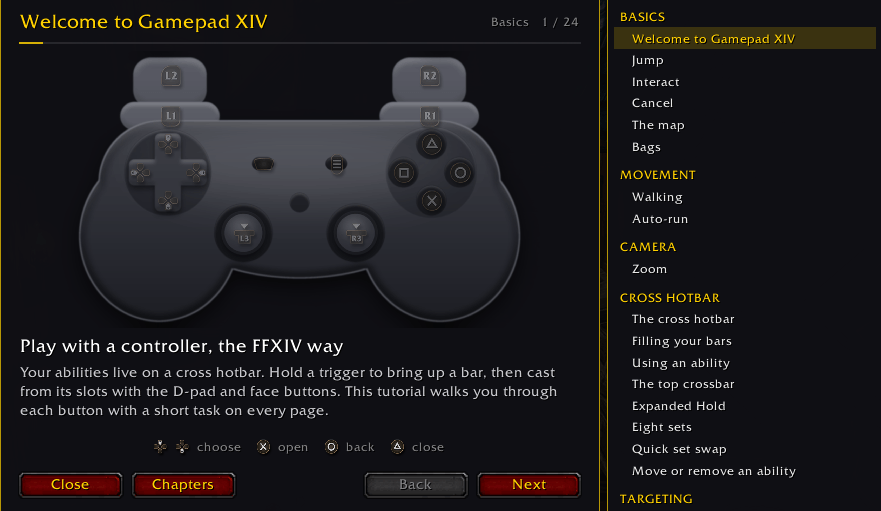
- A controller. The examples below use a PlayStation DualSense, with Xbox names in brackets.
Without the Gamepad UI, Gamepad XIV stays off and your normal bars are unchanged.
Button legend
These are the names used on this page.
- ✕ Cross [A], ○ Circle [B], □ Square [X], △ Triangle [Y]: the face buttons
- ↑ ↓ ← →: the D-pad
- L1 / R1: the shoulder buttons
- L2 / R2: the triggers
- L3 / R3: pressing the left / right stick in
- Back [View]: the left side of the touchpad
- Start [Menu]: the Options button
A + means "hold the first button, then press the second". For example, R1 + △ means hold R1, then press Triangle.
Quick start
- Install the addon and turn on the Gamepad UI in the game's settings.
- Log in. The cross hotbar appears at the bottom of the screen.
- Open your spellbook and drag abilities onto the crossbar slots with the mouse.
- Hold L2 or R2 and press a D-pad direction or a face button to use an ability.
- Open the settings with L2 + Start or
/gxiv config.
The cross hotbar
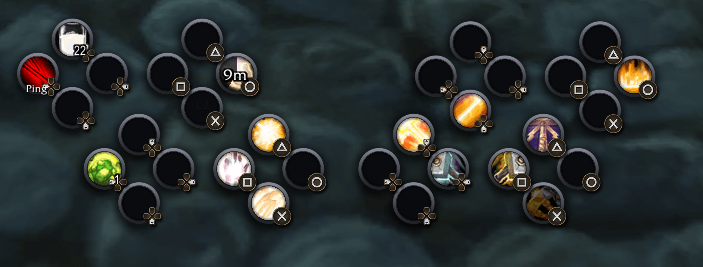
As in FFXIV, the crossbar has two rows that are always visible:
- Bottom row: your current set, with a left side (L2) and a right side (R2).
- Top row: the two double tap bars (FFXIV's W Cross Hotbar).
Each side has 8 slots: four on the D-pad and four on the face buttons. The bar you are using lights up and grows, and the others dim.
Choosing a bar
- Hold L2 → left side of the bottom row
- Hold R2 → right side of the bottom row
- Double tap L2 (hold the second press) → top left bar
- Double tap R2 (hold the second press) → top right bar
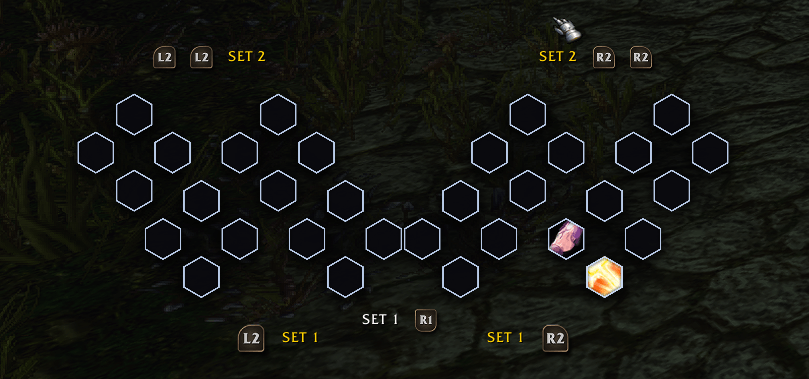
- Hold L2, then press R2 → Expanded Hold: another set on the left side
- Hold R2, then press L2 → Expanded Hold: another set on the right side
While a bar is selected, press a D-pad direction or face button to use the ability in that slot. Let go and the buttons go back to their normal jobs.
Three ways to hold a bar
Pick one in the settings under L2 / R2 activation:
- Hold (default): the bar stays selected while you hold the trigger.
- Toggle: one press selects the bar, and it stays selected until you press the trigger again.
- Mixed: a quick tap keeps the bar selected, and holding works like Hold.
8 sets
Hold R1 to see the CHANGE SET overlay, then press:
- R1 + △ / ○ / ✕ / □ → sets 1, 2, 3, 4
- R1 + ↑ / → / ↓ / ← → sets 5, 6, 7, 8
The set changes the bottom row. By default, the top row shows set 2 and Expanded Hold shows set 3. You can change both in the settings.
Forms and stances
Each form or stance (Bear, Cat, Battle Stance and so on) keeps its own set on the bottom row, even in combat. Forms 1-4 start on sets 5-8, which begin empty, so drag abilities onto the bar while you are in that form. You can turn this off in the settings.
Setting up your abilities
Out of combat:
- Drag a spell, item or macro from your spellbook or bags onto any visible slot, on either row.
- Drag a slot off the bar to move or remove it.
- Move or remove with the controller: L2 + R3 (or
/gxiv clear). Choose the ability by holding L2 or R2 and pressing its button, then:- ✕ Move: choose the new slot the same way (abilities swap if the slot is taken)
- □ Remove
- ○ Cancel
- The spellbook's Bind to Action Bar button also works with the crossbar.
Targeting
- ← / →: previous / next target (enemies and friendlies, or just one kind; see the settings)
- R1 + L2 or L1 + R2: next / previous enemy
- ✕: interact or attack
Party selection and the soft target
As in FFXIV, you can pick a party member without losing your enemy target:
- ↑ / ↓ or double tap L1: step through your party, starting with yourself. Pets are included.
- The member's name appears above the crossbar, and their party frame is highlighted.
- Your next ability goes to that member, then you go back to your real target.
- ✕ makes them your real target, ○ cancels.
- L1 + ← / →: step through the raid.
Prefer real targets? Set Party targeting to Hard in the settings.
You can also give the whole D-pad to the party and raid frames (D-pad party selection), so each direction moves to the frame that way.
Face target (experimental)
FFXIV turns your character toward the enemy when you attack. Turn on Face target in the settings for the closest WoW can get: the camera locks on your enemy and your character turns with it while casting. The camera also moves by itself while you have an enemy targeted, so it is off by default.
Camera and movement
- Left stick / right stick: move / camera
- L1 + right stick up / down: zoom in / out. It starts from a light push, and the camera holds still while you zoom.
- L1 + left stick forward: auto-run (press them in either order)
- Hold ○: walk
- △ / ○ while flying or swimming: go up / down
- L3: draw / sheathe weapon (you can change it in the settings)
- R3: first / third person (you can change it in the settings)
- L1 + R1: draw / sheathe weapon; on a mount, dismount
Everything else
Interact prompt
When you can use something with ✕, a large prompt appears over your character. It shows the button, an icon for the action (loot, talk, skinning, mining, herbalism, quest objects) and the target's name. You can move it or turn it off.
Spell choices (flyouts)
Spells that open a list, such as Aspects, show a controller panel. Each choice gets its own button, and ○ cancels. This works in combat too.
Menus
- L1 + ✕: character
- L1 + ○: spellbook
- L1 + □: map
- L1 + △: inventory
- Start: Forever's main menu
Popups and loot rolls
- Death, resurrection and party invite popups: after about a second, the face buttons answer them directly. The buttons are shown under the popup. For example, ✕ releases your spirit.
- Loot rolls: press Back to focus the roll window, then use the buttons shown, such as ✕ for Need and ○ for Pass. This works in combat. While the window is open, the item and what you wear in that slot are shown beside it, and the window can be moved with Move bars.
- Always compare items: item tooltips also show what you wear in that slot, without holding Shift. You can turn this off in the settings.
Map
- L1 + R1 on the world map places or removes a map pin.
Pets (Hunters and Warlocks)
- L1 + L2: pet commands
- R1 + R2: pet spells
Appearance
Open the Appearance tab in the settings.
Themes
The theme changes how the slots look. Your bars stay where they are.
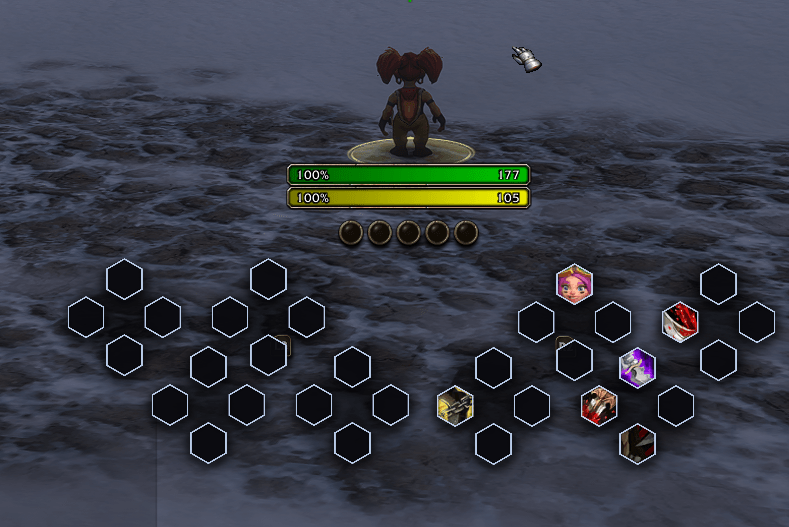
- Orb (default): round icons in a metal bezel
- Hex: hexagon icons on dark hexagons
- Sigil: round icons in gold rings, inside a ring of runes
- Holo: sci-fi corner brackets with a dashed ring
- Ink: brushed ink rings on an ink wash
- Round: Forever's own round slots
- Forever: like Forever's own bar
- Minimal: flat icons with a thin dark edge
- Classic: the standard WoW buttons
Each theme also picks a background, background border, slot background and slot border. You can change any of these on its own to mix and match.
Selected bar highlight
- Style: big glow, a soft glow or a ring around each group, a glow behind each slot, or none
- A color for each bar: bottom bars, top left, top right and combos (L2 then R2)
- Brightness, and the small marks in the middle of the selected bar
Party highlight
Choose how the selected party or raid member's frame is marked (outline, thick outline, fill or pulse), its color, and an optional arrow beside party frames.
L3 and R3
On the Input tab, choose what pressing each stick does: draw / sheathe weapon, first / third person, auto-run, walk / run, sit / stand, target nearest enemy, assist, follow, world map, bags, screenshot, or nothing.
Layout
- Drag each bar anywhere with Move bars (
/gxiv move), or Shift + drag to move them all together. The interact prompt and the loot roll window can be moved the same way. - Set the size, the gap between button groups, and how much the other bars dim.
- Show your controller's button art on every slot.
- Show abilities in red when your target is out of range.
- Keep the top bars always visible, or only show them when selected.
The settings window
Open it with L2 + Start, /gxiv config, the minimap icon, or Options > AddOns > Gamepad XIV.
- Settings are grouped on tabs: General, Targeting, Appearance, Crossbar, Layers and forms, Input.
- Use the search box to find any setting by name.
- With the controller: ↑ / ↓ pick a setting, ← / → change it, ✕ presses, L1 / R1 change tab, ○ closes.
- Reset shown puts the settings you are looking at back to their defaults.
- Settings are saved per character.
Minimap icon
- Left click: settings
- Right click: a quick menu (edit, move bars, activation mode, targeting options and more)
- Drag: move it around the minimap
Hidden it by mistake? Type /gxiv minimap.
Slash commands
/gxiv config: open the settings/gxiv status: show what is active/gxiv on//gxiv off: turn the crossbar on or off/gxiv edit: edit mode/gxiv clear: move or remove an ability/gxiv move: move the bars/gxiv reset: put the bars back in their default place/gxiv scale 0.5-1.5: crossbar size/gxiv tap 2-4: double tap window (higher is more forgiving)/gxiv wxhb R 4 L: choose what a double tap shows (here: double tap R2 shows set 4, left side)/gxiv exhb LR 5 R: choose what Expanded Hold shows (here: L2 then R2 shows set 5, right side)/gxiv minimap: show or hide the minimap icon/gxiv priority on: use this if R2 does not change the bar/gxiv debug: record button presses for 10 seconds, for bug reports
From FFXIV, and what's different
Brought over from FFXIV:
- Cross hotbar with two always-visible rows
- W Cross Hotbar (double tap) and Expanded Hold (L2 then R2)
- 8 switchable sets, plus a set for each form or stance
- Hold, Toggle and Mixed activation
- Soft targeting of party members, with the D-pad and double tap L1
- Party list highlight and marker
- L1 zoom and auto-run
- Interact prompt over your character
Different, because WoW works differently:
- The double tap window is close to FFXIV's but not exact. Make it longer with
/gxiv tap 3if needed. - Enemy cycling uses WoW's tab target.
- There is no enmity (aggro) list, because WoW does not share it with addons.
- Abilities are placed by drag and drop, not through a menu.
- Some forms, such as Travel Form, do not change the set.
- Face target also moves the camera.
Tips and troubleshooting
- R2 does not change the bar? Type
/gxiv priority on. - After updating the addon, restart the game instead of only using
/reload. - "Gamepad XIV has been blocked from an action"? Choose Ignore and report it.
- Something not responding? Type
/gxiv debug, try the buttons for 10 seconds, then/reloadand send the result with your report. - Turning the addon off: use
/gxiv offbefore disabling it in the AddOns list, so your controller settings go back to how they were.
Reporting a bug
Please use the CurseForge issue tracker. Include:
- What happened, and what you expected
- The steps to make it happen
- The addon version, your controller, and your other addons
Gamepad XIV keeps a log of recent errors. Type /reload, then attach the errorLog part of WTF/Account/<account>/<realm>/<character>/SavedVariables/GamepadXIV.lua.
Credits
Double tap timing adapted from CrossHotbar by ChainStratagem, under the BSD 3-Clause License. Gamepad XIV is a separate addon and is not endorsed by CrossHotbar or its author.
Gamepad XIV Team