


ForeverVista
- By
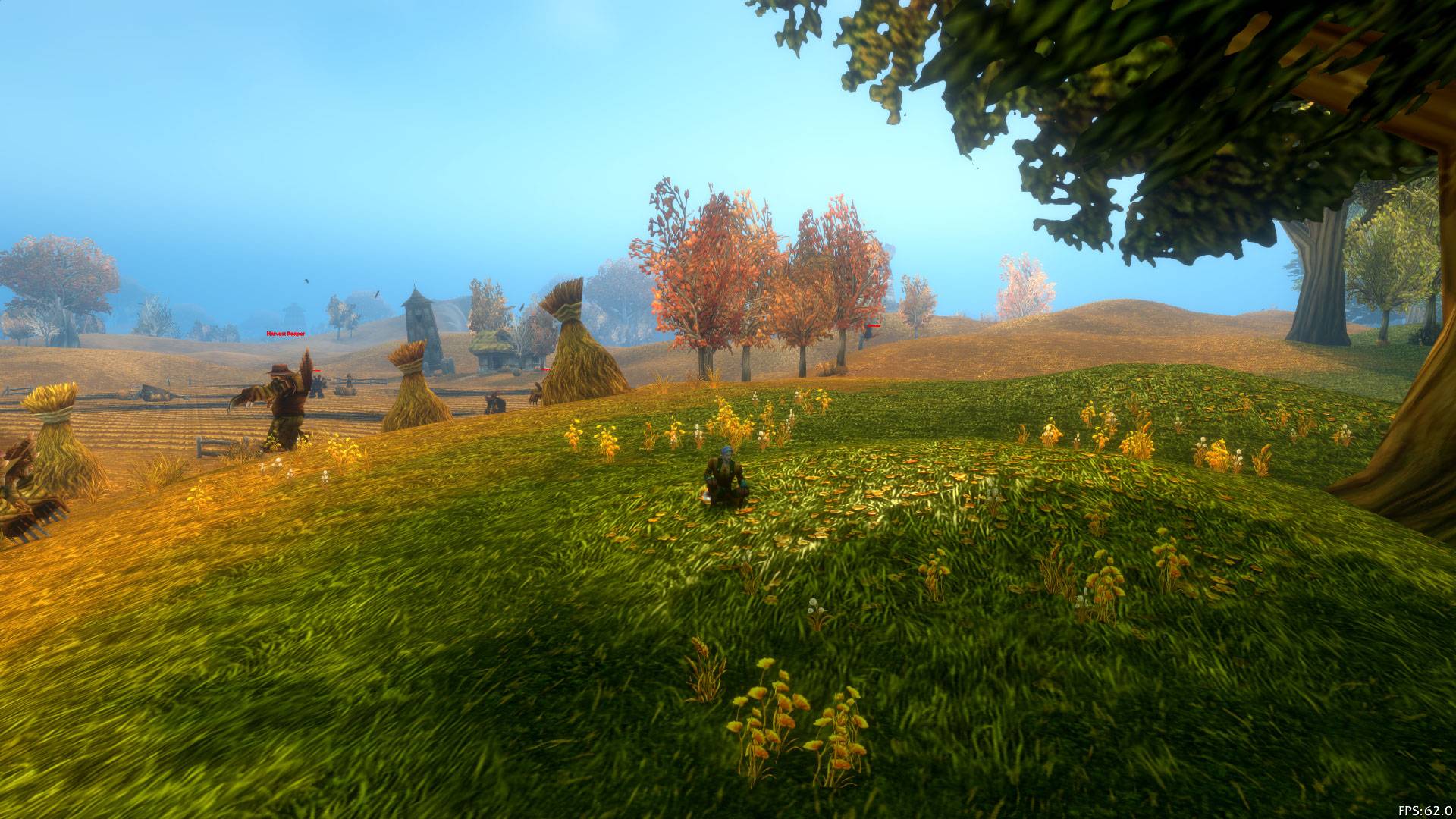
WoWScrnShot_100326_000735.jpg
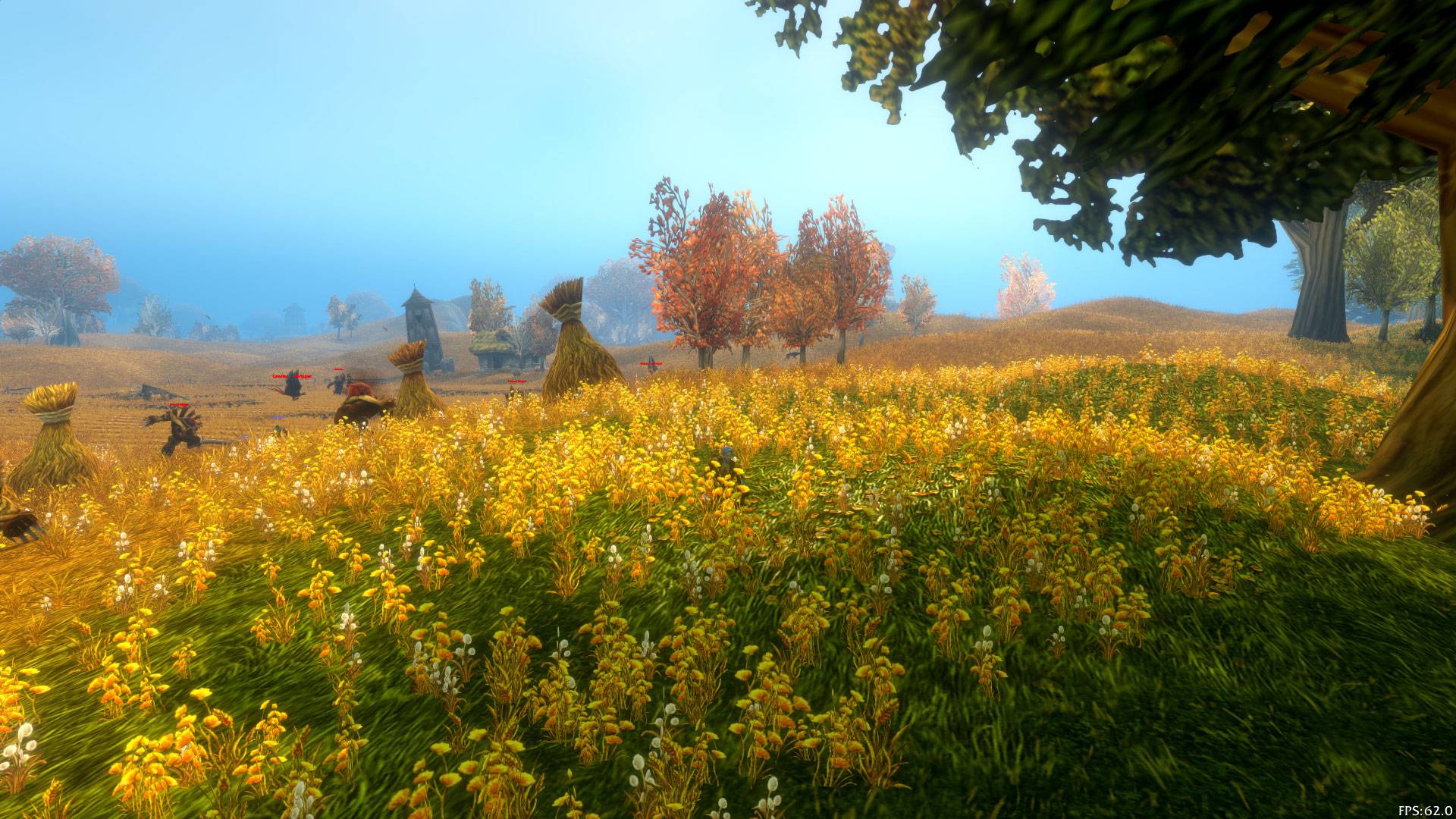
WoWScrnShot_100326_000636.jpg
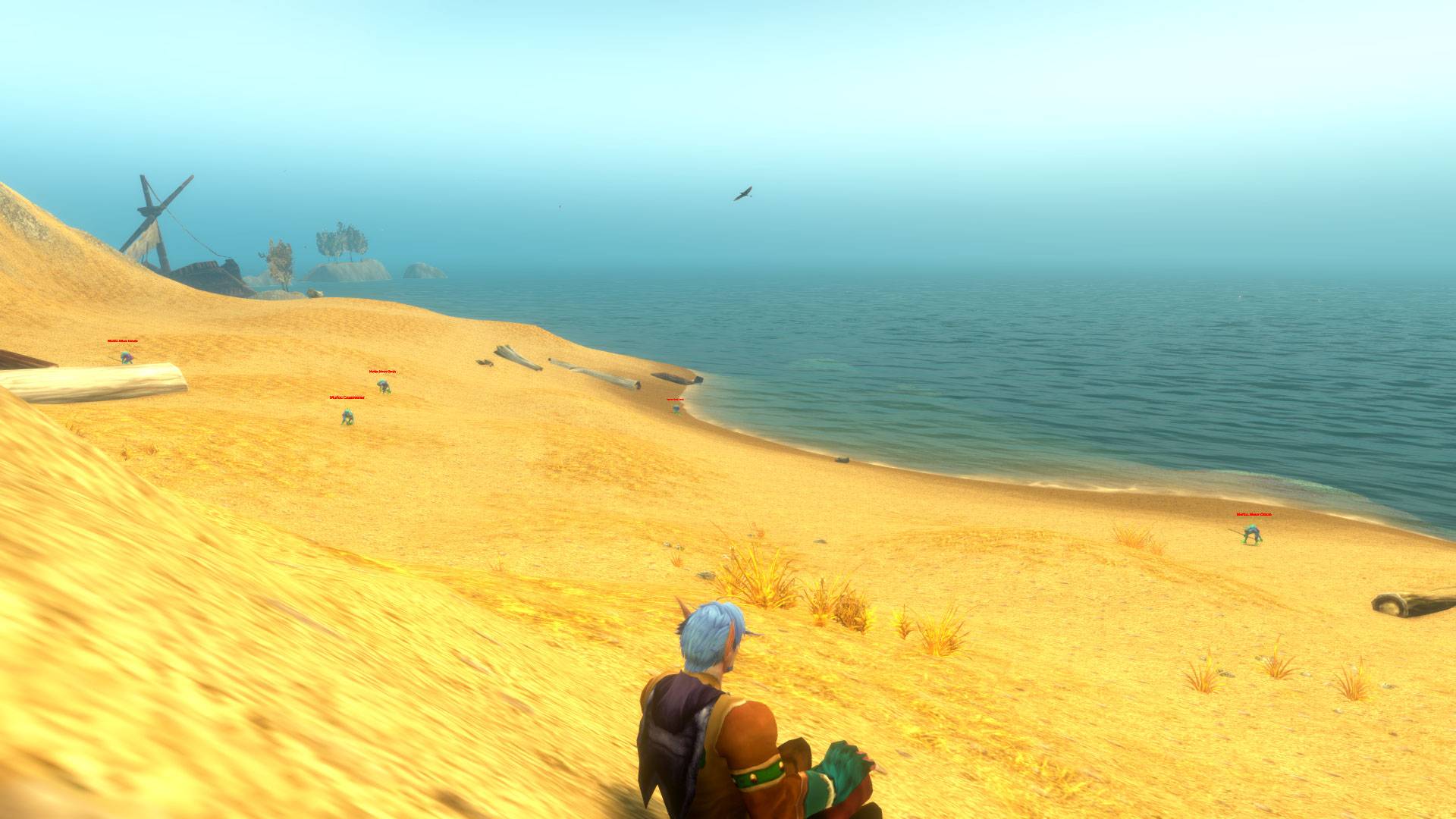
WoWScrnShot_100226_231149.jpg
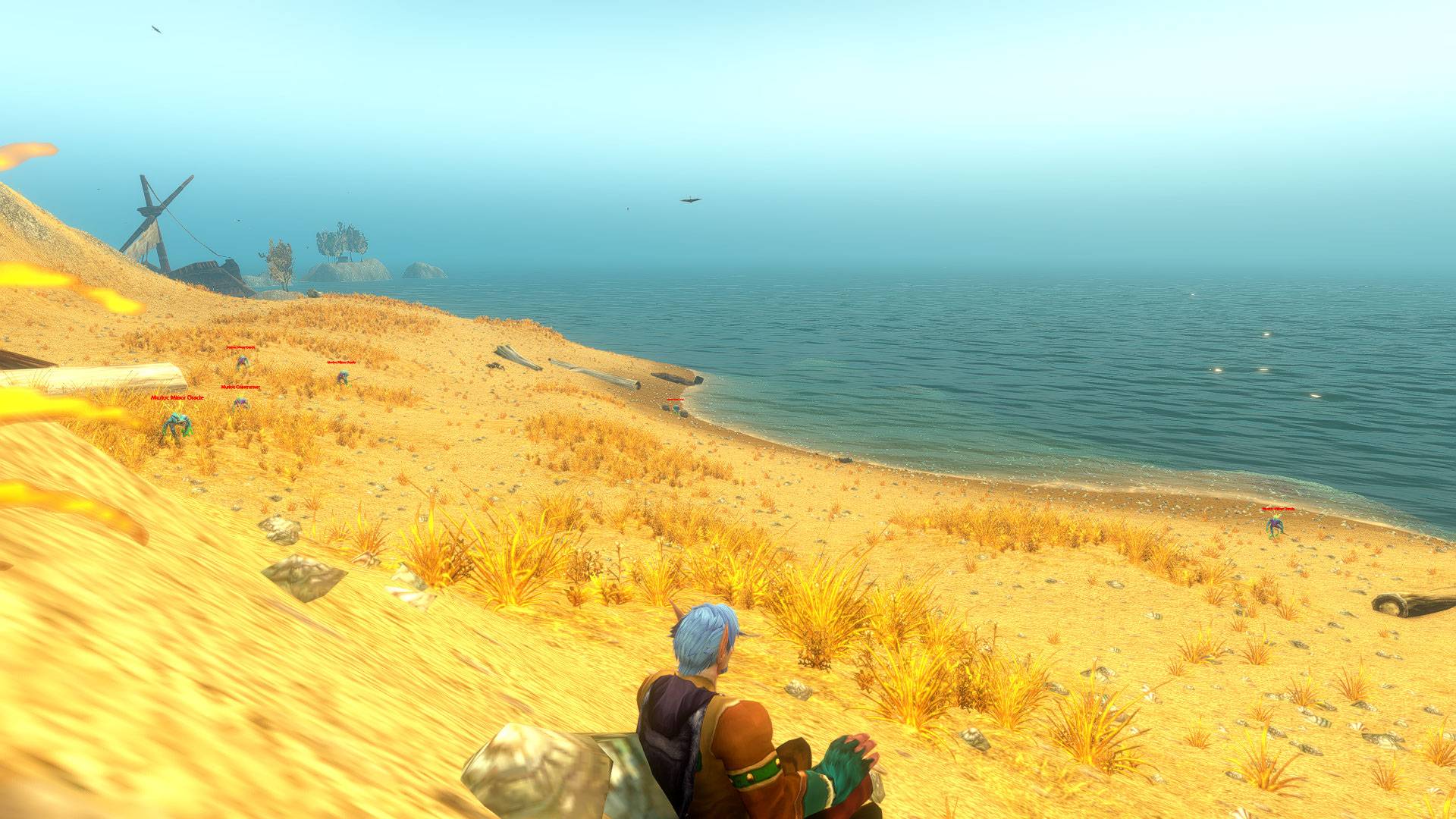
WoWScrnShot_100226_231204.jpg
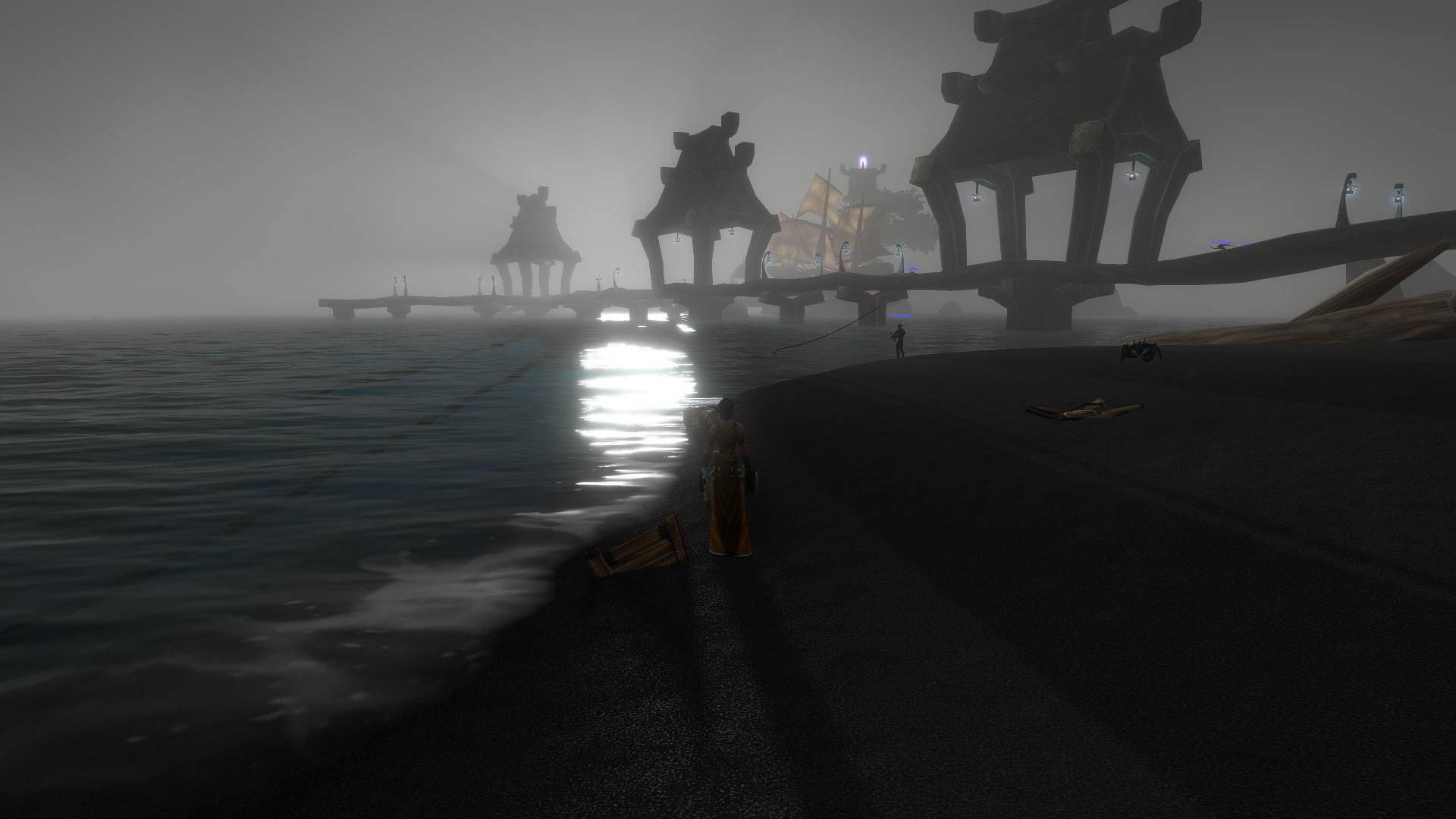
WoWScrnShot_100626_130125.jpg
Description
ForeverVista
Rediscover the view. Share the places worth seeing.
ForeverVista helps you tune the scenery of World of Warcraft: Forever and remember where you found your favorite views. Adjust advanced visual settings in game, save a Viewpoint with its map coordinates, and explore places shared by other players at forevervista.world.
Make Azeroth look the way you want
Bring more vegetation and ground detail into view, keep distant objects detailed for longer, and adjust reflections, weather, sharpening and color. Start with the Default, Balanced or Cinematic preset, or create up to five named profiles of your own. Sliders and presets prepare a preview; the game settings change only when you choose Apply and confirm. Cancel restores the preview to your active profile or current in-game values.
ForeverVista shows your live and proposed values together. Your first-launch settings and the values before the last application remain available in About & tools if you want to restore them later. Higher detail can cost FPS, so choose the balance that works for your screen and hardware.
Capture and share Viewpoints
Found a place you want to remember? Use the Camera button or right-click the minimap icon to open the quick capture panel. ForeverVista records the available map coordinates, briefly hides the game UI, requests a screenshot and plays a shutter sound. You can add a short description and save the Viewpoint locally.
To share it, copy its Viewpoint code and open forevervista.world/condividi. Paste the code to preview the map position, then select the matching screenshot from your game's Screenshots folder. The website shows an image preview before you submit it for review. The addon cannot find or upload the screenshot for you; no image is included in the code.
You can also browse community Viewpoints on forevervista.world, copy a shared location code, and preview its position in the addon to find that scenic spot in game.
At a glance
- Visual presets, advanced sliders and up to five named custom profiles.
- Reversible previews and saved first-launch and previous-application values.
- Local Viewpoint capture with coordinates, an optional description and a clean screenshot request.
- Portable Viewpoint codes for sharing on the website and importing community locations.
- English, Italian, French, Spanish and German interfaces; movable window and minimap icon.
Getting started
- Install ForeverVista and open it with /wff, /fv or the minimap icon.
- In Visual settings, choose a preset or adjust the sliders, then select Apply and confirm.
- In Viewpoints, capture a location or open the quick camera panel with the minimap icon's right-click.
- Copy the Viewpoint code to forevervista.world/condividi and upload the matching screenshot there.
ForeverVista is built for World of Warcraft: Forever (1.60.x / Interface 16001). It uses the client's addon and CVar APIs; it does not edit Config.wtf or automatically reapply presets at login. Screenshot capture depends on the client APIs and a valid in-game position. The website is optional for local use. The addon does not transmit Viewpoint data or screenshots automatically.
Unofficial addon, not affiliated with or endorsed by Blizzard Entertainment. Licensed under MIT. The background and icon are original AI-generated artwork.
ForeverVista Team
