
Forever Graphics Enhancer
- By
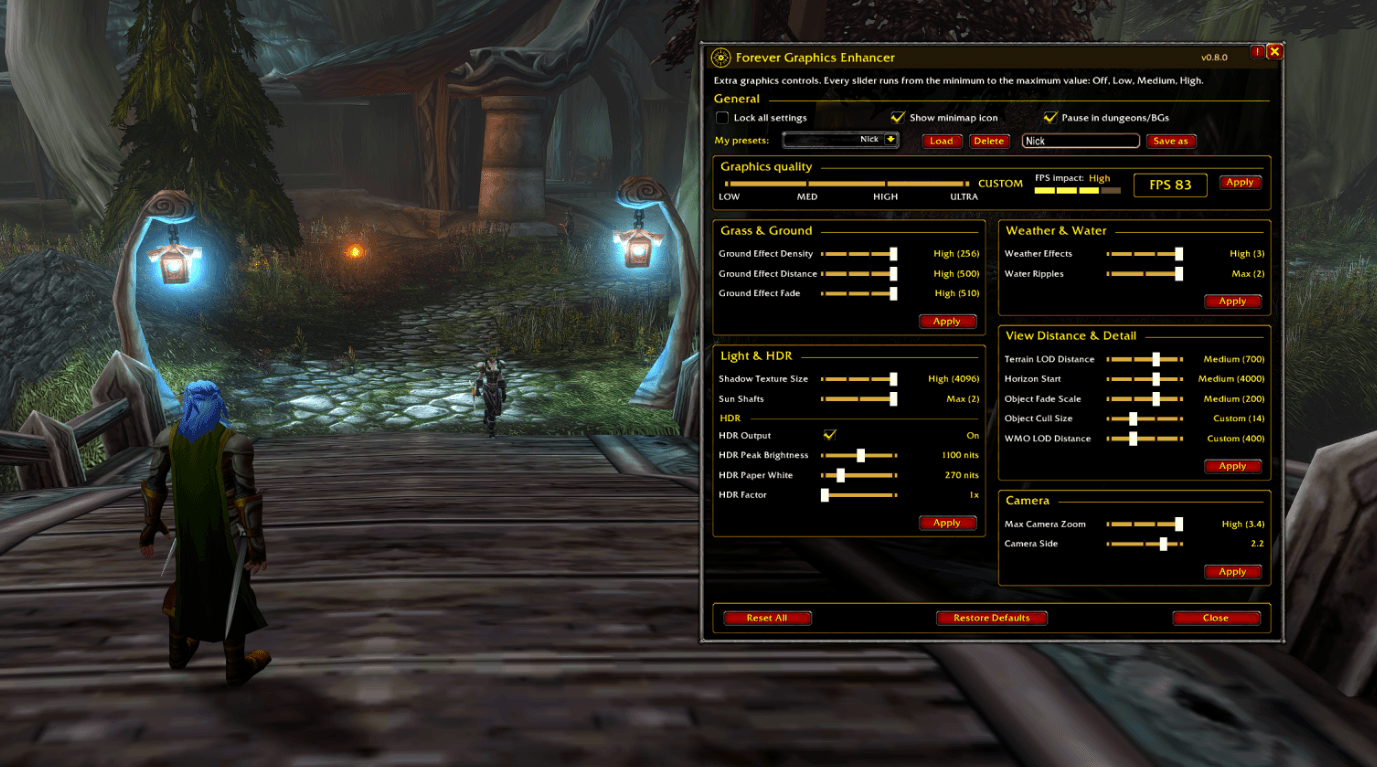
Forever Graphics Enhancer adds graphics settings the normal menu hides, as simple sliders, plus HDR settings. Made because my friends and I were tired of typing console commands. Includes quality presets, FPS counter, saved profiles and a minimap button.
UI.png
Description
Forever Graphics Enhancer
Forever Graphics Enhancer gives you graphics settings that the standard options menu doesn’t expose, without typing console commands. We made it because my friends and I were tired of typing console commands every time we wanted to change a setting.
Open it from the minimap button or with /gfx.
Features
- Graphics quality slider: one long LOW / MED / HIGH / ULTRA slider, like the game’s own, with an estimated FPS impact and a live FPS counter.
- Off / Low / Medium / High sliders: every setting is a simple stepped slider, so you don’t have to know whether a value should be 16, 160 or 256.
- Grass & Ground: density, distance and fade.
- Weather & Water: weather effects and water ripples.
- View Distance & Detail: terrain LOD, horizon start, object fade scale, object cull size and WMO LOD distance.
- Light & HDR: shadow texture size, sun shafts, HDR output on/off, HDR peak brightness, HDR paper white and HDR factor.
- Camera: max zoom distance and a sideways “Camera Side” slider for an over-the-shoulder view.
- Saved presets: save your settings under any name and load them again later.
- Auto-calibration: the client silently rejects or clamps some values, so the addon tests what your client accepts and fits the slider steps to that range.
- Dungeon/BG pause: all addon settings are paused in dungeons, raids, battlegrounds and arenas and return when you leave.
- Restore Defaults / Reset All: Restore Defaults sets everything back to the client’s own values and keeps your presets. Reset All returns to the values you had at login.
- Lock, minimap button and tooltips: you can lock all settings and hide the minimap icon. Hovering a setting shows its CVar name, the client default and the accepted range.
Commands
/gfx: open or close the window/gfx minimap: show or hide the minimap icon/gfx scan: list the CVars your client supports and their defaults/gfx calibrate: test again what your client accepts/gfx check <cvar> [value]: read, or set and read back, any CVar/gfx find <text>: look up console commands (on clients that can list them)
Installation
- Close the game.
- Extract the
ForeverGraphicsEnhancedfolder intoWorld of Warcraft\_forever_\Interface\AddOns\. - Enable the addon at character select. Tick “Load out of date AddOns” if it shows as out of date.
When updating, replace the whole folder. Don’t mix files from different versions.
Notes
- Some settings, such as shadow texture size and HDR, may need
/console gxRestartor a relog before they take effect. - Experimental settings are marked in their tooltips, because their ranges aren’t officially documented.
- HDR needs an HDR monitor with HDR switched on in Windows. If your client resets HDR Output to 0 after a restart, it doesn’t support HDR in your setup.
- Camera Side depends on your character model and is weaker when zoomed in.
- The addon has had limited testing in the live game. If something doesn’t work, run
/gfx scanand report what it says.
Made by Nick Neutron
Forever Graphics Enhancer Team
