Flag Up (alt mailer)
- By
A World of Warcraft addon that mail the items you choose to your alts, each to the right one, when you open a mailbox.
Description
Flag Up
Mail the items you choose to your alts, each to the right one, when you open a mailbox.
For World of Warcraft: Forever. Source code, issues and releases: github.com/yannlugrin/FlagUp.
Please report what goes wrong or any suggestion (see Reporting a problem).
Features
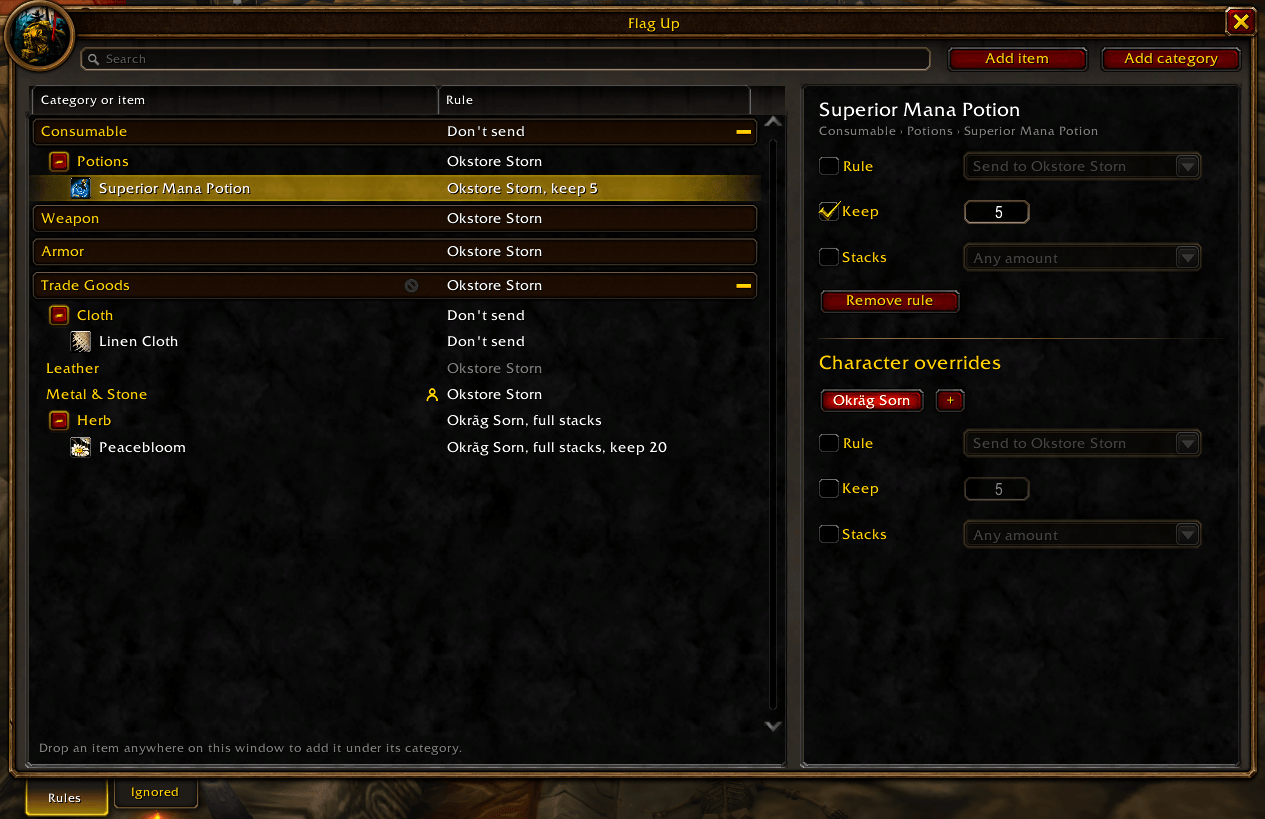
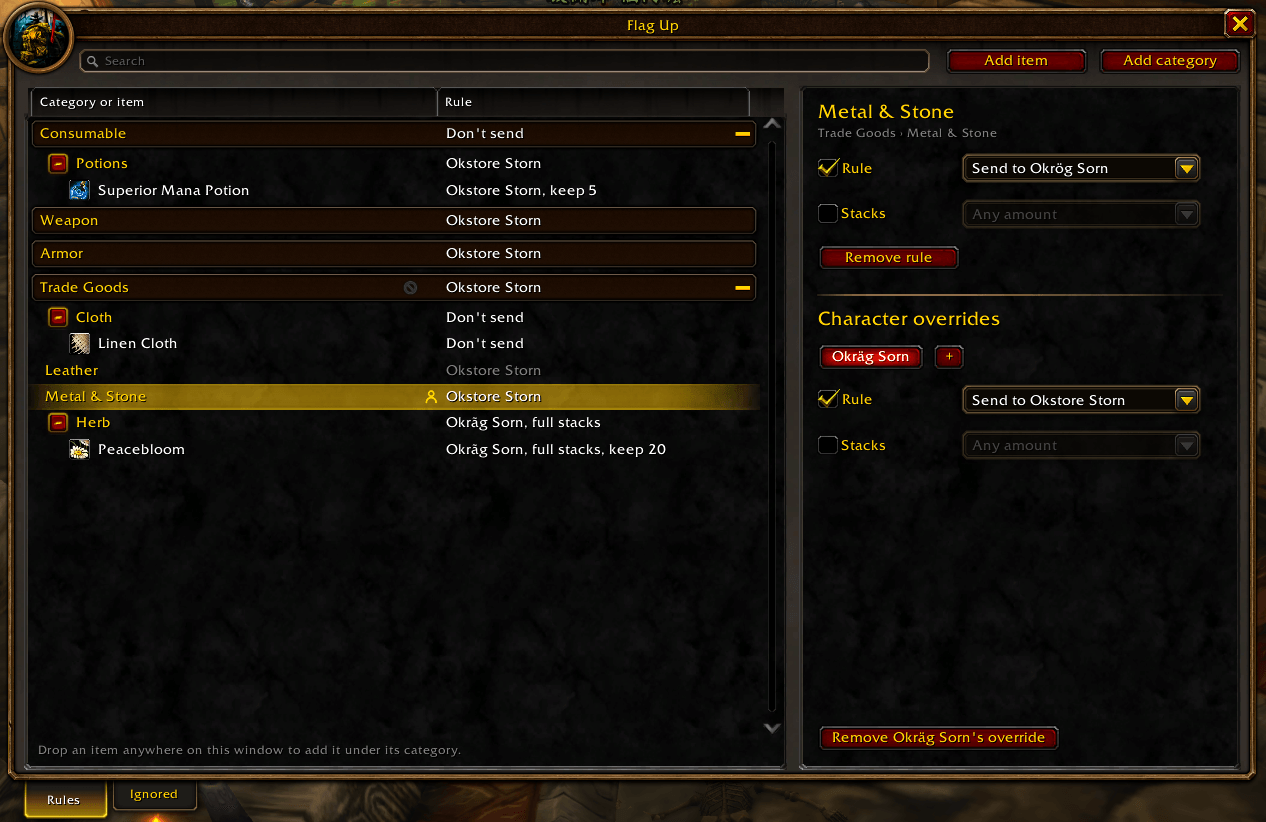
- Rules by category. Choose what goes where by the game's item categories (Trade Goods › Herb to your alchemist, Metal & Stone to your blacksmith), or item by item. A specific item comes first, then a subcategory, then a category.
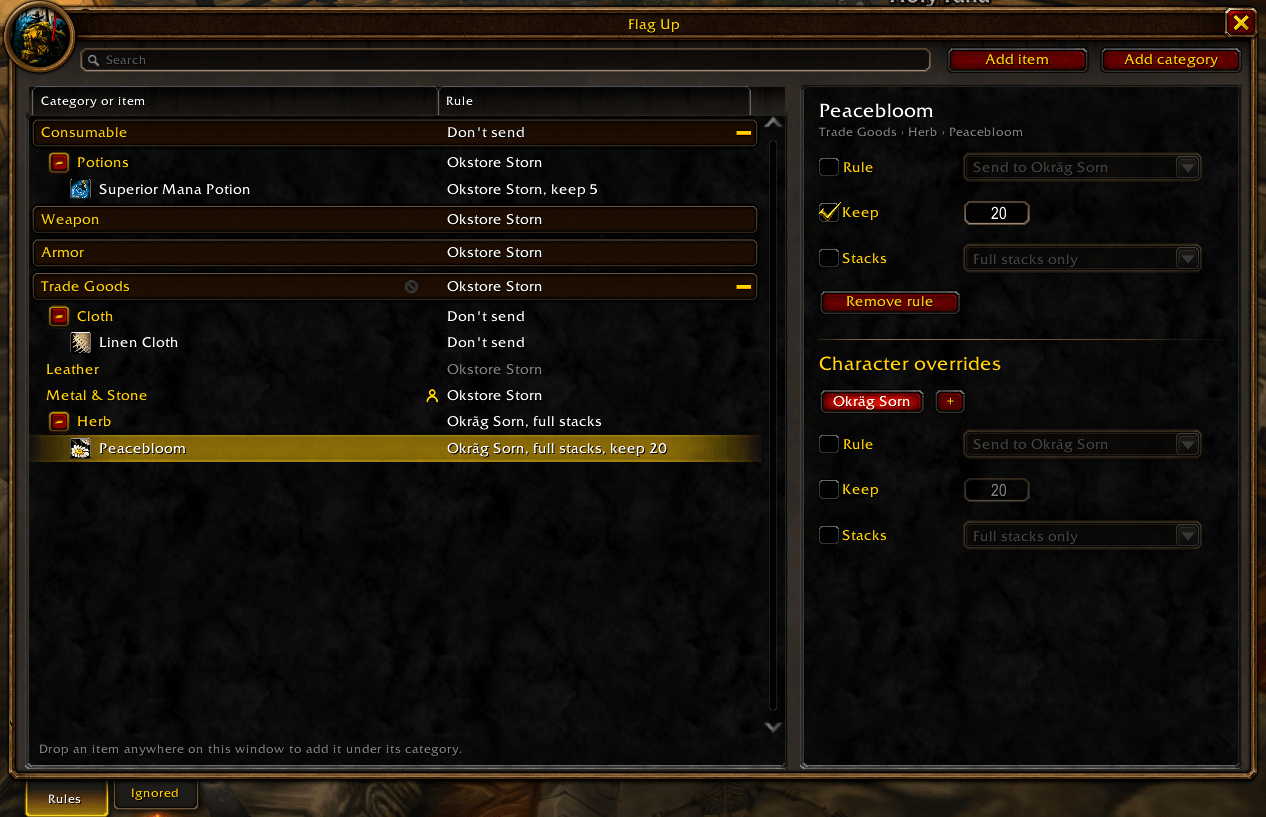
- Keep some in your bags. For a specific item, keep a number in your bags and send only the rest, or don't send it.
- Full stacks only. Send only full stacks of what stacks; the rest waits in your bags until it makes a full one.
- Shared by your characters. The rules are the same for all your characters of one ruleset and faction, the ones that can mail each other; a character can override a rule for itself: another recipient, don't send, another number to keep, other qualities, full stacks or not.
- Any alt. Pick from the characters you logged in with Flag Up, or type the name of an alt on another account.
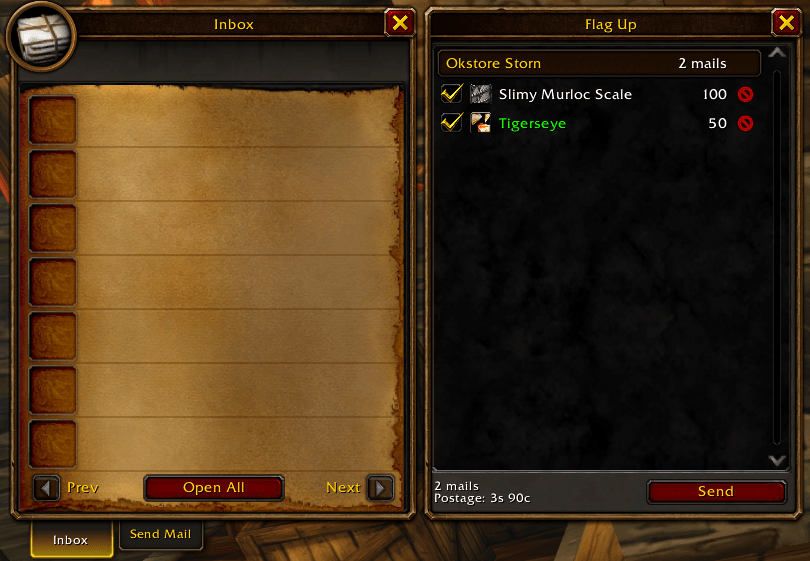
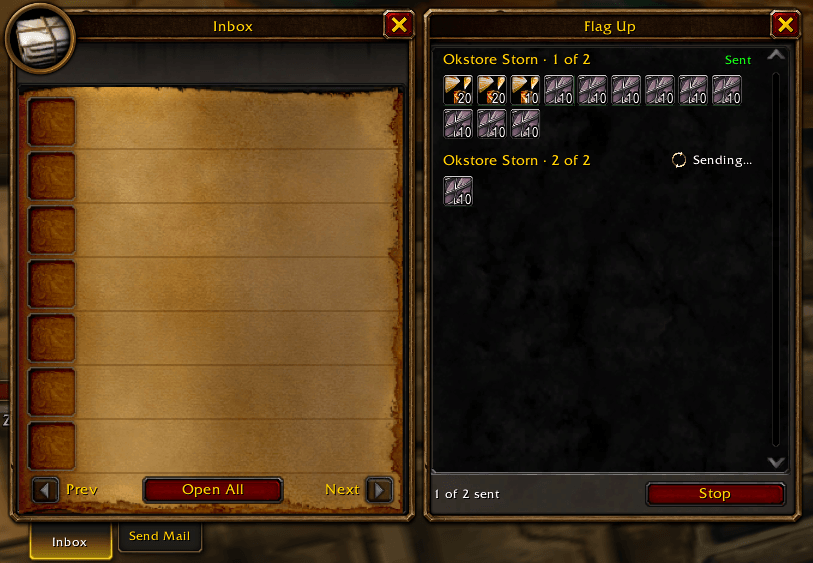
- At the mailbox. A panel next to the mailbox lists what will be sent, alt by alt, with the postage; uncheck an item to keep it this time. Then it sends mail after mail and shows each one sent, or failed with the game's reason.
- Not worth the postage. An item worth less to a vendor than its postage (30 copper a stack) starts unchecked, so you don't pay to mail it; check it to send it anyway. A setting turns this off, another one does the same for items no vendor buys.
- Automatic or on demand. Send as soon as the mailbox opens, or only when you click Send. A key you choose (Shift by default) does the opposite while you hold it, like the game's auto-loot key.
- Ignore an item. From the mailbox panel, stop offering an item, for all your characters or only the one you play. The rules window shows it ignored, and its Ignored tab lists every ignored item by category, to take one back.
Show or hide the rules window with the minimap button or /flagup open. Right-click the button for a menu. The add-on compartment next to the minimap opens the settings.
Commands
| Command | What it does |
|---|---|
/flagup |
List the commands |
/flagup open |
Show or hide the rules window |
/flagup settings |
Open the Flag Up settings |
Looks
The windows use the default game look. With EllesmereUI installed, they take your EllesmereUI theme.
Reporting a problem
Open an issue on GitHub with what you did, what you expected and what happened.
Flag Up (alt mailer) Team