Fennec - Voice to Text & Voice Chat
- By
Type in WoW chat by speaking. Use speech to text dictation to whisper by voice or talk with your party, raid and guild. Includes controller support and chat read aloud, in about 100 languages. Needs the free Fennec app for Windows.

Description
⚠ The free Fennec app for Windows is required, as it handles the listening. Without it, this add-on does nothing. Get it free: Download Fennec 1.0.45 for Windows directly from meetfennec.com, or from the Microsoft Store.
Fennec - Voice to Text
Fennec - Voice to Text works alongside Fennec, a free voice typing tool built for Windows. While you hold the talk button and speak, Fennec listens on your PC, then converts that speech into text and enters it directly into WoW chat. The add-on handles exactly where that text appears.
Fennec works in your language as well. The system understands about 100 spoken languages. For specific voice commands like changing channel, whispering, replying and scratch that, you can use English, German, French, Spanish, Portuguese, Italian and Russian. Use the section under Your language below to see the full list.
A chat tab for your voice
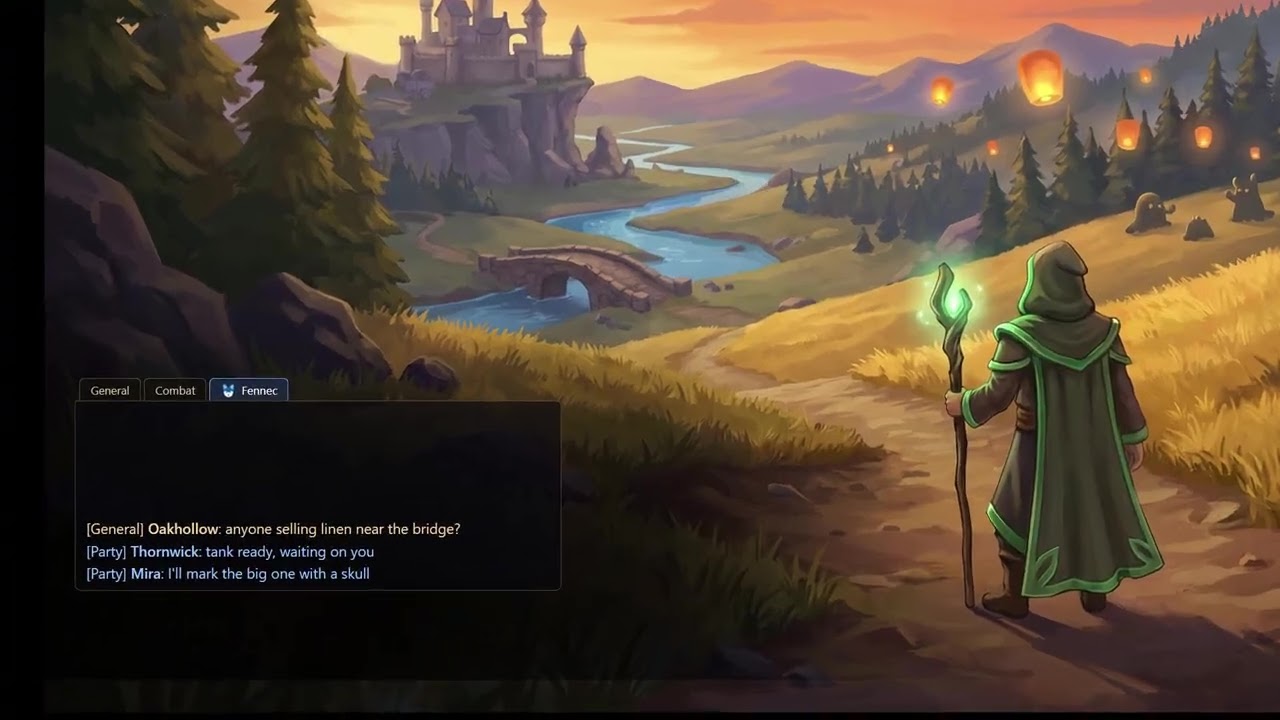
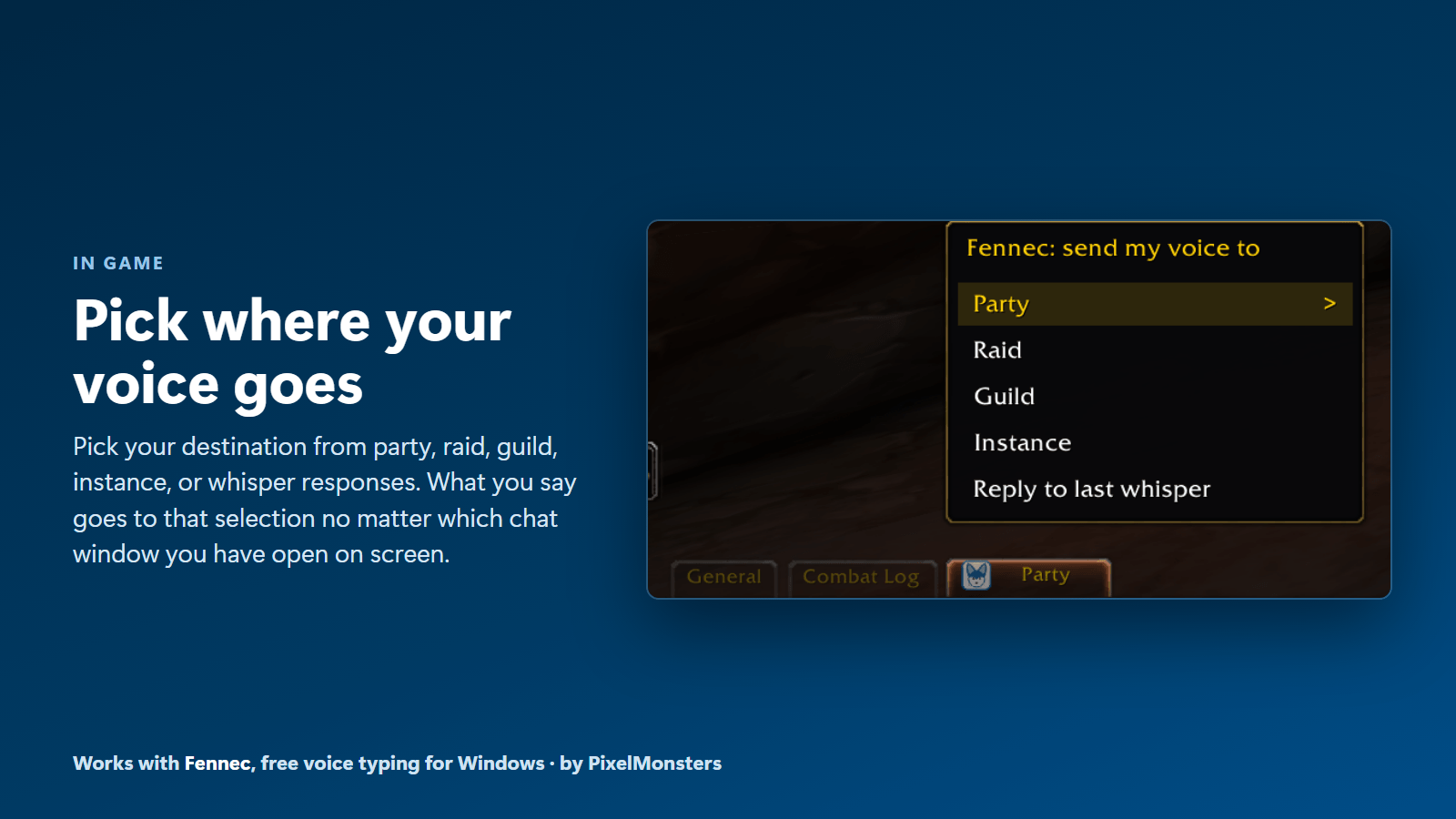
A small fox badge identifies the new Fennec tab in your chat window. Use the arrow on that tab to decide where your voice is sent, whether it's party, raid, guild, instance, or a reply to your last whisper. That setting remains active regardless of which chat tab you are currently viewing, allowing you to read General while your voice continues to go to party.
Find a fox icon on your minimap. A left-click turns the Fennec tab on or off, while a right-click lets you pick your channel. You can also drag the icon if you want to reposition it.
Not in a group?
If you have selected a party, raid or instance but are not currently in one, your chat defaults to Say. This sends messages to players nearby, and the tab displays (Say). To keep conversations private instead, click the fox icon. Then select Only me under When I'm not in that group. Note that guild and whisper replies do not use the Say channel. If you turn the tab off, no messages are sent.
Your messages are tagged
When you send a message, it begins with [Fennec] so your group knows you spoke rather than typed. If you want to change that tag or turn it off, go into Settings within Fennec and select the Games tab.
Change channel by voice
Fennec lets you send a single voice message to any other channel. To do this, say the target channel name first, hold a brief pause, and speak your message. For example, saying Guild, anyone up for Deadmines? routes that request to guild chat directly. This routing feature works across Party, Raid, Guild, Instance, and Officer channels. If you do not include that pause, the system treats it as regular conversation within your current channel.
Whisper and reply by voice
Say whisper, then a name, pause, and say what you want to send. For responses to the most recent person who whispered you, use reply followed by a pause and your text. If Fennec cannot identify that name, it places the message in the chat box instead. This allows you to verify the spelling before pressing Enter.
Scratch that
Say scratch that if your mind changes mid-sentence, and nothing is sent. If you speak again after saying scratch that, just the new words go out.
Say send to send
When Fennec drops your text into the chat box for you to review, keep the talk button held down and say just the word send. Fennec then hits Enter on your behalf. The word only works said on its own, and it functions across all seven command languages. This needs Fennec 1.0.43 or newer.
Fix my grammar (Fennec 1.0.44 or newer)
Fennec handles the tricky bits where speech engines guess wrong. For instance, it corrects pools back to pulls or heals instead of heels. Head to the Settings in Fennec and switch on Fix my grammar. This runs a small AI model directly on your graphics card to clean up every message before it's typed. The system respects your gaming lingo, so brb, lol, and LFG remain untouched. If a correction would alter your intent, Fennec just types what you actually said. You need a graphics card with 6 GB of video memory to use it. Currently, the tool works in English only. When you first enable it, Fennec downloads a 2.7 GB model file.
Translate chat (Fennec 1.0.45 or newer)
Fennec makes cross-language play easier. Head to Settings, then Games, and turn on the Translate chat feature. When teammates speak a language you don't know, their messages appear in your own tongue inside a small window above the game screen. You will also see exactly what they typed right below that translation. The same works for you. Your text goes out in their language, while your original words stay next to it so everyone else can follow along. For instance: "I'll tank, follow me (ES: yo tanqueo, síganme)".
Your own graphics card handles the processing, meaning no data leaves your PC. The setup requires a GPU with 6 GB of memory, just like grammar fixing does. Fennec activates the live link for you automatically. When that feature is active, every new chat line appears as a brief flash of colored squares in the top-left corner of the game. That visual cue is how Fennec reads the chat. However, WoW restricts add-on access to some chat during boss fights, so those specific lines cannot be translated.
Names spelled right
Fennec formats WoW names to match how players actually type them. It turns dead mines into Deadmines and l f g into LFG. Regular words remain exactly as you speak them. The add-on saves your guild name, its members, and your friends list locally on your PC so Fennec spells those names right. This happens when you log out or run /reload. Only character names are stored and no data leaves your system. Use /fennec names off to turn this feature off.
Hear chat read aloud
The Fennec app relies on a Windows voice to vocalize whispers and party chat, allowing you to hear them while combat is underway. To activate this feature, open Fennec and navigate to Settings, then Games, and finally Read aloud. That same menu lets you choose which type of chat to listen to. The system uses the identical live connection as translation, and Fennec enables it automatically. When translation is also active, lines spoken in foreign languages are read back to you in your own language.
Opens chat safely
The add-on adds a safer way for the app to open chat in the game. Rather than using Enter, which closes a chat box that is already open, Fennec presses Ctrl+Alt+Shift+F11. This opens the chat box only when it is closed. The tool does not type or send any content on its own.
Your language
To pick your language in Fennec, open Settings and go to General. From there, select Language I speak. English is set as the default choice. All languages listed here run on one identical speech model, so no additional download is required when you change your selection.
Voice commands
Voice control is available in seven languages. The system recognizes the specific channel names displayed in your local version of WoW, and you can always use the English commands too.
| Language | Channels | Whisper, reply | Scratch that |
|---|---|---|---|
| English | Party, Raid, Guild, Instance, Officer | Whisper, Reply | scratch that |
| German (Deutsch) | Gruppe, Schlachtzug, Gilde, Instanz, Offizier | Flüster, Antworte | vergiss das |
| French (Français) | Groupe, Raid, Guilde, Instance, Officier | Chuchote, Réponds | oublie ça |
| Spanish (Español) | Grupo, Banda, Hermandad, Instancia, Oficial | Susurra, Responde | olvida eso |
| Portuguese (Português) | Grupo, Raide, Guilda, Instância, Oficial | Sussurra, Responde | esquece isso |
| Italian (Italiano) | Gruppo, Incursione, Gilda, Istanza, Ufficiale | Sussurra, Rispondi | lascia perdere |
| Russian (Русский) | Группа, Рейд, Гильдия, Подземелье, Офицер | Шепни, Ответь | забудь это |
A German player might say Gilde, wait a moment, and then speak the message. That text ends up in guild chat.
Every language Fennec understands
English, German (Deutsch), French (Français), Spanish (Español), Portuguese (Português), Italian (Italiano), Russian (Русский), Korean (한국어), Chinese (中文), Afrikaans, Albanian, Amharic, Arabic, Armenian, Assamese, Azerbaijani, Bashkir, Basque, Belarusian, Bengali, Bosnian, Breton, Bulgarian, Burmese, Cantonese, Catalan, Croatian, Czech, Danish, Dutch, Estonian, Faroese, Finnish, Galician, Georgian, Greek, Gujarati, Haitian Creole, Hausa, Hawaiian, Hebrew, Hindi, Hungarian, Icelandic, Indonesian, Japanese, Javanese, Kannada, Kazakh, Khmer, Lao, Latin, Latvian, Lingala, Lithuanian, Luxembourgish, Macedonian, Malagasy, Malay, Malayalam, Maltese, Maori, Marathi, Mongolian, Nepali, Norwegian, Norwegian Nynorsk, Occitan, Pashto, Persian, Polish, Punjabi, Romanian, Sanskrit, Serbian, Shona, Sindhi, Sinhala, Slovak, Slovenian, Somali, Sundanese, Swahili, Swedish, Tagalog, Tajik, Tamil, Tatar, Telugu, Thai, Tibetan, Turkish, Turkmen, Ukrainian, Urdu, Uzbek, Vietnamese, Welsh, Yiddish, Yoruba.
We also provide a Detect automatically option, though we advise against using it for brief texts. It might misidentify the language in casual inputs like ty or omw. Furthermore, the WoW name and slang corrections, including terms such as Deadmines and LFG, are only active if English is set as your language.
Fennec's own screens follow your Windows display language.
What you need
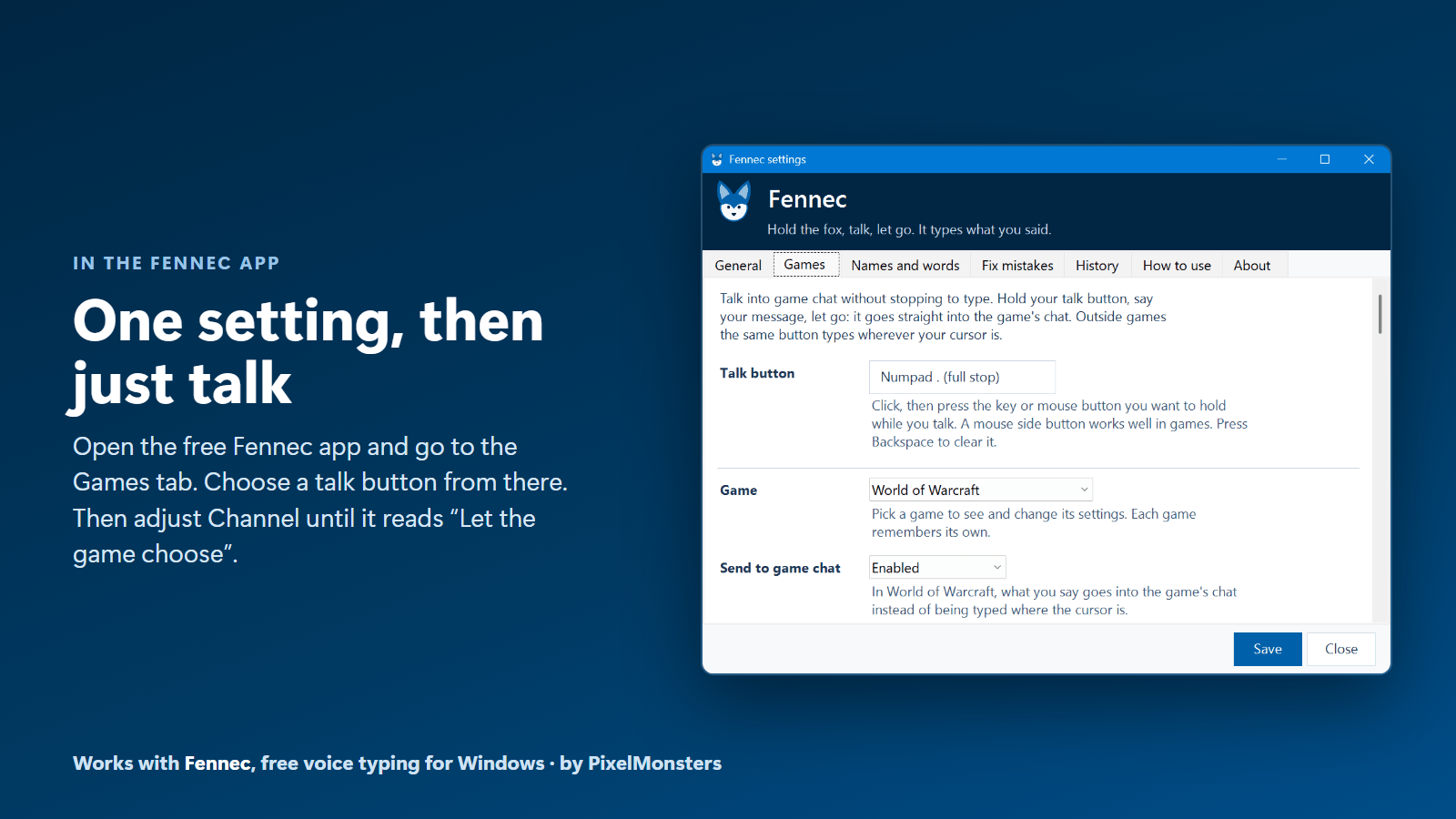
You must download the free Fennec app for Windows before this add-on can work. In Fennec, find Settings and click the Games section. Pick a talk button first. Then adjust Channel to Let the game choose.
Before the app delivers its first message, the add-on displays a brief setup note in your personal chat every time you sign in. This message is visible only to you, and it will permanently stop appearing once your voice has been received.
Fennec is free from meetfennec.com, and on the Microsoft Store.
Commands
/fennecshows a short how-to/fennec tabbrings the Fennec tab back if you closed it/fennec offswitches it off/fennec menuopens the channel menu/fennec sayor/fennec mepicks Say or Only me when you're not in a group/fennec roundor/fennec squarechanges the fox badge/fennec reportopens Copy for a report (so does Shift-click on the minimap fox)/fennec names offor/fennec names onstops or starts keeping your guild and friends names for the app- Use
/fennec live onor/fennec live offto toggle the active link that Fennec relies on for translating chat and reading it aloud. - The
/fennec live testcommand outputs a Spanish line to verify the link functions correctly.
Something not working?
Click the fox icon located in the Fennec tab, then select Copy for a report. A dialog appears with everything required already highlighted. This includes the add-on version, your game version, class, level, language and any recent errors from this add-on. Your character name, realm, guild or account are never included in that data. Press Ctrl+C to capture it. Next, open meetfennec.com/report in your browser and paste the text using Ctrl+V. Then tell us what went wrong. Since add-ons cannot launch web pages on their own, you must enter that URL manually.
Fair play
If you do not hold down the talk key and speak, no message goes out. This works just like typing it manually yourself. The add-on stays in the specific channel you select and costs nothing to use or purchase.
Fennec - Voice to Text & Voice Chat Team