Fable UI - Enhanced Gamepad & Controller Features
- By
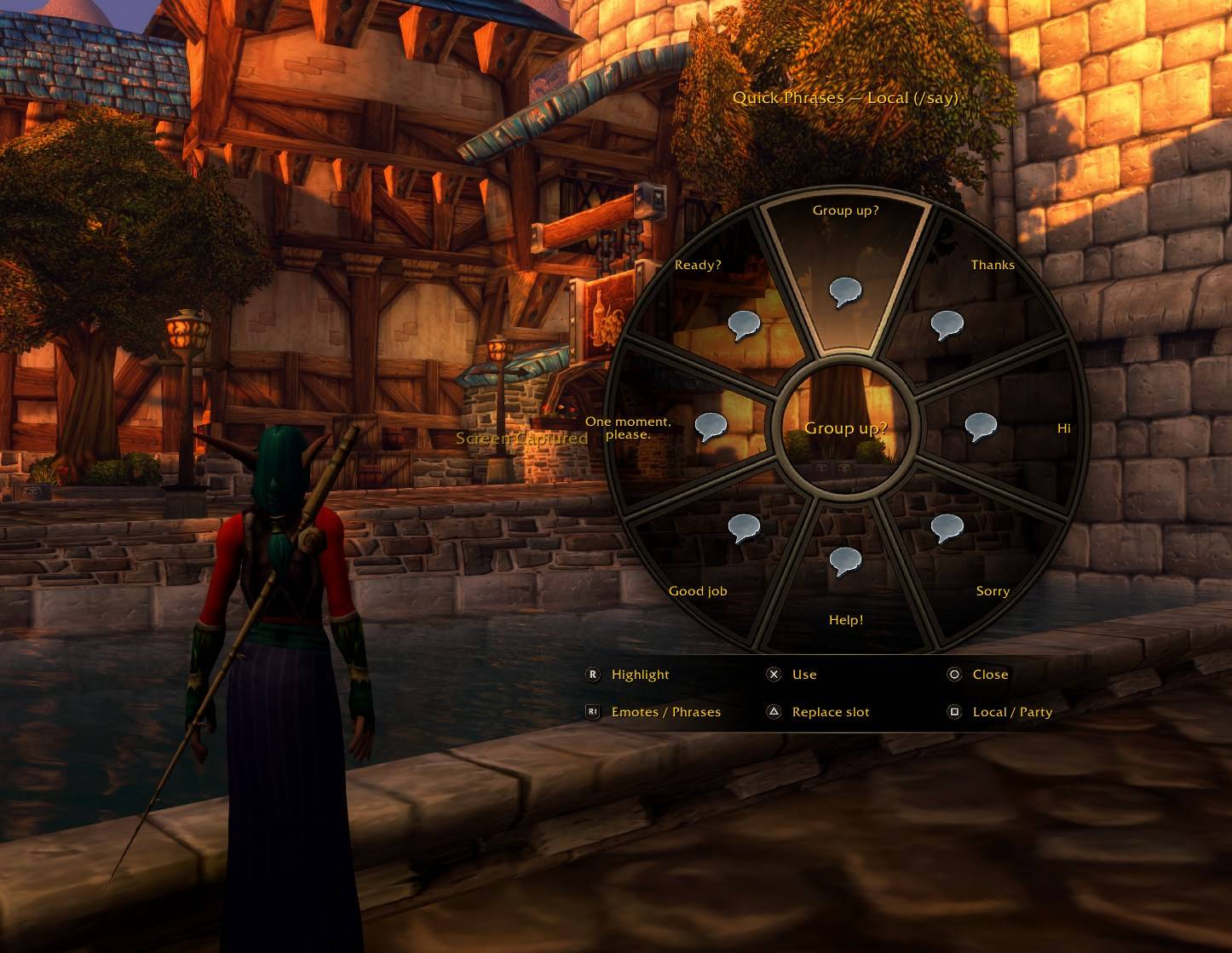
Quick Chat Wheel
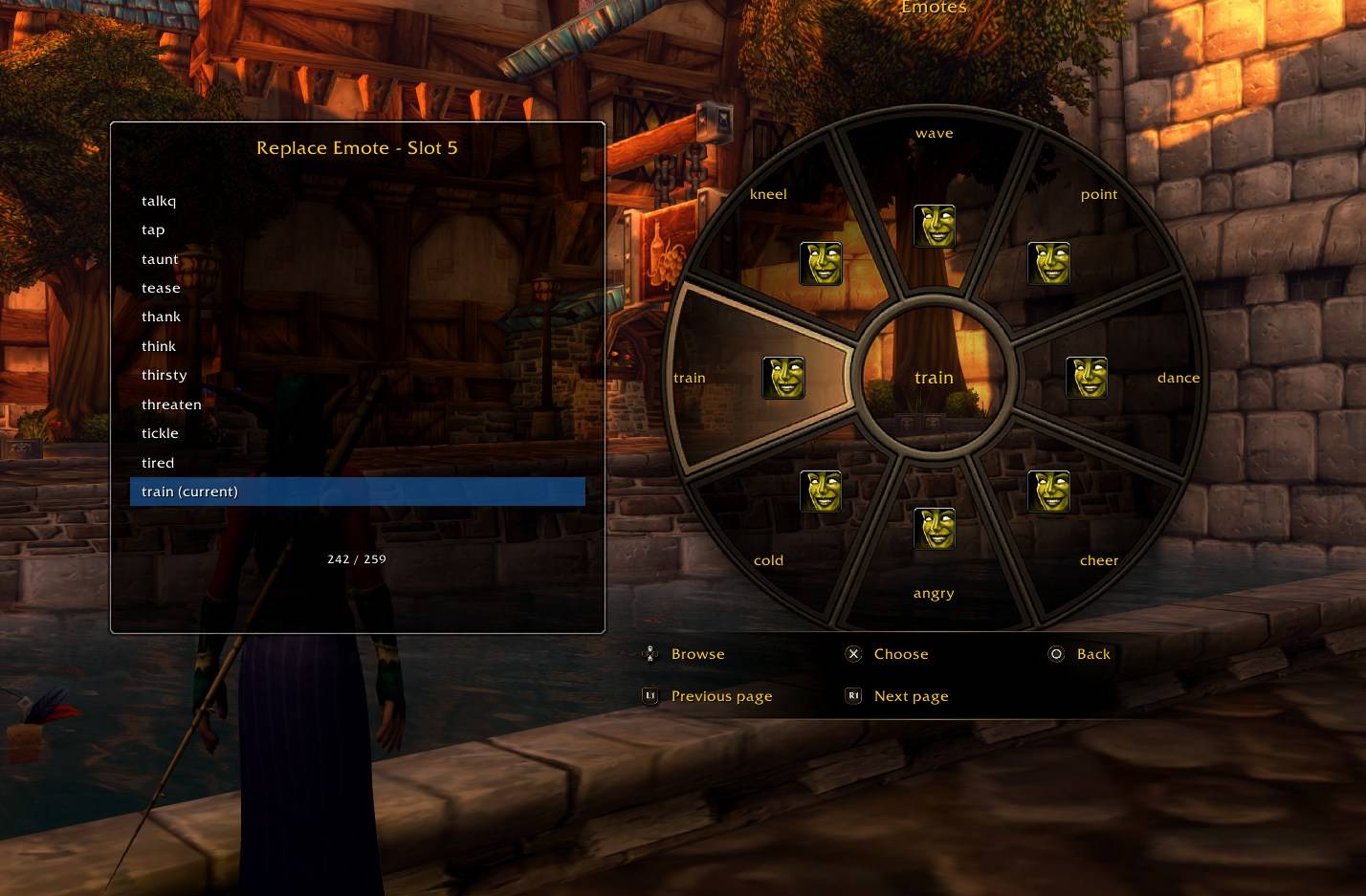
Custom Emote Wheel
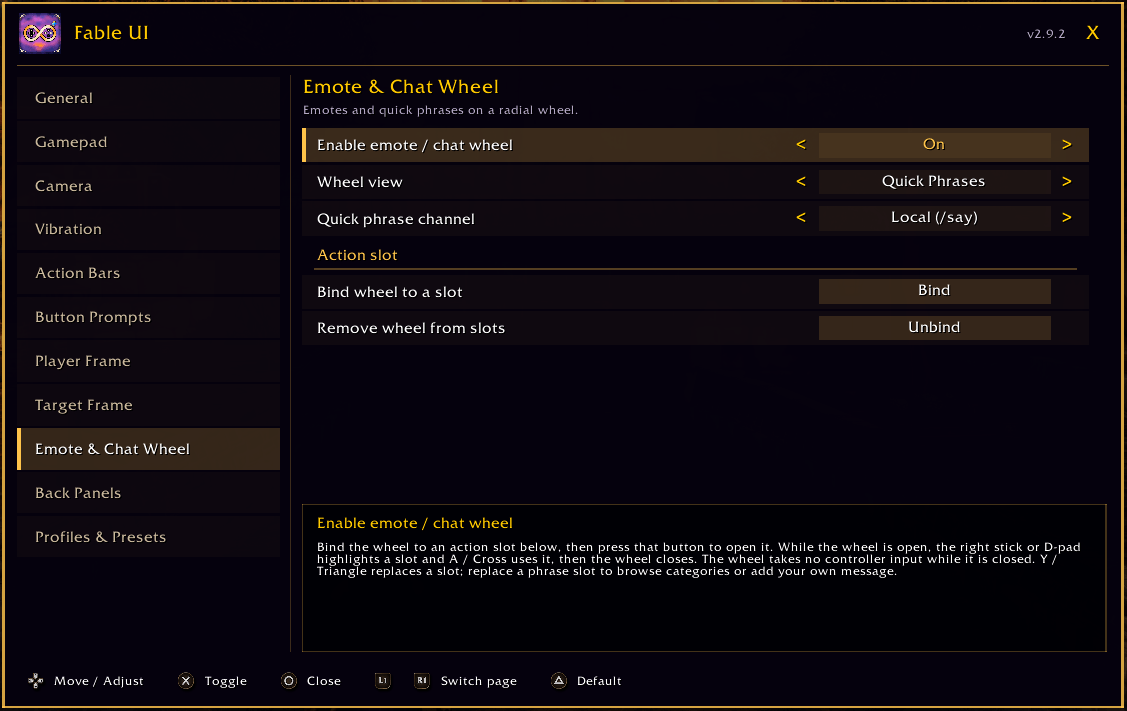
Emote & Chat Settings
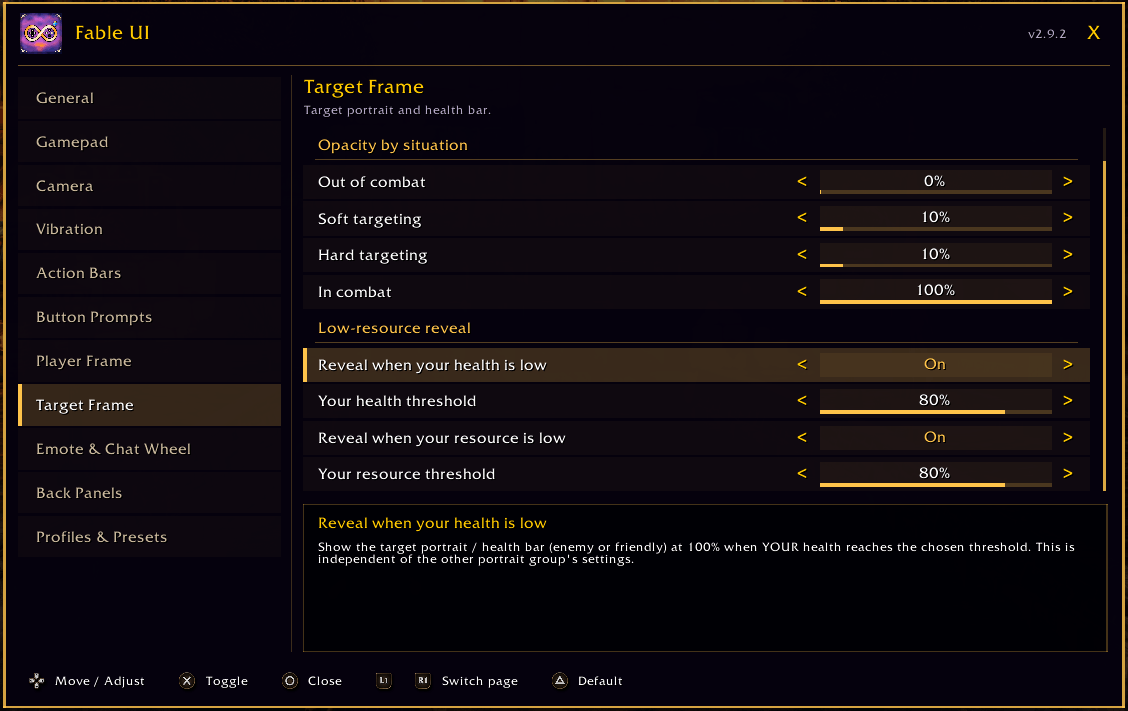
Target Settings
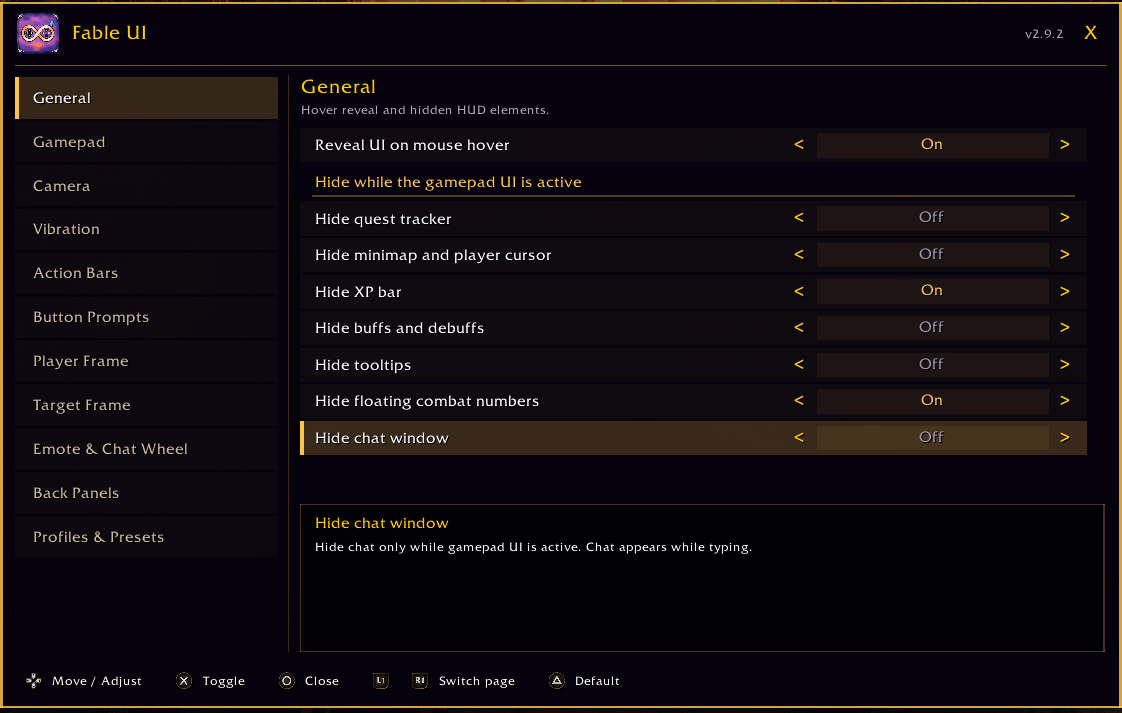
General UI Show/Hide
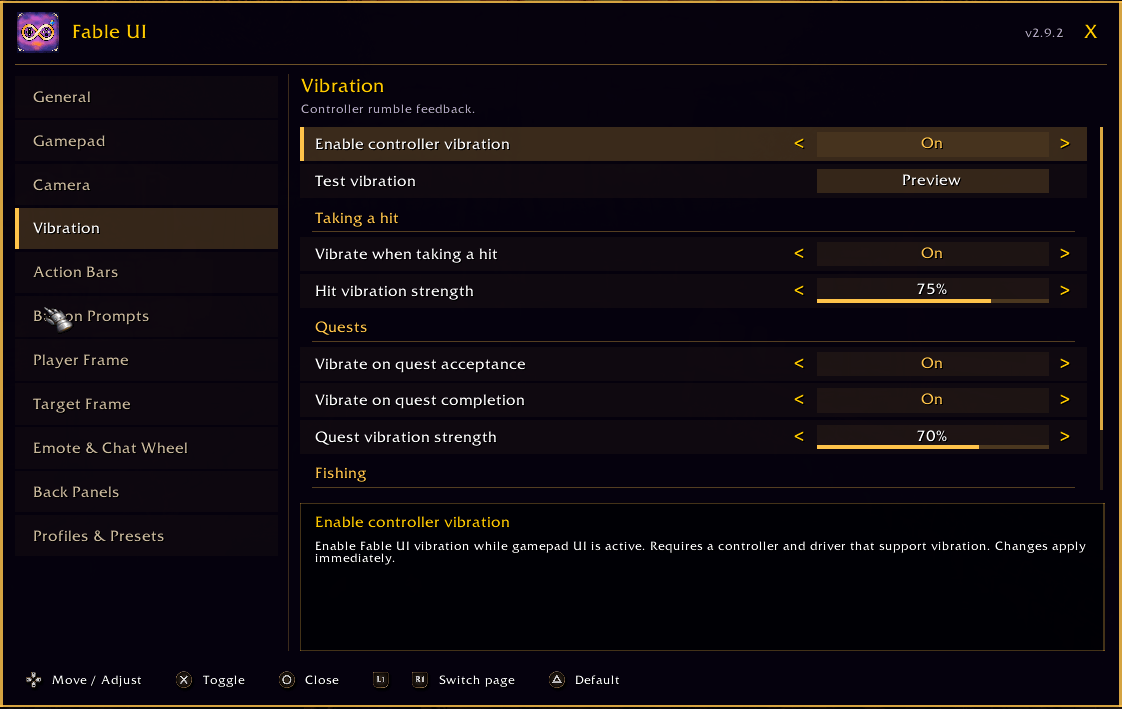
Vibration Settings
Description
Fable UI - Enhanced Gamepad & Controller Features
Fable UI gives you control over how much of your HUD stays visible during controller play in WoW Forever. Keep the screen clear while exploring, bring back essential information when targeting, and choose how much UI you want during combat.
Tune your visibility, reveal hidden elements with a mouse or Steam Deck trackpad, customize your camera, and save a setup you can carry between characters and installations. Every option is set from Fable UI's own settings menu, built to be used with the controller.
This addon is still early in development. Feedback and feature requests are welcome.
Features
| Feature | What it does |
|---|---|
| Controller settings menu | Every option lives in Fable UI's own menu, built for the gamepad. D-pad moves between options and adjusts them, LB / RB switches pages, A / Cross selects, Y / Triangle restores an option's default, and B / Circle closes. Each option shows its description as you focus it. The sticks stay free, so you can look around while adjusting camera and visibility settings. |
| Independent visibility controls | Gamepad action bars, button prompts, your player portrait/health bar, and your target portrait/health bar each have their own enable toggle and opacity settings. |
| Four visibility states | Set separate 0–100% opacity levels for out of combat, soft targeting, hard targeting, and combat. Enemy and friendly targets are supported. Combat takes priority over targeting, and hard targets take priority over soft targets. |
| Fade timing | Set both the delay before fading and the fade duration. Keep information visible briefly after a reveal ends, then let it fade gradually. The delay ranges from 0–10 seconds and defaults to 2 seconds. |
| Mouse and trackpad hover reveal | Move your mouse or Steam Deck trackpad over a managed UI area's normal position to reveal that group, even when Fable UI has hidden it. It remains visible while hovered and uses your delay after the pointer leaves. |
| Health and resource conditions | Reveal portraits at full visibility when your character's health or current resource reaches a chosen threshold. Player and target portrait groups have independent health/resource toggles and percentage sliders. Either enabled condition can reveal its group. |
| Trigger and shoulder reveals | Hold LT or RT to reveal enabled fade groups. Configure L1 / LB and R1 / RB to reveal action bars and prompts. Choose whether L1 + R1 reveals gamepad UI, the full managed UI, or neither. LT + RT can temporarily reveal additional hidden HUD elements. |
| Window and vendor reveals | Automatically reveal enabled fade groups while bags or the Spellbook are open. Vendor interactions also reveal them while shopping. |
| HUD hiding | Independently hide chat, quest tracking, the minimap and its markers/player cursor, the XP bar, buffs and debuffs, tooltips, floating combat numbers, and the center crosshair dot. |
| Chat and tooltip access | Hidden chat returns while typing. Tooltips remain available in bags, vendors, professions, other interface windows, and while a managed group is revealed by mouse hover. |
| Reticle and swing timer control | Hide the entire reticle out of combat and restore it during combat. Center-dot hiding is independent, so you can retain Blizzard's swing timer without the white dot. |
| Camera framing | Adjust shoulder offset left or right, enable R3 shoulder swapping, and recenter beyond a chosen zoom distance. Optional vertical pitch adjusts framing alongside normal camera movement; it does not independently change camera height. |
| Controller vibration | Add feedback for incoming damage, quest acceptance, quest turn-ins, and fishing loot after reeling in. Use event toggles, strength controls, and a test button. Absorb-only hits, avoided attacks, and healing do not trigger hit vibration. Fishing feedback happens on loot, rather than the initial bite. Controller and driver support are required. |
| Emote and Quick Phrase wheel | Bind the wheel to an action slot from the Fable UI menu: choose Bind, then press the button for an open slot, the same way you bind a spell. Hold LT, RT, or both to reach the other bars. Switch between Emotes and Quick Phrases with R1 / RB. The wheel takes no controller input while it is closed. |
| Right-stick selection | Push the right stick toward an option to highlight it, then press A / Cross to use it; the wheel then closes. The highlight stays when you release the stick. The D-pad and mouse can also select. Outside combat the left stick keeps controlling movement while the wheel is open. |
| Editable wheel slots | Each wheel view has eight slots. Highlight a slot, then use Y / Triangle to choose a replacement outside combat. The list opens beside the wheel, with the slot you are replacing still highlighted. Browse the client emote catalogue or phrase categories using the D-pad. Greetings include Hello, Hello!, Hi, Howdy!, and Hi all. Help! and Need Help? are separate choices. |
| Custom messages | Choose Add Custom Message, type your own phrase, and save it to the selected slot. Custom text is saved per character and included in presets and exports. Custom Messages (saved slots) lets you reuse a message from another slot. Saving, editing, and browsing never send a message. |
| Native-style wheel legend | The legend uses Blizzard's black radial-menu backing, native font styling, and button graphics supplied by the active controller's icon set. Prompts change to match wheel selection, replacement lists, and message editing. |
| Local and Party phrases | Choose Local (/say) or Party (/p) and switch with X / Square. The wheel displays the active channel. Highlighting or editing a slot does not send anything, and Party mode does not fall back to Local while solo. |
| Back-panel binding copies | Configure four main rear panels and two additional panel/bumper slots. The Back Panels page includes a setup guide explaining device mapping, input detection, and binding copies. Assign each paddle a distinct keyboard input in Steam Input or compatible controller software, then copy an existing WoW binding to it, such as M for Open Map. Review before applying, with previous-binding restoration where possible. |
| Profiles and presets | Save named Fable UI setups at account scope and load them on other characters. Presets include visibility, thresholds, timing, hover, camera, vibration, wheel choices, and rear-button copies. A built-in default preset is also available. |
| Portable export/import | Copy a preset code between installations, including PC and Steam Deck. Import saves it for review before loading. Presets cover Fable UI settings, custom wheel messages, and rear-button setup. Native frame positions, action-bar contents (including the slot the wheel is bound to), macro definitions, and device profiles are not copied. |
| Live settings and character setups | Settings update in real time and your active Fable UI configuration is saved per character. Named presets are shared across characters on the same installation. Rear-key copies are saved to the active WoW binding profile, whose account-wide or character-specific scope is shown during setup. |
| Gamepad mode | Visibility controls apply while the gamepad UI is active and restore managed elements when that mode is inactive. |
Your starting profile
The default visibility levels are 0% out of combat, 25% while soft targeting, 25% while hard targeting, and 100% in combat. Adjust each group independently to keep as much—or as little—HUD visible as you prefer.
Getting started
When upgrading from the previous name, install both included folders and restart WoW once. The legacy settings importer preserves existing setups while the main addon runs as Fable UI.
Open the settings menu from Settings → AddOns → Fable UI → Open settings, or type /fableui. That page also has a click-to-bind row for a keyboard shortcut to the menu; controller buttons cannot be used for it, because the game reserves them while the gamepad UI is active. The menu opens outside combat and closes when combat starts.
The menu has pages for general controls, gamepad behavior, camera, vibration, action bars, button prompts, player and target portraits, the emote/chat wheel, back panels, and profiles.
Feature Instructions
To bind the wheel, open Emote & Chat Wheel → Bind wheel to a slot outside combat. The menu closes and a prompt appears: press the action button for an open slot, holding LT, RT, or both to reach the other bars. B / Circle with no trigger held cancels. The wheel's macro is created and placed for you, and that button then opens the wheel. It binds on the action bar page currently showing, so switch page first if you want a different one. Remove wheel from slots takes it off again without changing your other actions.
The wheel does not require enabling custom scripts. Wheel icons placed by earlier versions remain compatible.
To write a phrase, highlight a Quick Phrase slot and choose Replace slot → Add Custom Message. Use a keyboard or the Steam Deck on-screen keyboard, then save. Messages must fit within 240 bytes and contain no line breaks or chat formatting. To use a saved phrase, highlight it with the right stick and press A / Cross. The wheel sends it to the displayed Local or Party channel, then closes.
For rear buttons, first assign each paddle a different unused keyboard key in Steam Input or compatible controller software. Then open Back Panels in the Fable UI menu, choose Configure on a panel, select Detect rear button input, and press that paddle. Select Choose key to copy, press an existing WoW key such as M, review the action, and select Apply copy. For example, a paddle sending F13 can copy M to open the map. Choose a spare key your device can actually send.
Fable UI receives the mapped key, rather than detecting the physical paddle. A paddle that mirrors an existing controller button cannot be identified separately. Controllers whose software cannot send keyboard inputs cannot use this setup. Configure outside combat. The setup window's buttons work with the controller, but the rear input and the key to copy are keyboard keys. Imported presets still need matching device mappings; Fable UI does not program your controller.
Open Profiles & Presets → Manage profiles to save your current setup, load it on another character, or export/import a portable preset code. Typing a preset name needs a keyboard or the on-screen keyboard.
Fable UI - Enhanced Gamepad & Controller Features Team