Emote Ring
- By
A Warcraft-inspired radial emote wheel for fast, immersive social and roleplay interactions.
WoWScrnShot_072626_111929.jpg
WoWScrnShot_072626_111921.jpg
Description
EmoteRing
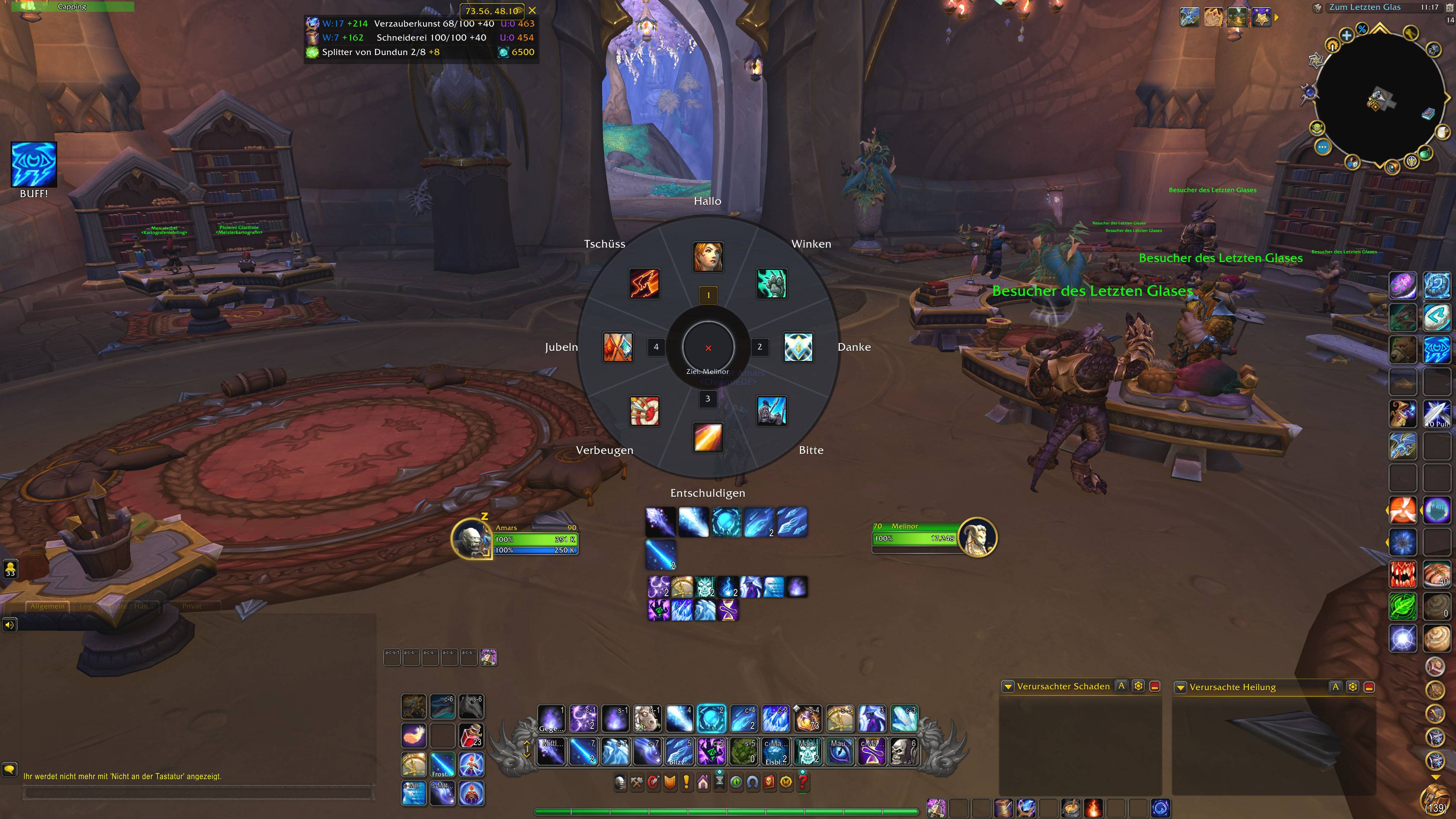
EmoteRing is a customizable radial emote wheel for World of Warcraft.
Hold a key to open the wheel, move your cursor toward an emote, and release the
key to perform it. EmoteRing is designed for roleplay, spontaneous encounters,
social interactions and easier communication in the open world.
The interface follows World of Warcraft's visual language and keeps the wheel
quick, readable and unobtrusive.
How it works
-
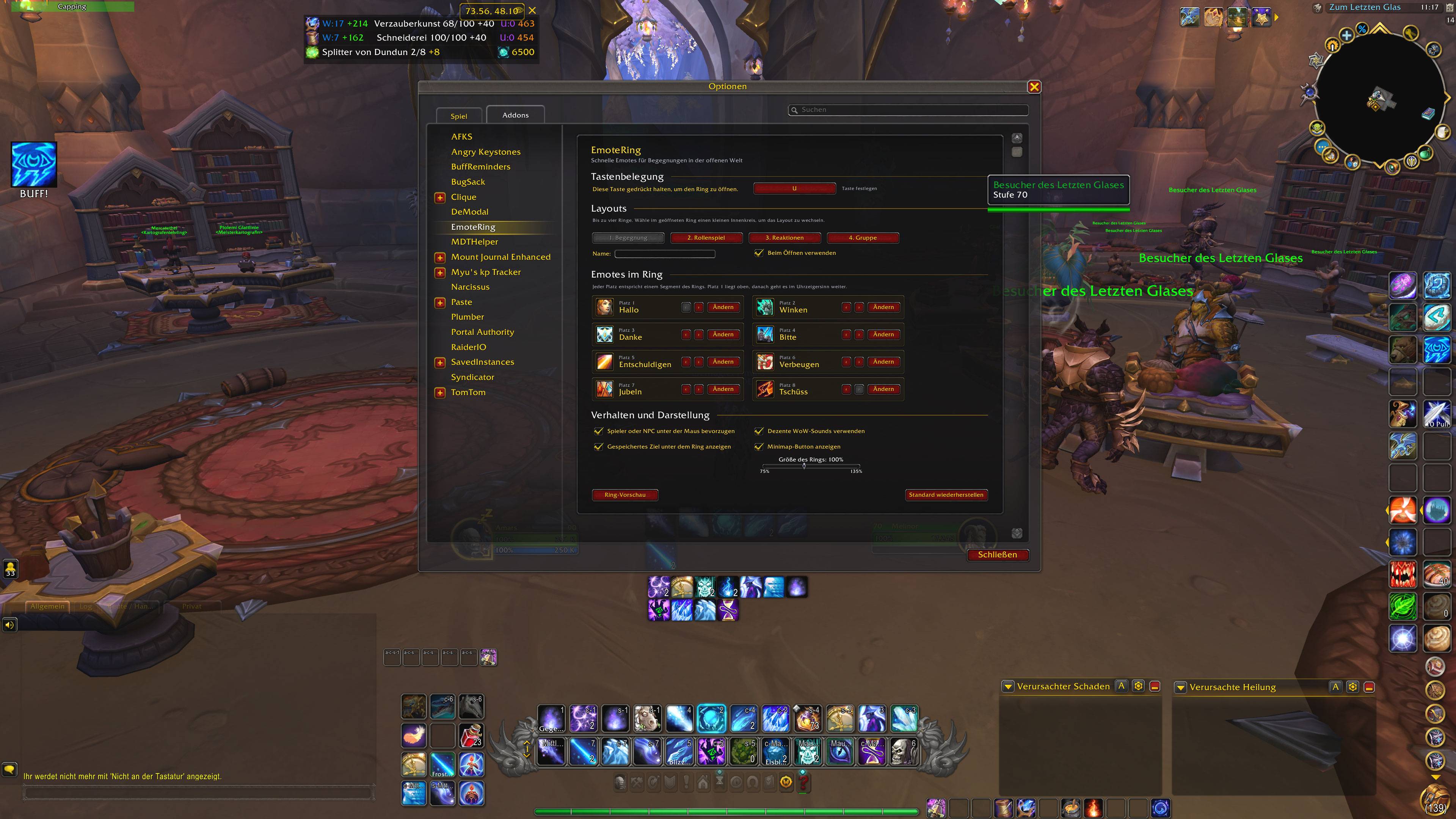
Assign the EmoteRing key in the addon options.
-
Hold the assigned key to open the wheel at your cursor.
-
Move the cursor toward the desired emote.
-
Release the key to perform the highlighted emote.
-
Release inside the center of the wheel to cancel.
If a valid target or mouseover unit is available, EmoteRing can direct the
selected emote toward that player or NPC.
Features
- Radial selection with icons and readable label
- Hold, select and release interaction
- Four customizable layouts with eight slots each
- Quick layout switching directly inside the wheel
- Configurable default layout
- Editable layout names
- Searchable emote browser
- Category filters for social, reaction, roleplay, group and status emotes
- Reordering controls for every layout
- Target and mouseover support
- Adjustable wheel size
- Movable minimap button
- Optional target display and interface sounds
- AFK and Do Not Disturb status actions
- English and German localization
- Automatically includes standard emote tokens exposed by the current game client
- No external libraries required
Included default layouts
Meeting
Greetings, waving, thanks, apologies, bowing, cheering and saying goodbye.
Roleplay
Bowing, saluting, pointing, pondering, dancing, sitting, kneeling and sleeping.
Reactions
Nodding, disagreeing, laughing, crying, sighing, shrugging, gasping and anger.
Group
Waiting, following, asking for help, fleeing, charging, requesting mana or
healing, and cheering.
Every slot can be changed in the addon options.
- Commands
/ering– Open the addon options/ering test– Open a temporary wheel preview/ering reset– Reset all settings and layouts
Minimap button
- Left-click: Open options
- Right-click: Open or close the wheel preview
- Drag: Move the button around the minimap
The minimap button can be disabled in the addon options.
Emote Ring Team