Stock UI Tweaks ConsolePort Friendly
- By
Options for WoW's stock UI to reduce on-screen elements. Aimed at ConsolePort addon users, fully usable without it.
Screenshot 2026-02-01 at 12.28.59â¯PM.jpg
Description
Options for WoW's stock UI to reduce on-screen elements.
Aimed at ConsolePort addon users, but fully usable without it.
Recommended to be used together with EnhanceQoL addon.
By default, nothing is enabled, so installing the addon only adds the settings menu.
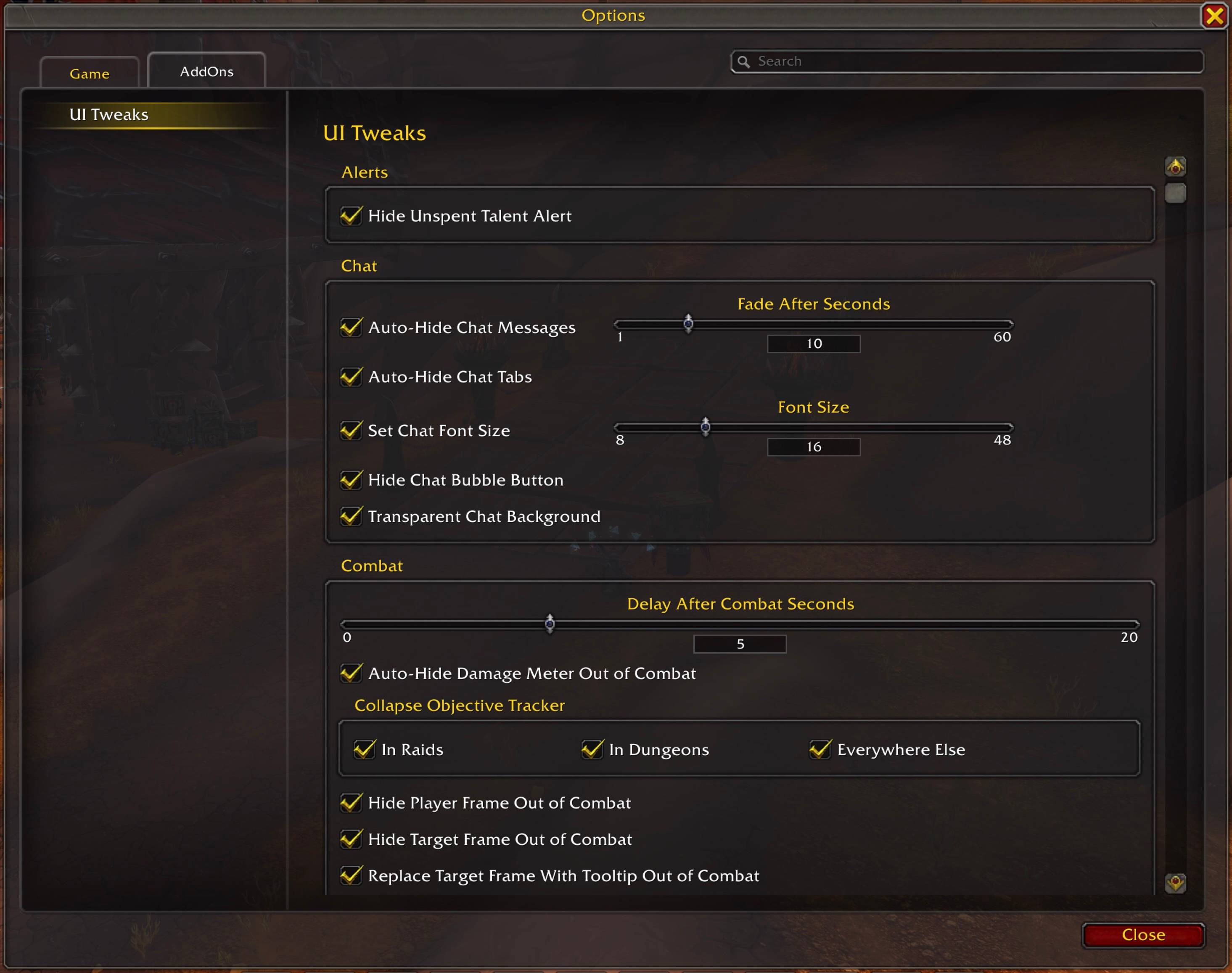
In game, go to Options -> AddOns -> Stock UI Tweaks to enable features.
After changing any setting, use the Reload button (or run /reload).
- Auto-Hide Chat Tabs — Auto-Hide chat tab titles, including newly created tabs, until you mouse over them.
- Hide All Speech Bubbles — Hide all native world-space speech bubbles from players and NPCs. Separate Talking Head, gossip, quest, and raid warning UI remains visible.
- Hide Chat Bubble Button — Auto-hide the chat button with the speech bubble icon until you mouse over the chat buttons area.
- Hide Chat Channels Button — Auto-hide the chat button that opens the channel list until you mouse over the chat buttons area.
- Hide Social Button — Auto-hide the social button next to the chat frame until you mouse over the chat buttons area.
- Set Chat Font Size — Enable a custom chat window font size for all tabs.
- Font Size — Font size to use when the override is enabled.
- Transparent Chat Background — Set the chat background alpha to zero.
- In Raids — Fade out the objective tracker in combat while in raid instances.
- In Dungeons — Fade out the objective tracker in combat while in dungeon instances.
- Everywhere Else — Fade out the objective tracker in combat everywhere else (open world, scenarios, PvP, etc.).
- Hide Target Frame Buffs and Debuffs — Hide all buffs and debuffs from the target frame.
- Player and Target Frame Opacity In Combat — Set the player unit frame, player cast bar, and target unit frame opacity in combat from 0% (invisible) to 100% (fully opaque).
- Player and Target Frame Opacity Out of Combat — Set the player unit frame, player cast bar, and target unit frame opacity outside combat from 0% (invisible) to 100% (fully opaque).
- Show Raid Frame Debuffs On My Player Frame — Show debuffs that Blizzard displays on raid frames in Blizzard's secure debuff-type gradient overlay over the player name, health bar, and mana bar.
- Test Player Frame Debuff Colors — Cycle through the gradient overlays for Magic, Curse, Disease, Poison, and Bleed.
- Add Leave Instance Group To ConsolePort Menu Ring — Add a separate Leave Instance Group button next to ConsolePort's dungeon teleport button in the menu ring. The button is hidden while you are not in a party or when ConsolePort's regular Leave Party action is already shown.
- Add Mythic+ Finder To ConsolePort Menu Ring — Add a Mythic+ Finder button next to ConsolePort's Group Finder button in the menu ring. It opens the Premade Groups dungeon search directly.
- Add Oil To Main-Hand Shortcut To ConsolePort Inventory Options — Add an Apply to Main-Hand Weapon shortcut to ConsolePort's Triangle options for weapon oil items in inventory.
- Add Sound Toggle To ConsolePort Menu Ring — Add a Sound button to ConsolePort's menu ring that toggles Settings -> Game -> Audio -> Enable Sound and shows whether sound is enabled or disabled.
- Add Tab Controls To ConsolePort — Use L1 and R1 to switch between tabs in the Adventure Guide, Auction House, Bank, Character, Dungeons & Raids, Map, Talents and Spellbook, and Warband Collections windows when using ConsolePort, with controller button icons shown on the tab controls.
- Close All Inventory Bags With ConsolePort Cancel — Close all open inventory bags at once when pressing ConsolePort's cancel button (Circle by default) while its cursor is focused anywhere in an inventory bag.
- Disable Immersion Dialog List Item Scaling — Prevent Immersion's active dialogue list items from growing when hovered or selected.
- Fix Dropdowns For ConsolePort — Allow ConsolePort's controller X button to open modern dropdown menus throughout the UI, such as the Raid Finder raid selector and Premade Groups filter.
- Focus Mailbox Open All Button — Focus the ConsolePort controller cursor on the mailbox's Open All button when opening the mailbox.
- Hide ConsolePort 'New Ability Available!' Frame — Hide ConsolePortTempAbilityFrame, e.g., Dungeon Assistance ability alert in Follower Dungeons.
- Only Show ConsolePort Crosshair In Combat — Only allow ConsolePort's crosshair to appear while in combat.
- Overlay Cooldown Manager Icons On ConsolePort Action Bar — Overlay Blizzard Cooldown Manager tracked buff, essential cooldown, and utility cooldown icons on matching ConsolePort action bar buttons at the same position and size, replacing the original action artwork while preserving ConsolePort button frames, native spell-activation glows, gamepad icons, and matching button opacity. Updates when ConsolePort toggle keys change the action shown on a button.
- Remove Active Buff Timers And Use Yellow Swipes — Hide countdown timer numbers and use the Essential Cooldown yellow swipe color on Cooldown Manager icons overlaid on the ConsolePort action bar while their buff is active. Cooldown timer numbers remain visible.
- Respect Turn Character With Camera While Casting — Prevent ConsolePort from changing Turn Character With Camera to Always while casting, channeling, or empowering spells.
- Share ConsolePort Action Bar Settings For All Characters — Warning: This will overwrite your ConsolePort UI settings. When enabled, Stock UI Tweaks saves your current ConsolePort action bar layout in ConsolePort's own presets as "UITweaksProfile" every time you log out, then restores that same preset automatically the next time you log in on any character. This keeps your ConsolePort action bar layout, optional bar settings, and action page logic consistent across characters without any manual export/import.
- Use Circle To Cancel Immersion Dialogues — Use Circle to cancel or close Immersion dialogue and Triangle to inspect items or back out of item inspection when using ConsolePort.
- Open ConsolePort Designer — Open the ConsolePort action bar configuration window.
- Open Advanced Cooldown Settings — Open Blizzard's Advanced Cooldown Settings on the Auras tab.
- Add Quest Prev/Next/Abandon Macros — Pressing this button creates or updates macros named Quest Abandon, Quest Next, and Quest Prev, then opens the Macro menu. Quest Abandon runs /uitabandonquest and opens the standard abandon confirmation for the currently selected tracked quest. Quest Next runs /uitnextquest and selects the next tracked quest (or the first if none is selected). Quest Prev runs /uitprevquest and selects the previous tracked quest (or the last if none is selected).
- Adjust Minimap Zoom Based On Player Speed — Smoothly zoom the minimap in while stationary, use one zoom level while moving or in combat, and fully zoom it out while flying.
- Always Show Quest Marker Distance — Always show the built-in quest marker distance, even when not facing the objective.
- Auto-Hide Stance Bar — Auto-Hide the Blizzard stance bar until you mouse over it.
- Hide Compact Raid Frame Manager — Hide the compact raid frame manager.
- Hide Help Tips — Hide help tooltips like 'You have unspent talent points' and 'You can drag this to your action bar'.
- Hide Loot Notifications — Hide loot-result notifications for you and other players without hiding group-loot voting prompts. The loot history can still be opened from chat links.
- Hide Totem Frame — Hide the totem frame, including warlock pets.
- Highlight Active Consumables In Inventory — Highlight inventory consumables with a green frame and remaining buff time when their player aura or weapon enchant is active. Supports flasks, food, oils, and other consumables that apply a helpful aura or temporary weapon enchant. If a Well Fed buff is active, all food items are highlighted with that buff's remaining time. Cases where a consumable applies an aura with a different name than the item spell are not supported (except Well Fed food). Does not update during combat.
- Party and Raid Frame Scale — Scale Blizzard's party and raid frame containers from 50% to 100%. Set this to 100% and reload to use Blizzard's Edit Mode sizes.
- Remember Start a Group Requirements — Remember the minimum item level and playstyle last selected in Dungeon and Raid Start a Group forms, plus the minimum Mythic+ rating selected for Dungeons.
- Share Skyriding Action Bar Skills For All Characters — Warning: This will overwrite your Skyriding action bar skills layout. When enabled, Stock UI Tweaks saves the Skyriding action bar (bonus bar 5) after you dismount (actual mount, not shapeshift), then restores that layout on login for any character. It will not overwrite slots using empty or unavailable skills.
- Show Mob Aggro Radius On Mouse Over Out Of Combat — Show the estimated distance remaining before entering a hostile mob's aggro radius in its tooltip when you mouse over it while out of combat.
Stock UI Tweaks ConsolePort Friendly Team