CompCheck
- By
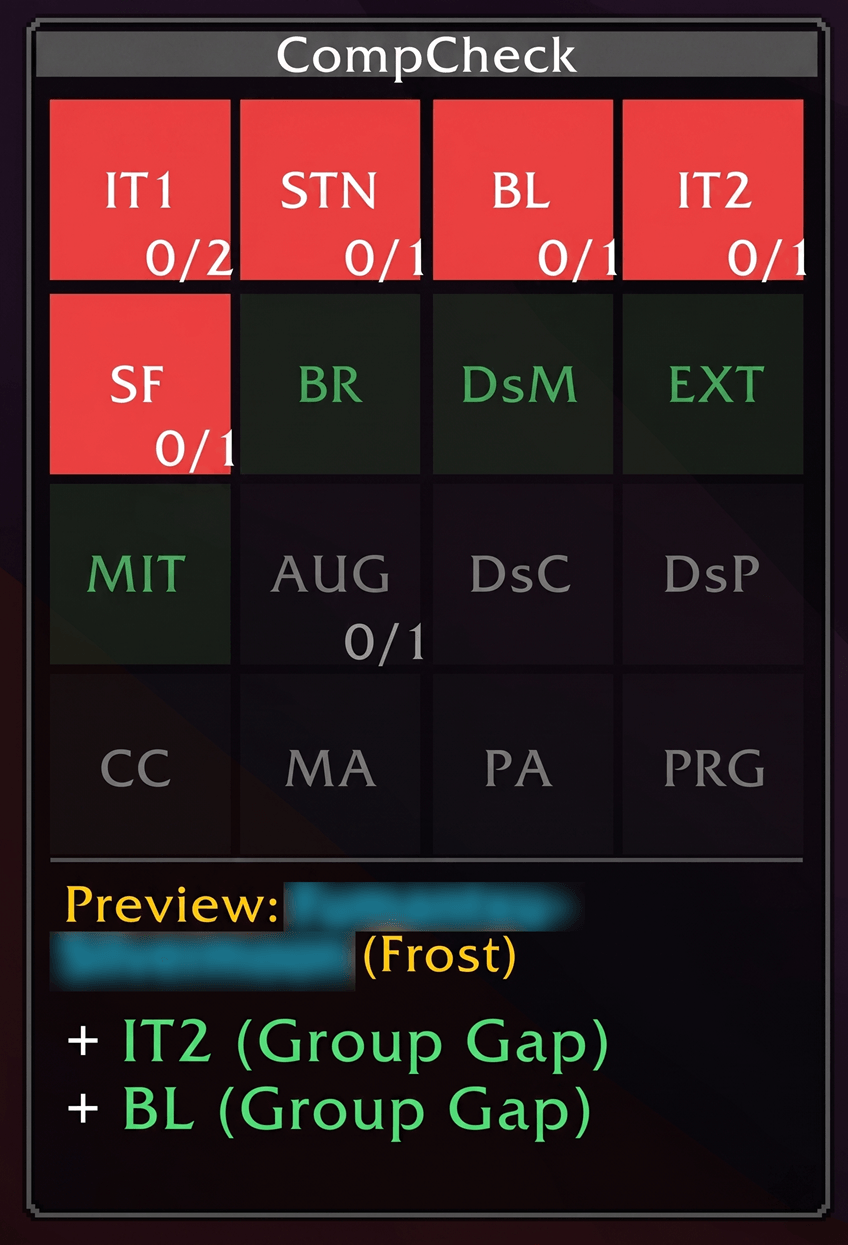
Projects your group's utility state across 16 buckets. Red = universal gap. Amber = dungeon-specific (e.g. Poison Dispel in Pit of Saron). Green = satisfied. Gray = irrelevant. The delta pane previews which gaps an applicant closes before you invite.
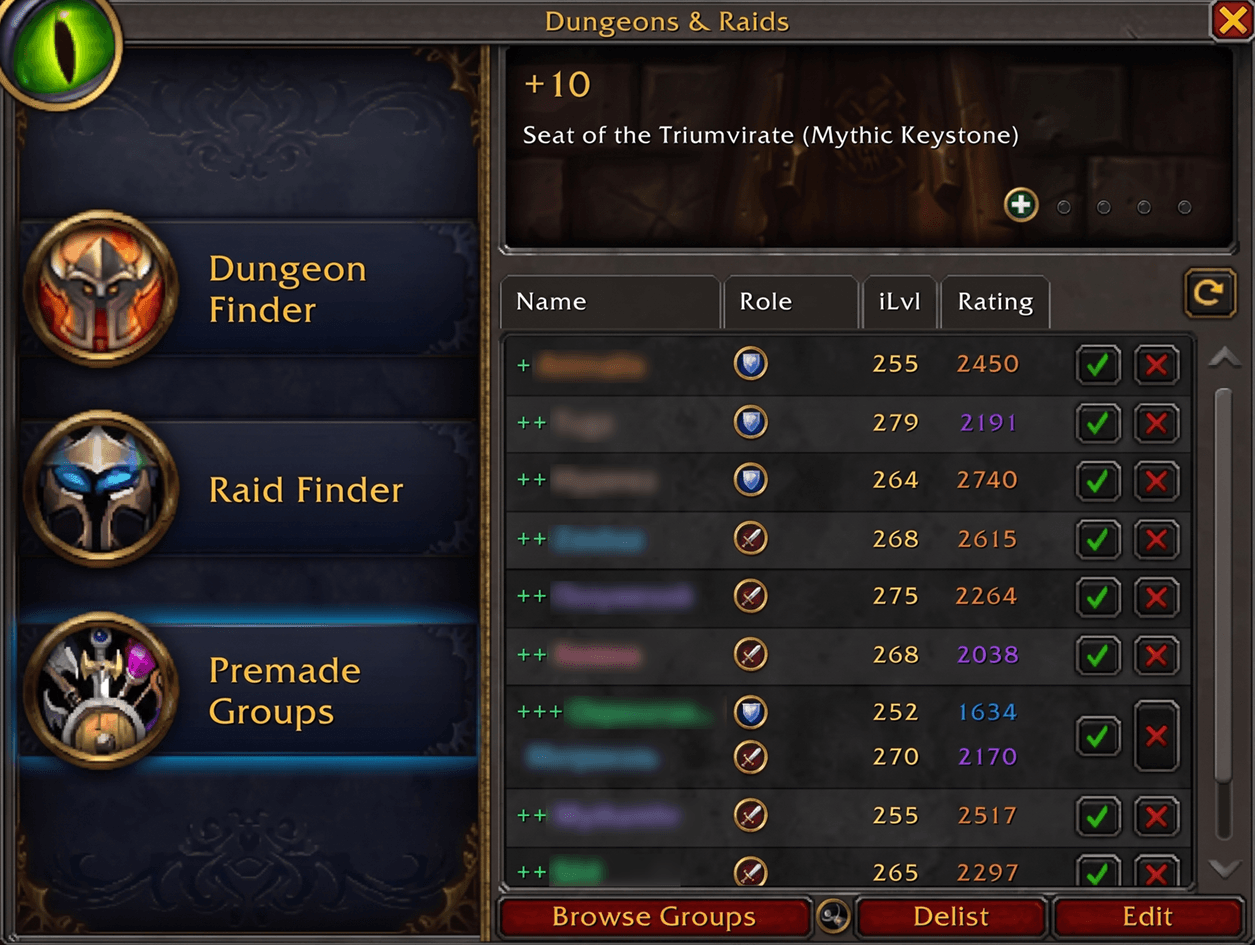
CompCheck securehooks the default LFG applicant list and prepends colored + indicators to each name. Green = closes a universal gap. Amber = closes a dungeon-specific gap. Up to 3 indicators per applicant. No scores. No item level bias. Just gaps.
Description
CompCheck solves one problem: when 20+ applicants flood your LFG list in seconds, which ones actually matter for your group?
Instead of memorizing the utility of every spec in the game, CompCheck reads your current group composition and shows you — per applicant — how many of your open gaps they close. No scores. No item level bias. No tooltip required.
HOW IT WORKS
A small, draggable panel shows your group's current utility gaps as colored tiles:
- Red = critical Tier 1 gap (missing Bloodlust, interrupts, etc.)
- Amber = dungeon-specific Tier 2 gap (e.g. Dispel Poison in Maisara Caverns)
- Green = covered
Each applicant in the list gets a color-coded prefix next to their name:
- +++ / ++ / + = closed 3, 2, or 1 gaps
- Green + = closes a critical Group Gap (Tier 1)
- Amber + = closes a Dungeon-specific Gap (Tier 2)
- Cyan + = brings a valuable New Buff (e.g., Skyfury)
- (nothing) = redundant / no new utility for your current group
That's all you need to see. Combine with item level and Mythic+ rating — your invite decisions take seconds instead of minutes.
FEATURES
- Tracks 16 utility buckets: Bloodlust, Interrupts (T1/T2), Battle Rez, Externals, Group Mitigation, Phys/Magic Amp, Skyfury, Dispels, Purge, and more
- Dungeon-aware: gap weights adjust automatically per dungeon (Maisara Caverns wants Poison Dispel, Magisters' Terrace wants more interrupts)
- Smart Amplifier logic: PHYS_AMP/MAGIC_AMP gaps only appear when your group actually has specs that benefit from them
- Hover over any gap tile to see which specs fill it (e.g., "Paladin - Protection")
- Dynamic Hover Preview: Hover over any applicant to see a spacious inline preview at the bottom of the Gap Panel. Shows their spec, realm-filtered name, and exact positive deltas. Expands dynamically inside the frame, completely preventing floating tooltip overlaps!
- Raider.io & Addon compatible: securehooked into Blizzard's LFG render to prevent prefix overrides, even when hovering directly over names with Raider.io tooltips active
- Draggable panel with persistent screen positioning
- Stateless and pure: zero memory drift, zero inspect queues, and fully testable offline
FREQUENTLY ASKED QUESTIONS
Q: What is the difference between Tier-1 (T1) and Tier-2 (T2) Interrupts?
- Tier-1 (T1): These are fast, high-frequency melee kicks with a short 15-second cooldown (e.g., Pummel, Kick, Rebuke, Disrupt, Spear Hand Strike, Skull Bash). In Midnight (Patch 12.0.5), healers no longer possess baseline interrupts. A group without at least 2 Tier-1 interrupts will struggle to sustain kick rotations on trash packs. CompCheck flags this as a Red (Critical) gap.
- Tier-2 (T2): These are ranged or longer-cooldown interrupts and silences (24s to 45s CD, e.g., Counterspell, Silence, Counter Shot, Solar Beam). While excellent as backup utility, they are not fast enough to handle high-frequency casts alone.
Q: Why are some tiles Red and others Amber?
- Red (Critical Gap): Missing core global utility that is vital for every single key (e.g., Bloodlust, having less than 2 Tier-1 interrupts, or missing group mitigation).
- Amber (Dungeon-Specific Gap): Gaps that only matter for the key you are currently hosting. CompCheck automatically detects your active dungeon ID. For instance, Poison Dispel will show as an Amber gap in Maisara Caverns, but will be hidden (gray) in Skyreach, where poison dispels have no mechanical value.
Q: A high-utility spec applied, but their strip is empty. Why?
- Redundancy Filtering: CompCheck only highlights value-add. If your group already has a Mage (providing Time Warp and Intellect), a newly applying Mage adds 0 new utility. CompCheck hides redundant buffs so your eyes immediately spot the applicants who actually solve your remaining gaps.
Q: Does this addon lag the game or conflict with Raider.IO / Premade Groups Filter?
- Zero lag, zero conflicts. CompCheck does not use an inspect queue. It performs instant, stateless lookups using a lightweight local spec-utility map. It hooks cleanly into the default LFG frame and is fully compatible with Raider.IO, Premade Groups Filter (PGF), and ElvUI.
COMMANDS
Use the short /cc or the long /compcheck command:
- /cc — toggle panel
- /cc hover — toggle hover preview (persists across sessions)
- /cc reset — reset panel position
- /cc debug — dump GroupState and diagnose visible frames
ROADMAP
v1.1: Applicant Mode — browse groups as a DD, see how your spec fits their composition
CompCheck Team