


ChillM+
- By
Screenshot 2026-10-21 182453.png
Screenshot 2026-10-21 182521.png
Screenshot 2026-10-21 182540.png
Screenshot 2026-10-21 182854.png
Description
ChillM+
Your whole Mythic+ week in one small window.
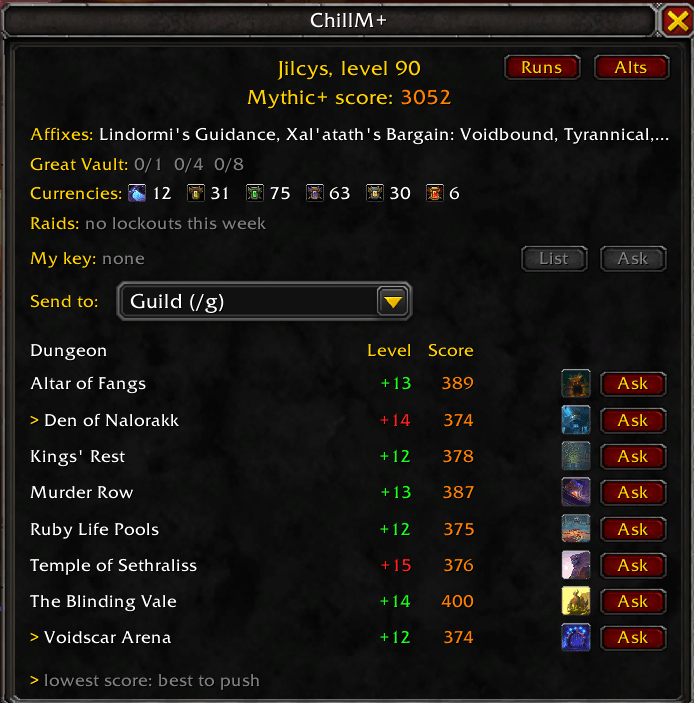
ChillM+ shows everything you check between keys in one place: your score, your keystone, the Great Vault, this week's affixes, your crests and raid lockouts, and every dungeon of the season with your best level, its score and its teleport. One click asks your group or guild to push a dungeon or join your key, and two extra windows show all your alts and the history of every key you've run.
Type /cm or click the minimap button to open it.
The main window
Your week at a glance
- Mythic+ score: your season score in Blizzard's colors.
- Affixes: this week's affixes. Hover the line to read what each one does.
- Great Vault: for each dungeon slot, the key level and the item level you'll get, like
+12 (662), or your progress toward it, like5/8. Hover the line to see the slots and every key you did this week. - Great Vault alert: when a key you finish unlocks a new slot, a message pops up in the middle of your screen: "Great Vault slot 2 unlocked: +12".
- Currencies: your crests and sparks with their icons and amounts. Hover to see each one's season cap. Want more, like the bonus roll currency? Tick Show on Backpack for it in your Currency tab and it appears here too.
- Raids: your raid kills this week for the current raids, per difficulty, like
Mythic 3/8 Heroic 8/8. Hover to see every boss (killed or alive), when the lockout resets, and whether it's extended.
Every dungeon of the season
One row per dungeon:
| Column | What it shows |
|---|---|
| Dungeon | The name. A gold > marks your lowest-score dungeons: pushing those raises your score the most. |
| Level | Your best key this season. Green = timed, red = over time, - = not done yet. |
| Score | Your score for that dungeon. |
| Teleport | Click the icon to teleport to the dungeon. Grey means you haven't earned the teleport yet. While it's on cooldown, the time left is shown next to it (7h 52m). |
| Ask | Posts "Hey, anyone wanna push Ara-Kara, City of Echoes ? My last run was +12". |
Click Dungeon, Level or Score at the top of the list to sort it.
Your keystone
- My key shows your current keystone, like Ara-Kara, City of Echoes +12.
- Ask posts "Hey, anyone wanna join [Keystone: Ara-Kara, City of Echoes (12)] ?", with a real keystone link that others can hover in chat.
- List opens the Premade Groups window, so you can list your key in a few clicks (Dungeons > Start a Group).
- New key notice: after a run, your new keystone pops up on screen: "New key: Cinderbrew Meadery +13".
- Auto-insert keystone: when you open the keystone pedestal in the dungeon, your key goes in by itself.
Where your messages go
Pick it in the Send to dropdown:
- Chat box: fills in the message; you choose the channel and press Enter.
- Party: sends right away (instance chat in Dungeon Finder groups).
- Guild: sends right away.
- Say: sends right away inside dungeons.
A spam guard keeps you from flooding chat: after a message goes out, the Ask buttons wait 30 seconds.
Don't like the wording? Change the messages in the settings. {dungeon}, {level}, {key} and {character} are filled in for you.
Alts window
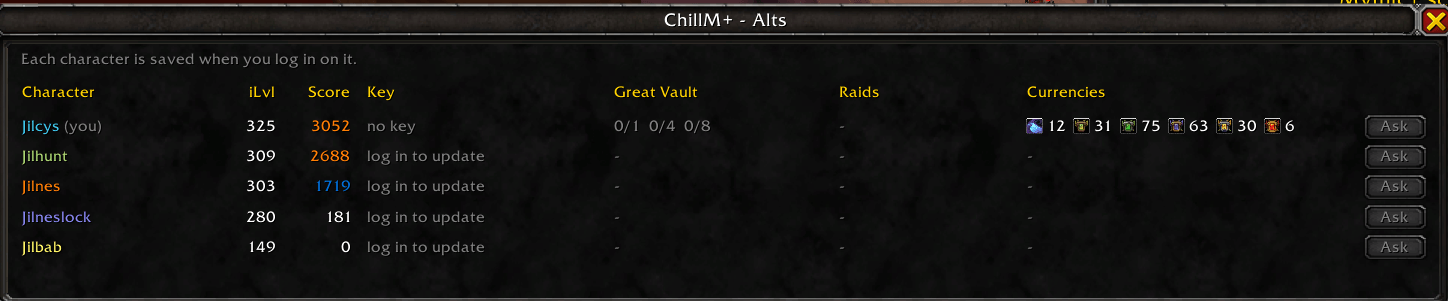
Click Alts (or type /cm alts) for a list of all your characters:
- Item level, Mythic+ score, keystone, Great Vault, raid kills and currencies for every character.
- Sorted by score, with names in class colors.
- Hover a character to see every currency by name and the raid kills in full.
- After the weekly reset, outdated keys, vaults and raid kills are greyed out until you log in on that character again.
- Ask on a character posts that alt's key: "Hey, anyone wanna run Cinderbrew Meadery +9 ? It's on my alt Altname".
- Right-click a character to remove it from the list.
Each character is added the first time you log in on it with ChillM+ installed.
Run log
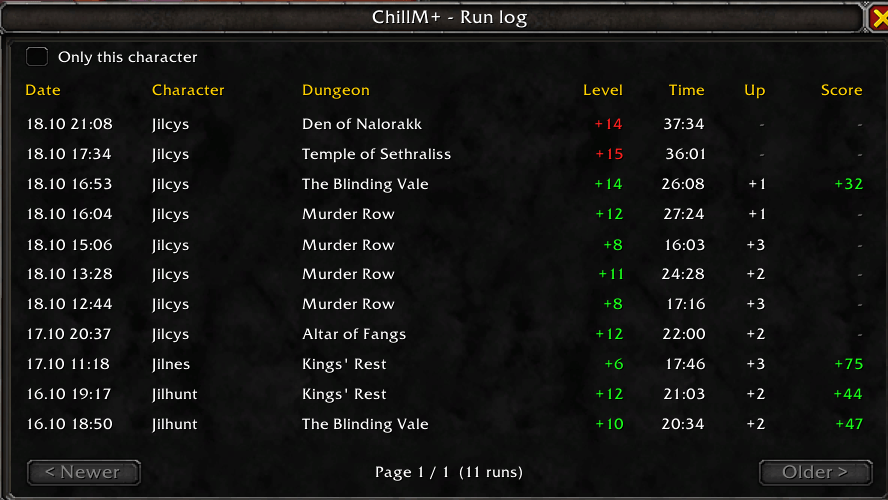
Click Runs (or type /cm runs) to see every key you've finished:
- Date, character, dungeon, level (green = timed, red = over time), time, how many levels the key went up, and the score you gained.
- Hover a run to see your group and your score before and after.
- Newest first, 20 per page, with an Only this character filter.
- Keeps your last 500 runs, across all your characters.
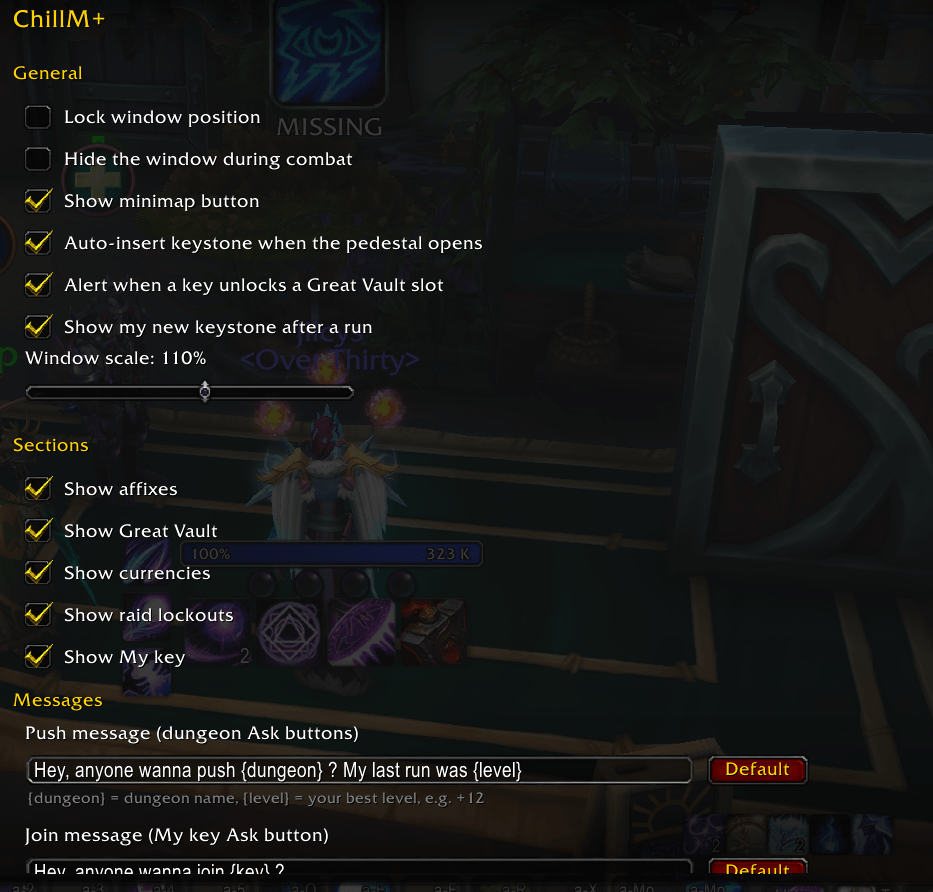
Settings
Open them with /cm settings, by right-clicking the minimap button, or from Options > AddOns > ChillM+.
- Lock the window in place.
- Hide the window during combat.
- Show or hide the minimap button.
- Auto-insert your keystone.
- Great Vault slot alert on or off.
- New key notice on or off.
- Window size, from 60% to 150%.
- Choose which sections to show: affixes, Great Vault, currencies, raids, My key.
- Edit the push, join and alt key messages.
You can also bind a key to ChillM+ - Show or hide the window under Options > Keybindings > AddOns.
Commands
| Command | What it does |
|---|---|
| /cm | Show or hide the window |
| /cm settings | Open the settings |
| /cm alts | Show or hide the Alts window |
| /cm runs | Show or hide the Run log |
| /cm reset | Move the window back to the middle of the screen |
| /cm autokey | Turn auto-insert keystone on or off |
| /cm minimap | Show or hide the minimap button |
| /cm help | List all commands |
FAQ
Why can't I move or close the window during combat? The teleport buttons cast spells, and Blizzard locks windows with spell buttons during combat. Everything updates as soon as combat ends. If you'd rather not see it while fighting, turn on Hide the window during combat.
A dungeon shows a grey teleport icon. You haven't earned that dungeon's teleport yet. Once you have, the icon lights up.
My currencies line is missing something. Crests and sparks are found automatically (English game client). For anything else, tick Show on Backpack for it in your Currency tab.
Why doesn't the List button create the listing for me? Blizzard doesn't allow addons to create Group Finder listings. ChillM+ opens the right window so it only takes a few clicks.
Does it work in other languages? Everything works, except that crests and sparks are only found automatically on an English client. On other languages, use Show on Backpack to pick your currencies.
Installation
Install with the CurseForge app, or download the zip and unzip it into World of Warcraft\_retail_\Interface\AddOns\. The folder is called ChillWow; in game the addon shows as ChillM+.
Questions, bugs or ideas? Leave a comment on this page.
ChillM+ Team
