
Cheap Upgrades
- By
Finds the cheapest gear upgrade for every slot on the auction house for your spec, with clear tooltips, upgrade sizes in your bags and the best quest reward marked.
Description
Cheap Upgrades
Find the cheapest gear upgrades for your character on the auction house - right in a "Cheap Upgrades" tab of the auction house window.
Cheap Upgrades scans the auction house and works out which item is the best upgrade for the money in each of your gear slots, for the spec you choose. It updates instantly when you change spec, adjust your price limit or equip new gear, with no new scan needed.
Features
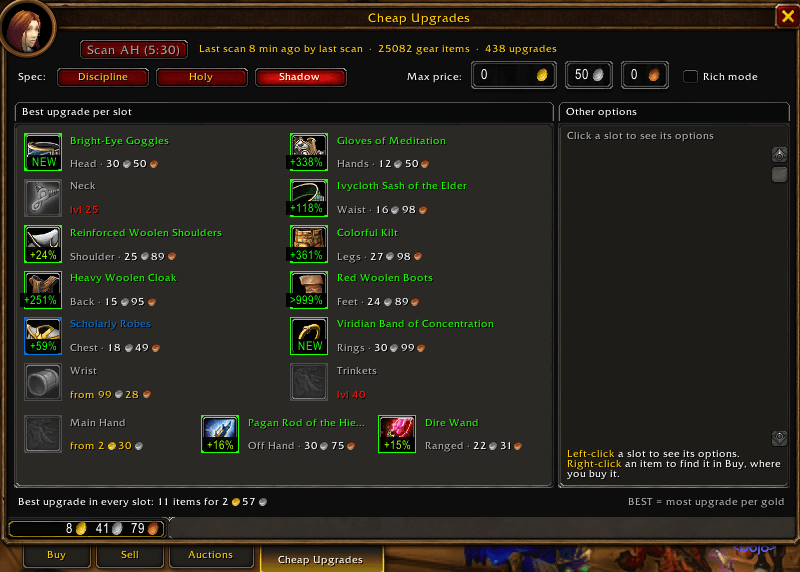
Best upgrade per slot
- A compact character sheet shows each gear slot with the item's icon, name and price.
- A badge on each icon shows how big the upgrade is (+35%, or NEW for an empty slot).
- Empty slots explain themselves: "from 14g" (over your budget), "lvl 24" (next upgrade needs a higher level), "in bags" (you already own a better one), "2H worn" or "none on AH".
- The Scan AH button counts down Blizzard's 15 minute limit between full scans.
- Left-click a slot to see all options for that slot (the best one first, marked BEST); right-click to open that exact item in the auction house's own Buy view (the right "of the …" variant, never a pattern with the same name), where you buy it.
Clear tooltips
- Everything from Cheap Upgrades sits in a short block under a Cheap Upgrades header, so you always know where the information comes from. The header takes the color of the biggest upgrade (green, lime or yellow), red when the item is worse, so you see it at a glance.
- It shows how big the upgrade is for each spec you follow, one spec per line ("Fury +22%", "Arms +14%"). The stat changes are in the game's own comparison tooltip.
- Rings, trinkets and one-handers show the difference against each item you wear ("R1 +5% R2 +18%").
- Gear you can't use says so in red, and gear of the wrong armor type still shows how it compares to what you wear.
Your spec, your budget
- Follow one or more specs: tick them in the settings (for example Arms and Fury), and drops, quest rewards, your bags and item tooltips are checked for each of them. The auction house tab has its own spec buttons, so you can shop for any spec.
- Choose your spec, for example Arms, Fury or Protection. All 29 specs (hunters have Survival and Survival (Melee)) have their own stat weights, based on simulations of WoW Forever. For mana users, Intellect, Spirit and MP5 come from a levelling model (kills per hour including drinking) and follow your level.
- Your own stat weights: under Stat weights in the settings you can edit every weight and save several profiles per spec, shared by your characters of that class. Export gives a string to share; Import takes such a string or Pawn's Export text. Reset values or
/cu resetgoes back to the built-in weights. - Pawn support (optional): Cheap Upgrades uses its own stat weights, which follow your talents. If you prefer Pawn, turn on "Use Pawn's stat weights" in the settings (or
/cu pawn on) and Cheap Upgrades uses Pawn's scale for your spec, so both addons agree on what an upgrade is. - Set a maximum price per item (at the top of the Cheap Upgrades tab, or in the settings under Price and size). It is a hard ceiling: the best pick is the most upgrade per gold among the items under it.
- Rich mode: tick it next to the max price to see the biggest upgrade within your max price instead, whatever it costs.
- Count what a vendor pays back (off by default): gear sells to a vendor later, so you can set how much more than a vendor pays you are willing to spend on an item, for example 20 silver. Click "Max price:" in the Cheap Upgrades tab to switch the field to "Above vendor:" and change it while you shop, or set it in the settings. Upgrade per gold then counts the price minus the vendor price. Your max price still applies on its own.
- Price after selling it to a vendor (Settings > Display, on by default): the tooltips in the Cheap Upgrades tab always show what an item costs after selling it to a vendor later.
- Crit, hit and dodge are read as percentages from the item tooltip and valued sensibly for your level. WoW Forever's shared crit, hit and haste count once, for spells and attacks alike.
- Only gear your class can use is suggested, and nothing worse than what is already in your bags.
- "Only the best armor type" keeps fighters in plate, mail or leather; casters and healers see every item with their stats.
- Unique-equipped rings and trinkets are never suggested next to the copy you already wear.
- Reads every stat WoW Forever puts on items, including school spell damage (fire, shadow…), attack and casting speed, and expertise.
Weapons done right
- Two-handers are compared with your main hand and off hand together.
- Dual wielders: a one-hander is compared with the hand where it helps most, and an off-hand weapon counts at its real off-hand value.
- Shields, off-hand books and off-hand weapons are compared with your off hand.
- Bows, guns, thrown weapons and wands are judged by ranged DPS, melee weapons by melee DPS - a warrior's bow is for pulling and counts little, a hunter's bow counts a lot.
- A two-hander or a main hand + off hand? When a two-hander is in play, the Main Hand slot shows the best two-hander and the Off Hand slot the best set of main hand + off hand (two one-handers, a one-hander and a shield, or a one-hander and an off-hand item). The better buy of the two is marked BEST; weapons you already own count as free.
- Weapons: both, only two-handed or only one-handed, chosen per spec in the settings or with
/cu weapons. Only one-handed also suggests off-hand weapons, shields and off-hand items, and treats a two-hander you wear as on its way out. - Weapon DPS is shown with one decimal.
Auction house prices on every tooltip
- Each scan records the latest lowest price of every item on the auction house. Items not seen for 14 days are removed, so the saved data stays small.
- Prices are also picked up while you use the auction house: every search you make (in the Blizzard window or another addon) and every item you open updates its price, no full scan needed.
- Item tooltips show the current lowest price on the auction house ("Auction House").
Upgrades in your bags
- Gear in your bags that is an upgrade shows its upgrade size (+%) on its bag slot. Works with the default bags (also the Combined Backpack), Bagnon and EllesmereUI Bags.
- When a new piece of gear arrives (a dungeon drop, quest reward or mail), a chat message tells you how big an upgrade it is.
Best quest reward
- When a quest lets you choose a reward, each item shows how big an upgrade it is, and the best one for each spec you follow gets a star.
- A chat line names the best reward. If none is an upgrade, it names the one a vendor pays most for.
Vendors
- Sell all grey items with
/cu junk, or let it happen automatically when you open a vendor (off by default).
Settings and minimap icon
- Left-click the minimap icon for the settings, right-click to open the window. Drag it to move it.
- All settings are also under Esc > Options > AddOns > Cheap Upgrades.
Works with other scanners
- The auction house allows one full scan every 15 minutes for the whole game. Cheap Upgrades can scan by itself, start the scan through Auctionator, or simply read a scan made by any other addon.
- The last scan is saved once for all your characters on the realm, so the window works away from the auction house too, and your alts see it right away.
Commands
| Command | What it does |
|---|---|
/cu |
Show or hide the window |
/cu scan |
Full auction house scan (once per 15 minutes) |
/cu spec <name> |
Choose spec, for example /cu spec fury |
/cu max 25g |
Maximum price per item (also 5s or 1g 50s) |
/cu min 5 |
Minimum improvement in percent |
/cu pawn <paste a string> |
Import a weights profile (a Cheap Upgrades string or Pawn's Export text) for the current spec |
/cu pawn on\|off |
Use the Pawn addon's scale for your spec when Pawn is installed (off by default) |
/cu weights / /cu reset |
Show the stat weights, or go back to the defaults |
/cu stats <item> |
Show an item's stats and score |
/cu price <item> |
An item's latest auction house price |
/cu bags on\|off |
Upgrade badges and alerts for your bags |
/cu quest on\|off |
Mark the best quest reward for your spec |
/cu tooltip on\|off |
Price and upgrade lines on item tooltips |
/cu rich on\|off |
Rich mode: the biggest upgrade within your max price |
/cu weapons both\|1h\|2h |
Which weapons to suggest for your spec: both, only one-handed (with off hand) or only two-handed |
/cu armor on\|off |
Only suggest the best armor type for your class (fighters) |
/cu source auto\|auctionator\|self |
Which addon runs the scan |
/cu options |
Open the settings |
/cu minimap on\|off |
Show or hide the minimap icon |
/cu junk |
Sell your grey items (vendor open) |
/cu mem |
Memory used and how many items it holds |
/cu check |
Check that your gear's stats are read correctly |
How to use
- Open the auction house and click the Cheap Upgrades tab in its tab row at the bottom (or type
/cu). - Click Scan AH, or use a scan another addon has just made.
- Pick your spec and maximum price. The best upgrade for every slot appears at once.
- Right-click an upgrade to open it in the auction house's Buy view, and buy it there.
Cheap Upgrades only reads the auction house: WoW Forever doesn't let addons buy or sell, so buying and selling happen in the auction house's own window.
Credits
The built-in stat weights are based on the WoW Forever simulations by wowsims (MIT License).
Feedback
Bug reports and suggestions are welcome in the comments or on the issue tracker.
Cheap Upgrades Team
