ButtonsForever
- By
A mage addon for World of Warcraft: Forever. It folds every city teleport and portal into two flyout buttons, and adds a trade window helper for conjuring and handing out food and water.
flyout.png
trade-window.png
settings.png
Description
Features
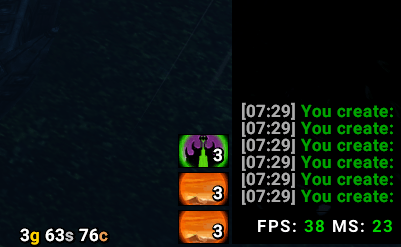
Teleport and Portal flyouts
- A small bar with two buttons, Teleports and Portals. Click one to open a flyout of the city spells you know, then click a city to cast it. The flyout closes after casting, or when you click anywhere else. In combat, clicking elsewhere doesn't close it, because WoW blocks addons from doing that; click the button again instead.
- They work in combat.
- Each button shows how many runes you have: Rune of Teleportation for teleports, Rune of Portals for portals. The number turns red at 0.
- Shift-drag either button to move the bar. Its position is saved.
Trade window helper
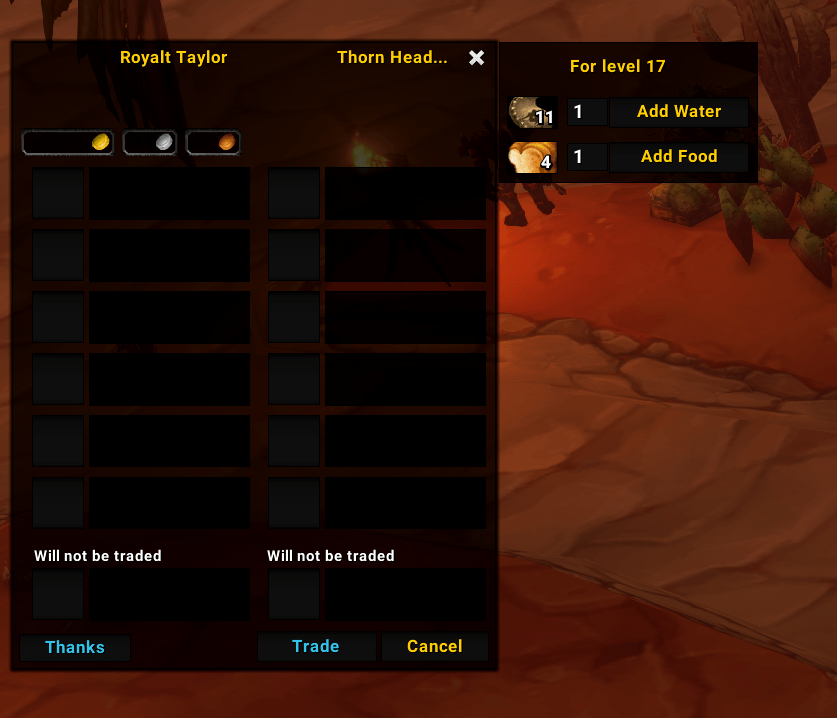
Open a trade with someone and a panel appears beside the trade window:
- A Portal flyout, for porting the person you're trading with.
- Conjure Water / Conjure Food buttons cast the highest rank your trade partner can use. For example, a level 17 gets level 15 water. If you don't know that rank yet, they use the best one you do know. The panel title shows your partner's level.
- The number on each Conjure button is how much of that food or water in your bags your partner can use.
- Add Water / Add Food put full stacks of 20 into the trade window, highest usable rank first. Type how many stacks (1–6) in the box beside each button; the amounts are remembered. You still click Trade yourself, because addons aren't allowed to accept trades.
Settings
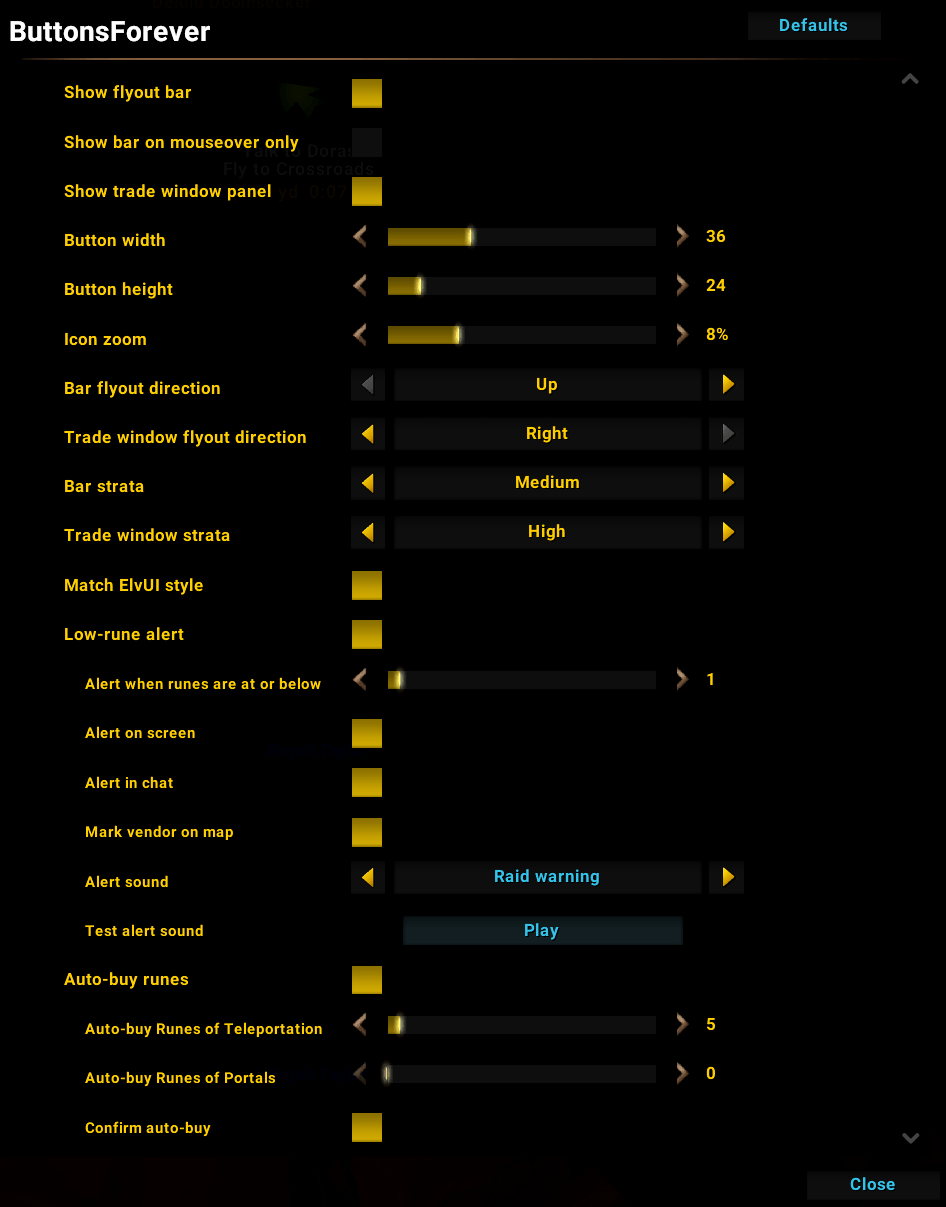
Type /bf (or /buttonsforever), or go to Esc → Options → AddOns → ButtonsForever.
| Setting | What it does |
|---|---|
| Show flyout bar / Show trade window panel | Turn either half of the addon off if you only want the other |
| Show bar on mouseover only | Keeps the bar invisible until you hover it. It stays visible while a flyout is open |
| Button width / height | Set independently, 16–80 pixels |
| Icon zoom | Crops the icon's edges, 0–30%. Non-square buttons crop instead of stretching the icon |
| Bar flyout direction | Up, Down, Left or Right (default Up) |
| Trade window flyout direction | Up, Down, Left or Right (default Right) |
| Bar strata / Trade window strata | Which interface layer each part is drawn on, from Background to Tooltip (defaults Medium and High). Raise it if other frames cover the buttons |
| Match ElvUI style | Uses ElvUI's look when ElvUI is installed. Needs /reload |
ButtonsForever Team