meter vid.gif
meter options pic.png
Description
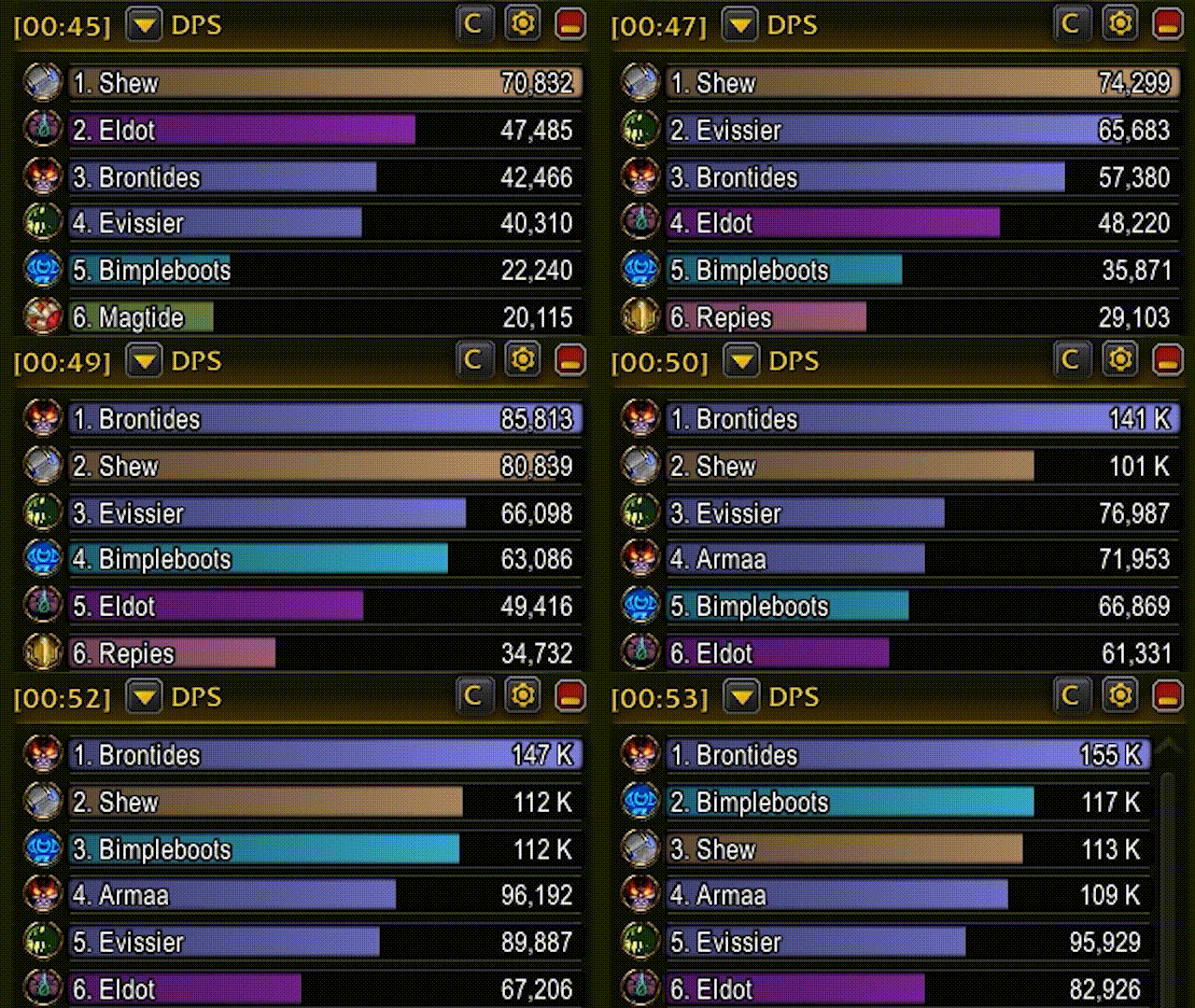
BlizzMeter is World of Warcraft's built-in damage meter with extra ways to customize how it looks. It works and feels just like the Blizzard meter: same windows, same menus, same data. It just gives you more control over its appearance.
Getting started
- Make sure the game's own damage meter is turned on in the game's options.
- BlizzMeter takes the place of the Blizzard meter automatically.
To go back to the Blizzard meter, just disable BlizzMeter in the AddOns list.
Moving and resizing
Move and resize the main window in Edit Mode, the same way you would the Blizzard meter. Extra windows you open from the gear menu can be dragged and resized anywhere.
Options
Open the options in any of these ways:
- Type
/bmin chat. - Go to Options > AddOns > BlizzMeter.
- Click the gear on a meter window and choose BlizzMeter Options.
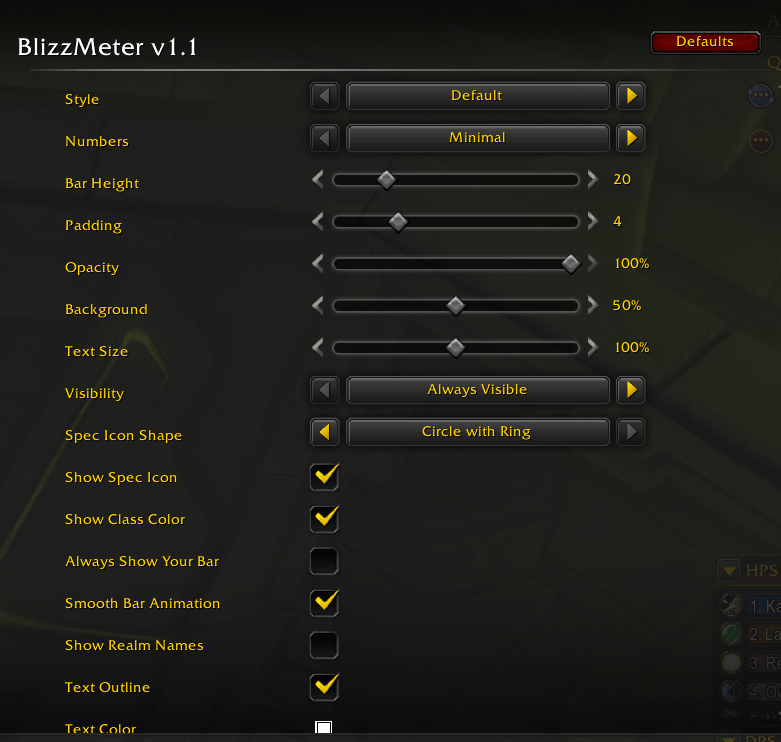
You'll find all of the meter's usual look settings (style, numbers, bar height, spacing, opacity, background, text size, when to show it, spec icons and class colors), plus:
- Spec Icon Shape: show class and spec icons as squares, circles, or circles with a gold ring. Spell icons always stay square.
- Bar Color: when Show Class Color is off, pick the color for every bar.
- Always Show Your Bar: keeps your own bar visible at the top or bottom of the window, even when you're ranked too low to fit. Turn it off to let your bar scroll out of view like everyone else's.
- Show Realm Names: shows players from other realms as "Name-Realm". When it's off, just their name is shown.
- Text Outline: turn off to remove the dark outline around the names and numbers on the bars.
- Text Color: pick the color of the names and numbers on the bars.
Your options are shared by all of your characters.
A note about Edit Mode
The first time you use BlizzMeter, it copies the look you had set for the damage meter in Edit Mode, so nothing changes. After that, change the meter's look in BlizzMeter's options instead. Changing the damage meter's look in Edit Mode won't affect BlizzMeter. Edit Mode still controls where the main window sits and how big it is.
If you'd like to bring your Edit Mode look over again, use Copy Edit Mode Settings at the bottom of the options.
During combat
The game limits what addons can see while you're in combat, so a few things work a little differently until combat ends:
- Numbers are shown without percentages.
- Deaths don't show the time they happened.
- Enemy faction icons don't appear next to names.
- Clicking a bar to see the spell breakdown only works on your own bar.
Everything goes back to normal as soon as you leave combat.
BlizzMeter Team