


screenshot-2026-09-09_16-36-35.png
screenshot-2026-09-09_16-37-14.png
Description
BetterRaidFrames for Midnight
BetterRaidFrames is a lightweight World of Warcraft addon that extends Blizzard's default Raid-Style Party and Raid Frames with focused customization options.
Made for Midnight.

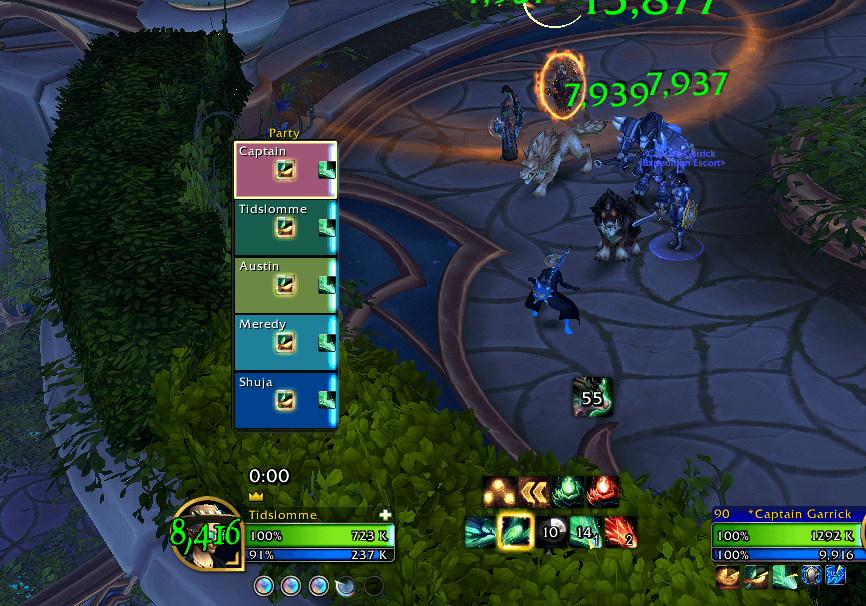
Tip: Join a Follower Dungeon to preview and configure your frames, or use Blizzard Edit Mode.
Discord username: async
Features
- Buff indicators: Track buffs as spell icons or coloured squares. Arrange them in groups that close gaps automatically when buffs disappear. Add duration text, stack counts, cooldown swipes, and steady or pulsing glows.
- Role icons: Keep Blizzard's icons or use tiny symbols. The Tiny tank & healer preset makes tanks and healers easy to spot while leaving damage roles unmarked.
- Threat warnings: Choose a square, circle, or full-frame border with a solid or glowing edge. Set your own colours for high, insecure, and secure threat, enable blinking, or hide threat indicators for tanks.
- Absorb shields: Adjust shield visibility and opacity. Optional overshields show shield coverage beyond full health, with several textures to choose from.
- Name styling: Change font size, position, outlines, and shadows. Use class colours, shorten long names, hide server names, convert Cyrillic to Latin, or hide names for dead and offline units.
- Raid markers and party leaders: Adjust icon size and position. Optionally hide the leader icon during combat.
- Frame options: Show your own party frame while solo and enable Crisp frame borders for more even separators.
- Profiles: Save different setups and switch automatically between party and raid profiles. Buff indicators can also have separate sets for each specialization.
- Live previews: See changes in settings using your character's name and your actual frame dimensions and scale.
Getting started
- Type
/brfor/betterraidframesto open settings. - For party frames, enable Use Raid-Style Party Frames under General or in Blizzard Edit Mode.
- Open a feature's section, enable it, and adjust its settings while watching the preview.
Use Blizzard Edit Mode to change the overall frame layout, frame size, and Blizzard aura sizes. A Follower Dungeon is a handy place to try your setup with a full party.
Positioning and previews
Choose Position, such as Top left, Center, or Bottom right, then fine-tune with X/Y offsets. Positive X moves right; positive Y moves up. Raid Markers, Party Leader, Threat, Role Icons, and Name use this same approach. Existing placements are preserved when upgrading.
Previews update as you edit. They use your current party or raid frame size when available, with Edit Mode or the last known size as fallbacks. Large previews shrink to fit. Sample raid markers, leader icons, roles, shields, and threat levels let you try settings even while solo.
Adding buff indicators
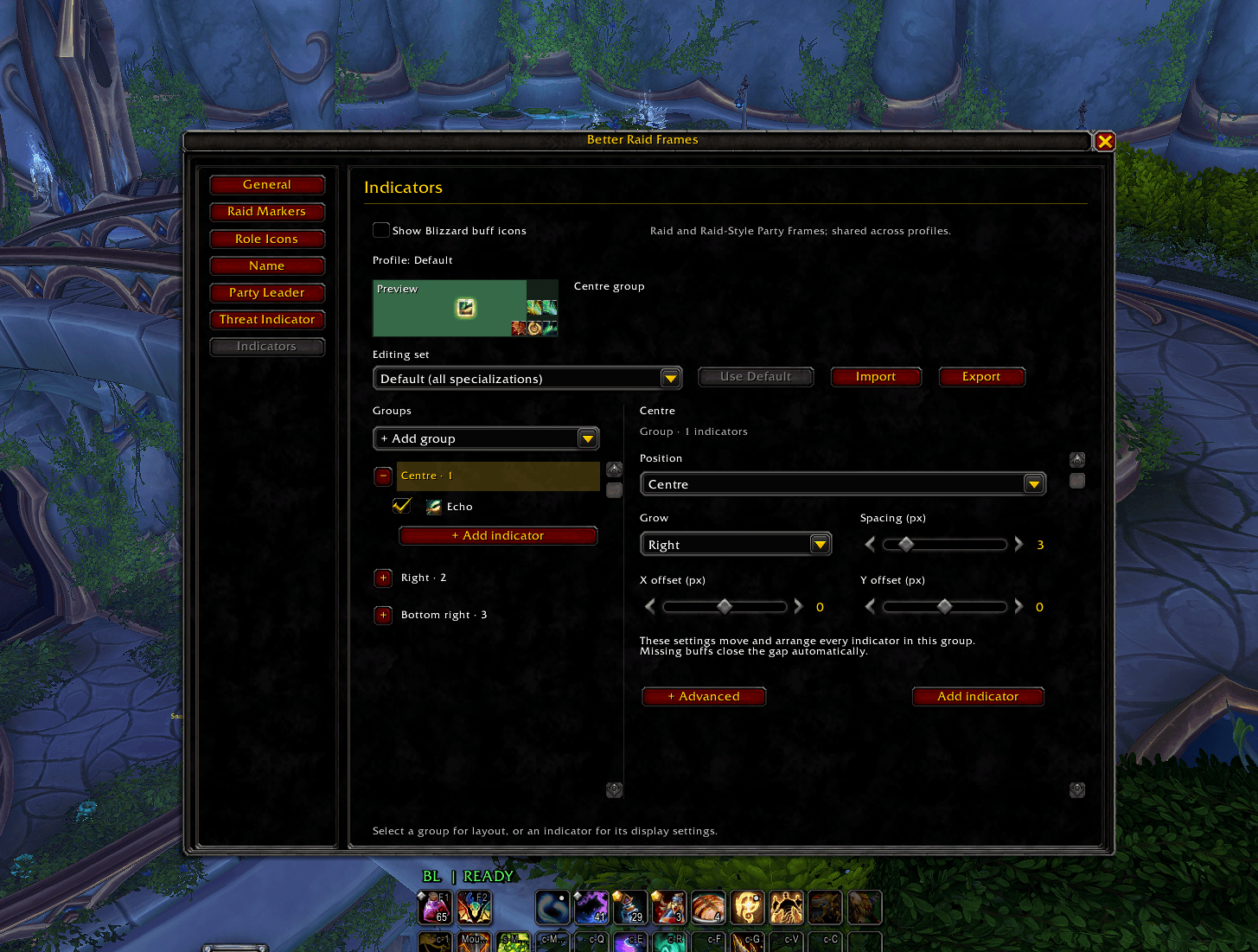
- Open Indicators, choose Add group, and select a position such as Bottom right.
- Choose Add indicator inside the group. Enter a buff name or aura ID, or pick one from Buffs, then click Add.
- Select the group to adjust growth direction, spacing, and position. Select an individual buff to change its appearance and text.
New indicators start as spell icons. In Display, switch to a coloured square, adjust size, add a glow, or filter to buffs you cast. In Text, show remaining duration or stack count.
For example, put Echo and Dream Breath in a Bottom right group. Both follow the group's spacing and growth direction; when one buff disappears, the other closes the gap automatically.
You can reorder, copy, or move indicators between groups. Under a group's Advanced settings, Above Blizzard icons brings the group in front of Blizzard's built-in icons.
Use Default for all specializations or create a separate set for a particular spec. Export and Import share indicator sets, including their group settings.
Show Blizzard buff icons controls Blizzard's standard buff display separately from your custom indicators.
Understanding absorb shields
Absorbs protect against damage. Overshields show the part of a shield that extends beyond full health. For example, at full health, an active shield can still appear as an overshield overlay.
The Absorbs section has three controls:
- Show Blizzard absorbs and incoming heals: Enables Blizzard's shield and healing displays. Turning it off also hides incoming heals and healing-absorb effects.
- Show normal absorb shields: Shows Blizzard's damage shields and their overflow edge, with adjustable opacity. Requires the Blizzard display above to be enabled.
- Show overshields: Adds BRF's overlay over the filled health bar for shields extending beyond full health. Choose its texture and opacity. This works independently of the two controls above.
Most settings belong to the current profile. Show Blizzard buff icons and Show Blizzard absorbs and incoming heals are game settings shared across profiles.
The Better Raid Frames Team

