BestPotion
- By
BestPotion is a Classic Era utility addon that automatically updates dedicated action macros with your highest-level consumable items and weapon enchants, while providing a compact bar to track their quantities, cooldowns, and active buff durations.
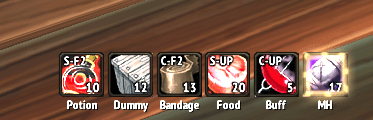
Bar with items updated.
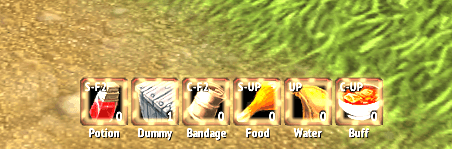
Bar with no items.
Description
BestPotion is a lightweight utility addon for World of Warcraft Classic Era (1.15.x) designed to simplify how you manage and use your consumables.
Instead of manually dragging new water, food, potions, or weapon enchants to your action bars every time you level up or get new items, this addon scans your inventory and automatically updates dedicated macros to use your highest-value items.
How it Works
The addon automatically updates your macros with the highest-level items in your bags across seven categories:
Potions: Automatically selects your highest-tier Healing or Rejuvenation potions.
Target Dummies / Utilities: Uses your highest engineering dummies, mana gems, or healthstones.
Bandages: Uses your highest available First Aid bandage based on your skill level.
Food & Water: Keeps track of your standard food/water. (Mages get a left-click to use, right-click to conjure setup).
Buff Food: Specifically tracks food that grants the "Well Fed" buff, keeping it separate from your normal food.
Weapon Enchants (MH/OH): Selects the highest available sharpening stones, weightstones, wizard/mana oils, or Rogue poisons you are carrying.
Key Features
Compact Macro Bar: A draggable, resizable on-screen bar that displays your items, their exact quantities, keybinds, and standard item cooldowns.
Enchant & Buff Timers: Shows stable cooldown swipe animations directly on your action buttons for active temporary weapon enchants (like poisons or sharpening stones) and "Well Fed" buffs.
Safe-Zone Low Stock Alerts: Shows a red border on low-stock items. When you enter a city or an inn, the buttons will glow to remind you to restock if your quantity falls below your custom threshold.
Minimap Button & Config: Left-click the minimap icon to hide or show the bar, and right-click it to open the configuration menu.
How to Set Up
Log into your character.
Type /bpsetup in chat. This will automatically scan and create the necessary macros for you.
Place the newly created macros on your personal action bars (or just use the built-in BestPotion bar).
Type /bp or /bpconfig to open the settings menu and customize the bar's size, opacity, layout, or low-stock warning threshold.
Slash Commands
/bp or /bpconfig - Opens the configuration window.
/bpsetup - Checks and creates any missing macros.
BestPotion Team