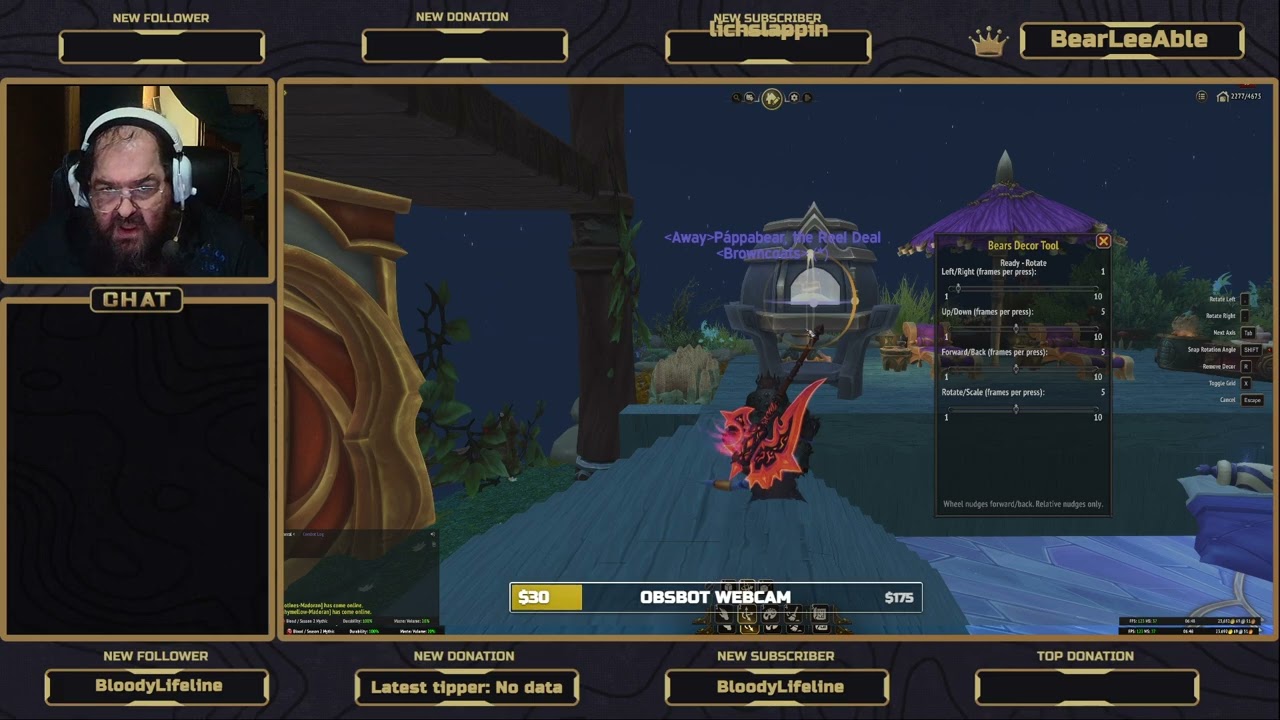
Description
Bears Decor Tool



Micro-nudges the selected housing decor with the retail Expert Decor precision API.
Bears Decor Tool is a small, dependency-free World of Warcraft addon. Each nudge
turns on C_HousingExpertMode.SetPrecisionIncrementingActive for a configurable
number of frames, then turns it off.
Status
Working in game. Exact distances and coordinates are not available through the public API, so step values are frame counts, not distances. See Step sliders and Limitations.
Requirements
- Retail World of Warcraft: Midnight, patch 12.1.5 or newer. Classic is not supported.
- A house and access to the House Editor.
- Expert Decor mode active.
- A decor item selected.
The TOC uses interface number 120105 (12.1.5). If your client reports a
different value, update the TOC:
/dump select(4, GetBuildInfo())Installation
The repository root is the addon folder. The folder must be named
Bears_Decor_Tool to match Bears_Decor_Tool.toc. For development, junction
or clone it into the retail AddOns directory:
New-Item -ItemType Junction `
    -Path "C:\Gaming\World of Warcraft\_retail_\Interface\AddOns\Bears_Decor_Tool" `
    -Target "E:\wow\Bears-Decor-Tool"
Then run /reload in game. If you copy files instead, the destination folder
must be named Bears_Decor_Tool and contain Bears_Decor_Tool.toc.
Usage
- Enter a house, open the House Editor, and switch to Expert Decor.
- Select a decor item.
- Press a nudge key (see Keybinds and mouse), or run a command such as
/bdt pulse forward 3. - Run
/bdt stopat any time to stop every increment type.
Use /bdt or the minimap button to open or close the window. Use
/bdt status to check the API, editor mode, selection, and active pulses.
Slash commands
All commands use /bdt.
| Command | Description |
|---|---|
/bdt |
Toggle the window. |
/bdt show |
Show the window. |
/bdt hide |
Hide the window and stop all pulses. |
/bdt pulse <type> [n] |
Pulse one increment type for n frames (default: that type's step). |
/bdt on |
Turn nudging on. Saved between sessions. |
/bdt off |
Turn nudging off: stops any pulse, removes the Expert Decor arrow-key overrides, and makes pulse commands do nothing. Saved between sessions. |
/bdt stop |
Stop every increment type immediately. |
/bdt status |
Print API, editor, selection, submode, steps, nudging state, and active pulses. |
/bdt steps <n> |
Set the Rotate/Scale step, clamped to 1..10. |
/bdt commit |
Call CommitDecorMovement() when a decor item is selected. |
/bdt resetsnap |
Set the drag snap settings to their documented defaults (housingExpertGizmos_SnapOnHold to 1, and housingExpertGizmos_Rotation_SnapDegrees to its GetCVarDefault value). Not yet verified in game. Runs only when you type it. |
/bdt debug |
Toggle debug logging. |
/bdt reset |
Reset SavedVariables to defaults. |
/bdt help |
Print command help. |
Accepted <type> names, case-insensitive:
left, right, forward, back, up, down,
rotateleft, rotateright, scaleup, scaledown
The parser uses an explicit whitelist; arbitrary strings are rejected. No
loadstring is used on user input.
Pulse frame counts are capped at 60 by the pulse engine. A pulse also stops on its own after three seconds.
Keybinds and mouse
While the House Editor is in Expert Decor mode, the addon also sets these override bindings:
Left Arrow: Nudge Left
Right Arrow: Nudge Right
Up Arrow: Nudge Forward
Down Arrow: Nudge Back
Page Up: Nudge Up
Page Down: Nudge Down
The override bindings are removed when you leave Expert Decor mode or turn
nudging off with /bdt off. They do not change your saved keybindings.
Hold to move: a quick tap on an arrow or Page key moves one step, the same
as /bdt pulse. Keep the key down for more than 0.3 seconds and the decor keeps
moving until you release the key. A hold stops on release, or after 10 seconds
if the release is never seen.
In Rotate and Scale submodes, the arrow keys send the rotate or scale increments instead: Left/Right and Forward/Back for the keys.
Nudging in the Rotate tool uses the arrow keys. The gold arrows on the rotation gizmo are mouse controls handled by the game. Bears Decor Tool cannot nudge through them, so clicking or dragging a gold arrow does not use the Rotate/Scale step. To rotate in small steps, press Left or Right (or Up or Down, which rotate the other way). Page Up and Page Down are Translate keys, so pressing them in Rotate mode switches the game to Translate.
The mouse wheel has no function in housing mode. Use the arrow keys to nudge.
Step sliders
The window has four sliders. Each value is saved between sessions. Each value
is the number of frames the game keeps the matching increment active for one
press (1-10). All four default to 3. A new install starts at 3. An existing
install keeps the value it already saved; /bdt reset sets all four back to 3. Each frame turns the decor by an amount the game sets, so a
press does not move an exact number of degrees. A value of 1 keeps the
increment active for about two frames, so one press may move less than a
degree.
Left/Right (frames per press) (1-10): Left and Right nudges
Up/Down (frames per press) (1-10): Up and Down nudges
Forward/Back (frames per press) (1-10): Forward and Back nudges
Rotate/Scale (frames per press) (1-10): the arrow keys in Rotate and Scale mode. Rotate Left/Right and Scale Up/Down presses use this value. It does not change the gold gizmo arrows, which are mouse-only.
/bdt steps <n> sets the Rotate/Scale value. A /bdt pulse <type> without a
frame count uses the value for that type, the same as pressing its key.
Mouse drag rotation
Dragging the rotation handle follows the game's drag snap setting, the CVar
housingExpertGizmos_SnapOnHold. The addon does not change it while you play;
only /bdt resetsnap writes the drag snap settings, and only when you type it.
- With
SnapOnHoldat0, a plain drag snaps the rotation in steps, and holding SHIFT moves freely. This is the behavior observed in game. - With
SnapOnHoldat1, a plain drag moves freely, and holding SHIFT snaps. This is the default that Advanced Decoration Tools documents. It is not yet verified in game.
Earlier builds set housingExpertGizmos_SnapOnHold to 0. Run
/bdt resetsnap once to set it back to 1. Restoring that default is not yet
verified in game.
Minimap button
A button on the minimap opens and closes the same window as /bdt. Drag it to
move it around the minimap. Its position is saved between sessions.
How it works
While an increment type is active and a decor target stays selected, the game
applies incremental movement every frame. Bears Decor Tool switches to the matching
precision submode, calls SetPrecisionIncrementingActive(type, true) once, and
keeps it active for the requested frame count plus ACTIVE_FRAME_BIAS
(one extra tick). It then calls false exactly once. A hard three-second cap,
an independent C_Timer.After backstop with a token check, and a panic
StopAll() path make sure an increment type is never left active.
The addon stops all pulses when the window hides, the editor mode changes, the
decor selection changes, the player enters the world or logs out, and on
/bdt stop or /bdt off.
Limitations
- Relative nudging only. There is no public API to set absolute position, rotation, or scale.
- No exact coordinates or transform readout.
GetSelectedDecorInfo()does not expose the transform. - The frame count is not a guaranteed distance. Expect differences at different frame rates.
- Arrow nudges are frame counts, not degrees. The size of one arrow step depends on the game.
- The gold rotation arrows are mouse-only and cannot nudge. Use the arrow keys in Rotate mode instead.
- Arrow-key rotation is not in exact degrees. Advanced Decoration Tools gets
degree steps from
C_HousingBasicMode.RotateDecor, which is not used here because it is not documented indocs/API-NOTES.md. - The housing API is new and may change between patches.
- Only one increment type is active at a time. Multi-axis and diagonal movement are not implemented.
- Not affiliated with Blizzard Entertainment.
Localization
Strings are in Locales/ using AceLocale-3.0 (vendored under Libs/). The
English locale (enUS.lua) is the source of truth. Other locales have
translations for the step controls and step commands only; any other string
falls back to English.
File layout
Bears_Decor_Tool.toc       Addon manifest and load order
Core.lua                   Namespace, SavedVariables, capability checks, events, slash commands, override bindings, drag snap reset
Pulse.lua                  Frame-counted pulse engine, hold-to-move, safety caps, timer backstop
Hold.lua                   Expert Decor arrow and Page key buttons (press and release)
Minimap.lua                Minimap button that opens and closes the window
UI.lua                     Movable window with step sliders
Locales/                   AceLocale-3.0 localization files
Libs/                      Vendored LibStub, CallbackHandler-1.0, AceLocale-3.0, LibDataBroker-1.1, and LibDBIcon-1.0
README.md                  This file
CHANGELOG.md               Version history
AGENTS.md                  Project guidance for contributors and agents
docs/API-NOTES.md          API research, restrictions, and open questions
scripts/package.ps1        Optional local zip packaging
.github/workflows/         Release packaging workflow
Not implemented yet
A settings or profile panel, automatic show/hide, multi-axis movement, step presets, and automatic commits.
Bears Decor Tool Team

Owner