
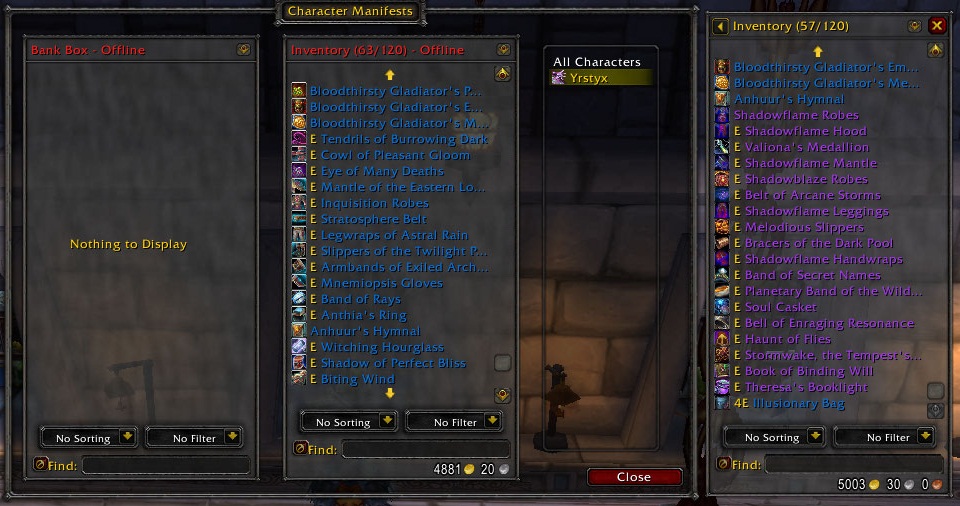
BaudManifest also stores your alts' inventory and bank for viewing on other characters.
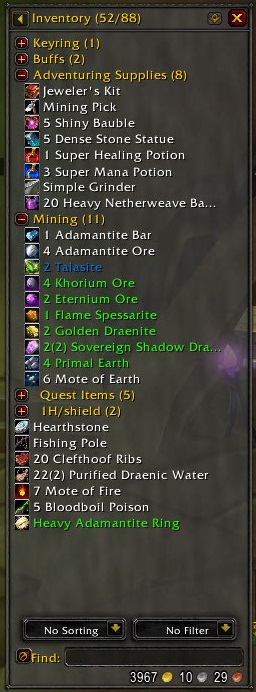
Main window of Baud Manifest. You can see used/available slots at the top, followed by the categories I've created; uncategorized items are at the bottom.
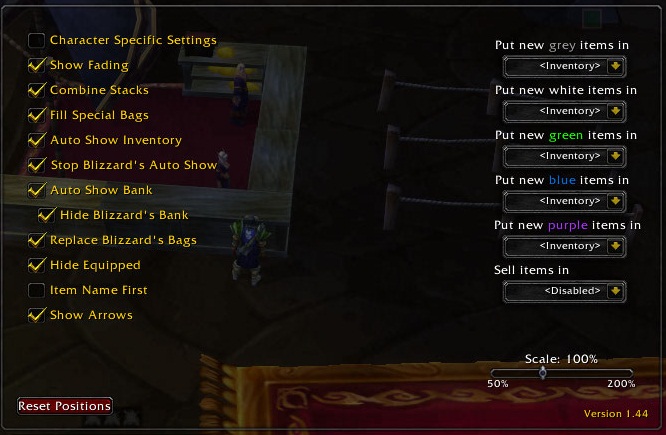
Current options menu.
Description
Summary
With Baud Manifest, you can browse your inventory as a list, instead of the standard bag layout. Categories can be created to organize the list, allowing you to place items as well as other categories within them. Categories can be expanded to view the contents, or minimized to save visual space. The item list can be also sorted or filtered to help you find items. You can also view manifests of other characters, aswell as a combined list of all your characters' manifests.
Using Baud Manifest
After you've installed Baud Manifest, you can access your manifest simply by opening your backpack. You'll probably want to organize it a bit with categories, so it's easier to manage. The easiest way to get started with this is to let Baud Manifest categorize your items based on their item types. To do this, click on the down arrow in the upper right corner of the display, and select "Categorize by Type" from the menu that appears.
Categories
To create a category, click the down arrow in the upper right corner of the display, and click on Create Category. To rename a category, right click on it and type in a name. To delete a category, drag it out of the display and click on the game world, in much the same way you would delete an item.
Moving Items
When you drag an item in Baud Manifest, the largest available stack will be picked up. To select the amount of an item to move, shift-click or shift-drag the item, and select the amount you want to move (Can be more than one stack). To pickup the smallest stack on your character, ctrl-drag the item. To pickup one of the item, alt-drag it. To move all stacks of an item, shift-ctrl-drag the item.
Using the Standard Bag Interface
You can also access the standard bag interface by using the Open All Bags key, using the bag buttons in the manifest, or by disabling the "Replace Blizzard's Bags" option.
Baud Manifest Team

