AzerothGPS
- By
A car-style GPS for Azeroth. Plot routes that follow the roads, get a turn-by-turn arrow with ETAs, plan multi-stop trips, and import TomTom /way waypoints.
controller-support-gold.png
AzerothGPS-openmap-style-map.png
AzerothGPS-raise-the-roof.png
AzerothGPS-1-minimap.png
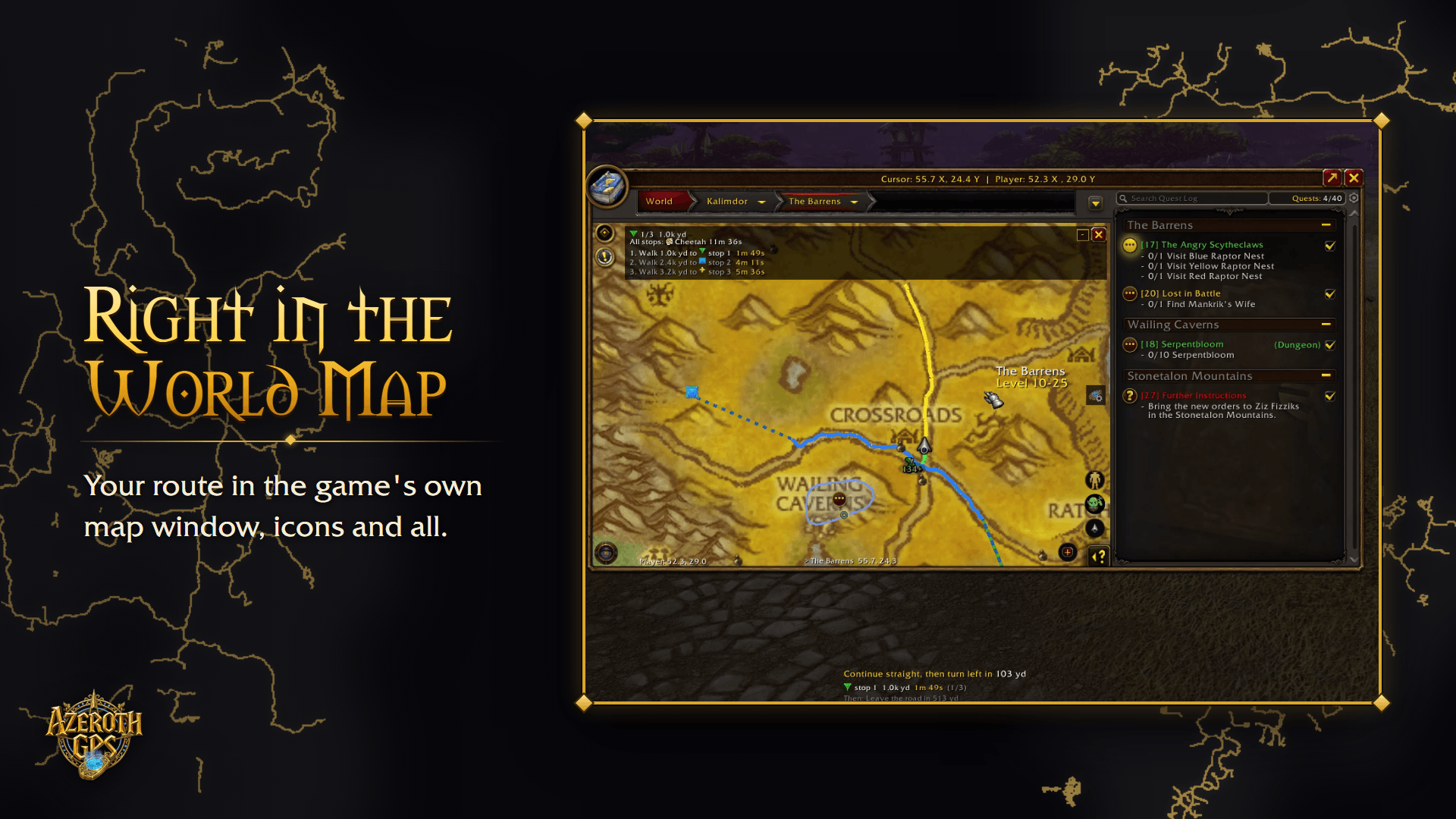
AzerothGPS-3-world-map.png
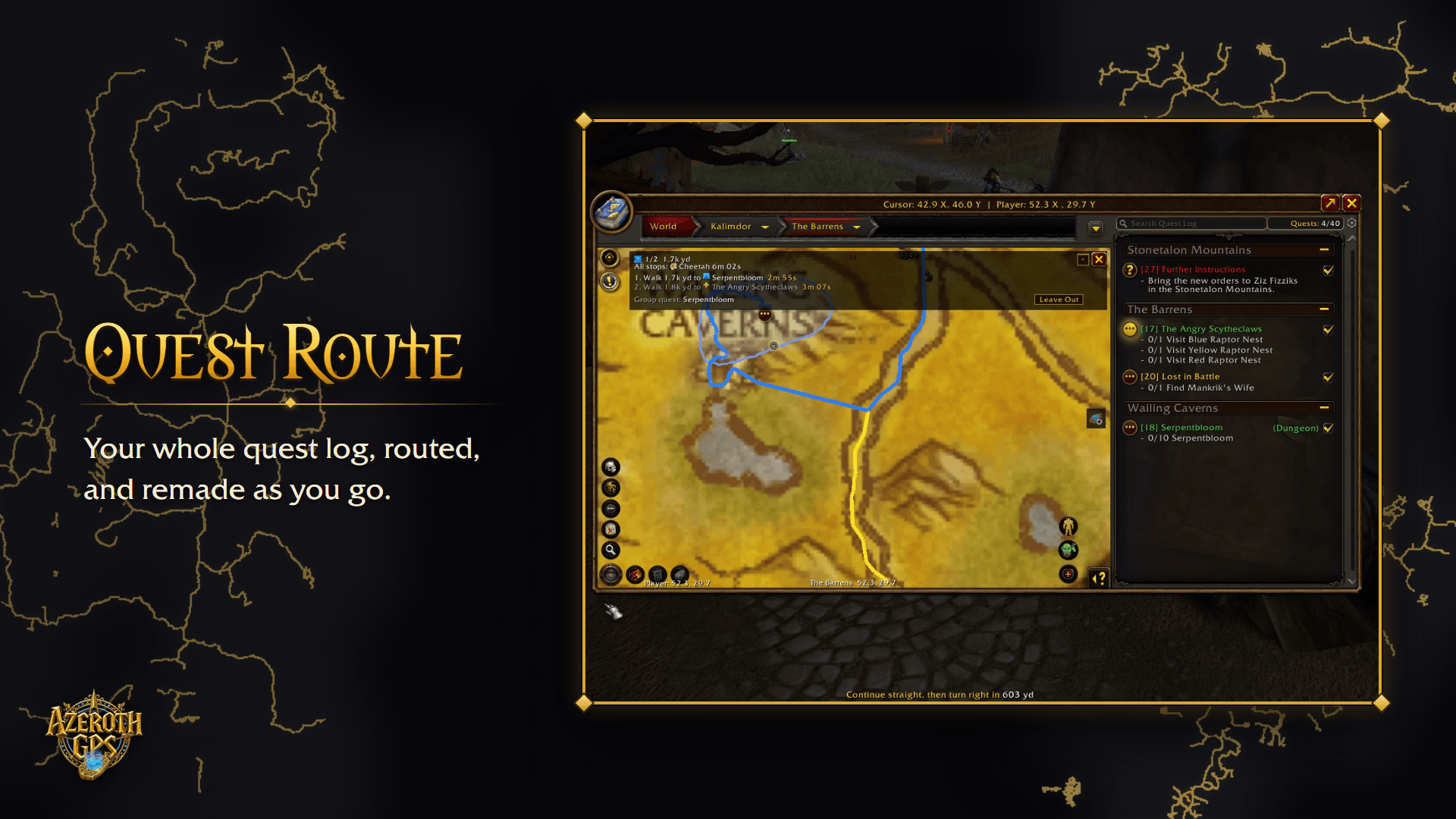
AzerothGPS-5-quest-route.png
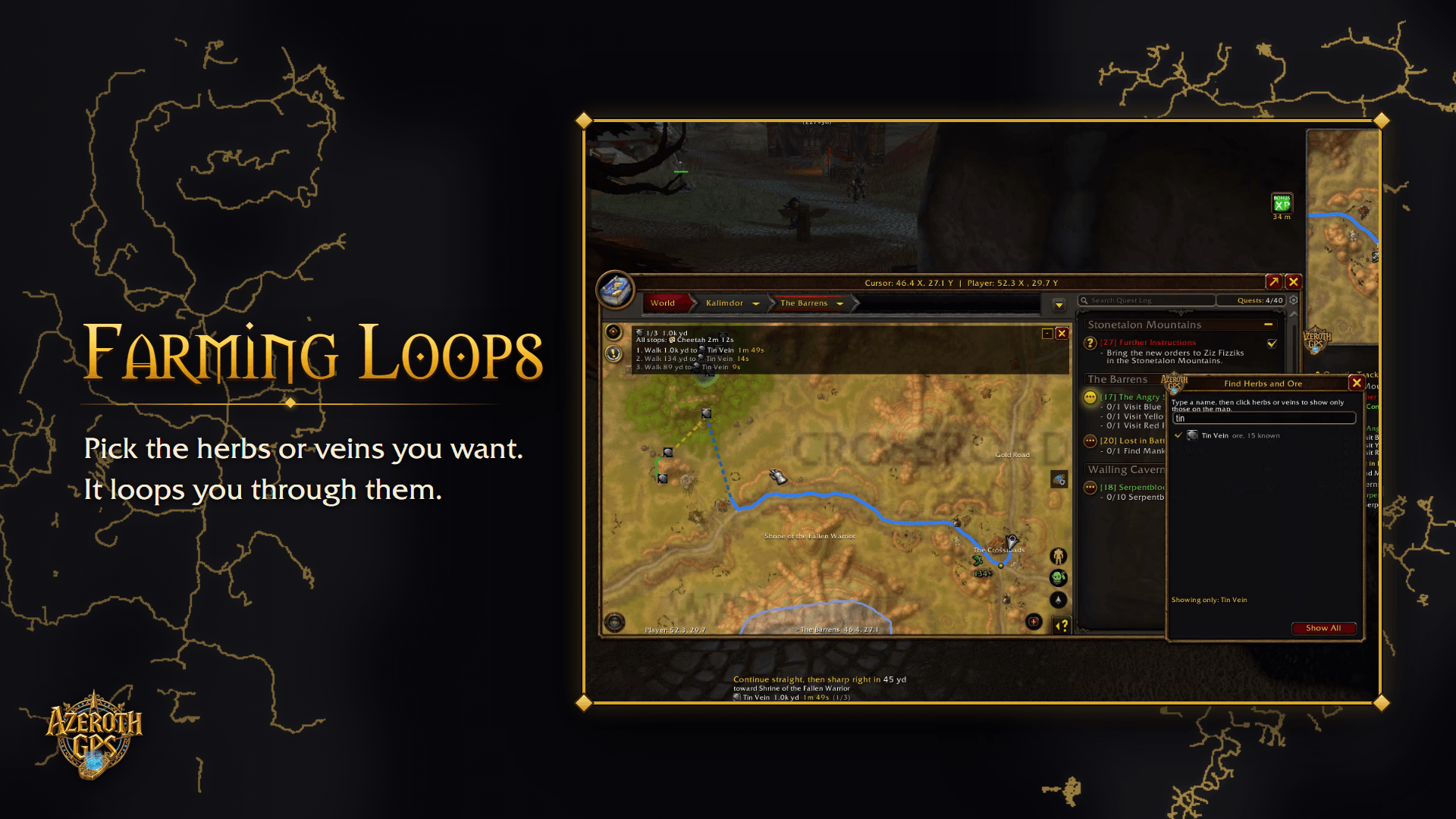
AzerothGPS-6-farming.png
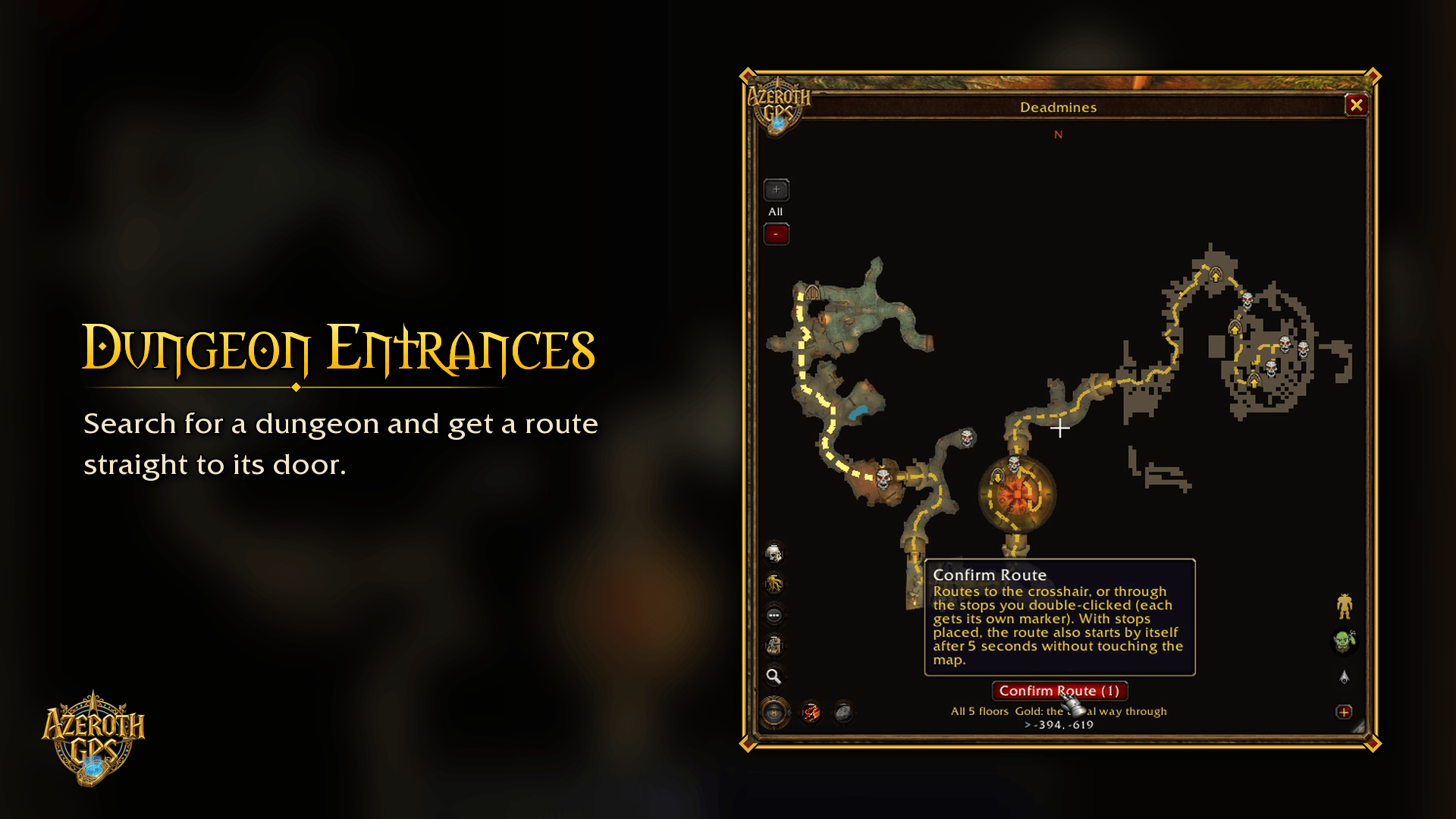
08-dungeon-entrances.png
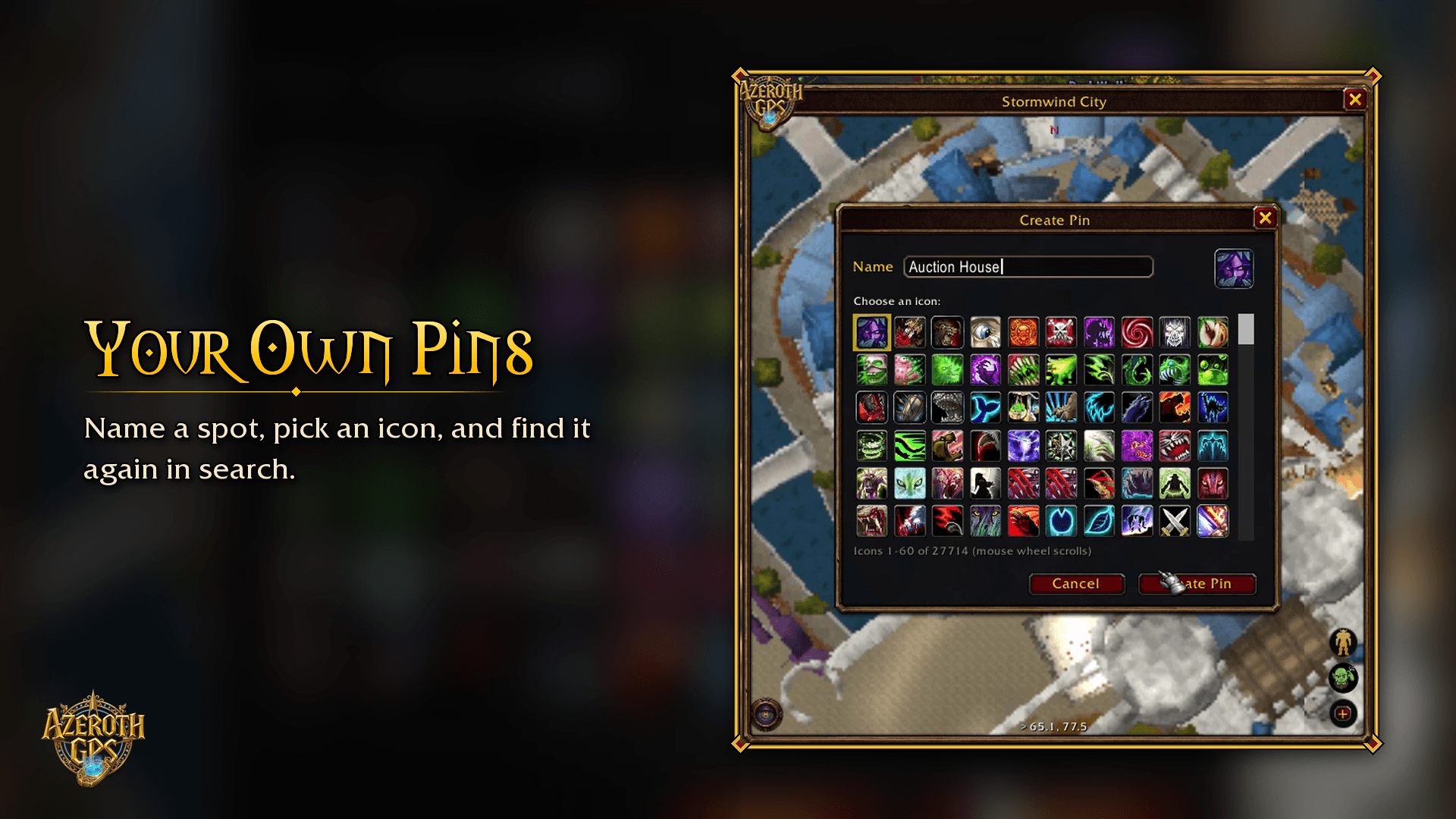
12-your-own-pins.png
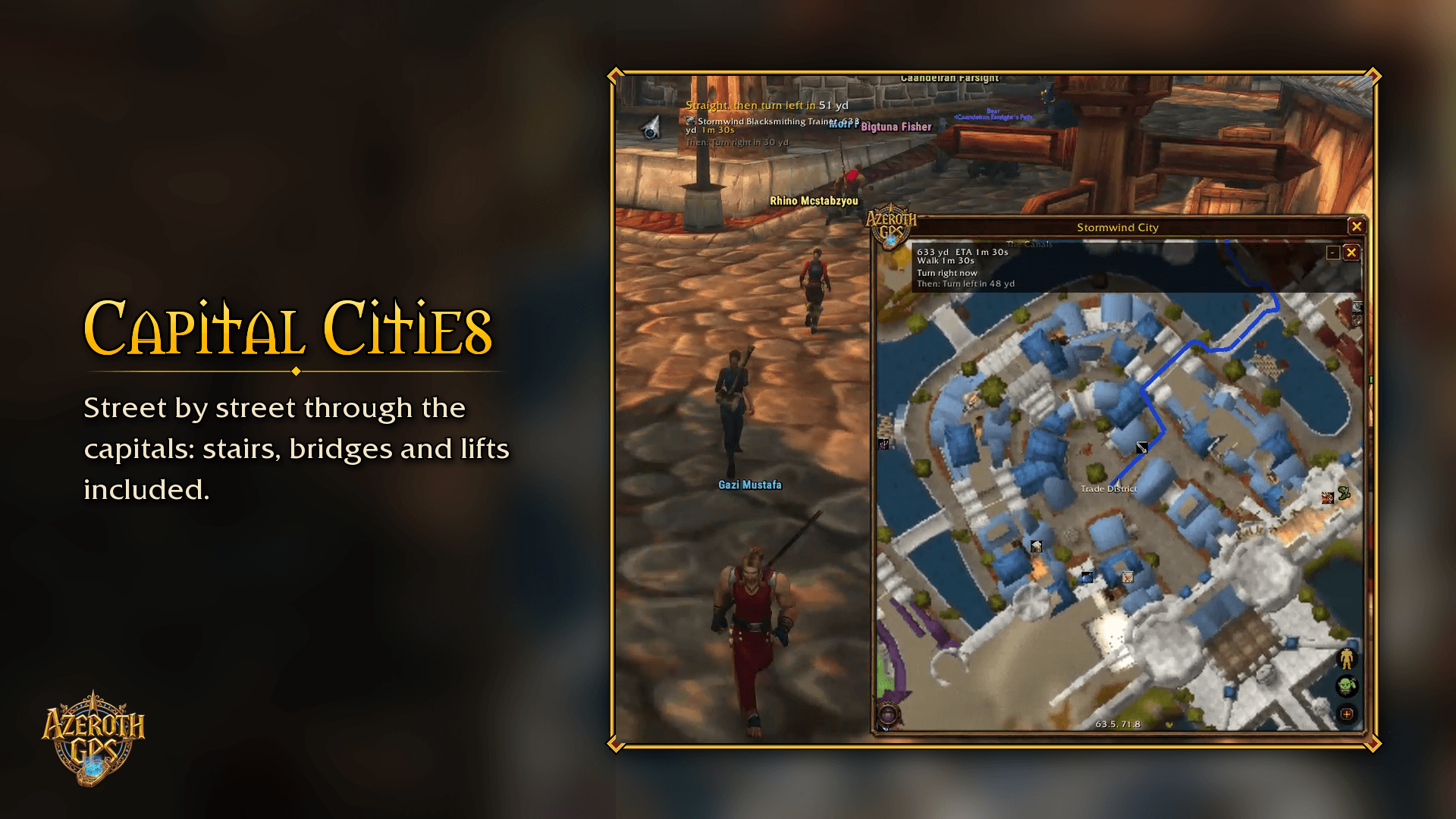
07-capital-cities.png
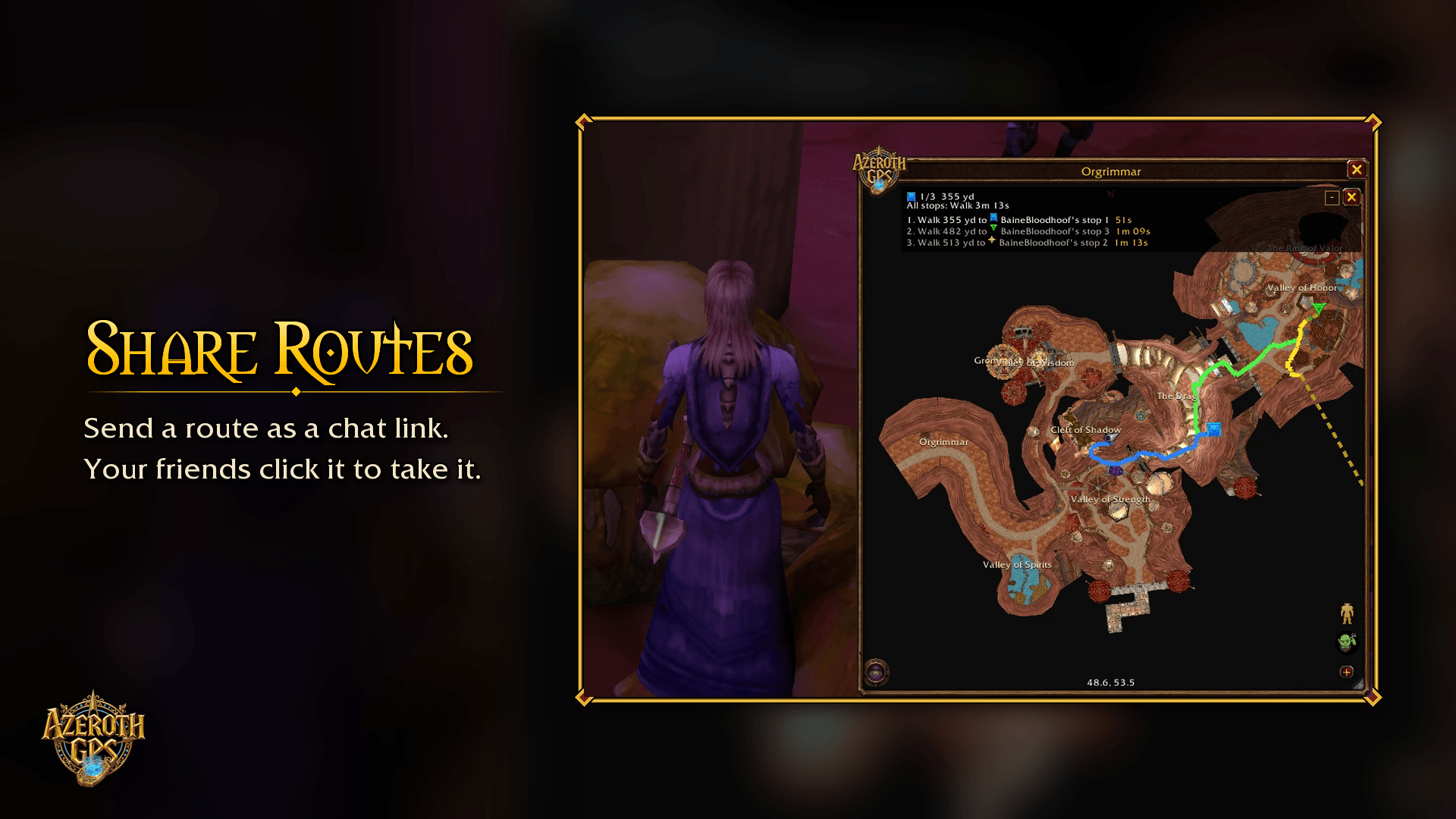
14-share-routes.png
Description
Basically a car GPS, but for Azeroth. Tell it where you want to go and it draws the way there along the actual roads and trails, with turn-by-turn directions, distances and an ETA.
Want the full rundown of every feature, option and command? Because it's a lot! It's all in the AzerothGPS guide.
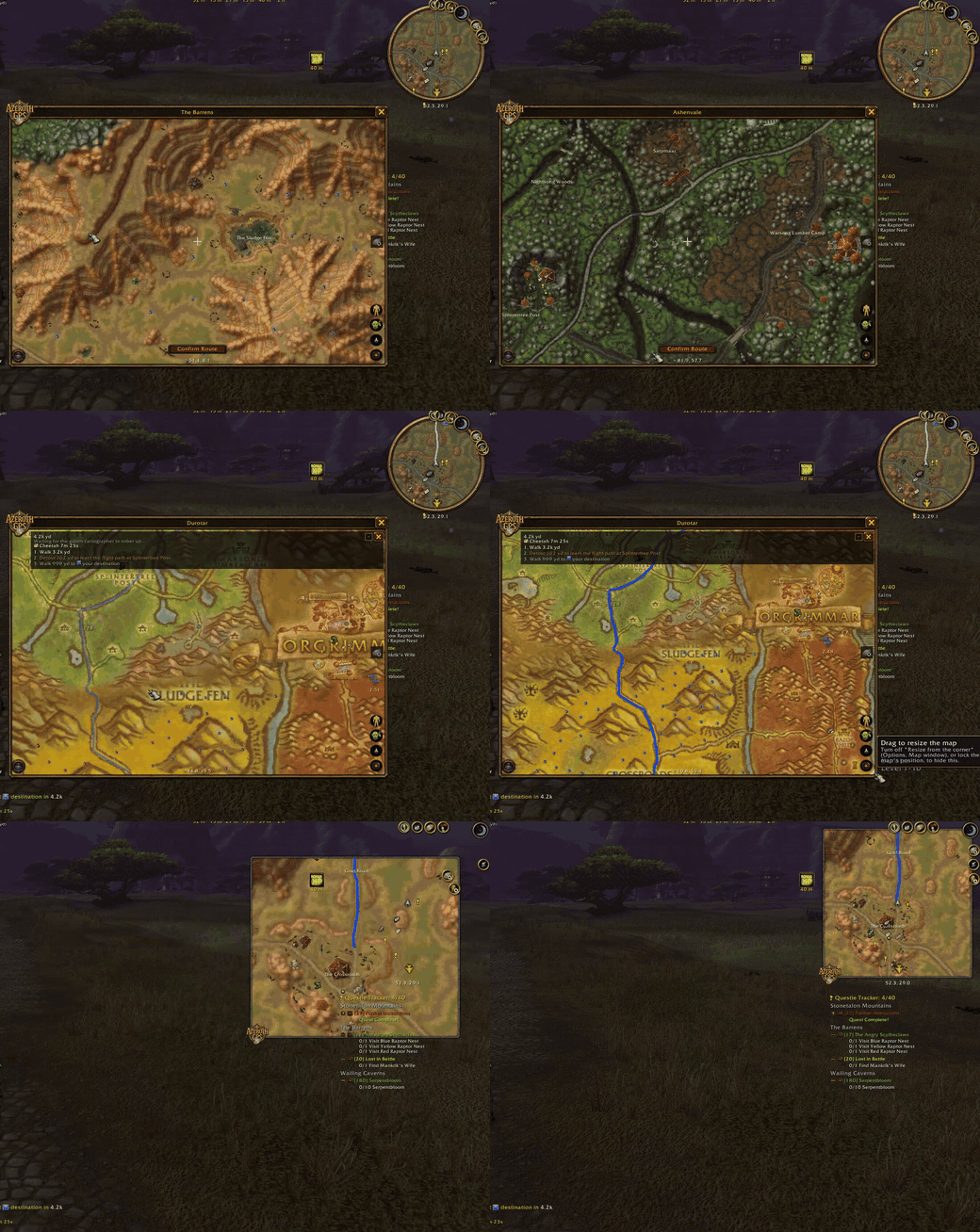
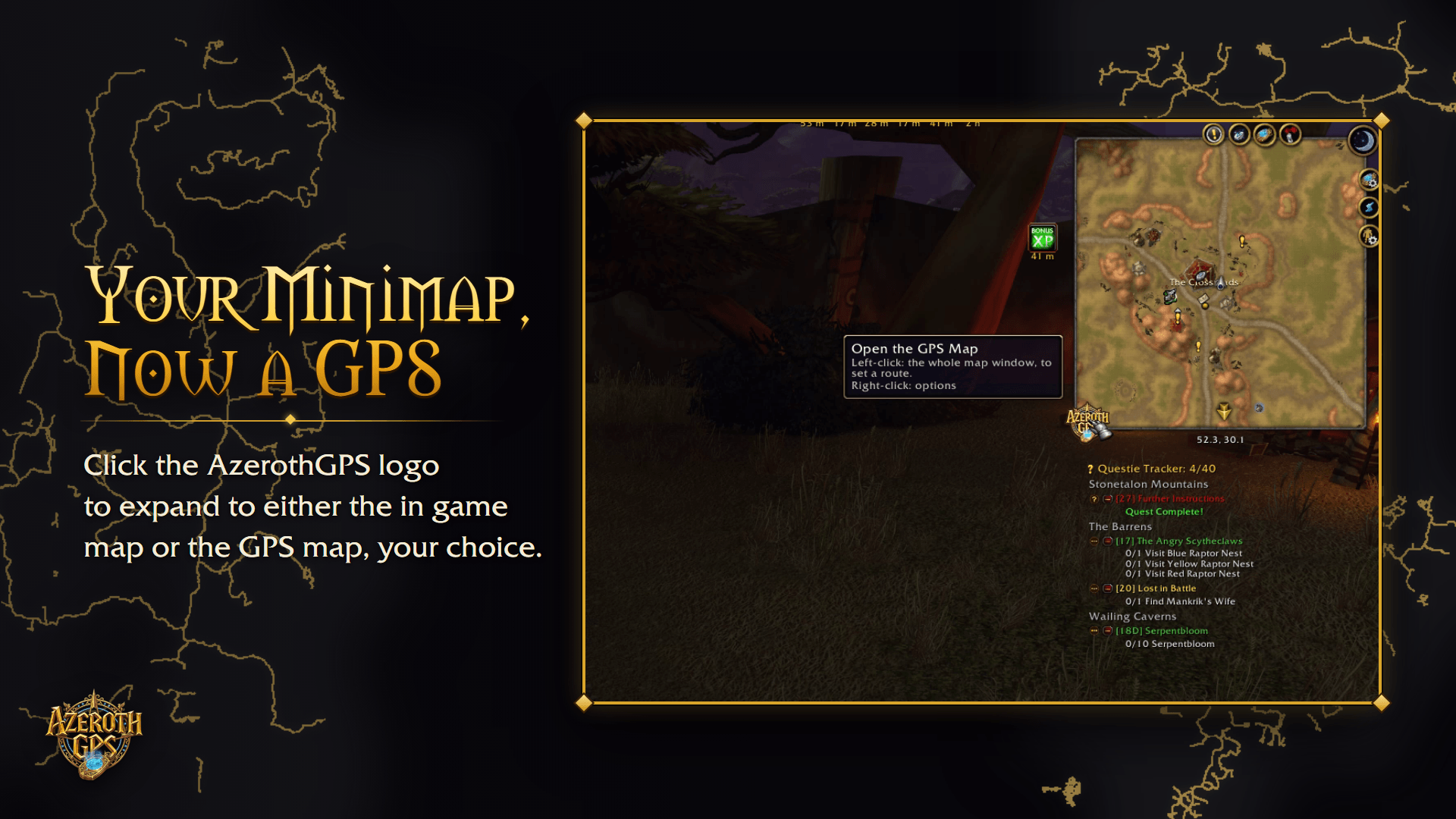
Double-click where you want to go, confirm, and follow the line: across zones, round the mountains, and past the flight paths you haven't learned yet.
New in 1.3
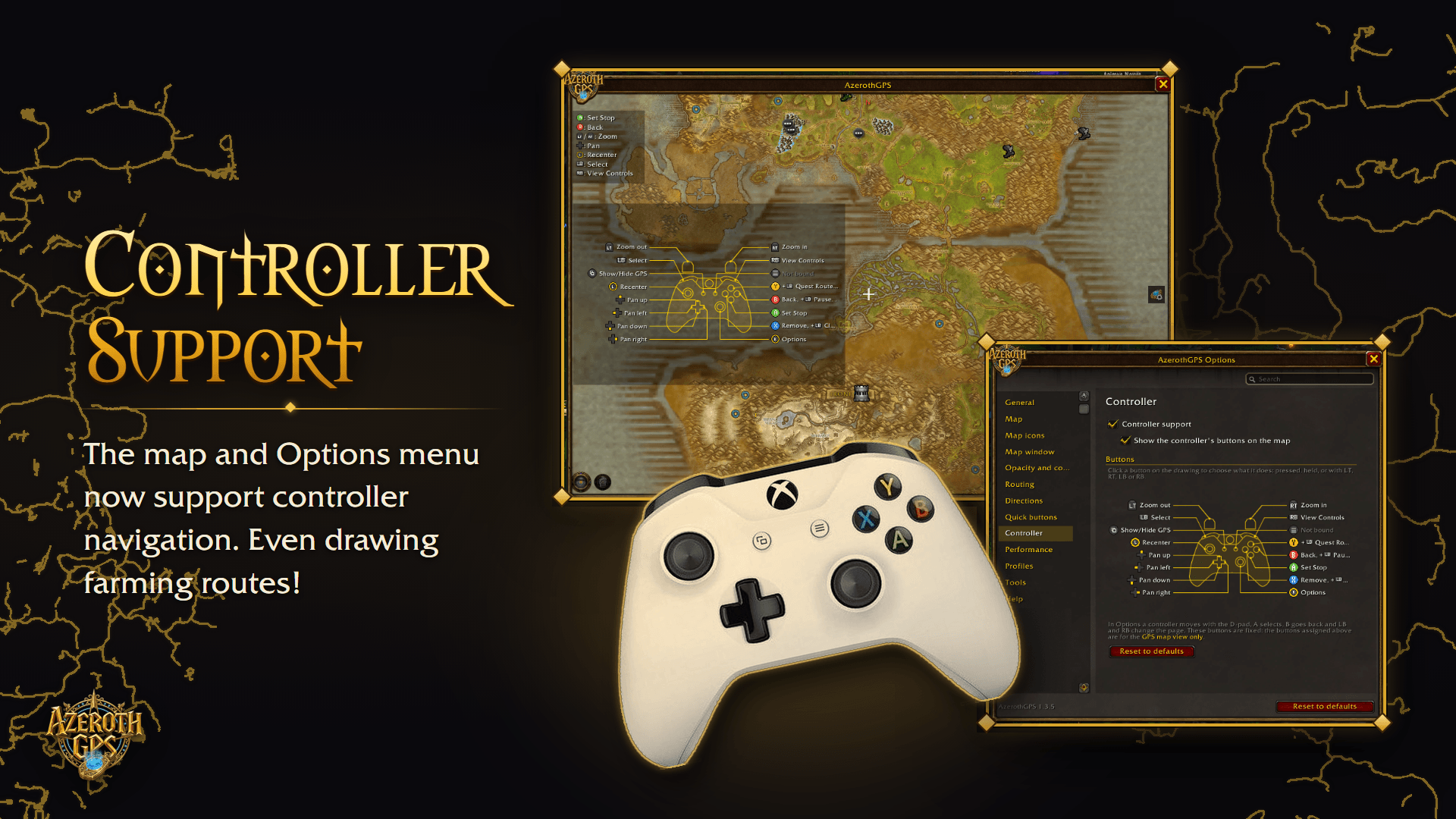
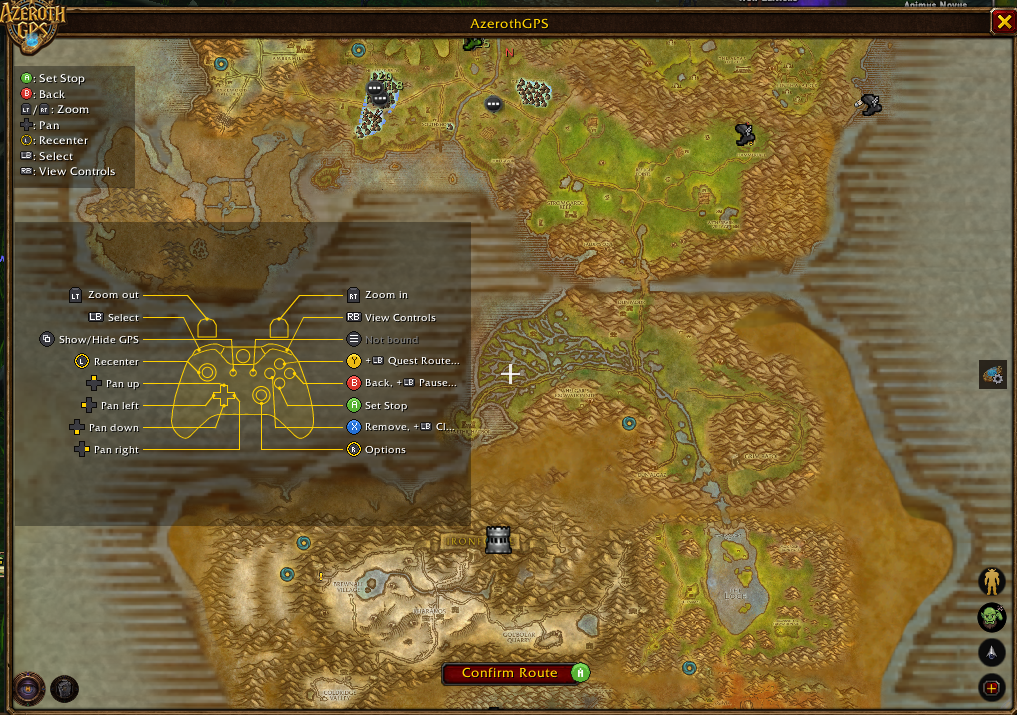
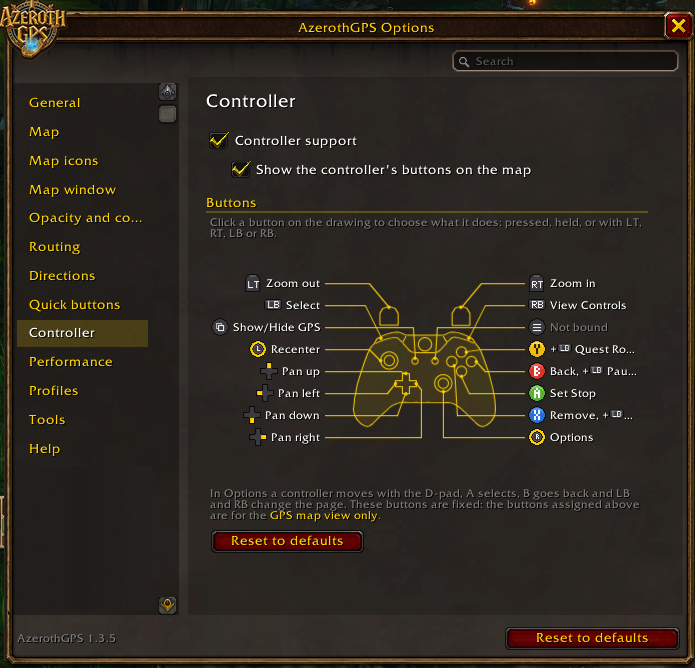
Controller support
The map and Options menu now support controller navigation. Pan with the D-pad, zoom with the triggers, set stops at the crosshair, open the map menu, even draw farming routes. Every button can be changed in Options → Controller, and the crosshair shows icons' tooltips just like the mouse does.
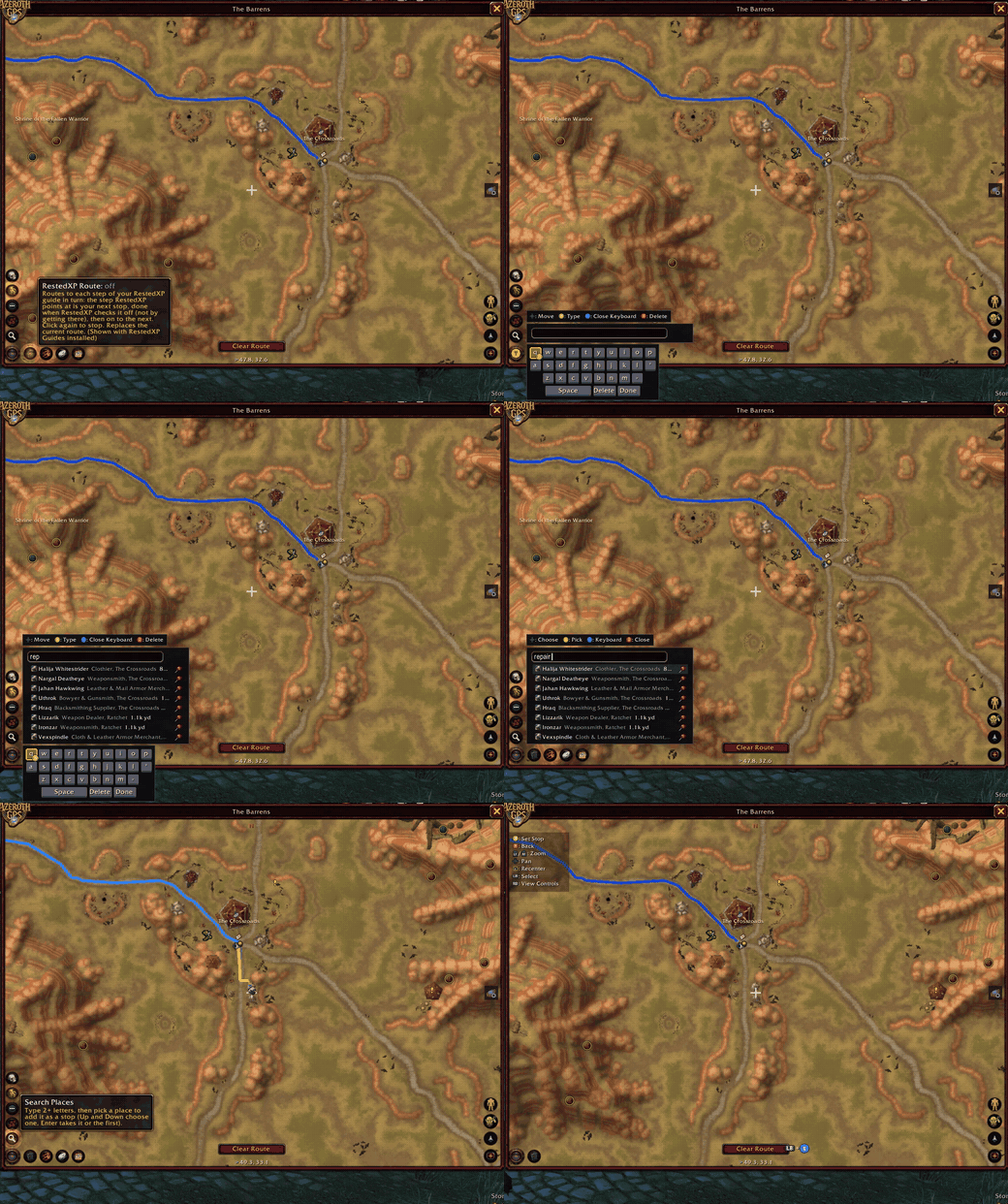
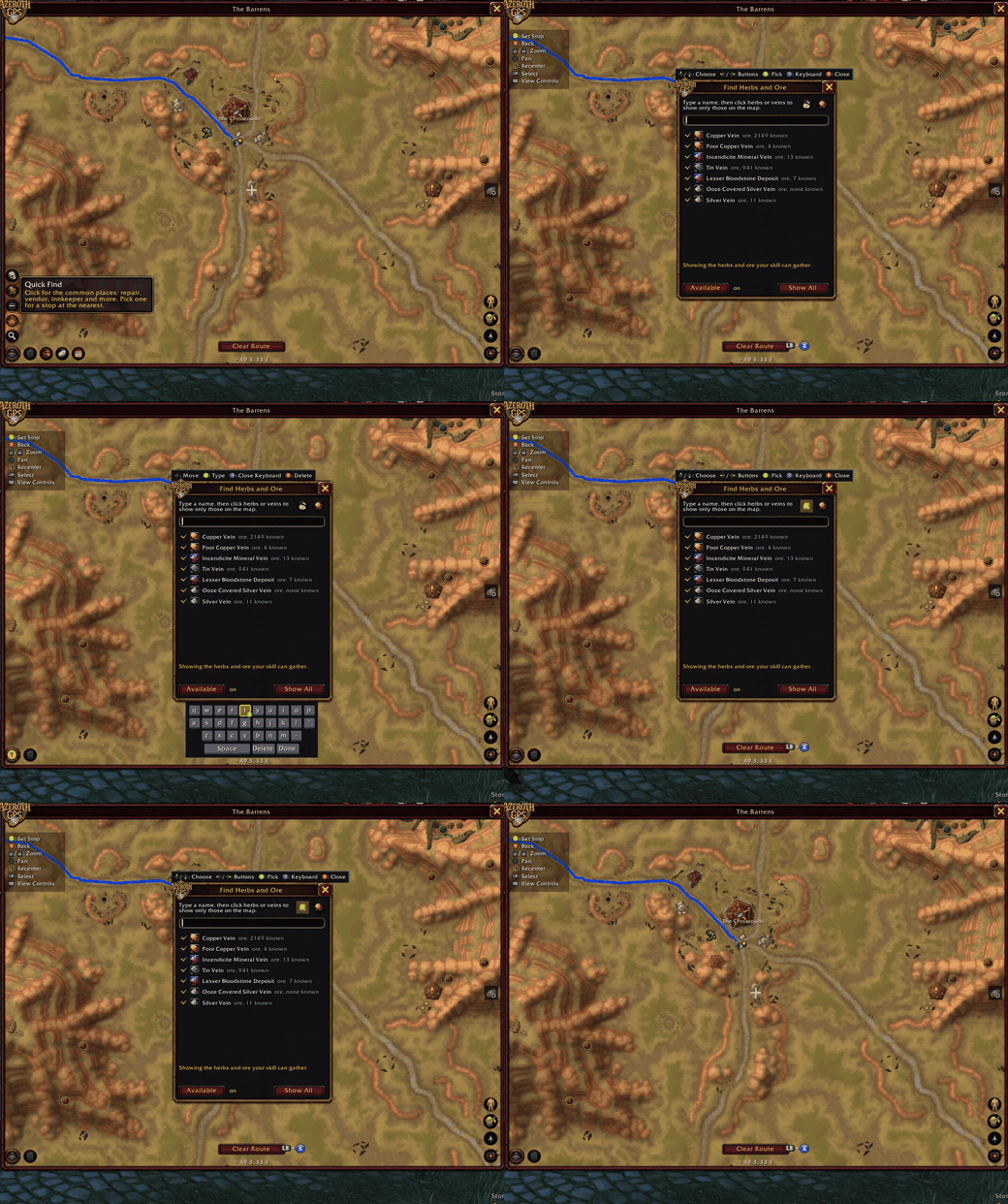
New in 1.3.12: search with an on-screen keyboard. Type a name or a service with the D-pad, pick a result, and the route is drawn. It works in Find Herbs and Ore and the Options search too, in your game's language.
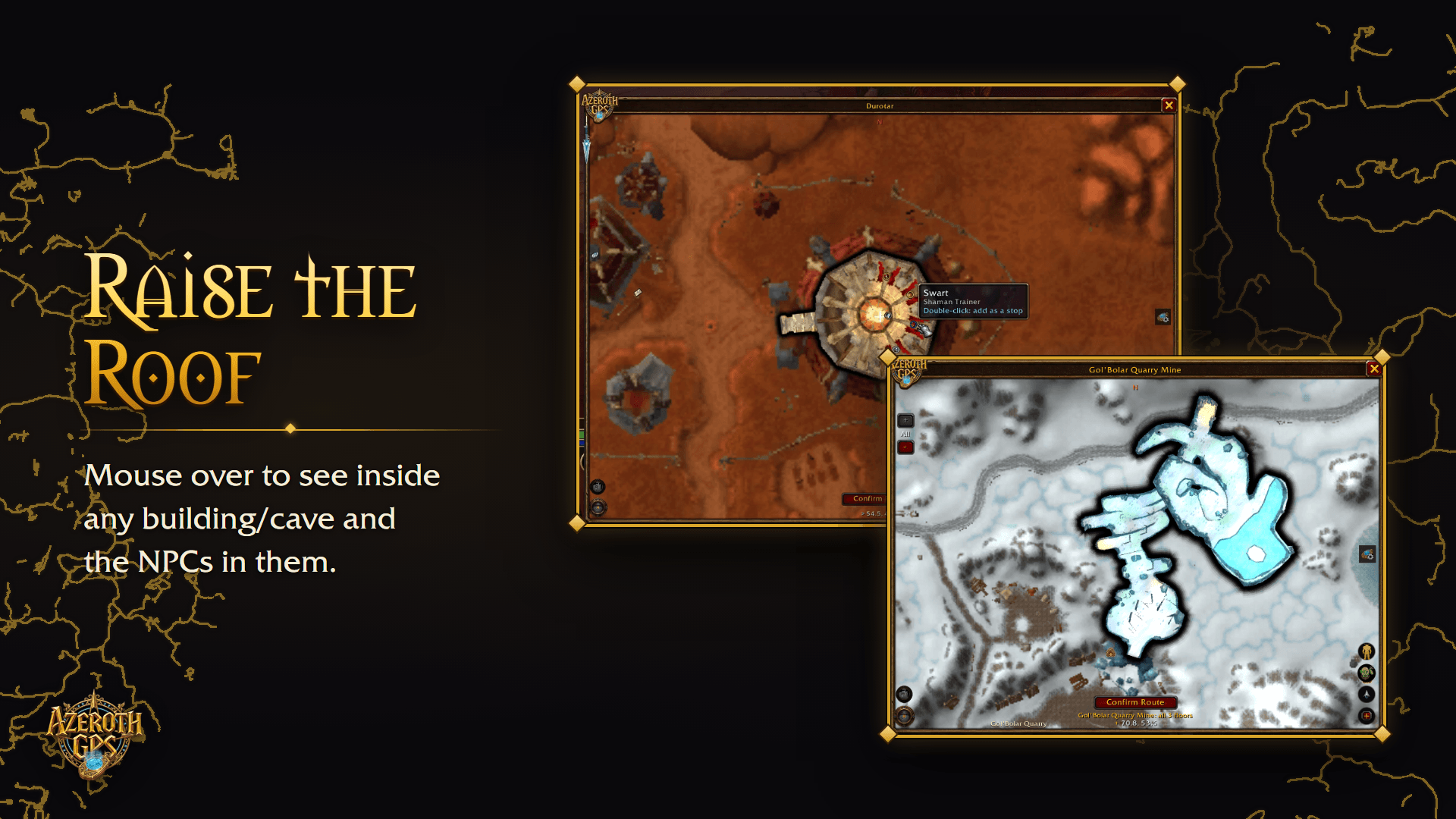
Raise the roof
Zoomed in, hover any building or cave and its roof comes off: its inside map, and the trainers, vendors and other NPCs in it. Double-click one for a stop there.
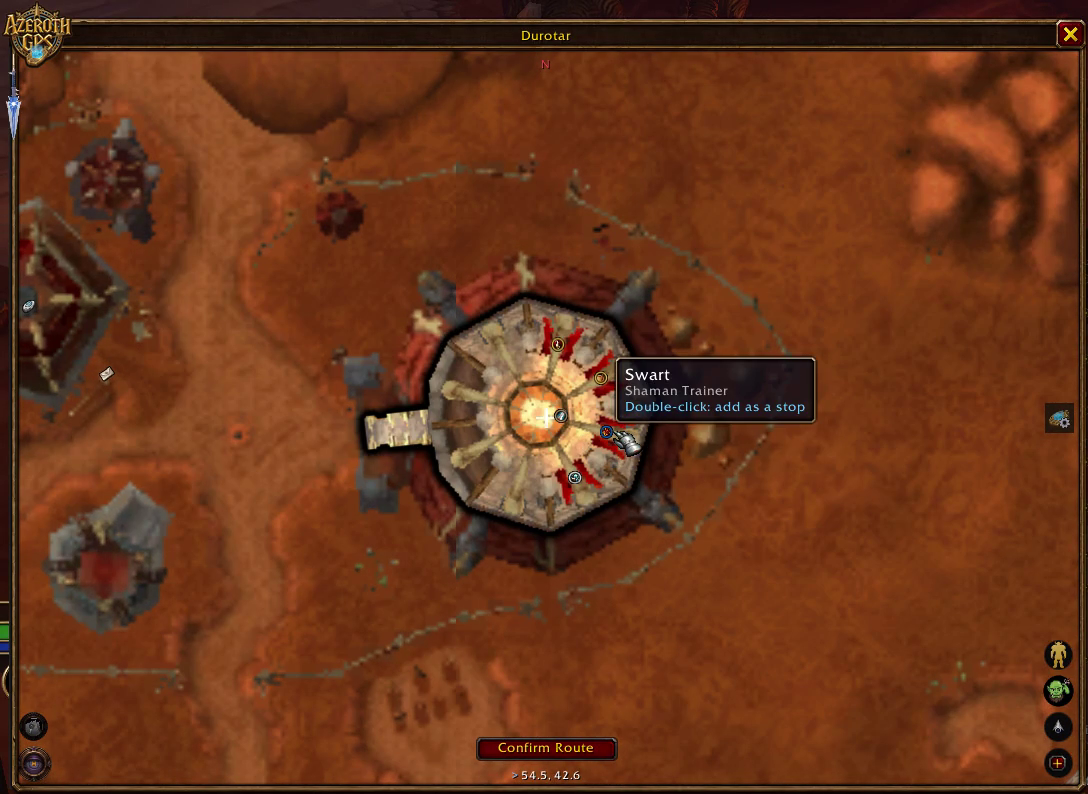
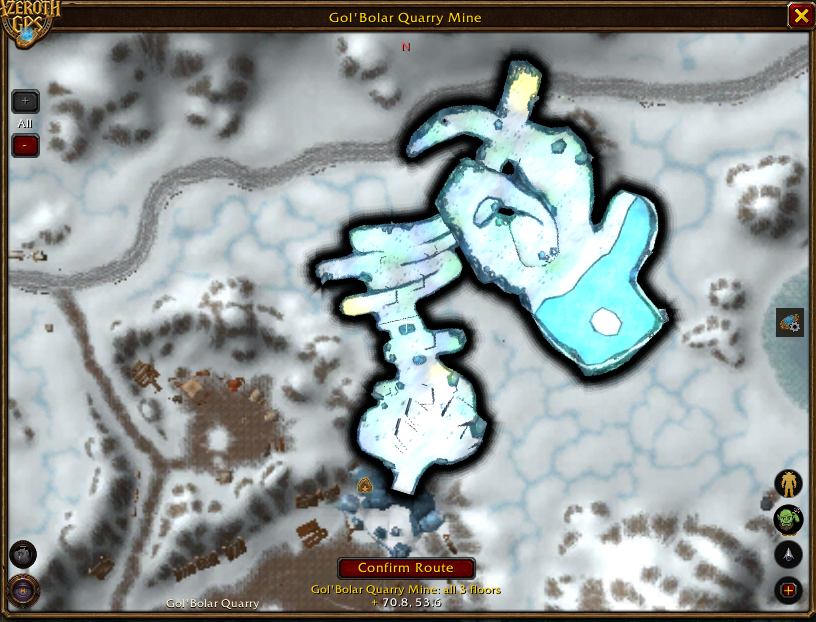
Find anyone, and anything they sell
- Every NPC of your faction is in the search, nearest first: type a name, a service ("repair", "innkeeper", "class trainer"), or what and where together ("repair undercity").
- Items vendors sell: search "ice cold milk" or "sharp arrow" and it takes you to the nearest vendor that has it.
- Quick Find: one button for a stop at the nearest repair, vendor, innkeeper or flight master. Make your own search buttons too.
And more
- Steer clear of enemy territory: routes go round the other faction's guards, quest givers and vendors that would flag you for PvP, and ask before taking you through.
- Pause Routing: keep your stops without the route being worked out or drawn, from the map menu or
/agps pause. - Round, crisp icons: map icons in a gold ring (class trainers in their class color), in three sizes.
- Quests in a click: double-click a quest in the quest log or tracker to route to it.
Everything else it does
It knows the terrain
No more running straight at a mountain and wondering why you're stuck. When cliffs or ridges are in the way, the route goes around them and in through the pass. It sticks to the roads where that makes sense, and when you're off the road it joins up where you're headed, not back at the closest bit behind you. Take your own shortcut and it just adjusts. Got a bunch of places to hit? Add as many stops as you like and it sorts them into the fastest order.
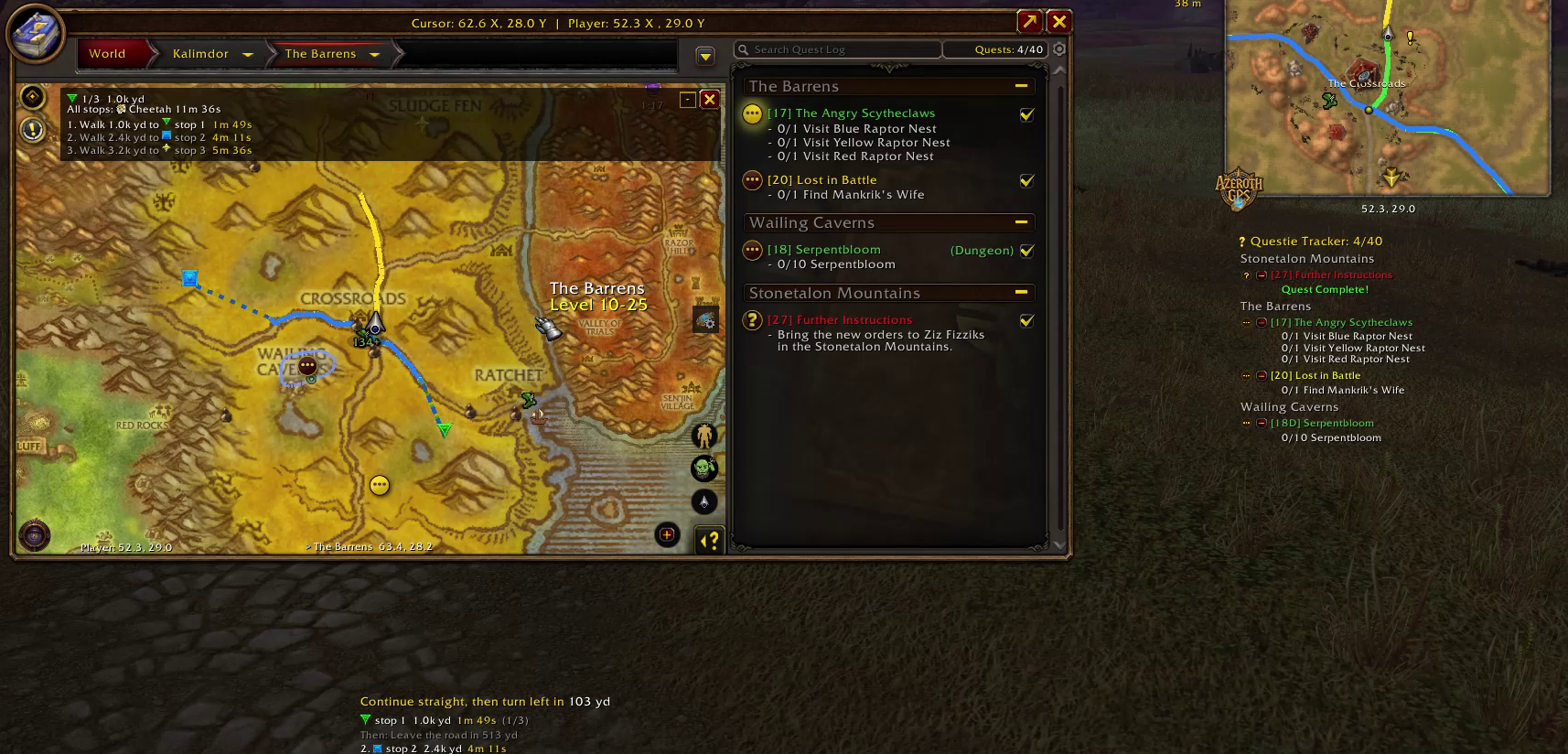
Your quest log, routed
Quest areas show up on the map just like on your minimap. A stop in a quest area waits until you've finished that quest's objectives, then the route moves on.
Stays out of your way
- Size and opacity: make it as big or as see-through as you want (unlock the size and drag the corner). A bigger map shows more of the world, not just the same bit blown up.
- Moving and fighting: it can fade while you run, go click-through, or dim or hide in combat.
- Show/hide key: bind whatever key you like.
- Older PC? Options → Performance lets you turn down how often the map redraws and the route gets recalculated. There's a one-click low-end preset, and it shows you live how much time AzerothGPS is actually taking.
Farming, on every character
Every herb and ore node you gather, hover over on the minimap, or right-click without the profession ("Requires Herbalism") gets remembered across all your characters.
Spot a mistake? Fix it
If a route misses a trail or walks you into a wall, draw the fix right on the map and routes use it straight away. Send it by following directions in "Help improve" menu (/reload, then Copy Map Data…) and if it checks out, it ships in the next version for everybody.
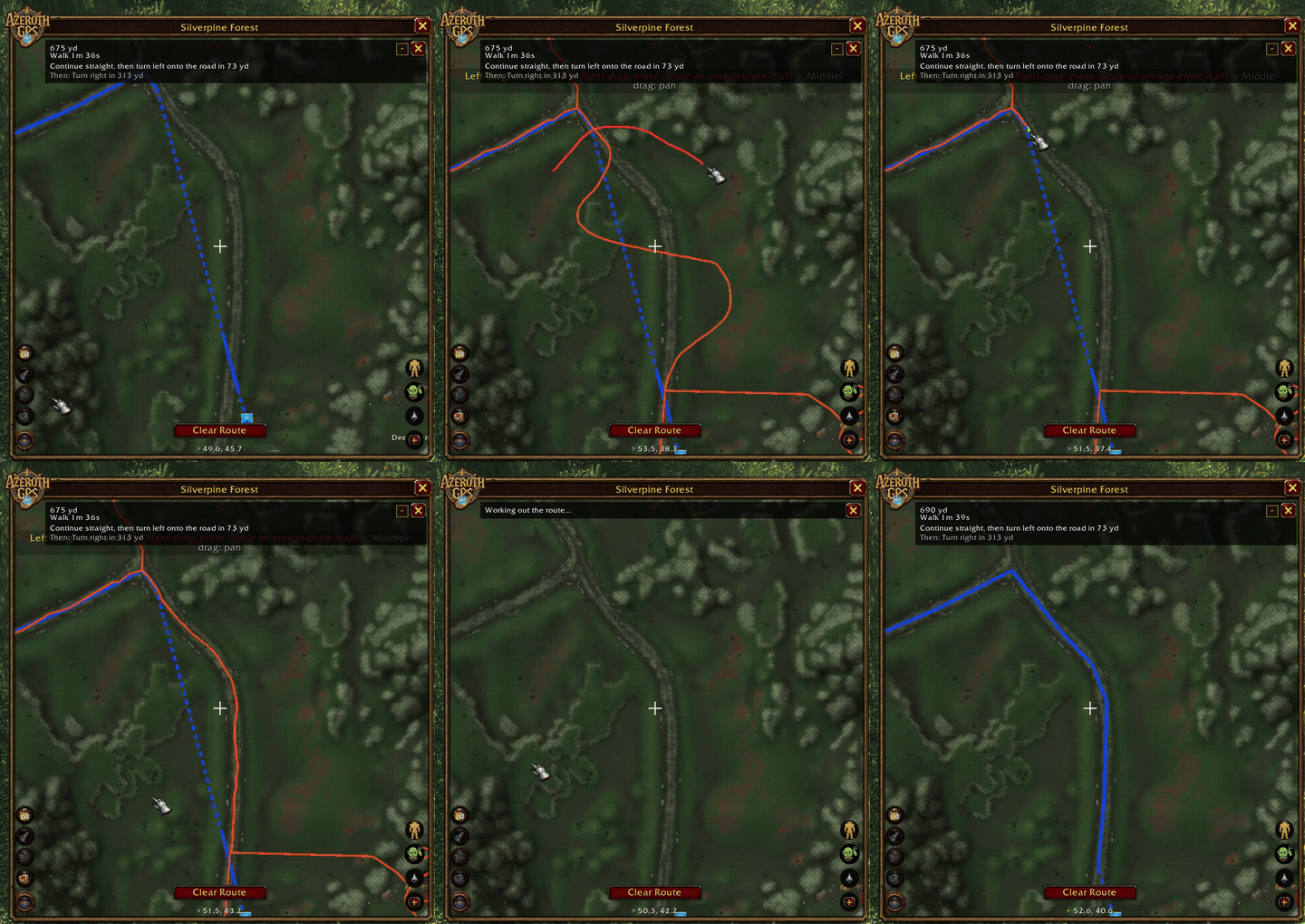
Also in there
- Every way to get around: flight paths (plus a detour to pick up ones you pass but haven't learned), boats and zeppelins with countdowns to their next arrival (on board, an "arrives in" countdown just like a flight's; Shift-click a dock to paste its times in chat), the Deeprun Tram, your hearthstone, class teleports and engineer teleporters. You can hearth or teleport with one click right from the directions. Don't fancy a certain flight or boat? Right-click it and the route skips it. If that leaves no way there, it tells you and offers to put it back.
- Cities and caves: every capital's streets (stairs called out), Undercity's floors, 353 caves and mines, and the lifts: Thunder Bluff's, Undercity's, the Great Lift down to Thousand Needles and Freewind Post's.
- Dungeons and raids: floor-by-floor maps, bosses in order, and a boss route. Dungeons with wings get an icon per wing, each with its own bosses and route: Scarlet Monastery's Graveyard, Library, Armory and Cathedral, Dire Maul's East, West and North, Stratholme's two gates, Maraudon's Orange and Purple.
- Keeping you alive: routes steer around the other faction's towns and zones way above your level. If the only way there runs through one, it asks before it shows you that route.
- Your own pins: Shift-click the map to drop a pin with any icon from the game and a name. Double-click it later to route there, on the right floor in Undercity, caves and the capitals; a pin in a dungeon takes you to its entrance. Search finds your pins by name, and the city places you know from the guards ("Inn Ir" for Ironforge's inn).
- Your group on the map: party and raid members show up as round class icons in their class color, handy for keeping track of your raid in open-world PvP. They don't need the addon.
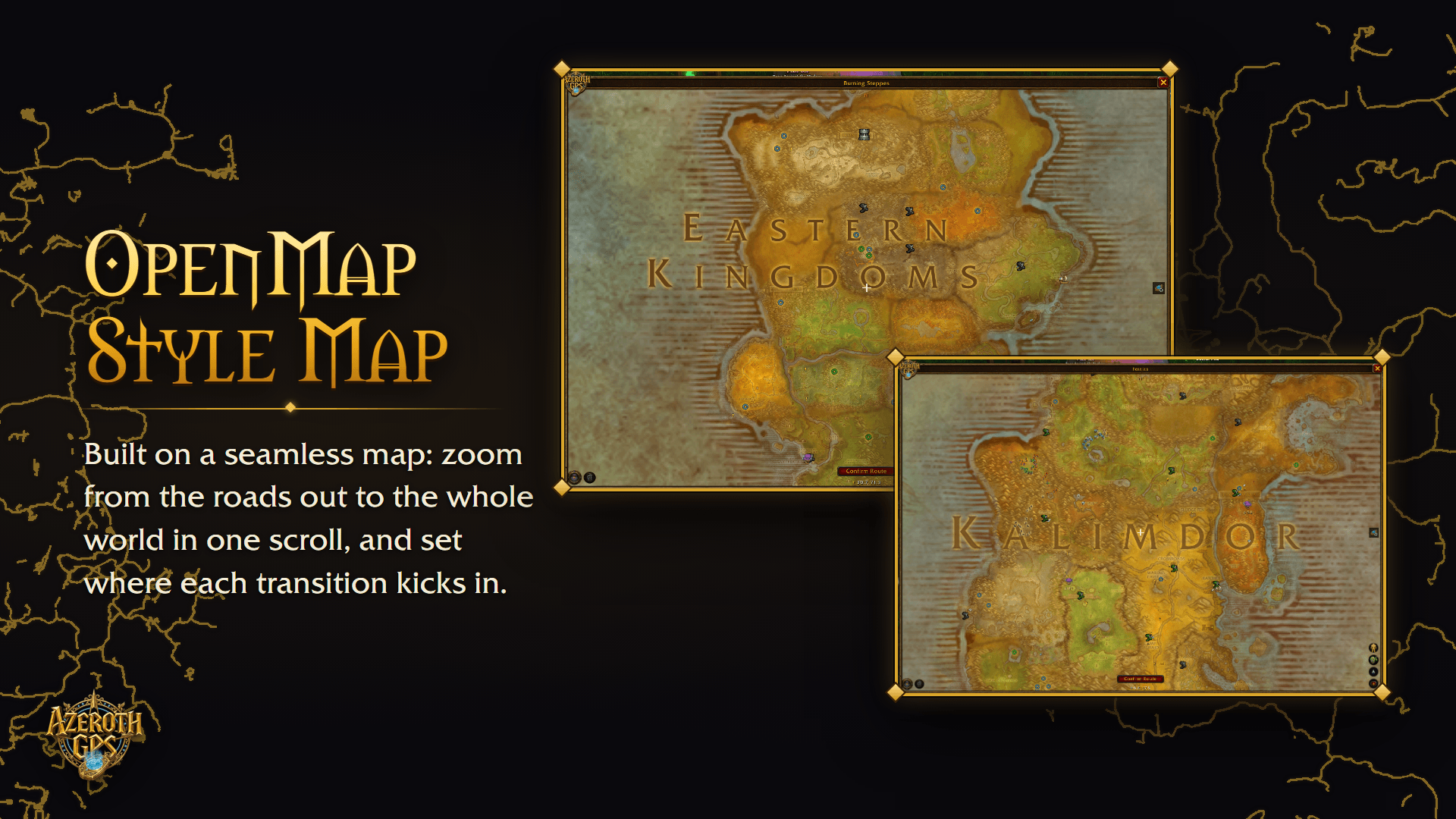
- OpenMap, zoom out to the whole world: past the land, the mouse wheel goes on through zones and continents on a stitched world map, and back in to the roads. Thanks to jigrobbulus, creator of OpenMap, for making it open source so it could be built into AzerothGPS.
- Turn-by-turn directions with ETAs at your actual speed, on foot, mounted or in travel form.
- Map pins and sharing: Ctrl-click for the game's map pin and Shift-click it into chat, just like the world map. TomTom
/wayimport, and share your route as a chat link: friends with AzerothGPS click it to get your stops (asked first, never pushed at them). - Display only: it never moves your character, clicks anything for you or automates anything. It just shows you the way.
Getting started
- The map sits at the bottom of your screen (type
/agps showif it's hidden). - Double-click the map to add a stop, then click Confirm Route (or just wait 5 seconds).
- Follow the line on the map, or the arrow.
- Using flight paths? Open the flight map at any flight master once so it knows which ones you have.
Come say hi
- Discord: questions, ideas and news on the AzerothGPS Discord. Come hang out.
- Bugs and bad routes: send them in with the report form or post in the Discord. Include the zone and your start and destination coordinates (they're at the bottom of the map).
- Map fixes: draw them with the road or wall tools, type
/reload(that saves every edit), then Copy Map Data… (Options → Help) and paste it into the report form or the Discord.
AzerothGPS Team