


Azeroth Graphics
- By
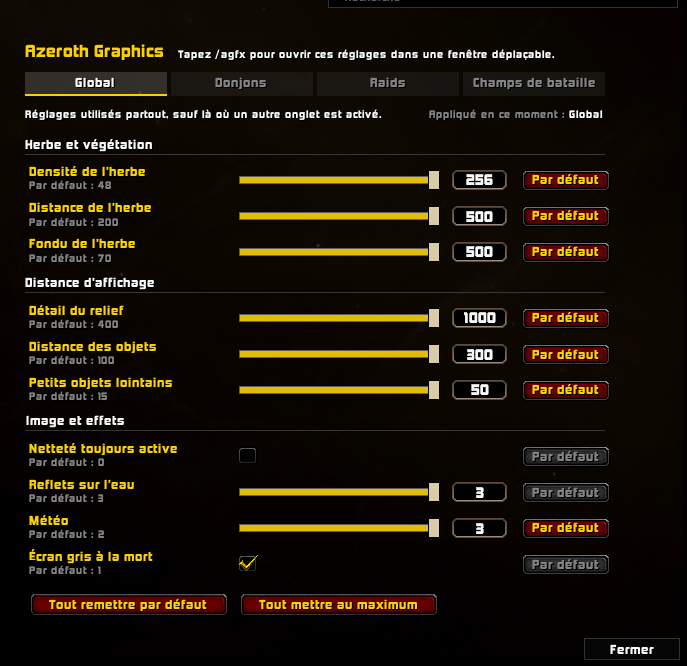
Capture d'écran 2026-10-16 234305.png
Description
Azeroth Graphics
Unlock the graphics settings the game menu doesn't show, and use different ones in dungeons, raids and battlegrounds.
Azeroth Graphics gives you simple sliders and checkboxes for hidden graphics settings: how dense the grass is and how far it reaches, how far the landscape keeps its detail, water reflections, weather and more. Every change applies instantly, so you can watch the world change while you adjust it.
Features
- Hidden graphics settings, made simple. Ten settings that the standard options menu doesn't offer, each explained in plain language in its tooltip.
- Separate settings for dungeons, raids and battlegrounds. For example, lower the grass in raids for a smoother frame rate while keeping a lush open world. Each one is turned on or off with a single checkbox.
- Automatic switching. The right settings are applied every time you go through a loading screen, and your previous values come back when you leave.
- Your choices stay put. Values are reapplied at every login and loading screen, even if a graphics quality preset overwrites them.
- One-click buttons. Set all to maximum for the most detailed picture, Reset all to defaults to go back to the game's values.
- Exact values. Each slider has a box where you can type a value, even beyond the slider's range.
- English, French and Spanish. The interface follows your game language.
- Easy to reach. Type
/agfx, use the addon menu next to the minimap, or go to Esc → Options → AddOns.
Settings
| Section | Setting | What it does | Range |
|---|---|---|---|
| Grass and plants | Grass density | How much grass, flowers and small details cover the ground | 16 – 256 |
| Grass distance | How far around you the grass is shown | 0 – 500 | |
| Grass fade-in | Distance over which grass appears gradually instead of popping in | 0 – 500 | |
| View distance | Terrain detail | How far hills and mountains keep their full detail | 100 – 1000 |
| Object distance | How far trees, rocks and buildings stay visible, as a percentage | 0 – 300 | |
| Small distant objects | Distant objects smaller than this size are hidden (lower shows more) | 0 – 50 | |
| Image and effects | Always sharpen | Sharpens the image even when render scale is at 100% | On / Off |
| Water reflections | Quality of reflections on water | 0 – 3 | |
| Weather | Strength of rain, snow and other weather effects | 0 – 3 | |
| Grey screen when dead | Turns the screen grey while your character is dead | On / Off |
Hover over a setting in game to see its default value and its technical name (CVar).
Dungeon, raid and battleground settings
The window has four tabs: Global, Dungeons, Raids and Battlegrounds.
- Global is used everywhere, unless another tab is turned on for the place you are in.
- In the other tabs, check Use these settings in… to turn them on.
- A setting you don't change in a tab stays the same as Global. Only what you change there is different, and a gold mark shows those settings.
- Use Global (on a setting) or Reset all to Global (at the bottom) undoes the changes made in that tab.
Under the tabs, on the right, the window always shows which settings are applied right now.
Commands
| Command | Action |
|---|---|
/agfx |
Open or close the settings window |
/agfx reset |
Reset the Global tab to the game's defaults |
/azerothgraphics works too.
Good to know
- Higher values look better but ask more of your computer. If your frame rate drops, lower the grass density and distances first, or use the dungeon and raid tabs to lighten things only where it matters.
- Pressing Default on a setting in the Global tab hands it back to the game: the addon stops forcing it, and the game's own graphics options control it again.
- A setting marked Not available in this version of the game is greyed out and left untouched.
Version 2.0.0 · Game WoW Forever (interface 16001) · Languages English, Français, Español
Azeroth Graphics Team
