Auto Hide UI
- By
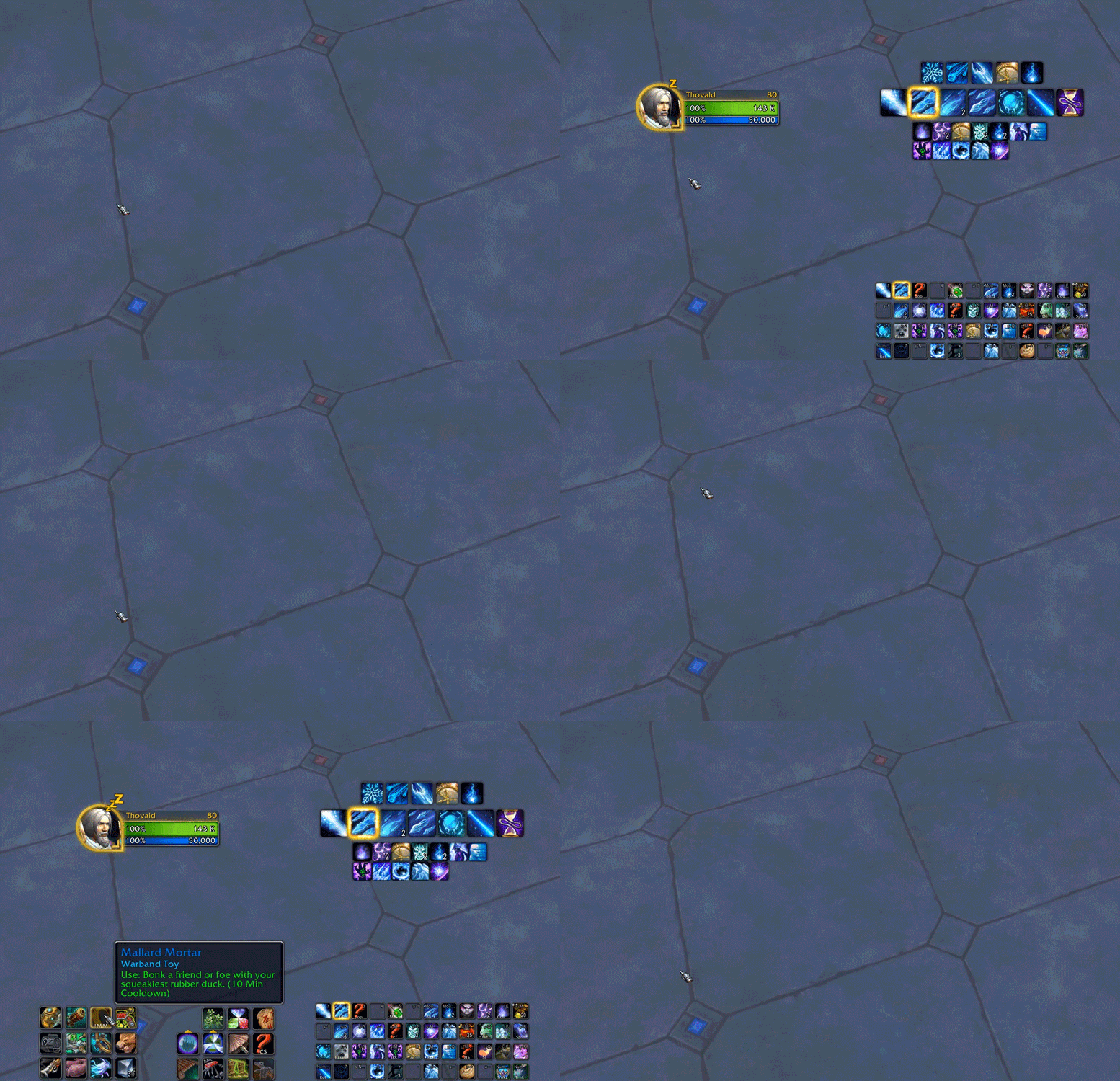
Automatically fades out UI elements of your choice. Fades them back in when certain conditions (like combat or mouseover) are met.
Demo.gif
img-frames.jpg
img-fade.jpg
img-conditions.jpg
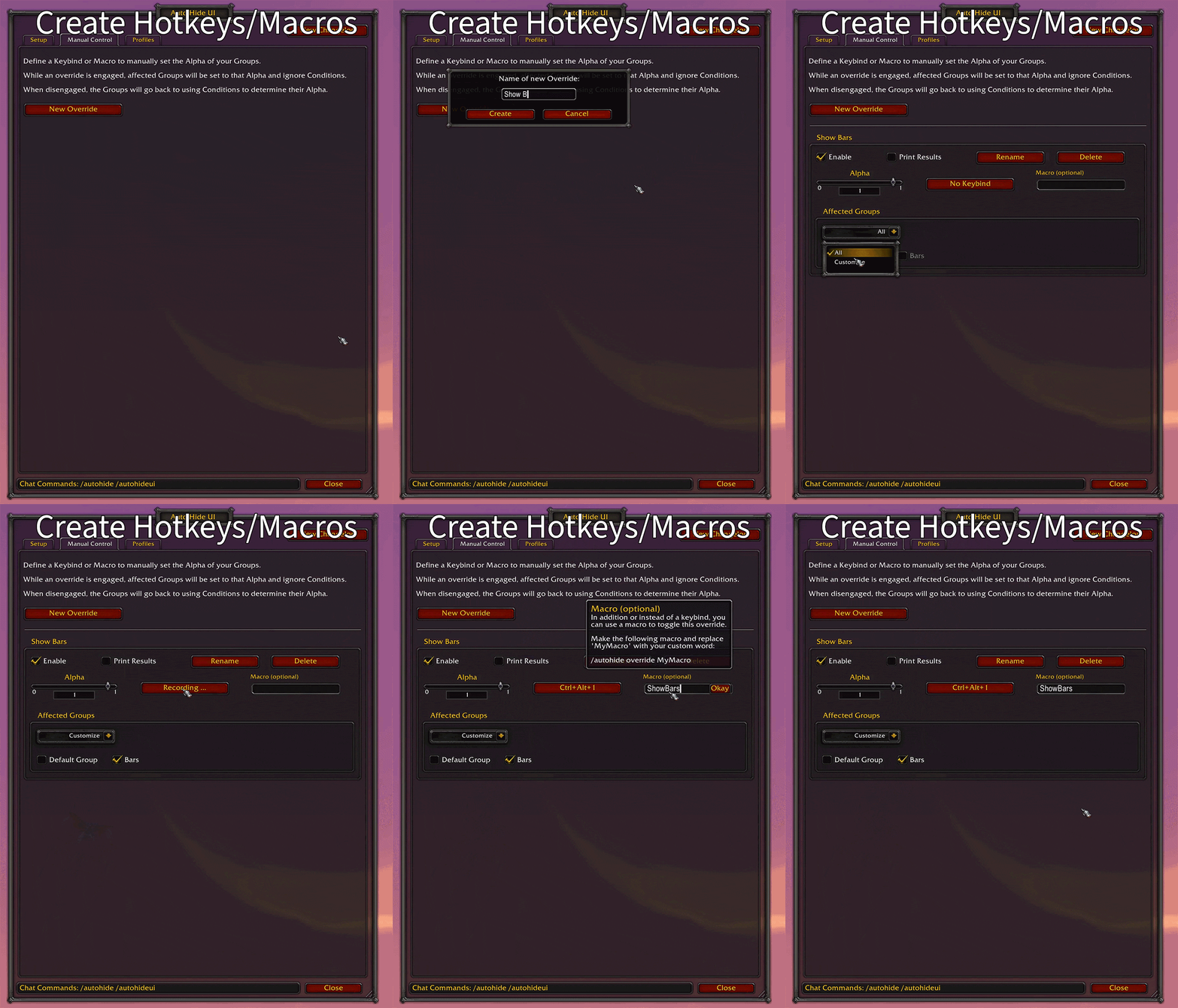
gif-hotkeys.gif
Description
Auto Hide UI
What this does:
Fades out UI Elements and brings them back when certain conditions (like mouseover or combat) are met.
You choose what, how and when to fade!
- Esc => "Options" => "Addons" => "Auto Hide UI"
- /autohide
- /autohideui
Default behavior:
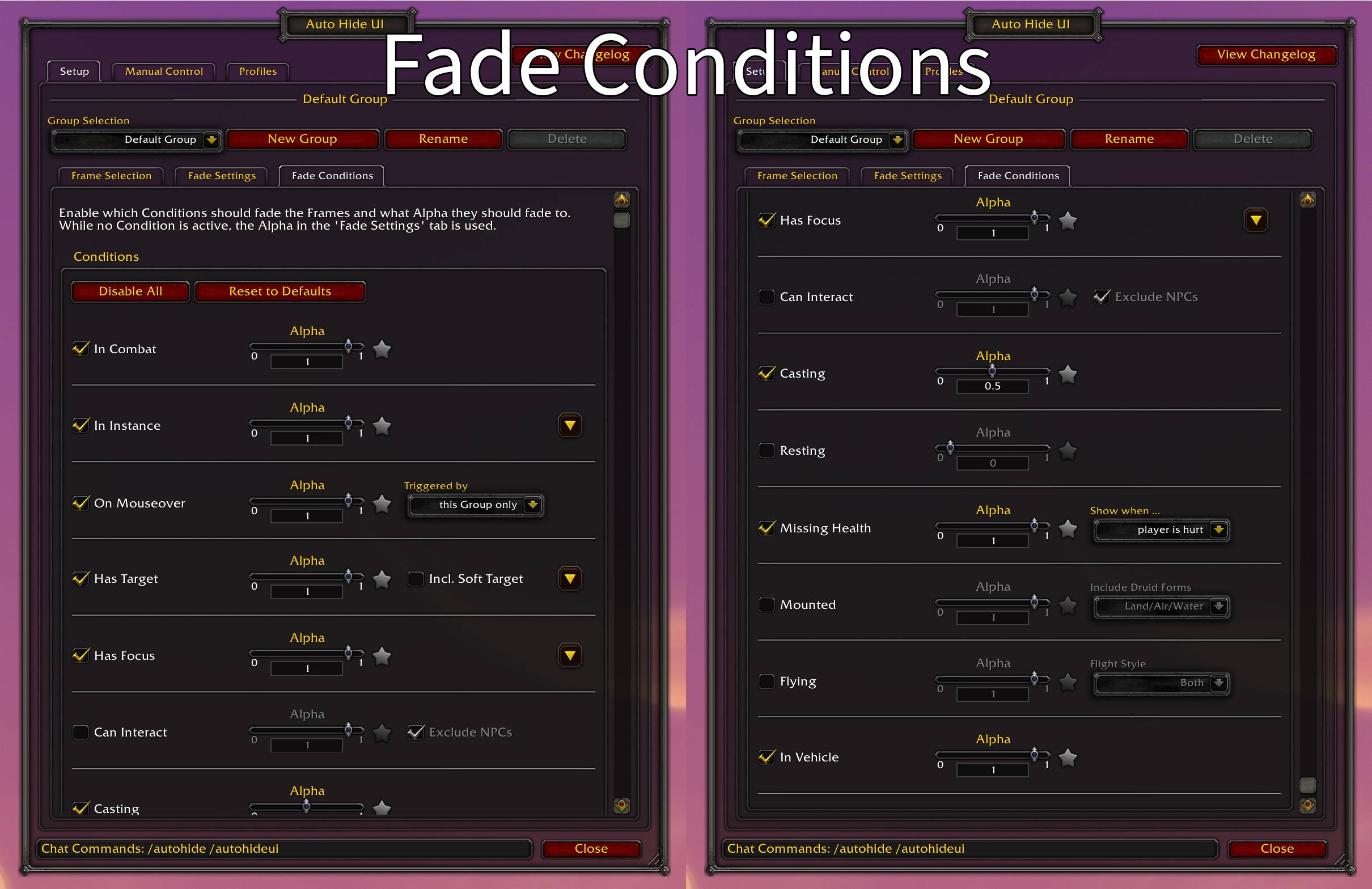
Frames will fade out or remain hidden until any of these conditions are true:
- you are in combat
- you have a target
- you are in an instance
- you mouseover a hidden frame
- you are missing health
- you are in a vehicle
Features:
- Quick and easy to use while still being customizable.
- Supports most popular UI AddOns. Your Fade-Setup will continue to work when you switch between AddOns or the Default UI.
- Fade-Settings and -Conditions are applied to groups of Frames instead of individual Frames.
- Included Frame-Finder tool to add Frames that aren't listed in the options.
- Create custom Mouseover areas.
- Create Hotkeys and/or Macros to manually fade your Frames.
Customizability:
You decide which Frames are affected and under which conditions they should be visible/hidden.
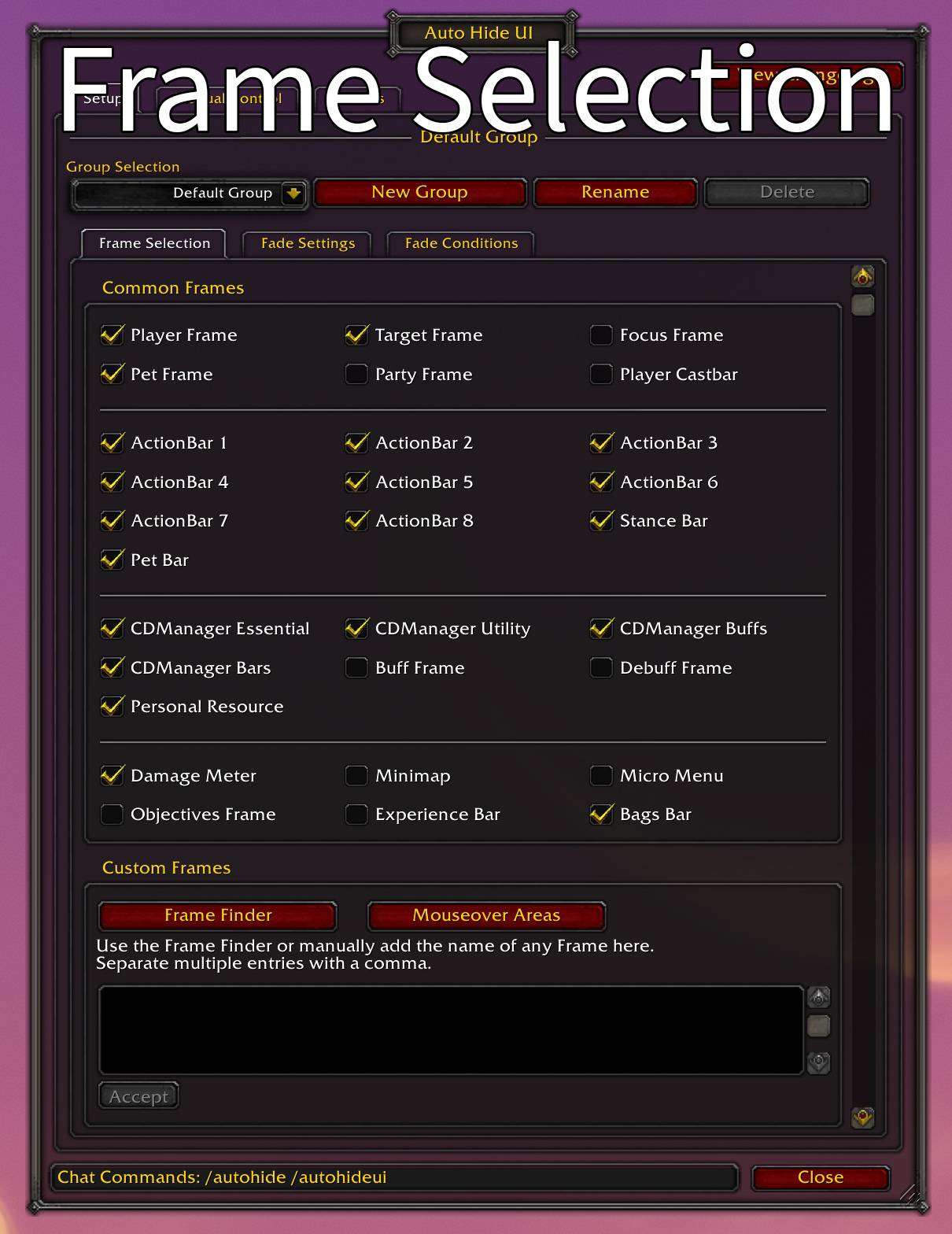
- Choose which Frames are affected.
- Customize fade conditions and behavior.
- Create Groups to assign different settings to different Frames.
- Add Custom Frames that aren't listed in the GUI.
You could have your UnitFrames and your CooldownManager fade in whenever you are in combat.
And have that one ActionBar with toys and mounts only fade in when you mouse over it.
Supports other AddOns:
Supports ElvUI, EllesmereUI, Unhalted Unit Frames, Danders Frames, Ayije CDM, Details, Bartender and Dominos.
Will automatically detect and use their Frames over the default Blizzard ones.
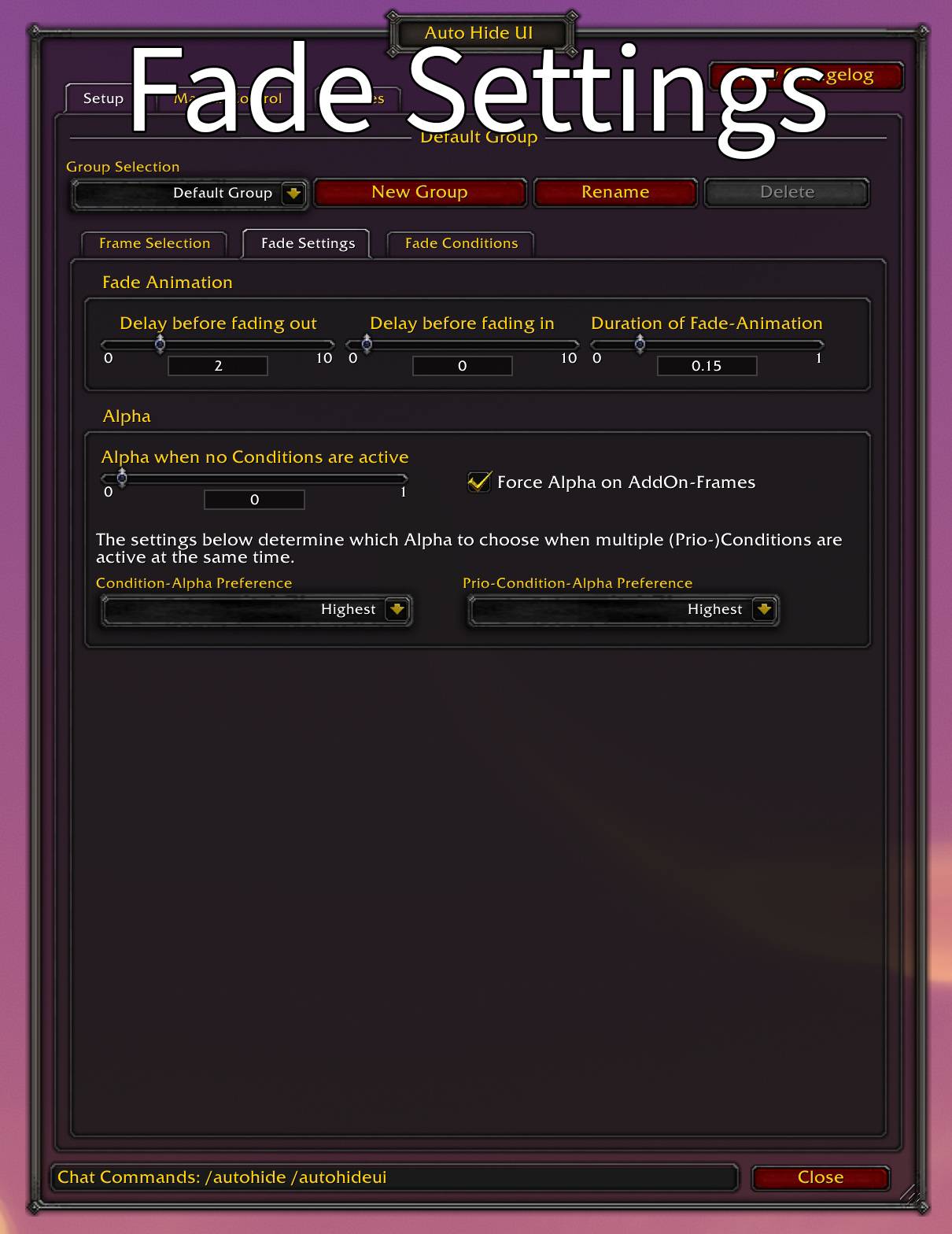
There is a setting in the "Fade Settings" tab to override the Alpha of these AddOns. It's enabled by default.
If you want these AddOns to remain in control of their Alpha (for range checks or their own fade system), either remove their Frames from Auto Hide UI or disable this setting.
How to add Custom Frames:
If the provided Frame selection doesn't include the Frame you wish to hide, use the included Frame Finder tool to find and add it. Make sure your Frame is visible when launching the tool.
Alternatively, you can add a Frame manually, but you will need to find out its name first.
Here's how:
- Type /fstack in your chat.
- Hover your mouse over the Frame you want to hide.
- The Tooltip is most likely highlighting some sub-element, like a button or a texture.
Your goal is to find the root of that Frame. - Press the left or right Alt key to cycle up and down the stack.
Right Alt will probably take you there faster. - Once your entire Frame (not just a part of it) is marked green, check the Tooltip for the entry marked with an arrow. This is probably the Frame you are looking for.
- It may take a few guesses until you find the right Frame.
- Type /fstack again when you're done.
Once you know the name, open the Options, scroll down in the "Frame Selection" tab and enter it in the text box for "Custom Frames".
Separate multiple entries with a comma. The entries are case-sensitive!
The Auto Hide UI Team