
AudioX II
- By

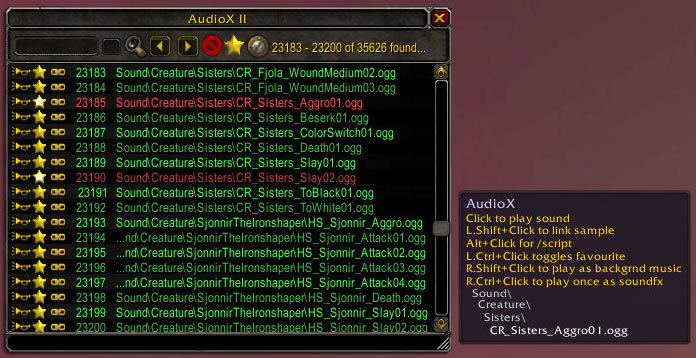
UI showing search results. Red text indicates a favourite. The AudioX II works both with and without the UI. Note: A tooltip breaking down an underlying path.
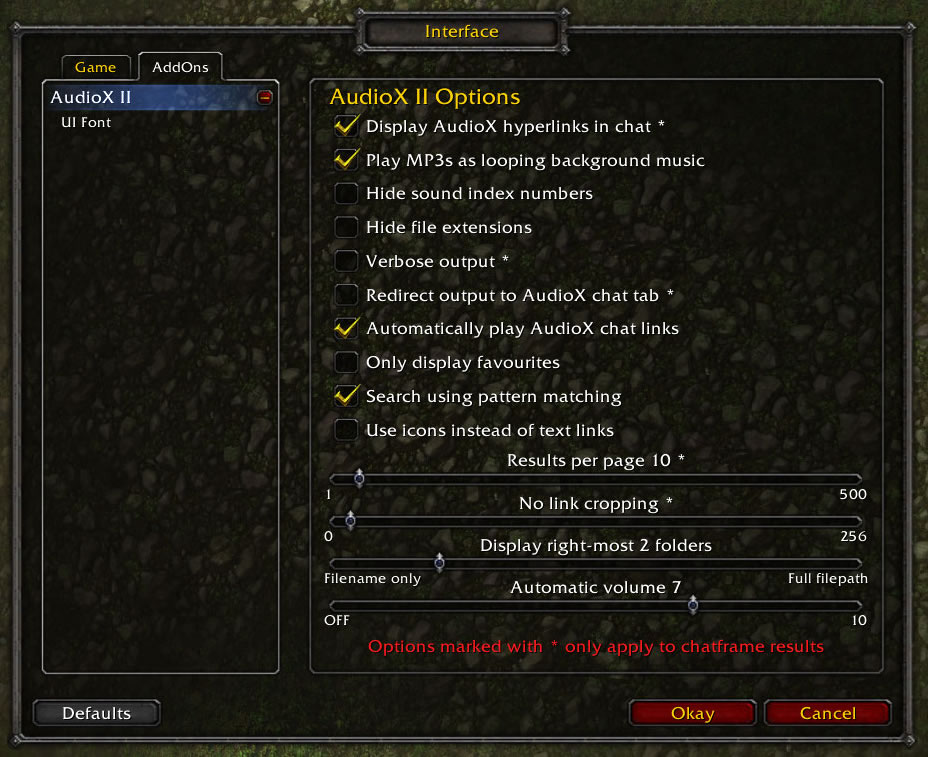
Loaded / toggled by typing "/ax options", shift+clicking the AudioX minimap icon or clicking the rivet icon in the AudioX UI. Once loaded you can also access it via Blizzard's Interface options > Addons tab > AudioX II.
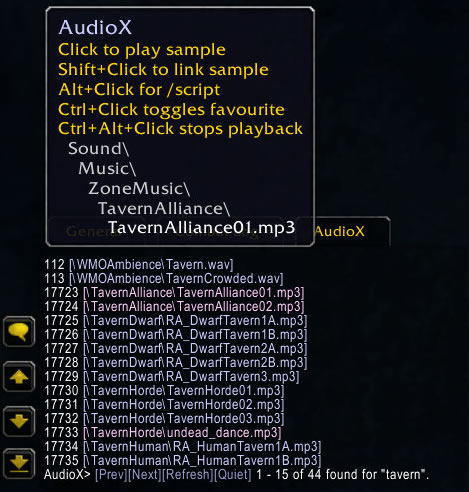
You can search via the chatframe, optionally within it's own tab. Favourites show up as pink. Note that moving the mouse over any AudioX link displays a tooltip that shows the full soundpath and a few helpful tips.
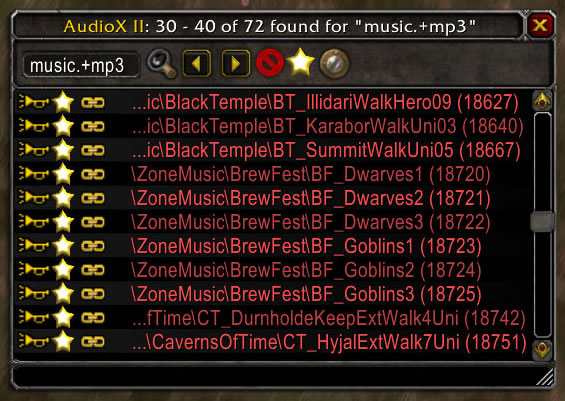
AudioX II UI listing all favourites. These are added/removed by clicking on the corresponding star icon. This picture also demonstrates: 1) File paths being hidden 2) Adjustable font and window sizes 3) You can search through just your favourites.
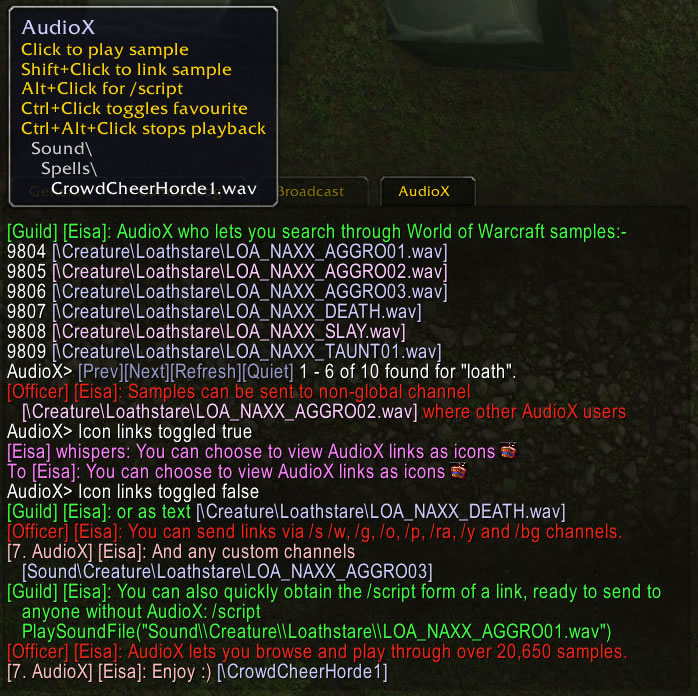
More info in the image text
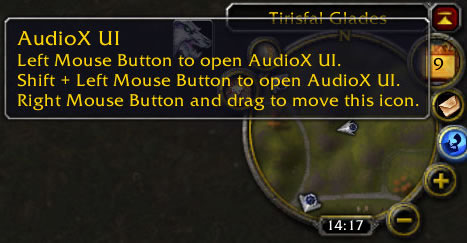
Optional minimap plug-in