Audio Control
Quickly manage WoW's essential sound settings and output devices with an easy-access, movable panel.
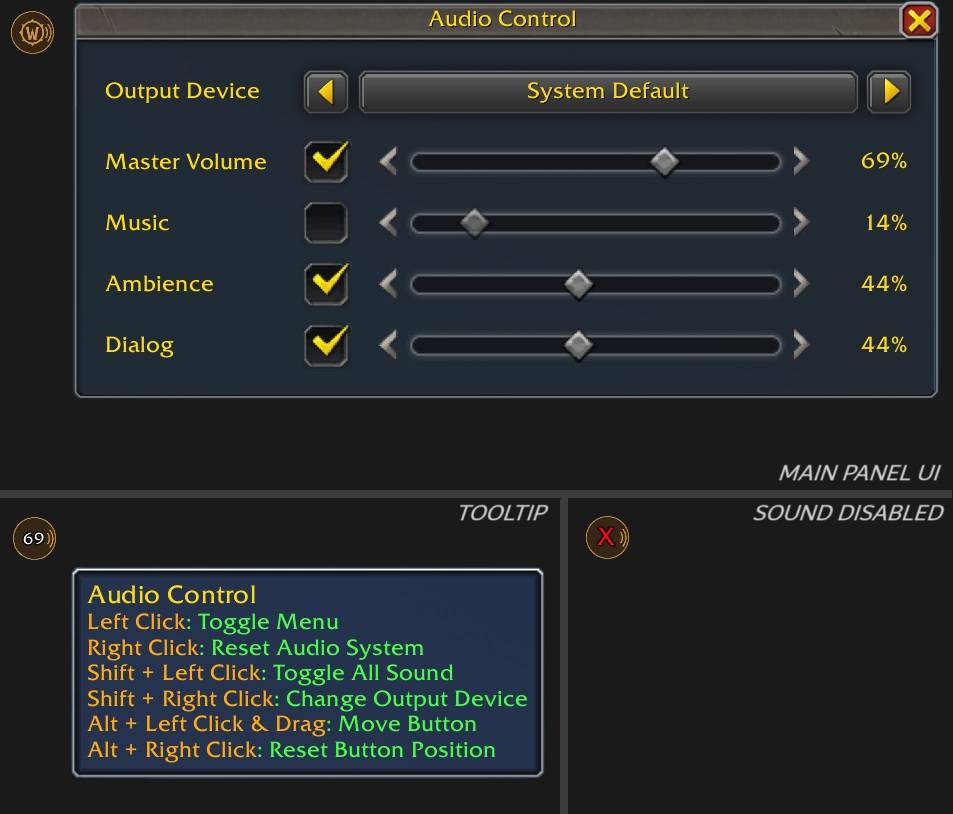
Audio Control Screenshots2.2.jpg
Description
Audio Control (v2.3)
If you are a Headphone or Voice Chat user, output changes in Windows doesn't trigger audio output device changes in game unless you do it yourself by going in game options menu and lose your precious seconds when you are about to start combat. This is why i started this project for enabling instant sound adjustments!
Tired of digging through the main game settings every time you want to adjust your sound? Audio Control provides a sleek, easy-to-access panel for managing your most common World of Warcraft sound settings!
This lightweight addon gives you quick control over your master volume, individual sound channels (Music, Ambience, Dialog), and even lets you switch your sound output device or reset the entire sound system on the fly, with helpful feedback directly in your chat window when the panel is closed.
 Main control panel
Key Features:
- Quick Access Panel: A compact and intuitive UI panel for all essential audio adjustments.
- Output Device Selection:
- Easily cycle through your available sound output devices using arrow buttons on the panel.
- Alternatively, Shift + Right Click the trigger button to cycle to the next device. You'll receive a chat message confirming the change if the panel is closed!
- Click the device name on the panel to open a dropdown menu and select your preferred output.
- Master Volume Control:
- Adjust the overall game volume with a slider.
- Quickly toggle all sound on/off
 with a dedicated checkbox or Shift + Left Click on the trigger button.
- Individual Sound Channel Management:
- Music Volume: Adjust and toggle with its own slider and checkbox.
- Ambience Volume: Adjust and toggle with its own slider and checkbox.
- Dialog Volume: Adjust and toggle with its own slider and checkbox.
- Sound System Reset:
- Quickly reset the WoW sound system by simply Right Clicking the trigger button (no modifiers). Useful for resolving sudden audio issues.
- Clear Percentage Display: See the exact volume percentage next to each slider.
- Movable Trigger Button:
- A small, draggable button to toggle the Audio Control panel. Its position is saved per character.
- When the panel is closed, the button displays the current Master Volume percentage or an "X" if all sound is muted.
- ESC Key Support: Pressing the ESC key will close the Audio Control panel if it's open.
- Chat Feedback: Get convenient chat notifications for output device changes or sound system resets made via the trigger button when the panel is hidden.
 Tooltip detailing all shortcuts
Installation and Setup:
- Download the Addon:
- Download the latest version of Audio Control from this CurseForge page.
- Alternatively, you can use an addon manager like the CurseForge App, WowUp, or others that support CurseForge addons.
- Extract the Addon (if downloaded manually):
- If you downloaded a .zip file, extract its contents. You should see a folder named "AudioControl".
- Place the Addon Folder:
- Navigate to your World of Warcraft installation directory.
- Inside, go to the
_retail_(for modern WoW) or_classic_(for Classic versions) folder. - Then, go into the
Interfacefolder, and finally into theAddOnsfolder. - Copy the "AudioControl" folder (the one extracted in step 2) into this
AddOnsfolder. - The final path should look something like:
World of Warcraft\_retail_\Interface\AddOns\AudioControl
- Enable the Addon in Game:
- Launch World of Warcraft.
- On the character selection screen, click the "AddOns" button in the bottom-left corner.
- Find "Audio Control" in the list and make sure the checkbox next to it is ticked (checked).
- If you want it enabled for all characters, select "All" from the dropdown at the top of the AddOns window before checking the box.
- Click "Okay" and log in to your character.
- First Use:
- Once in game, the Audio Control trigger button should appear in the top-left corner of your screen by default.
- You can then move it to your preferred location using Alt + Left Click & Drag.
- Refer to the "How to Use" section below for button and panel functionalities!
How to Use:
Trigger Button (The little icon):
- Left Click: Toggles the Audio Control panel open or closed.
- Right Click: Resets the WoW sound system. (Chat message confirms action).
- Shift + Left Click: Instantly toggles all game sound on or off (Master Volume mute/unmute).
- Shift + Right Click: Cycles to the next available sound output device. (Chat message confirms if panel is closed).
- Alt + Left Click & Drag: Move the trigger button to your desired location on the screen.
- Alt + Right Click: Resets the trigger button's position to its default (top-left corner).
- Mouse Over: A helpful tooltip will appear, reminding you of these click actions.
Audio Control Panel:
- Output Device: Use the
<and>buttons to cycle through sound devices, or click the device name for a full list. - Volume Sliders: Simply drag the sliders to set your desired volume levels.
- Checkboxes:
- The checkbox next to "Master Volume" enables/disables all game sound.
- Checkboxes next to "Music," "Ambience," and "Dialog" enable/disable those specific channels. Disabling a channel will also disable its slider.
- Close Button (X): Click the "X" button at the top-right of the panel to close it.
- ESC Key: Pressing ESC will also close the panel.
Slash Commands:
For even quicker access or use in macros:
/audioc toggle(or/aca toggle): Opens or closes the Audio Control panel./audioc resetmenu(or/aca resetmenu): Resets the trigger button's position to default and closes the panel if it's open.
Why Audio Control?
- Convenience: Adjust sound settings without interrupting your gameplay by navigating deep into the system menu.
- Efficiency: Quickly mute music for a boss fight, or turn up dialog for important quest information.
- Troubleshooting: Easily reset your sound system with a simple right-click if you encounter audio glitches.
- Customization: Place the trigger button where it best suits your UI layout.
- Informative: Get clear feedback on your actions, even when the panel is hidden.
- Lightweight & Clean: Designed to be unobtrusive and performant.
Enjoy a better audio management experience in World of Warcraft!
The Audio Control Team