Auction Source Finder
- By
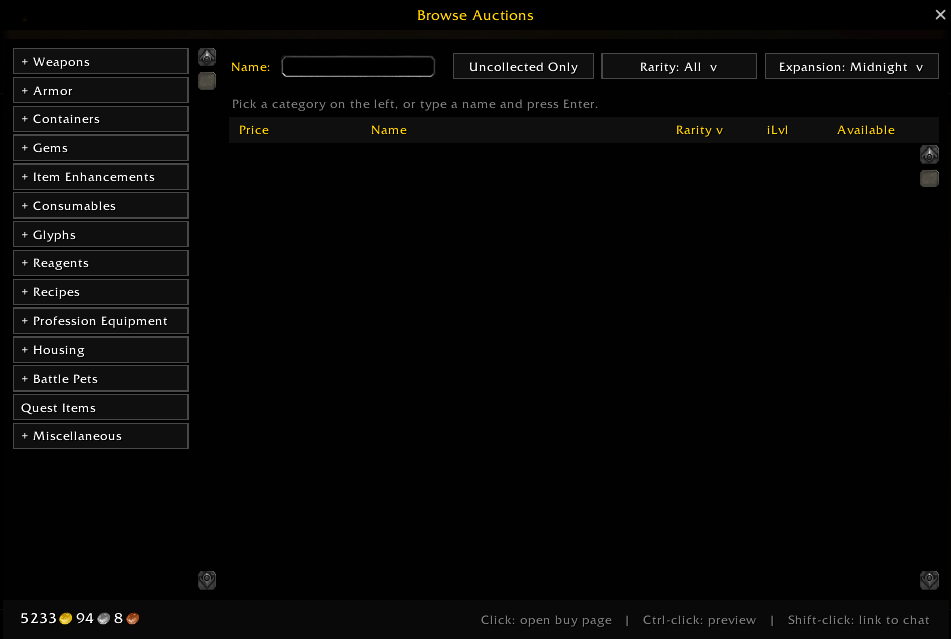
A dedicated Auction House tab that starts on the current expansion and sorts any expansion’s items by rarity, price or item level.
auction.png
Description
Auction Source Finder
TL;DR: an extra tab in the Auction House that lets you browse any expansion’s items by category, rarity, price and item level. Blizzard’s “Current Expansion Only” checkbox only covers the newest expansion, and this lets you pick any expansion.
Highlights
- An “Expansions” tab next to Buy / Sell / Auctions. It can open automatically when you open the Auction House.
- Starts on the current expansion (Midnight, and future ones automatically). Switch to any other expansion or “All” whenever you like.
- Sort the results by clicking the Price, Rarity or iLvl headers (click again to flip). The default is Epic first, cheapest within each rarity. Your choice is remembered.
- Filters: Rarity (pick several), Uncollected Only, and a Name search (press Enter to search the Auction House).
- Buy normally: click an item to open Blizzard’s own buy page and use Blizzard’s Buyout button. The addon never buys anything itself. Hover for the tooltip, Ctrl-click to preview, Shift-click to link in chat.
- Back button: Blizzard’s Back button on the buy page returns you to the Expansions tab. You can turn this off in the settings.
- Fast: item names load in one batch, and only the rows on screen are drawn, so big categories stay smooth.
“Why are there + and − buttons?” (the collapsible menus)
Nothing is missing, and nothing is broken. The menu on the left is Blizzard’s own category list (Weapons, Armor, Consumables and the rest), just collapsible.
- + means a category has sub-menus. Click it to load that category and open its sub-menu, which then shows −.
- Click it again to collapse it.
- Opening one category closes the others.
- Click a sub-item to narrow down, for example Armor → Plate → Head.
The two dropdowns on top
- Rarity ▾ is multi-select. Tick as many as you want, and it stays open while you tick. “Clear” resets it.
- Expansion ▾ is single-choice. It closes as soon as you pick one, and the current expansion is tagged “(current)”.
Commands
/tkauction on|off · /tkauction first on|off (open the tab automatically) · /tkauction start current|all · /tkauction back on|off
Auction Source Finder Team