


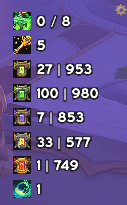
Wow_VACVRjuMfx.png

Wow_BCuSaIVFsM.png
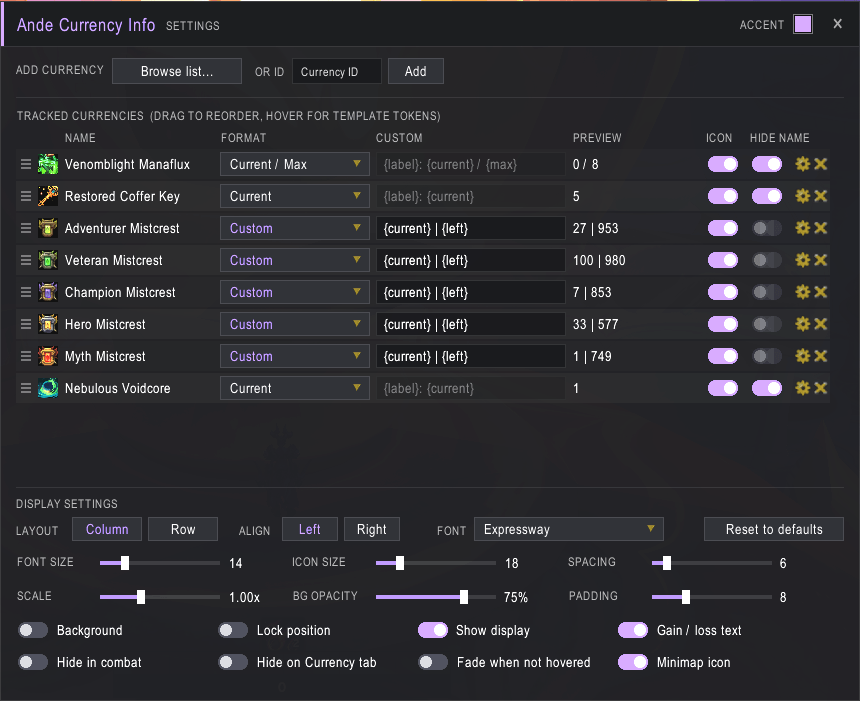
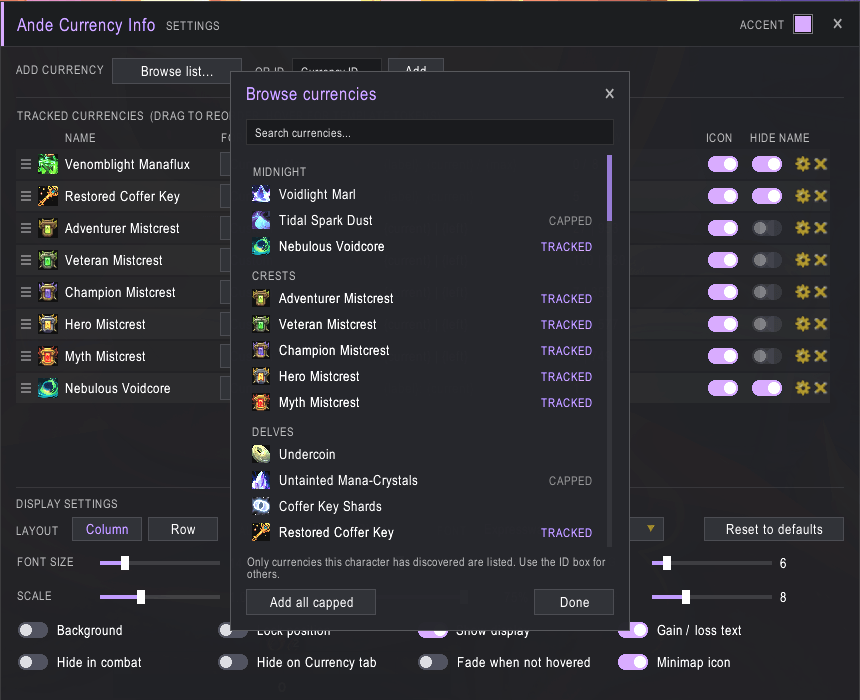
Wow_Kd4WxFcFWd.png
Description
CurrencyInfo
A World of Warcraft addon that shows the currencies you care about in a small movable frame, with formatting you control.
Features
- Track any currency and show it with an icon, a label and a format of your choice
- Pick currencies from a searchable list instead of looking up IDs
- Presets such as
Current / Max,Weekly ProgressandPercentage, or write your own template - Cap handling per currency: change the text color or hide the currency once it is capped
- Per-currency text color
+150/-20gain and loss text when a value changes- Column or row layout, left or right alignment, font, sizes, spacing, scale and background opacity
- Hide in combat, hide while the Currency tab is open, or fade when the mouse is away
- Drag to reorder, drag to move the frame, lock it in place
- Opens from the frame,
/ci, the Addon Compartment button, or Esc > Options > AddOns
Installation
Copy the CurrencyInfo folder into World of Warcraft/_retail_/Interface/AddOns/ and restart the game or /reload.
LibSharedMedia-3.0 is optional. If another addon loads it, its fonts appear in the font dropdown.
Getting started
- Right-click the frame, or type
/ci, to open settings. - Click Browse list... and click the currencies you want. You can also type an ID and press Add, or click Add all capped to start with every currency that has a maximum.
- Adjust the format, label and look in the settings window.
Dragging the frame moves it. Right-clicking it opens settings. The gear in its corner does the same.
Settings
Tracked currencies
Each row has:
| Column | What it does |
|---|---|
| Grip | Drag to reorder |
| No label | Hide the label and show only the values |
| Label | Replace the currency name with your own text |
| Format | Choose a preset or Custom |
| Template | Your own template, active when the format is Custom |
| Preview | What the display will show |
| Icon | Show or hide the icon |
| Gear | Text color and cap behaviour (see below) |
Templates
Use these tokens in a custom template. The box turns red if it contains one that does not exist.
| Token | Value |
|---|---|
{label} |
Custom label or currency name |
{current} |
Current quantity |
{max} |
Maximum quantity |
{earned} |
Total earned |
{left} |
Left to earn (max - earned) |
{weekly} |
Earned this week |
{weeklycap} |
Weekly cap |
{pct} |
Current / max as a percentage |
Example: {label}: {current} ({weekly}/{weeklycap} this week)
Cap behaviour
Open a row's gear button to choose what happens when a currency is capped:
- Do nothing
- Change color: the text switches to the cap color (green by default, so a capped currency does not look like an error)
- Hide currency: the currency disappears once capped
Capped at sets the percentage that counts as capped, from 50% to 100%. Progress is the highest of current / max (or total earned / max for seasonal caps) and weekly earned / weekly cap.
Display settings
Layout, alignment, font, font size, icon size, spacing, scale, background opacity and padding, plus toggles for background, lock position, show display, gain/loss text, hide in combat, hide on Currency tab and fade when not hovered. Reset to defaults restores layout, visibility rules and the accent color. It keeps your tracked currencies and the frame position.
The accent color of the settings window can be changed with the swatch in its header.
Slash commands
| Command | Action |
|---|---|
/ci |
Open settings |
/ci browse |
Open the currency list |
/ci add <id, name or link> |
Track a currency |
/ci remove <id, name or link> |
Stop tracking a currency |
/ci list |
List tracked currencies |
/ci show, hide, toggle |
Show or hide the display |
/ci lock |
Lock or unlock the frame |
/ci reset |
Move the frame back to the center of the screen |
/currencyinfo works as well.
Notes
- The currency list only includes currencies your character has discovered. Use the ID box for any others.
- Settings are saved account-wide in the
CurrencyInfoDBsaved variable.
AndeCurrencyInfo Team

