


AgentMenu
- By
Screenshot 2026-11-10 151714.png
Screenshot 2026-11-10 151813.png
Screenshot 2026-11-10 151854.png
Screenshot 2026-11-10 152012.png
Screenshot 2026-11-10 152324.png
Description
# Agent Menu
**Cinematic, full-screen dark menus for World of Warcraft: Midnight.**
Agent Menu turns Blizzard's windows into immersive full-screen screens: drifting fog, your character front and center, clean typewriter lettering and a black "noir" look. Everything still works exactly like Blizzard's own windows: only the look changes.
No setup. No commands. Just install and open your menus as usual.
---
## What's included
**Agent Menu - Talents, PvP, Mythic+ & Group Finder**
- Talents / Specialization / Spellbook hub with your character and pet
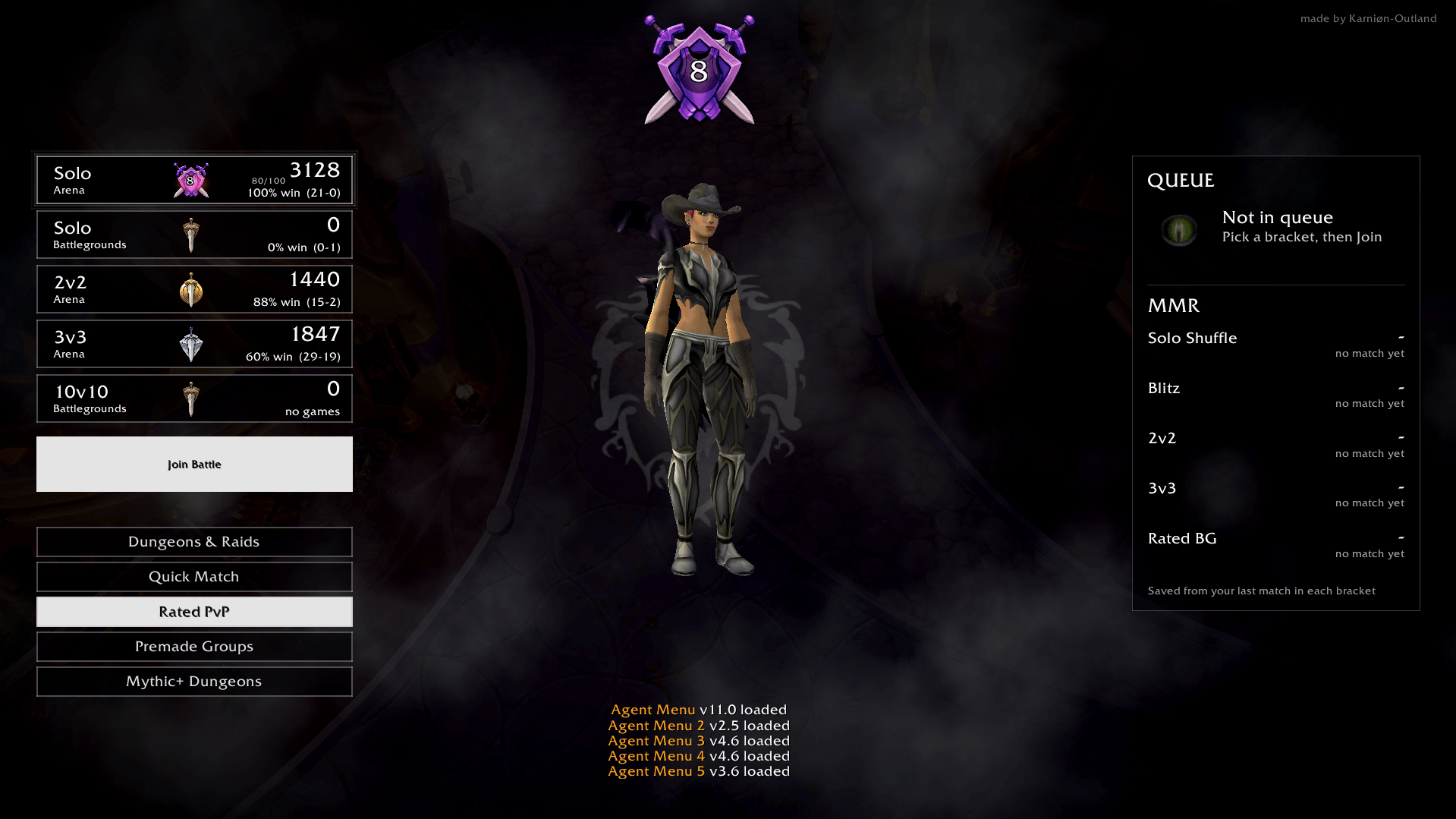
- Rated PvP lobby: brackets with rating & win rate, your rank badge above your head, MMR saved from your matches, and your 3v3 teammates standing behind you
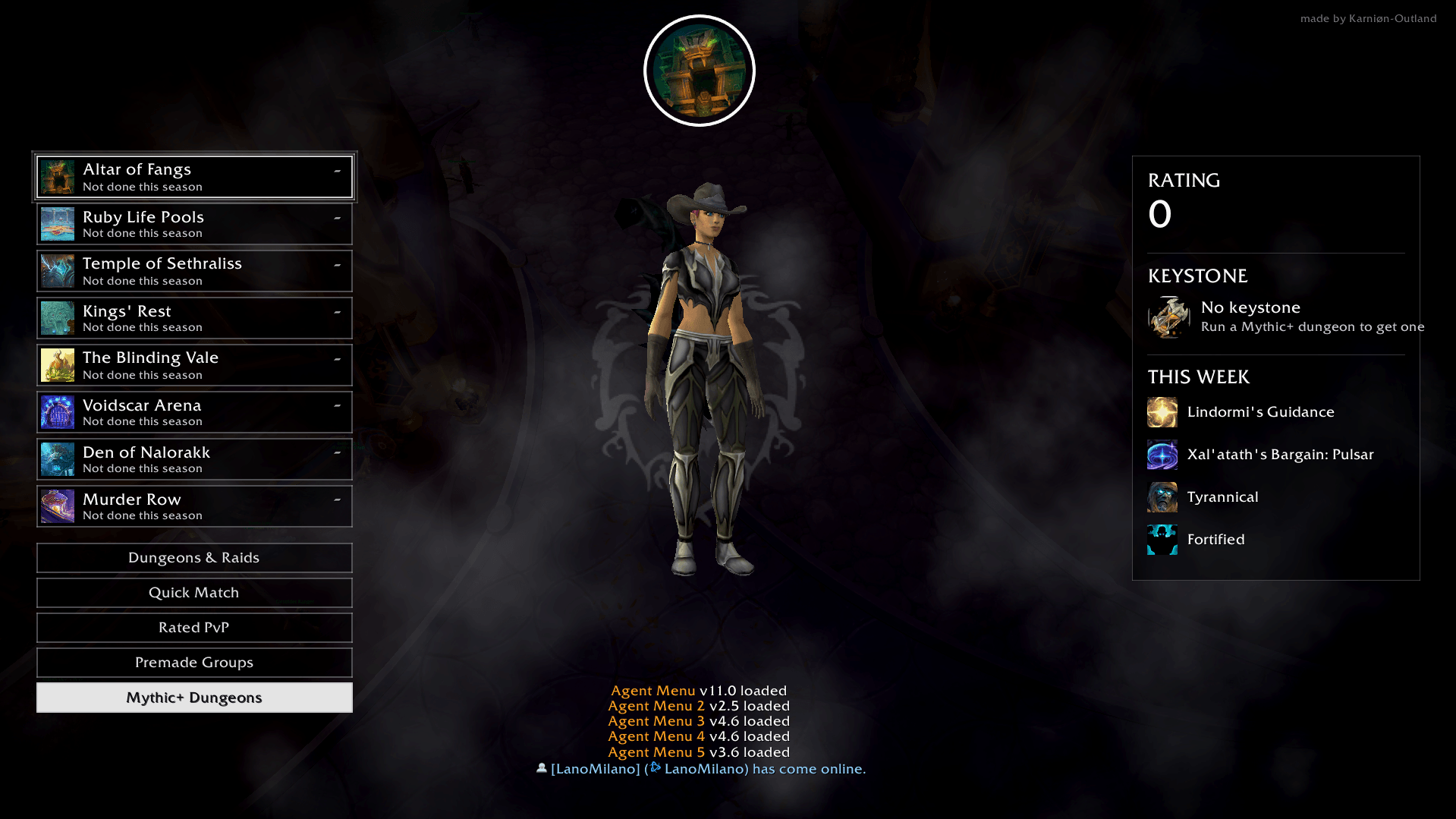
- Mythic+ screen: dungeon list with best keys and scores, your keystone and this week's affixes
- Restyled Dungeons & Raids, Quick Match and Premade Groups pages
- Chat shown at your character's feet while a menu is open
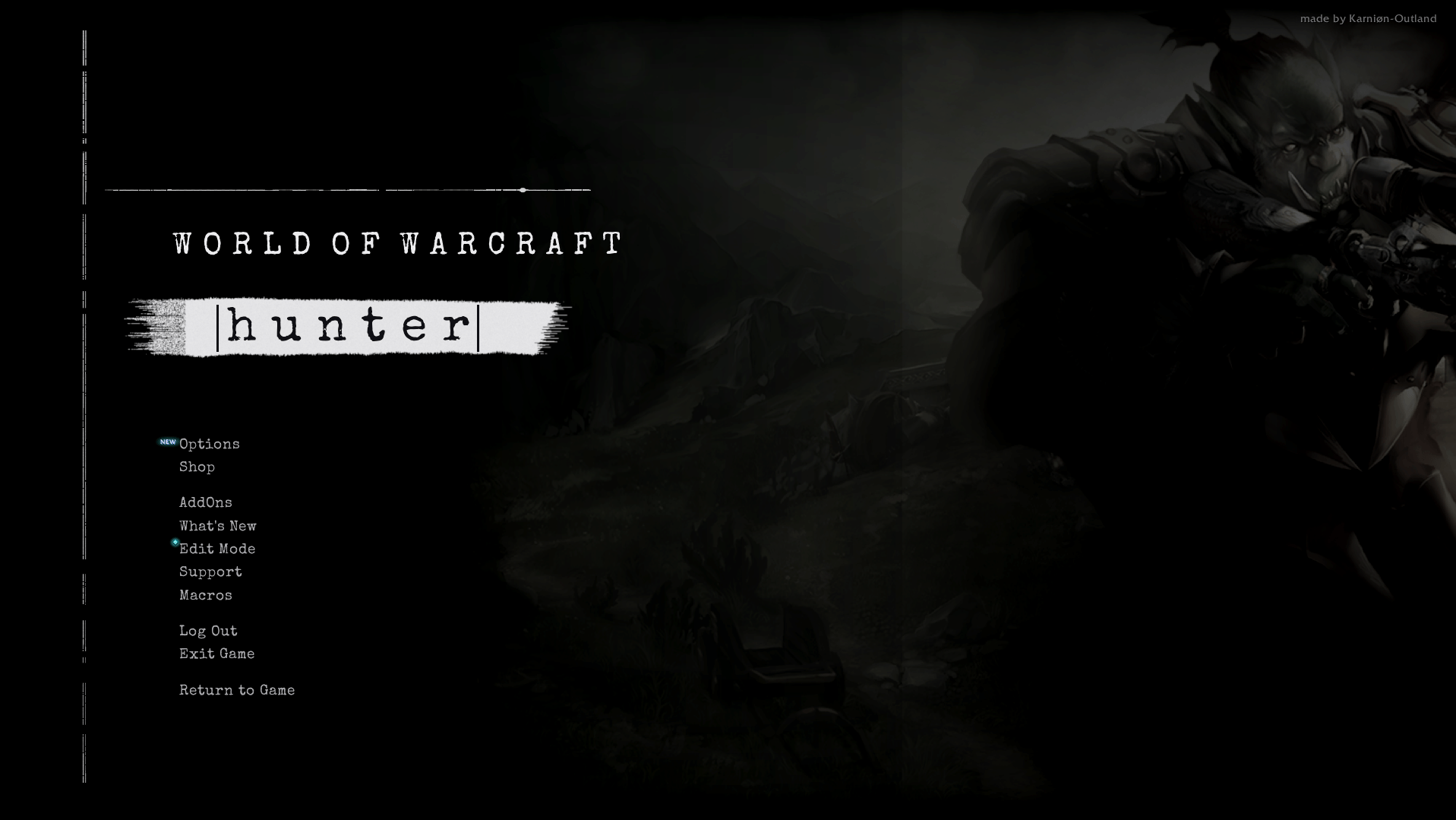
**Agent Menu 2 - Esc menu**
- Dark full-screen class artwork that changes every time, typewriter title and ink-brush hover highlights
**Agent Menu 3 - Achievements**
- Dark glass panel with a clean typewriter category list
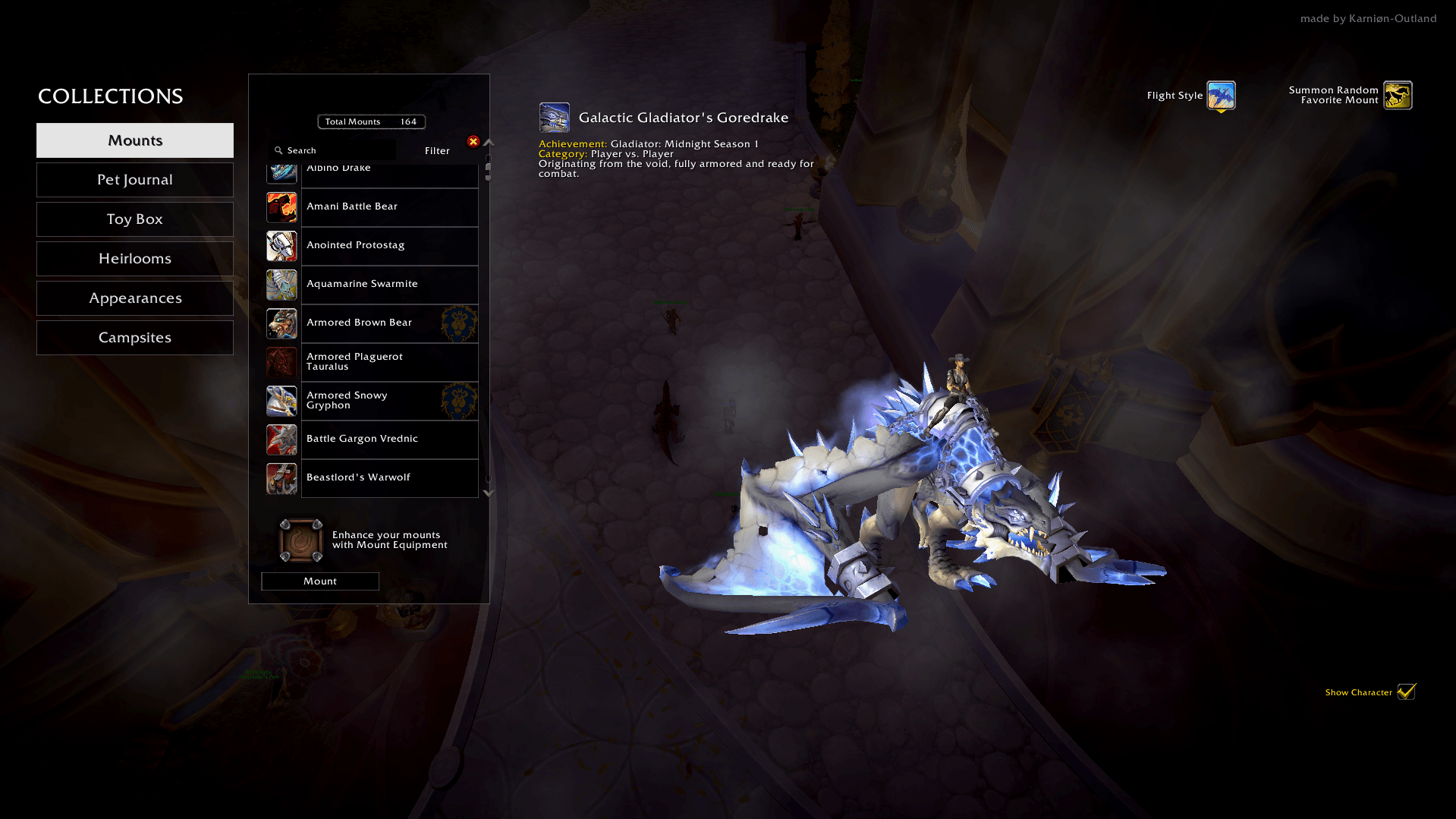
**Agent Menu 4 - Warband Collections**
- Mounts shown large, enlarged pet cards and battle slots
- Appearances: click any appearance and your character tries it on instantly, without the dressing room window
**Agent Menu 5 - Character**
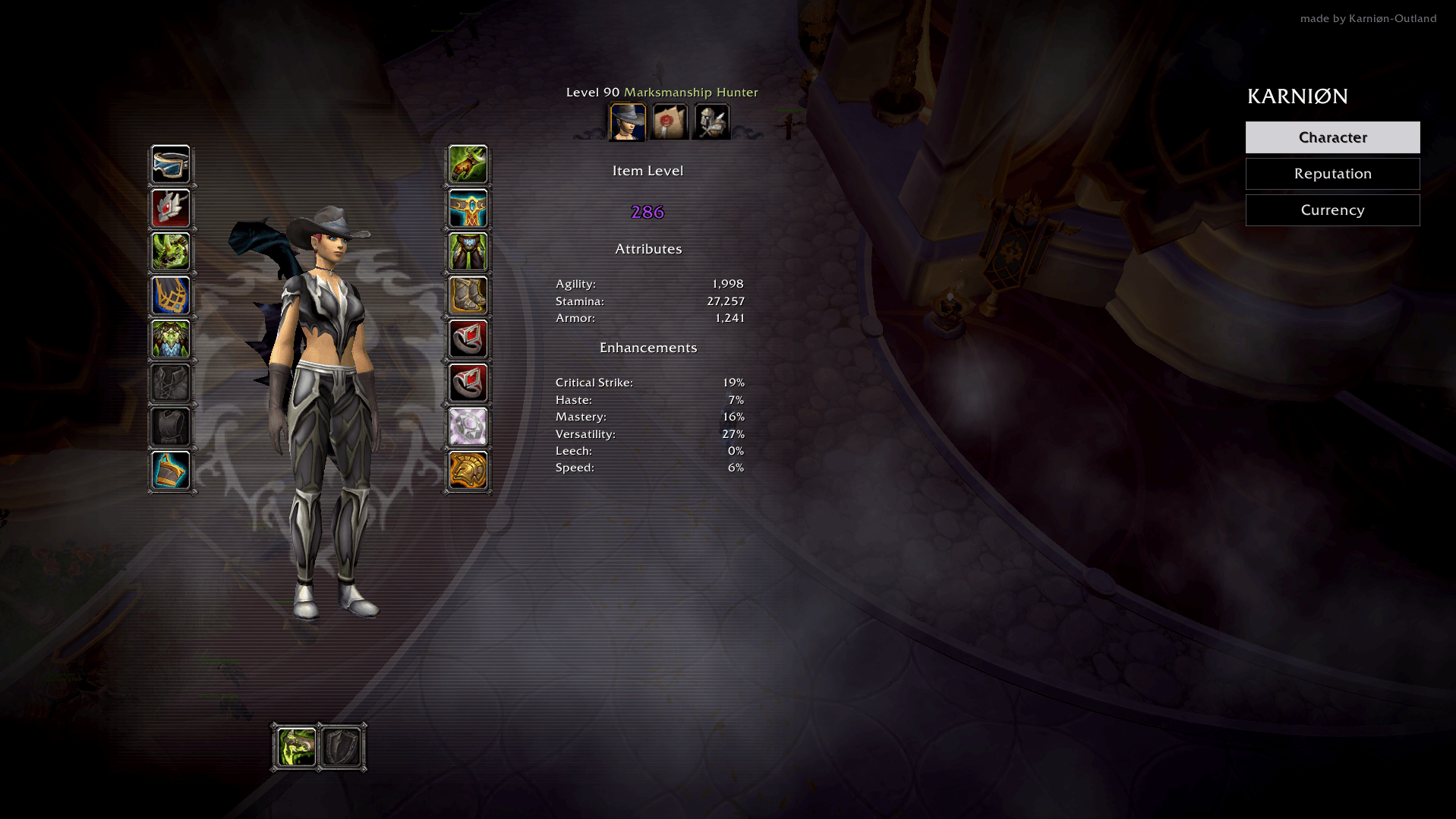
- Your character in a dark, softly glowing hologram layout with equipment around them, stats beside, and Reputation / Currency one click away
## How it works
- Open menus with their normal keys. Press the key again, press Esc, or click the fog to close.
- You can keep moving: walking, turning the camera and running all work while a menu is open, and the menu fades so you can see the world.
- Game menu buttons and bags appear when you hover over them. Dragging spells, mounts or items to your bars works as normal.
- Only one menu at a time: opening another menu swaps to it.
## Patch-safe
If a game update changes one of Blizzard's windows, that one menu switches itself off and Blizzard's normal window is used, while everything else keeps working. Chat prints a short message saying which part needs an update.
## Installation
1. Close World of Warcraft.
2. Extract the folders into `World of Warcraft\_retail_\Interface\AddOns`.
3. Start the game. Each addon prints a "loaded" message in chat.
## Feedback
Found a bug? Please post the error message (BugSack is great for this) and a screenshot in the comments.
---
*Made by Karniøn-Outland. Not affiliated with or endorsed by Blizzard Entertainment.*
AgentMenu Team
