Adaptive Graphics Forever
- By
WhatsApp Image 2026-10-20 at 16.52.04.jpeg
Description
Adaptive Graphics Forever
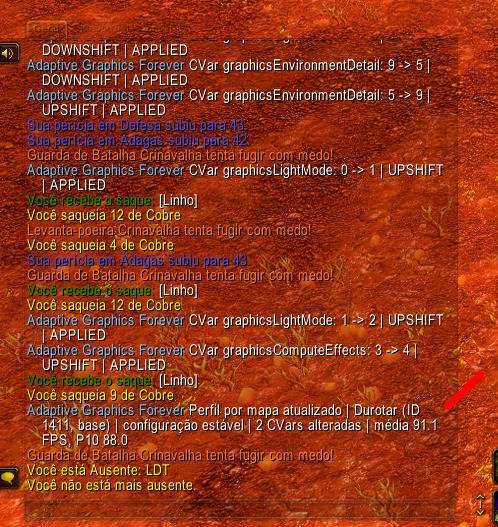
Adaptive Graphics Forever (AGF) adjusts supported graphics settings to help keep your frame rate near a target range you choose.
How it works
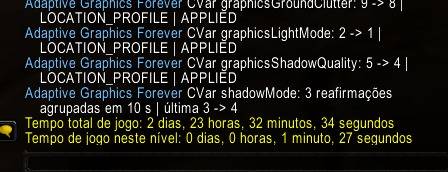
AGF samples your FPS and changes graphics settings one verified step at a time. When performance drops, it gradually lowers eligible settings. When there is sustained headroom, it tests whether a quality increase fits within your FPS target.
The add-on learns the measured FPS cost of individual changes. Estimates are stored separately by client build, rendering environment, and graphics context. New estimates remain provisional until enough measurements have been collected. AGF can also save stable settings by map and subzone, then reuse them when you return.
Only registered graphics settings whose value steps pass the current client’s change, readback, and restoration checks can be managed. These checks confirm that a setting can be changed and restored. They do not measure its visual effect or FPS cost.
Control and protection
While AGF is active, it may reapply its expected value if you or another add-on changes a setting that AGF manages. Use Pause to suspend this control temporarily. Turn off AGF to restore the saved baseline.
The optional PvP Protection setting keeps eligible visibility and gameplay-related settings at their highest verified levels. This can lower your FPS.
Validation and benchmark
The compatibility check temporarily tests eligible setting values and restores them afterward. Run it with AGF turned off and outside combat. It does not measure FPS impact or visual quality.
The optional learning benchmark tests eligible settings from their lowest to highest verified steps, restoring each setting before moving to the next. It ignores your FPS targets and can cause a large, sustained FPS drop. You can stop it from the settings panel.
Getting started
-
Install through the CurseForge app, or place the
AdaptiveGraphicsForeverfolder in the game’sInterface/AddOnsdirectory. -
Reload the interface with
/reload. -
Open AGF with
/agf optionsor the add-on button by the minimap. -
Set your minimum and maximum FPS targets, review PvP Protection, and turn on automatic adjustment.
Useful commands: /agf status, /agf on, /agf off, /agf pause, /agf resume, /agf learning, and /agf maps.
Compatibility and saved data
AGF targets World of Warcraft Forever 1.60.1 (Interface 16001). Other game clients and flavors, including Classic Era, are unsupported.
Settings, learning measurements, and location profiles are stored locally in the game’s SavedVariables. AGF does not upload this data.
Adaptive Graphics Forever Team