


Description
Abacus Questlines answers one question: where should I quest next?
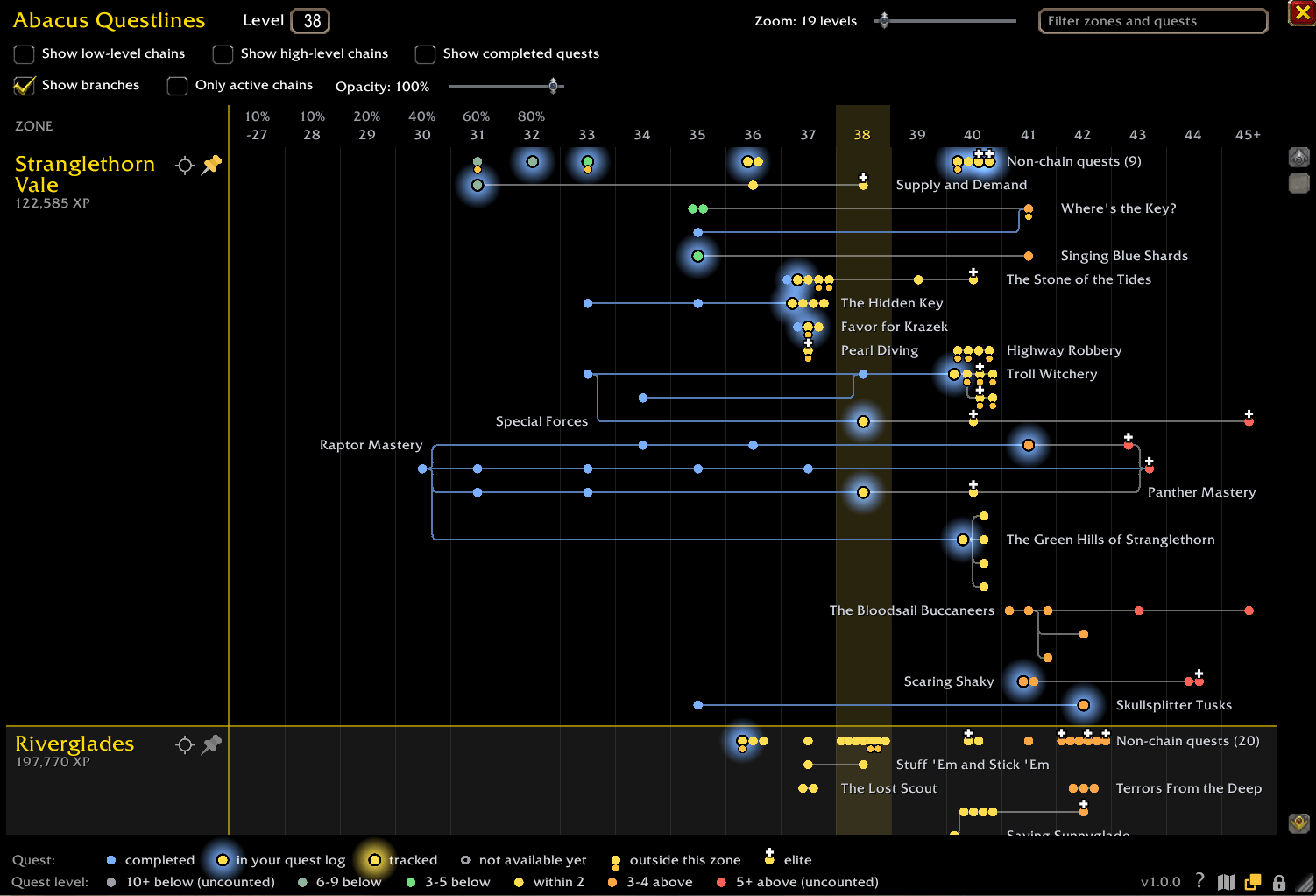
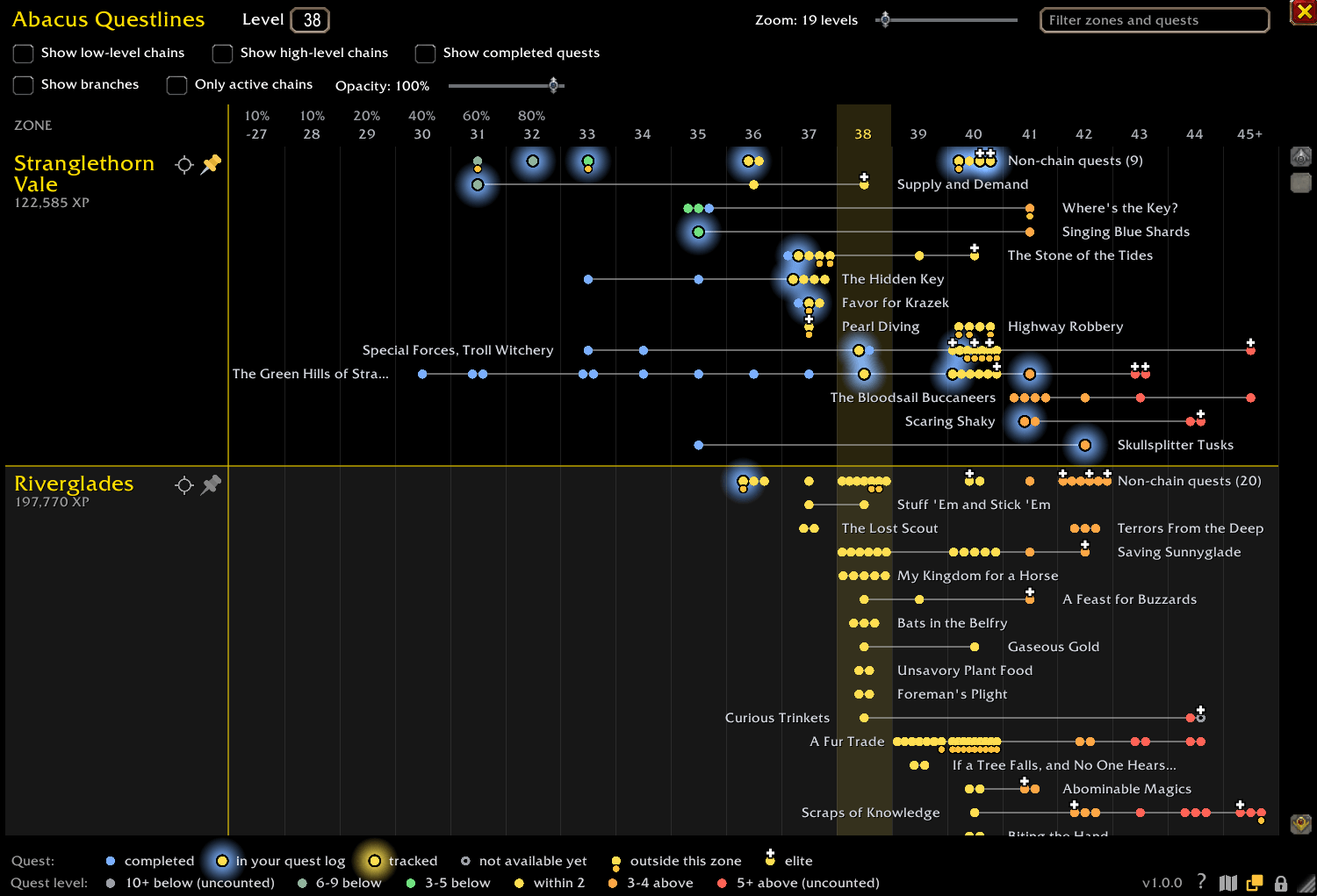
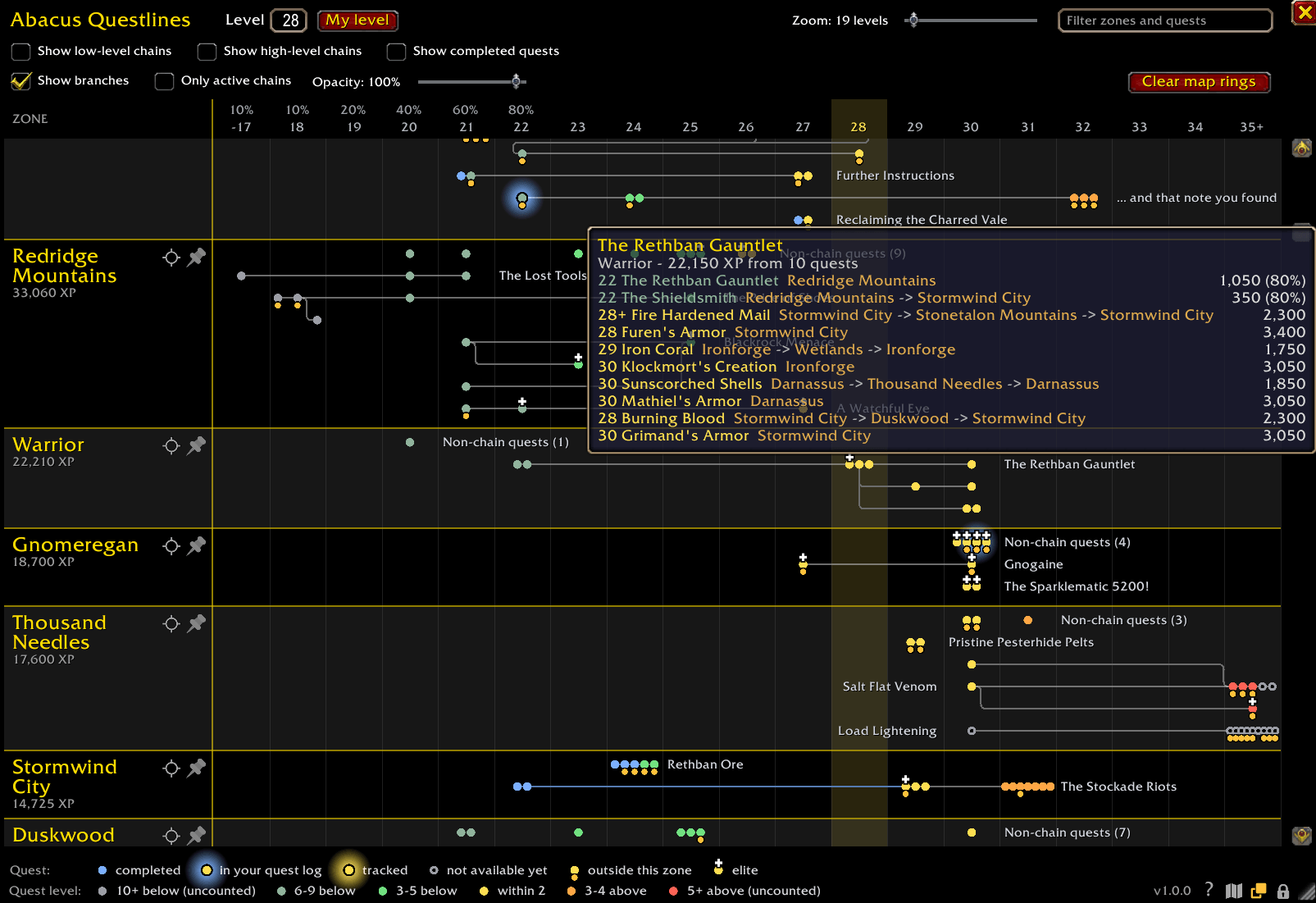
Open it with /abacus, the minimap button or a key of your choice and you get one row per zone, sorted by how much XP you can earn there. Every quest chain in the zone is a line of dots on a level axis around your level, like beads on an abacus:
- Each dot is a quest, coloured by its level compared with yours: red and orange above you, yellow around your level, green and grey below.
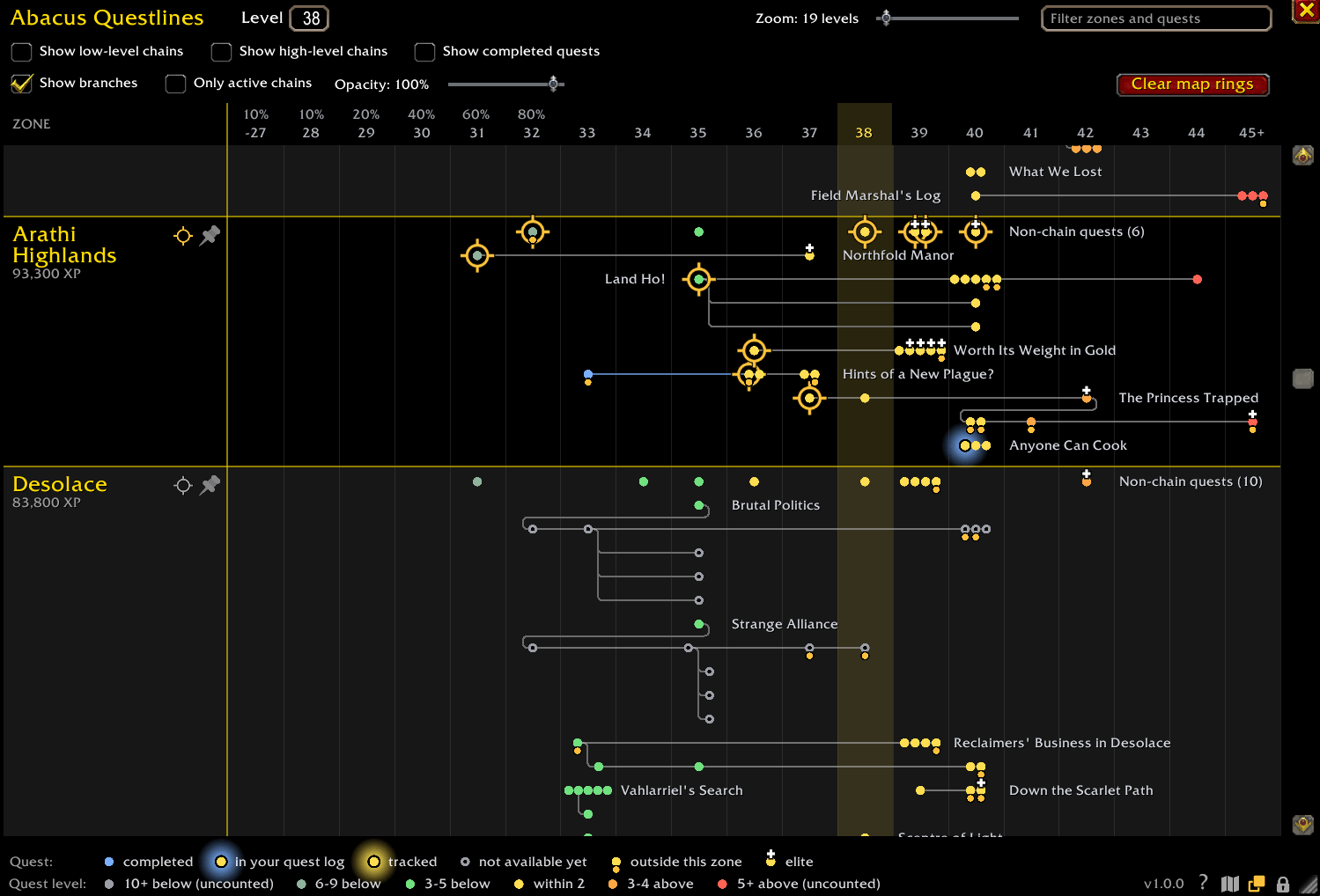
- A blue glow means the quest is in your quest log, a yellow one that it's the game's tracked quest. Completed quests are blue, as are quests you've passed by (a breadcrumb whose quest you took elsewhere, the other side of an either-or choice), and quests you can't start yet are hollow.
- Chains that branch show their side quests on lines above and below the main line, linked where they split off and join back. Where a chain steps back to a lower level, it carries on a line further down.
- Quests that aren't part of any chain share one line at the top of their zone. So do breadcrumbs, optional quests that send you to another.
- Chains and quests are filed under the zone where they're played: where their objectives are, or, when those are spread over several zones or unknown, where their quests are given and handed in, rather than the zone your quest log files them under. A quest whose creatures are mostly inside a dungeon goes under the dungeon. Class, profession and dungeon quests stay under their class, profession or dungeon, and a quest with no known place stays where your quest log files it (or under Zone not set).
- A small amber dot under a quest's dot means the quest takes you outside the zone: it starts only in other zones, or it's played mostly in another. The tooltip shows each quest's way through the zones, where it's picked up -> played -> handed in (a step in the same zone as the one before is left out), with zones other than the row's in amber.
- A white plus over a dot marks an elite, dungeon or raid quest.
- Over each level on the axis that gives less than full XP at your level, the share it gives (80% down to 10%).
- Hover a chain to see every quest in it, in play order, with the XP it gives at your level; the quest under your cursor is highlighted, with its objective text above the chain (and its progress, when it's in your log).
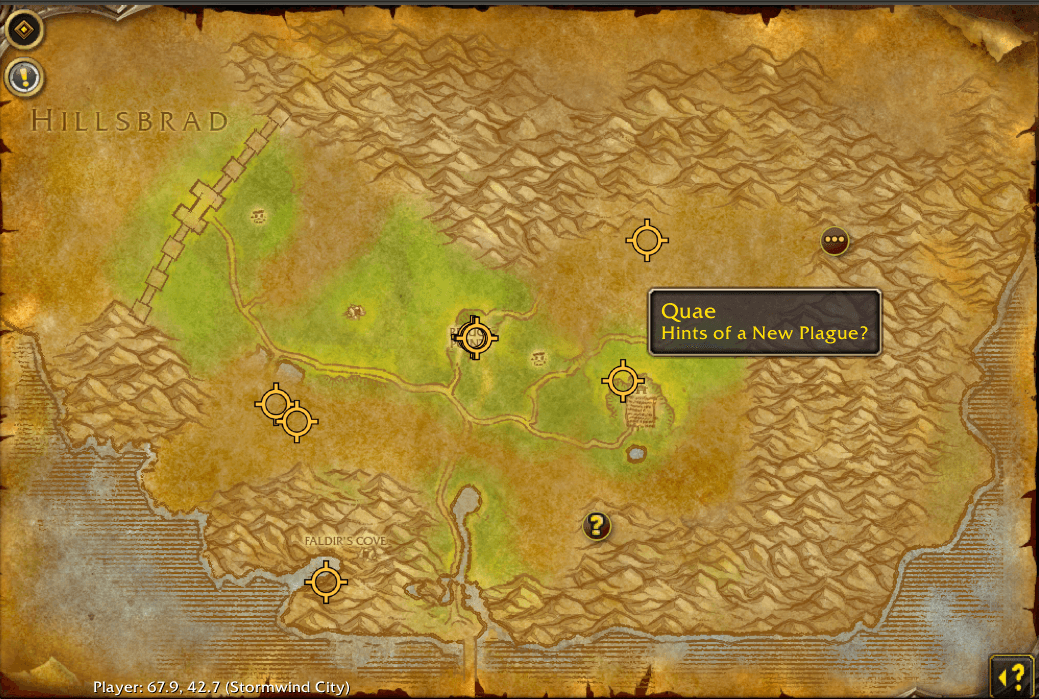
- Click a dot (except a blue one) to ring every place that quest starts on the world map and the minimap (a dungeon's entrance for a quest given inside one), and open the map there; click the dot of a quest in your log to make it the game's tracked quest, with its arrow, and open the map on it: where it's handed in once it's done, else the map the game shows the quest on, else its zone or dungeon entrance, or, for an instance with no map, where it's handed in. Rings for several quests can be up at once; they go away when you pick the quest up or hand it in, when it can no longer be picked up (a breadcrumb whose quest you took elsewhere), or with Clear map rings. They stay through a reload or relog, per character. The dot of a quest marked this way gets the same amber target ring in the window.
- Pin a zone to keep it at the top of the list. Pins are kept per character.
- Click the target beside a zone's pin to ring every quest you can pick up there, in one go; it turns amber while they're all ringed (quests that start from an item have no place to ring, and don't count), and clicking it then takes those rings away.
- The Zoom slider (or the mouse wheel over it) shows fewer level columns, from 19 down to 7, each one wider; quests beyond the first and last column sit in them. Near the level cap, the 60+ column also takes the room of the levels past 60, up to 8 columns wide, as there are about as many level-60 quests as at all the levels below together.
- Type in the filter box to show only the zones and quests whose names contain the text (a quest also matches by the zone it starts in, is played in or your quest log files it under); a chain stays whole when one of its quests matches. When nothing matches, the options that would show something pulse gold.
- The Questline button on a quest giver's offer, and beside Back in a quest's details in the map's quest log, opens the window on that quest's chain alone, whatever the options say, its dot glowing white. The quest's name takes the filter box's place until you click its x or close the window.
It knows what you've done: completed chains drop out, and the lines leading on from completed quests turn blue, so a filled dot with no grey line coming in is a quest you can pick up. Availability follows Questie's own rules (prerequisites, alternative quests, breadcrumbs, race, class, reputation and profession requirements). Of either-or quests, where you can only do one, only the one worth most counts towards the XP. Grey quests (10+ levels below you) and red ones (5+ above) never count, so showing them doesn't change the totals.
Options
- Level picker: type a level, or drag the levels along the axis sideways, to see what the view looks like at another level. At 60 it shows the chains you can still do, though none gives XP.
- Show low-level chains (everything left gives only 10% XP, 10+ levels below you) and high-level chains (everything left is 5+ above). Both off by default.
- Show completed quests.
- Show branches: off draws every chain on one line, which takes less room.
- Only active chains: just the chains with a quest in your quest log, and of the non-chain quests just those in it.
- Opacity: the window's background, from half to fully opaque (the default).
- A short tour of how to read the dots, and of the Questline buttons, opens the first time you open the window; the ? in the bottom right corner shows it again.
- The window can be moved and resized; it remembers both. The padlock in the bottom right corner locks it in place and size, and the stacked squares beside it keep it on top of everything, the world map too.
- The folded map in the bottom right corner opens the window whenever the world map opens, and closes it with the map.
Commands
- /abacus: open or close the window
- A key to open or close the window can be set in the game's Key Bindings, under Abacus Questlines.
- /abacus minimap: hide or show the minimap button
- /abacus rings: for a map ring you can't see, prints where each marked quest's world map rings stand; open the map on the quest's zone first, and include the output when you report it
Requirements
Questie for WoW Forever. Abacus Questlines reads the quest database that comes with it (QuestieDB) and uses Questie's reputation and profession tracking.
Notes
- XP values are Questie's estimates, scaled by level the way Questie does it.
- Please report anything that looks wrong, with your level, faction and the quest's name.
Credits
Quest data, XP data and availability rules come from Questie and QuestieDB, licensed under GPLv3. Abacus Questlines is licensed under GPLv3 as well.
Minimap rings are drawn with HereBeDragons by Nevcairiel (BSD), in Questie's version for WoW Forever, with LibStub and Ace3's CallbackHandler; their licences are in Libs/LICENSES.txt.
The zone pin icon is the pushpin from Twemoji, recoloured to amber. Twemoji graphics are copyright 2019 Twitter, Inc and other contributors, licensed under CC BY 4.0.
Abacus Questlines Team
