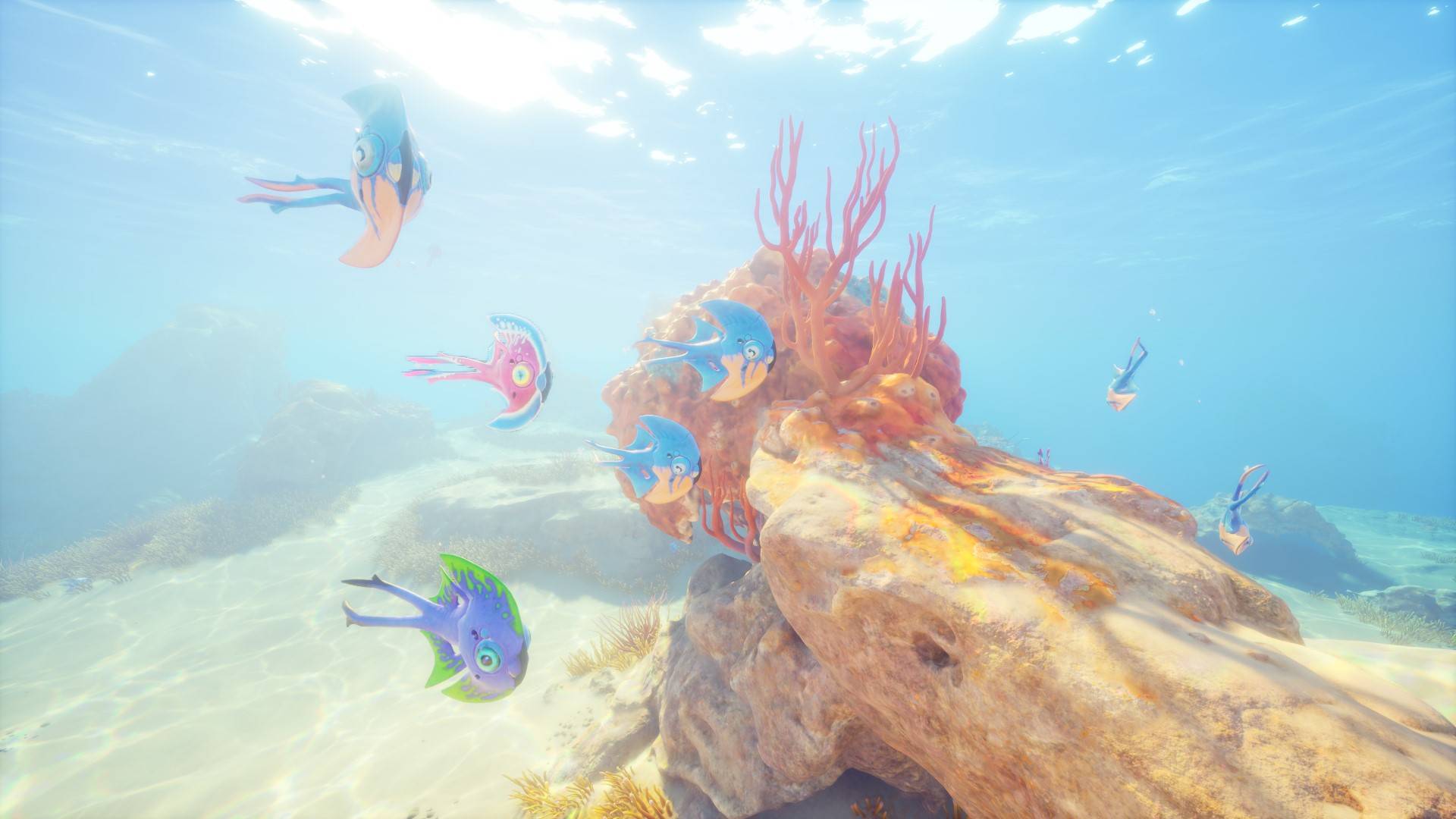
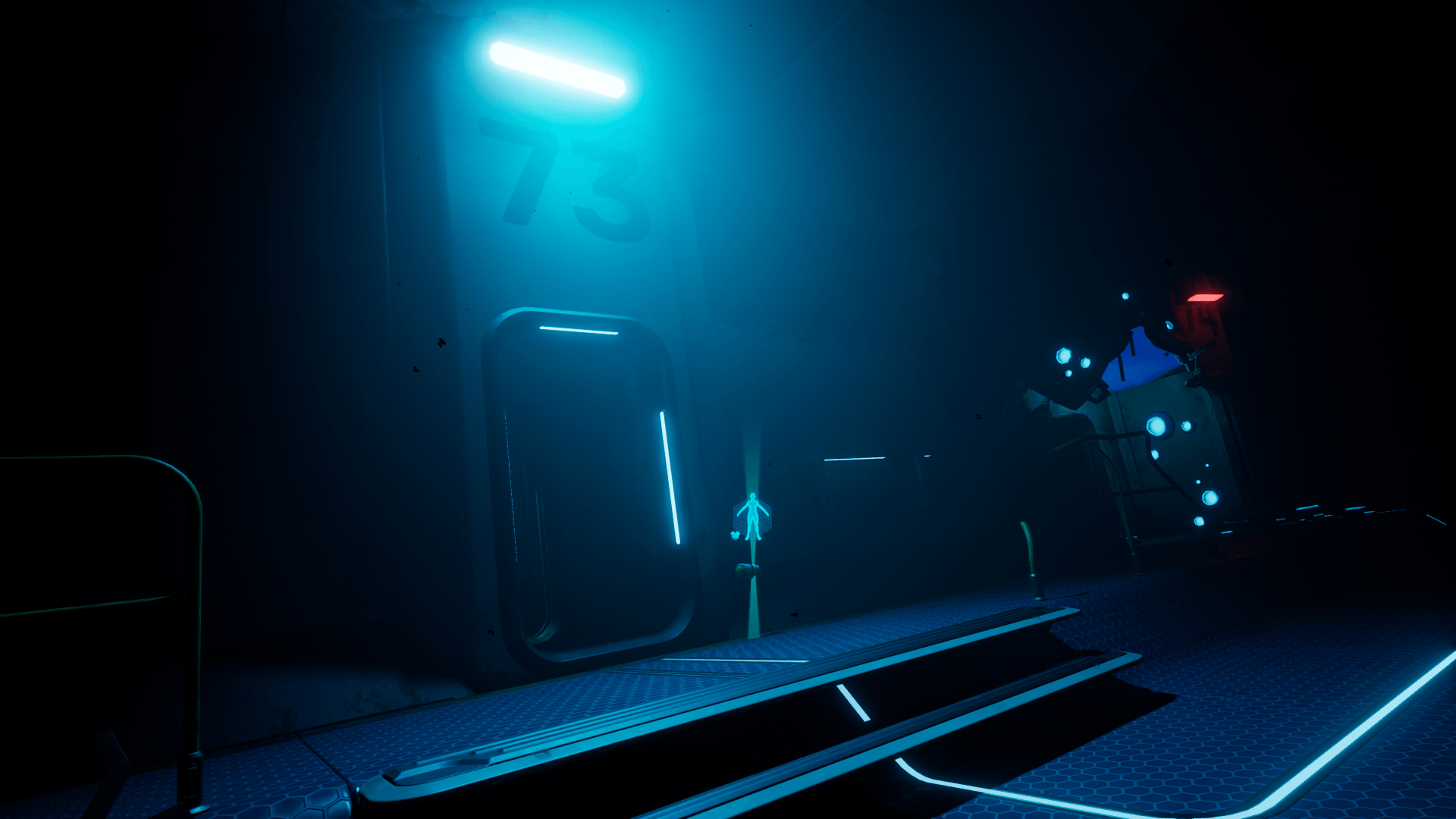
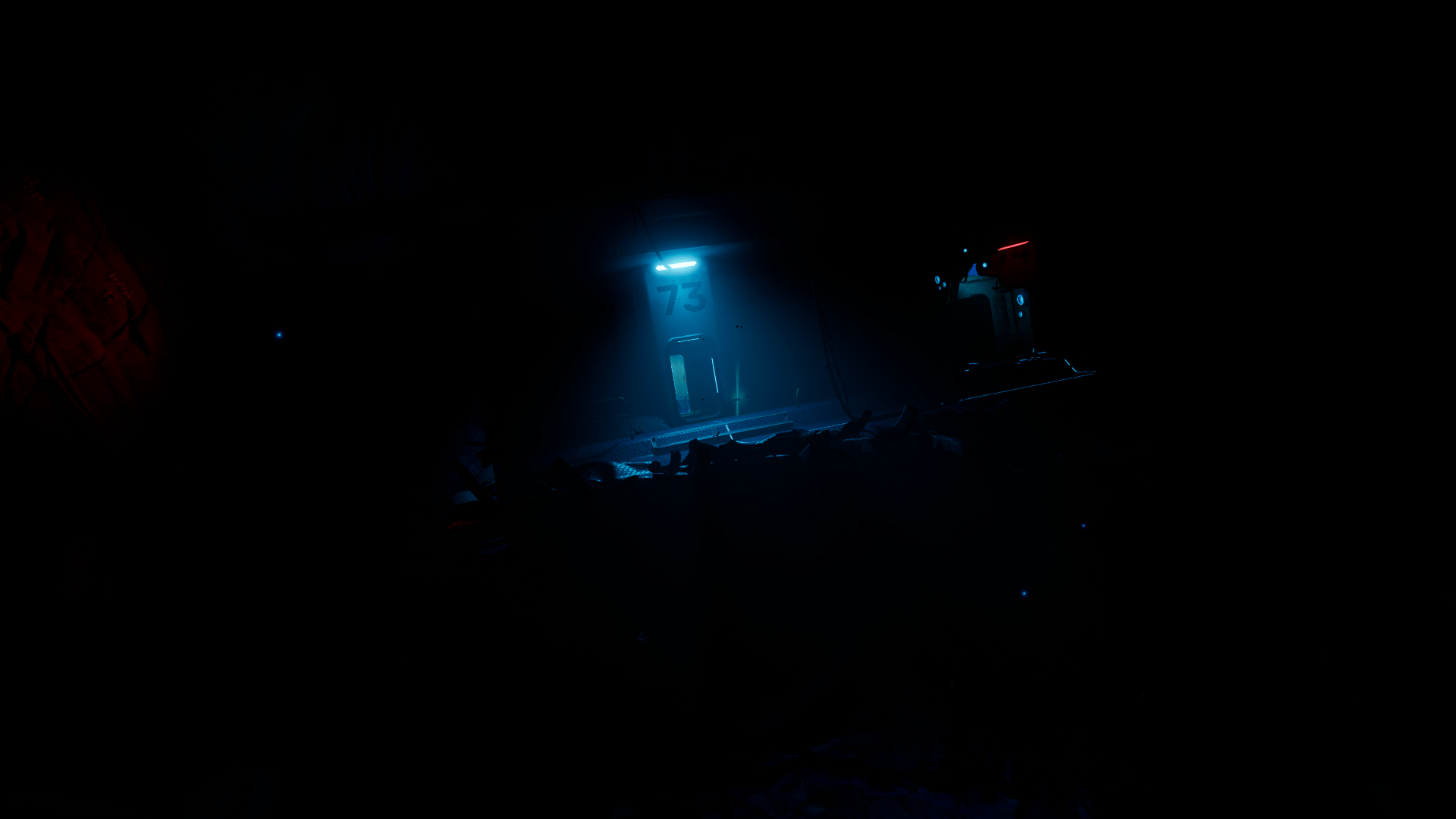
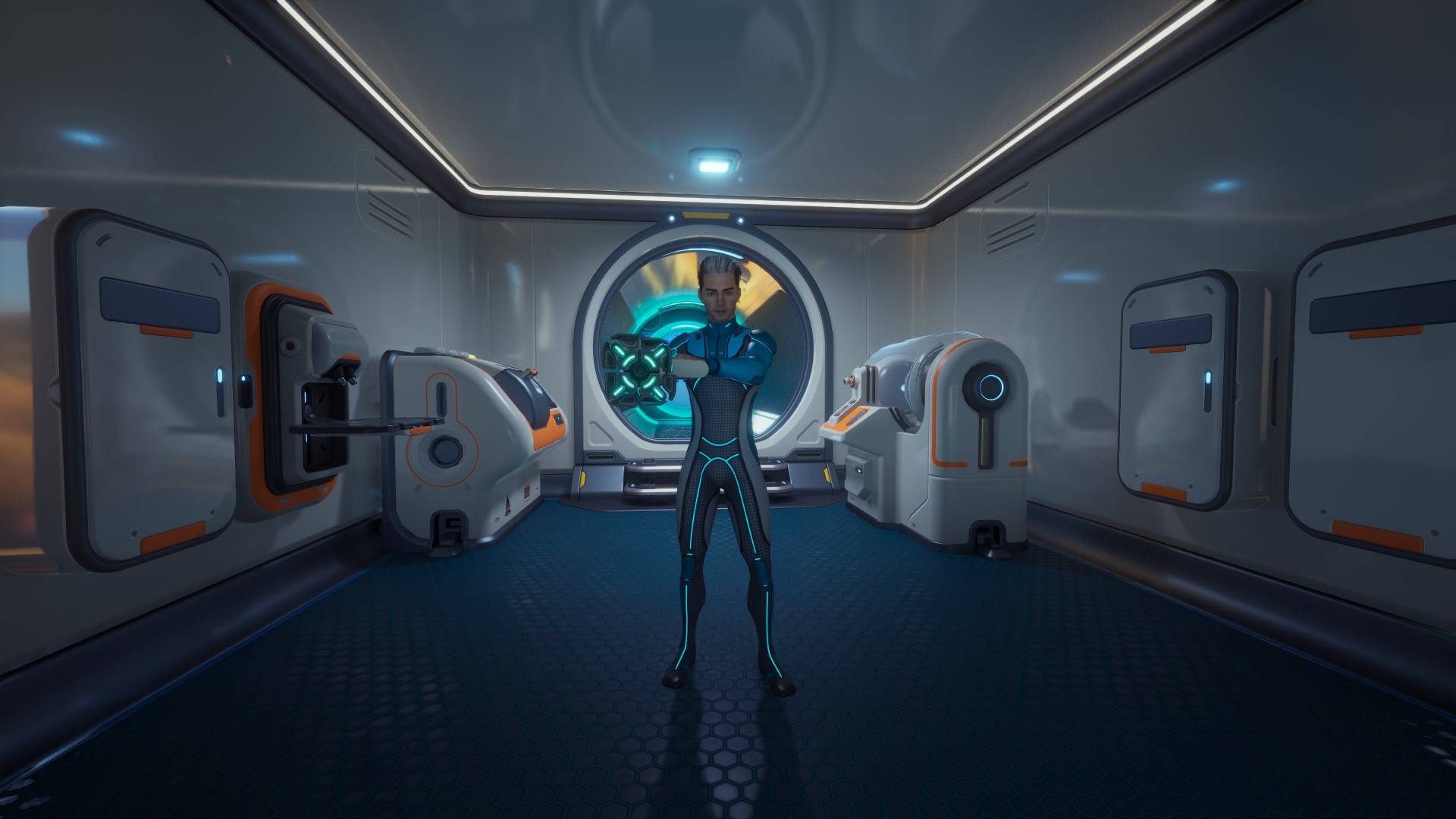
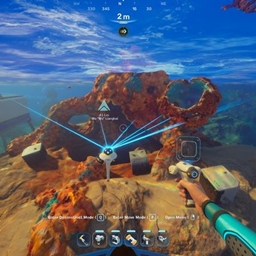
Adds photomode into the game with several functions and customizable keybinds.
Keybinds
- Enter photomode with F9.
- Enter freeze all photomode with F10. This mode enters photomode and puts the game in extreme slow motion, essentially freezing everything.
- Move the camera with W,A,S,D.
- Turn the camera left/right/up/down with the mouse or the right analog stick.
- Move the camera up and down with Space and X.
- Take high resolution screenshots with the Left Click.
- Exit photomode with Right Click.
- Hold the Left Shift button down while moving the camera with W, A, S, D, X, Space to move faster.
- Hold the Left Control button down while moving the camera with W, A, S, D, X, Space to move slower.
- Increase and decrease the camera's FOV with 1 and 2.
- Tilt the camera left and right with Q and E.
The screenshots have the same resolution as your game. So if you're running the game at 1080p then the screenshot's resolution will be 1920x1080.
The screenshots are saved at %LOCALAPPDATA%\Subnautica2\Saved\Screenshots\Windows. Easy way to go there is to paste this in Windows Explorer's address bar and then press enter. Otherwise the path should be something like this:
C:\Users\*YourUsername*\AppData\Local\Subnautica2\Saved\Screenshots\Windows
(Replace YourUsername with your user's name.)
Customizatizon
Ignore this portion if you don't care about customization.
Navigate to "%LOCALAPPDATA%\Subnautica2\Saved\Config\Windows\". Easy way to go there is to paste this in Windows Explorer's address bar and then press enter.
Otherwise the path should be something like this:
C:\Users\*YourUsername*\AppData\Local\Subnautica2\Saved\Config\Windows\
(Replace YourUsername with your user's name.)
Once you're there you should see a file named "Engine.ini".
If there's no such file then create one but make sure you're using the correct file extenstion and not Engine.ini.txt.
You could instead copy and paste the GameUserSettings.ini file, rename the copy to Engine.ini/Engine and then delete its contents if you don't know about file extensions.
Open the file with a text editor like Notepad and paste these lines in it:
[/Game/Mods/Photomode/ModActor.ModActor_C]
PhotomodeKey=F9
FreezeAllPhotomodeKey=F10
ExitPhotomodeKey=RightMouseButton
CaptureScreenshotKey=LeftMouseButton
MoveForwardKey=W
MoveBackwardsKey=S
MoveLeftKey=A
MoveRightKey=D
MoveUpKey=SpaceBar
MoveDownKey=X
FastMovementKey=LeftShift
SlowMovementKey=LeftControl
IncreaseFOVKey=One
DecreaseFOVKey=Two
TiltLeftKey=Q
TiltRightKey=E
You can find valid keys to use here: Unreal Engine Fkeys - Pastebin.com
All of them should work theoretically, at least the keyboard and the gamepad keys should work for sure.
Once you're done customizing the keybinds you need to set the file Engine.ini to Read-only otherwise the game is going to delete it!
Example Gamepad Configuration
[/Game/Mods/Photomode/ModActor.ModActor_C]
PhotomodeKey=F9
FreezeAllPhotomodeKey=F10
ExitPhotomodeKey=Gamepad_FaceButton_Right
CaptureScreenshotKey=Gamepad_FaceButton_Bottom
MoveForwardKey=Gamepad_LeftStick_Up
MoveBackwardsKey=Gamepad_LeftStick_Down
MoveLeftKey=Gamepad_LeftStick_Left
MoveRightKey=Gamepad_LeftStick_Right
MoveUpKey=Gamepad_RightTrigger
MoveDownKey=Gamepad_LeftTrigger
FastMovementKey=Gamepad_RightShoulder
SlowMovementKey=Gamepad_LeftShoulder
IncreaseFOVKey=Gamepad_DPad_Down
DecreaseFOVKey=Gamepad_DPad_Up
TiltLeftKey=Gamepad_DPad_Left
TiltRightKey=Gamepad_DPad_Right
Notes
The mod uses pakchunkID 9832. This means that it is incompatible with any other mod that uses the same pakchunkID.
If you're using a custom FOV mod other than my mod Custom FOV - Field of view I suggest changing to it because the photomode mod has specific fixes and compatibility logic implemented for the two to work properly that just can't be replicated for the other fov script mods.
Specifically, if you are using other fov mods then:
The photomode fov when entering photomode might be different than your fov.
The increase/decrease fov keys might not behave properly but they should still work.
The fov when exiting photomode might reset to the default value.
This should change when the devs implement proper fov control.
Installation instructions for Blueprint mod loader
Use either the blueprint mod loader or UE4SS to load the mod.
Download and install the Blueprint mod loader.
Download the mod and extract its .zip file.
Go to where your game is installed and navigate to \Subnautica2\Content\Paks.
Make a new folder named "~mods" in here if you don't have one already.
Drop Photomode.pak, Photomode.ucas, Photomode.utoc from the .zip archive in there.
In the end it should look like this:
\Subnautica2\Content\Paks\~mods\Photomode.pak
\Subnautica2\Content\Paks\~mods\Photomode.ucas
\Subnautica2\Content\Paks\~mods\Photomode.utoc
Navigate to "%LOCALAPPDATA%\Subnautica2\Saved\Config\Windows". Easy way to go there is to paste this in Windows Explorer's address bar and then press enter.
Otherwise the path should be something like this:
C:\Users\*YourUsername*\AppData\Local\Subnautica2\Saved\Config\Windows\
(Replace YourUsername with your user's name.)
Once you're there you should see a file named "Engine.ini".
If there's no such file then create one but make sure you're using the correct file extenstion and not Engine.ini.txt.
You could instead copy and paste the GameUserSettings.ini file, rename the copy to Engine.ini/Engine and then delete its contents if you don't know about file extensions.
Open the file with a text editor like Notepad and paste these lines in it:
[/Game/Loaders/SN2_ClientBPLoader/WBP_SN2_BPLoader.WBP_SN2_BPLoader_C]
Mods=Photomode
If you used the loader already with other mods then all you need to do is to add the line "Mods=Photomode" under the loader entry.
When you're done you need to save the file and set it to Read-only otherwise the game is going to delete it!
Installation instructions for UE4SS
Use either the blueprint mod loader or UE4SS to load the mod.
Download UE4SS from UE4SS - Subnautica 2 at Subnautica 2 Nexus or Releases · Subnautica2Modding/Subnautica2-UE4SS · GitHub.
To install UE4SS you need to extract its .zip archive and then go to where your game is installed and navigate to this path: \Subnautica2\Binaries\Win64. Drop the extracted files here. In the end it should look like this:
\Subnautica2\Binaries\Win64\dwmapi.dll
\Subnautica2\Binaries\Win64\ue4ss
Download the mod and extract its .zip file.
Go to where your game is installed and navigate to \Subnautica2\Content\Paks.
Make a new folder named "LogicMods" in here if you don't have one already.
Drop Photomode.pak, Photomode.ucas, Photomode.utoc from the .zip archive in there.
In the end it should look like this:
\Subnautica2\Content\Paks\LogicMods\Photomode.pak
\Subnautica2\Content\Paks\LogicMods\Photomode.ucas
\Subnautica2\Content\Paks\LogicMods\Photomode.utoc
Troubleshooting
If you have any issues with the mod you first need to make sure that ue4ss is running. Navigate to \Subnautica2\Binaries\Win64\ue4ss and look for a file named "UE4SS.log". If there is no such file and you've already ran the game then that mean that UE4SS was not installed correctly.
If there is, you can open that file with a text editor like Notepad and check for errors. If the mod is installed correctly and UE4SS is loading it then you should see something like this in it:
[2026-04-15 14:11:07.4615263] [Lua] [BPModLoaderMod] Loading mod: Photomode
[2026-04-15 14:11:07.4660481] [Lua] [BPModLoaderMod] Actor: ModActor_C /Game/Maps/L_ClientLobby.L_ClientLobby:PersistentLevel.ModActor_C_2147480638
If not then you probably didn't install the mod correctly.
If you want you can upload the contents of that file on Pastebin.com and then share the pastebin link in a comment explaining your issue.