Comes with 7 poses. 6 of these are just varitations of the left and right pose and 1 pose is just to help with the camera alignment.
Requirements
- A pose player like e.g. Andrew's Pose Player
- Pose Alignment Interactions or Teleport Any Sim to align your sims
Installation
- Unzip the .zip file
- Put the .package file from the unzipped contents in your Mods folder
- Delete the .zip file
Usage
Poses for Right (Pointing)
Sliding Height
This one automatically moves the pointing hand up and down, you can then stop time when you find the perfect angle for the hand to point at.
Static Heights (1-3)
Static hand poses, comes in "Normal", "Lower" and "Higher"
Poses for Left (Holding camera)
There are two variations for this pose. One with the camera-holding hand up, to align your in-game camera with and one that has the hand lowered down. The latter is mostly only if the shadow of the hand (using something like Reshade) looks wrong.
Aligning the sims
You have two options to align your sims.
Using Pose Alignment Interactions
- Pose sim 1 & 2 ( and possibly the Camera Puppet sim)
- Use "Move to" with sim 1 a few meters from the sim/object they want to point at
- Use "Rotate towards" with sim 1 on the sim/object you want to point at
- Use "Align with" with sim 2 on sim 2
- In case you want to use the Camera Puppet, align that sim also with them
Using Teleport Any Sim
With this you are limited to only the 8 cardinal directions and will have a harder time to readjust if something isn't right.
- Go to Build/Buy Mode and buy 2 teleports (3 if you want to use the Camera Puppet)
- Place all of them in the same spot, with them facing the direction you want to point at
- Teleport all your sims with the teleporters
- Pose your sims
Aligning the camera
There are two ways to align the camera to the intended camera's position.
Using the "Camera Puppet" pose
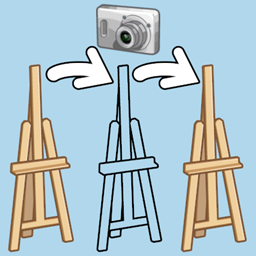
This is probably the easier of the two options. There is also a pose called "Camera Puppet", this uses a third sim to act as a camera to put them in the perfect alignment to the intended camera, when using first-person mode.
Once you have posed & aligned the Camera Puppet sim, you can hit Shift+Tab and then just Tab, with the Camera Puppet sim as your active sim, to be perfectly aligned with the intended camera.
Using Left's camera holding hand
Requires the Sims 3 Camera mode to be enabled. If you use the left pose with the camera aligning hand, you will notice that this sim will have a weird pose for his right hand. (See gallery)
In the normal game mode, zoom as close as possible to the ground as you can. Then, with your middle mouse button held down, align the top of the index finger and pinky to be equal or with the pinky finger just poking above (at a 4k resolution). Once that is achieved hit Tab to use free-cam mode and move yourself with WASD towards the end the index finger. You should now be aligned with the intended camera.
Special Thanks
- To Surely-Sims for her Pose Creation Workshop stream, which gives a pretty good intro to making poses
- To vyxated for their very useful sim rig
- To the folks over at the Pose Maker Guild discord making an extremly helpful aggregation of tips, tutorials and resources to learn making poses. With a special shout out to SimplyAnjuta and simmireen for basically doing most of the aggregation work.
The Two Soyjaks Pointing - Pose pack Team
Owner