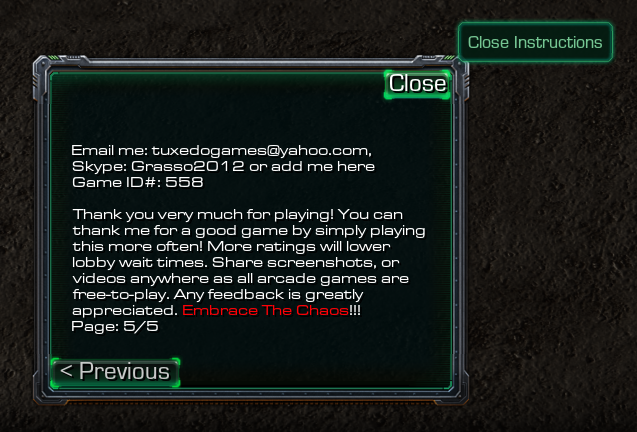
Previous button made visible. Also, Page number changes with next or previous click. Next Button is hidden when you are on the last page.
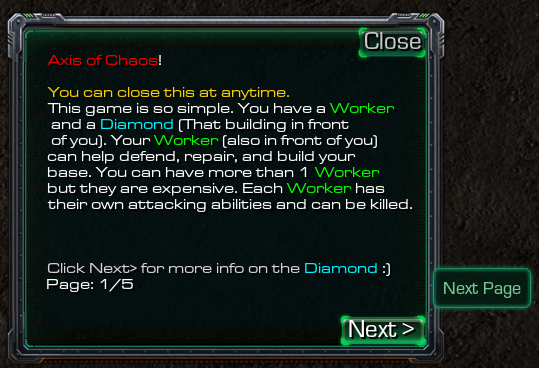
Small Next Button. Previous button will appear on the next page and stay until the last page. Close button remains until the Manual is closed. Help/Open button disappears when the Manual is Open, and re-appears when the Manual is closed.

Nothing Fancy, Just simple and small. Put this Button off to the side or in a corner. This file is loaded with comments telling you where everything is.
Description
Flexible page creating system so all you have to do as add a line to a trigger and you'll have additional pages. Capable, currently, of handling 20 pages but I do not recommend going over 8 or 9 at most. In game directions should be simple and to the point. The limit of 20 pages can be changed easily; just look for: "Instruction Dialog - Maximum Count of Pages = 20 <Integer (Constant)>" The pages are counted though triggers and require no additional effort (see pictures). Upon closing and opening the Manual, you will be on the same page you closed on so readers do not lose their place. This also supports up to 15 players. This File contains my current setup for a game that I am making, so you have an example of how I used it, including contact information on the last page.
PLACEMENT: Open This in the editor. Highlight/click on the "InstructionUI" folder. Then ctrl+c or right click on the folder>Copy. Open your map and put the folder(and its contents) anywhere. Select location for this folder to go, ctrl+v or Right click>Paste. Any Questions or bugs Please let me know in a PM. Mentioning it here is okay but I will not receive an alert.
In-Game Manual Team