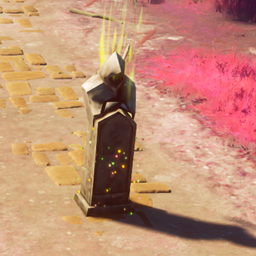
Makes the in-game clock follow the real-world clock. When you switch it on, the game's day/night cycle jumps to your local time of day and then runs at real speed: a full in-game day takes a full real day. Play at 1 AM and it is night in the game too.
Features
- Real-time sync (F9): toggles the sync on and off. Turning it off restores the game's original day length.
- Any timezone: set your UTC offset in
config.txt, including half-hour and 45-minute offsets (for example5.5for UTC+5:30). - On-screen clock (F8): a small clock in the top-right corner showing the game's time, in 24-hour (
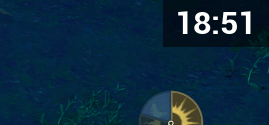
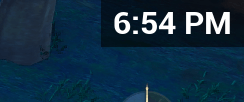
16:15) or 12-hour (4:15 PM) format. It is display-only and never captures mouse or keyboard input. While sync is off, it shows a small "Real-time sync is off" line under the time. - Save protection: worlds saved while sync was on are repaired automatically the next time they load (see Notes).
- Safe to switch off: turning sync off gives the game back its normal day length without a time jump. Everything is configured with a plain text file. No game files are modified.
Installation
1. Install UE4SS
- Download UE4SS for RSDragonwilds from here UE4SS.
- Find your game's root folder:
- Steam: open your Library, right-click RuneScape: Dragonwilds, then Manage -> Browse local files.
- Game Pass:
...\XboxGames\RuneScape- Dragonwilds\Content\
- Extract the contents of the zip into that root folder, keeping the folder structure. Afterwards the
ue4ssfolder anddwmapi.dllmust sit next to.exefile:
   <game root>\RSDragonwilds\Binaries\Win64\dwmapi.dll
   <game root>\RSDragonwilds\Binaries\Win64\ue4ss\
On Game Pass the folder is WinGDK instead of Win64.
2. Install Time sync
- Download the TimeSync zip and extract the TimeSync folder into:
<game root>\RSDragonwilds\Binaries\Win64\ue4ss\Mods\- The result must look like this:
   ue4ss\Mods\TimeSync\
   ├── enabled.txt
   ├── config.txt
   └── Scripts\
       ├── main.lua
└── timesync\ (the rest of the mod's scripts)- Open
config.txtand set your timezone (see Configuration). - Start the game and load into a world.
3. Check that it works
Open ue4ss\UE4SS.log and look for these lines:
[TimeSync] config loaded from ...: UTC+X, 24-hour clock
[TimeSync] loaded. F9 = real-time sync, F8 = clock UI (configured for UTC+X, see config.txt).
If they are missing, UE4SS or the mod is not installed in the right place.
Uninstall
Press F9 in-game to turn sync off, exit the game, then delete the TimeSync folder.
Usage
| Key | Action |
|---|---|
| F9 | Turn real-time sync ON or OFF (stand in a world first) |
| F8 | Show or hide the on-screen clock |
Configuration (config.txt)
config.txt is in the TimeSync folder, next to the Scripts folder. If it is missing, TimeSync creates a new one. Lines starting with # are comments.
UTC_OFFSET_HOURS = 7
TIME_FORMAT = 24
UTC_OFFSET_HOURS: your timezone
Your timezone as an offset from UTC (GMT), in hours. Valid range: -12 to 14.
| Timezone | Value |
|---|---|
| UTC / GMT | 0 |
| UTC+7 | 7 |
| UTC-5 | -5 |
| UTC+5:30 | 5.5 |
| UTC+5:45 | 5.75 |
| UTC-3:30 | -3.5 |
Calculate your UTC offset by subtracting the current UTC time from your local time. For example, if UTC is 12:00 and your clock shows 19:00, your offset is 7. Convert minutes to decimals: 15 min = 0.25, 30 min = 0.5, 45 min = 0.75.
Applies: when you restart the game, or when you press F9 twice (OFF, then ON).
Daylight saving time is not automatic. Change the value yourself when your clocks change.
TIME_FORMAT: clock display
| Value | Shows |
|---|---|
24 |
16:15 |
12 |
4:15 PM |
Applies: when you restart the game, or when you press F8 twice (hide, then show).
Advanced settings (optional)
Developers and advanced users can change the clock's position, size, background opacity, check intervals and more in Scripts\timesync\settings.lua. These need a full game restart. For example, CLOCK_UI_CORNER accepts "top-right", "top-left", "top-center", "bottom-right", "bottom-left" or "bottom-center".
Notes and limitations
- Back up your saves before using any mod that touches game time.
- Turn sync off before you quit. Press F9 to switch it off before exiting. While sync is on, the game stores its time in a different unit, which a fresh session would misread. Time sync fixes this automatically the next time the world loads, but switching off first avoids relying on that.
- Automatic repair can fail on a newly played world. If the sun moves in jerky steps or the clock looks wrong after loading, press F9 (ON), then F9 again (OFF) to fix it by hand.
- Changing worlds turns sync off. If you load a different world while sync is on, Time sync switches itself off. Press F9 to turn it on again.
- Days are long. With sync on, nights and days last as long as they do in real life. A night can last several real hours.
- Sunrise and sunset are the game's own. Time sync only syncs the clock/time. When the sun rises and sets still follows the game's schedule (its dawn and dusk settings are 04:30 and 22:00), so it will not match the real sunrise and sunset where you live. This is deliberate, so the mod stays neutral for players in every region.
- Game updates can break it. Time sync relies on the game's internal names (such as
BP_InGameTimeActor_CandSetInGameTime). If an update renames them, the mod may stop working until it is updated. - Daylight saving time is not automatic (see Configuration).
- Conflicts. Other mods that change the in-game time or day length are not compatible with Time sync.
Troubleshooting
- Nothing happens when pressing F9 or F8: check
ue4ss\UE4SS.logfor the[TimeSync] loaded.line. - The clock appears but shows no text: install the optional UE4SS Signatures file (see Installation).
- While sync is on, the log prints a
[TimeSync] status:line every 10 seconds; thedriftvalue should stay within a few seconds. - When reporting a problem, attach
UE4SS.log.
Time sync Team