


Stashlink
- By
Description
1.0.4 is available on Nexus Mods; the CurseForge upload is awaiting approval.
Windows · Steam and PC Game Pass · Solo worlds · Requires a compatible UE4SS loader
Your base has the supplies. Getting ready should take one stop.
Stashlink brings accessible nearby storage into one searchable bank, with your backpack beside it. Find materials, withdraw supplies and put loot away without opening every chest separately.
Look at the game's Storage Ledger and press F, or press Y / Triangle on a controller. The Storage Ledger is your access point; Stashlink is the bank that opens.
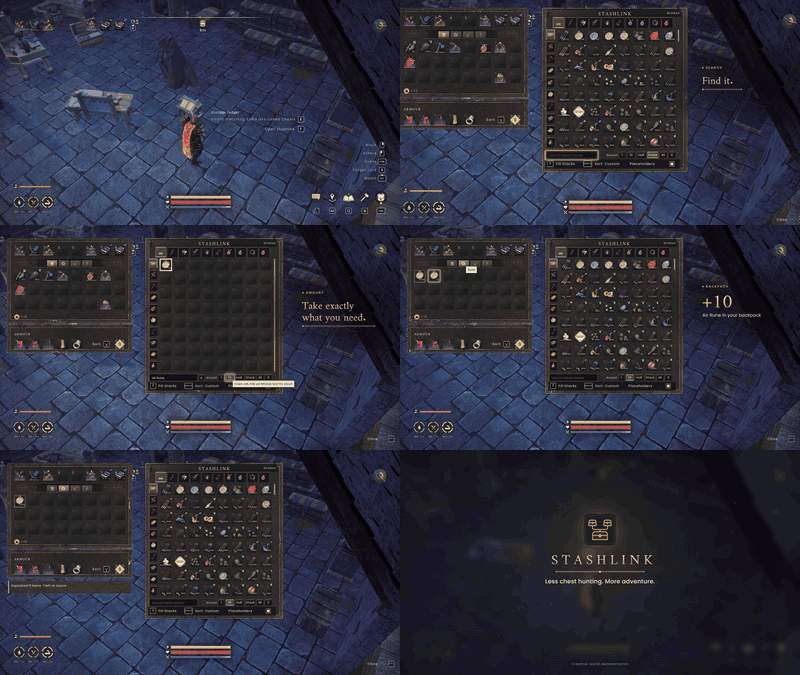
See it in 15 seconds
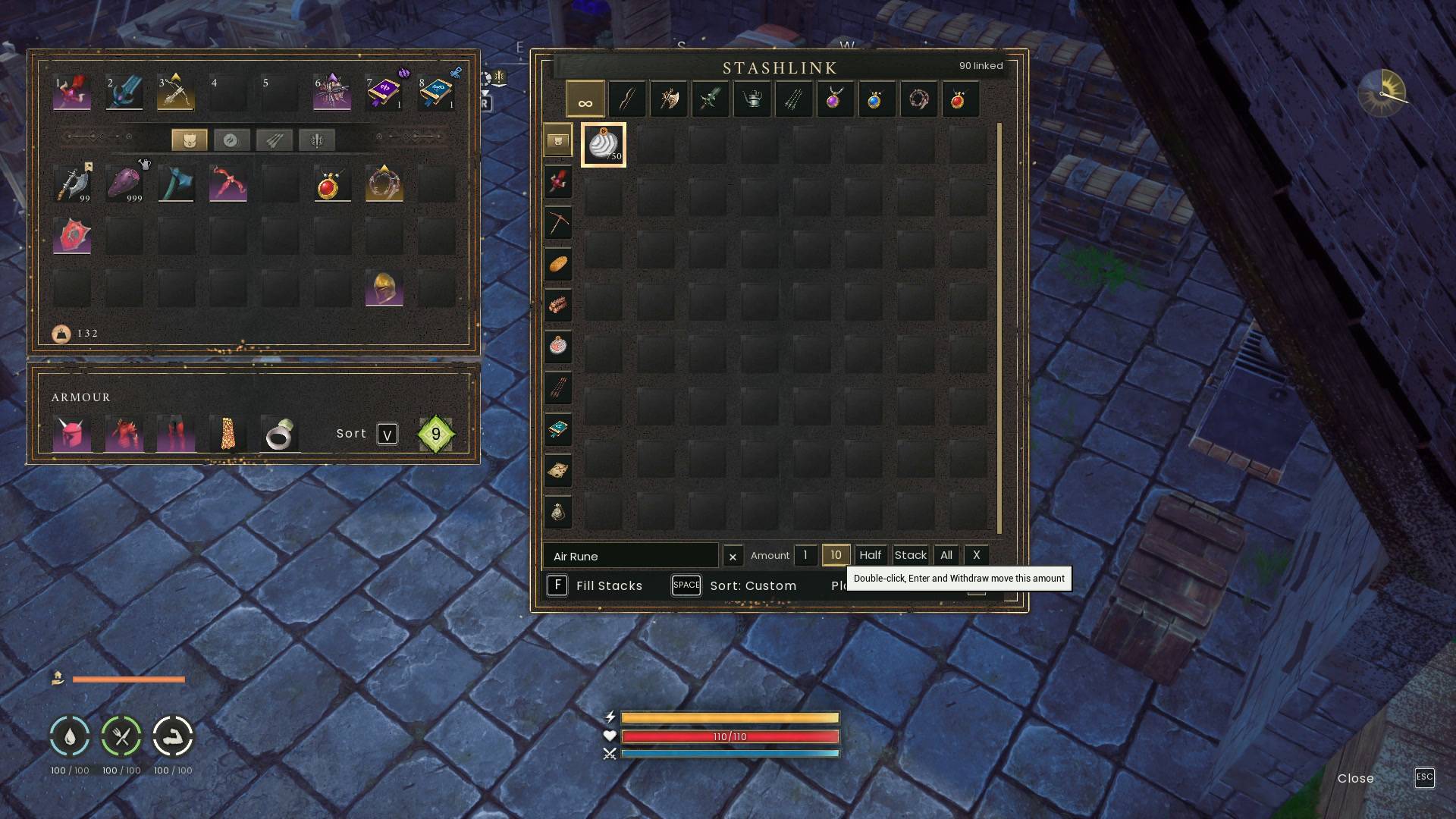
Open the ledger → search → withdraw exactly 10 → Fill Stacks → close.
Watch the full-quality 1080p60 MP4 · Category, custom-tab and scrolling clips
Actual gameplay recorded in an offline creative world, with motion callouts added.
1.0.4 — A bank that feels at home
Custom tabs sit across the top, automatic categories beside the grid, and your saved Amount stays visible below it. Browse with the mouse wheel, scrollbar or right stick. Native slot sizes, first-item tab icons and clearer controller hints bring it all together. The pause-menu Settings crash fix and guarded inventory transfers are retained.
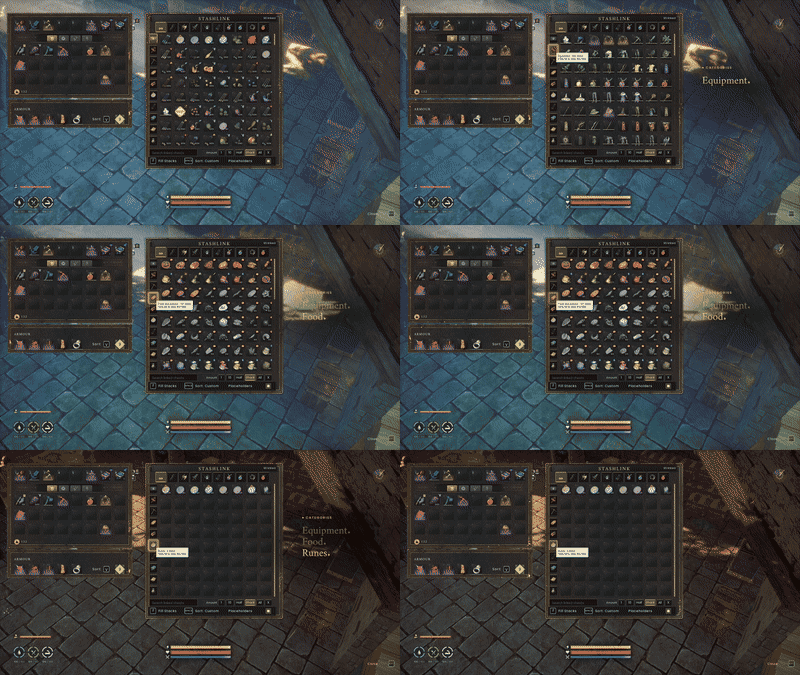
Find it by category
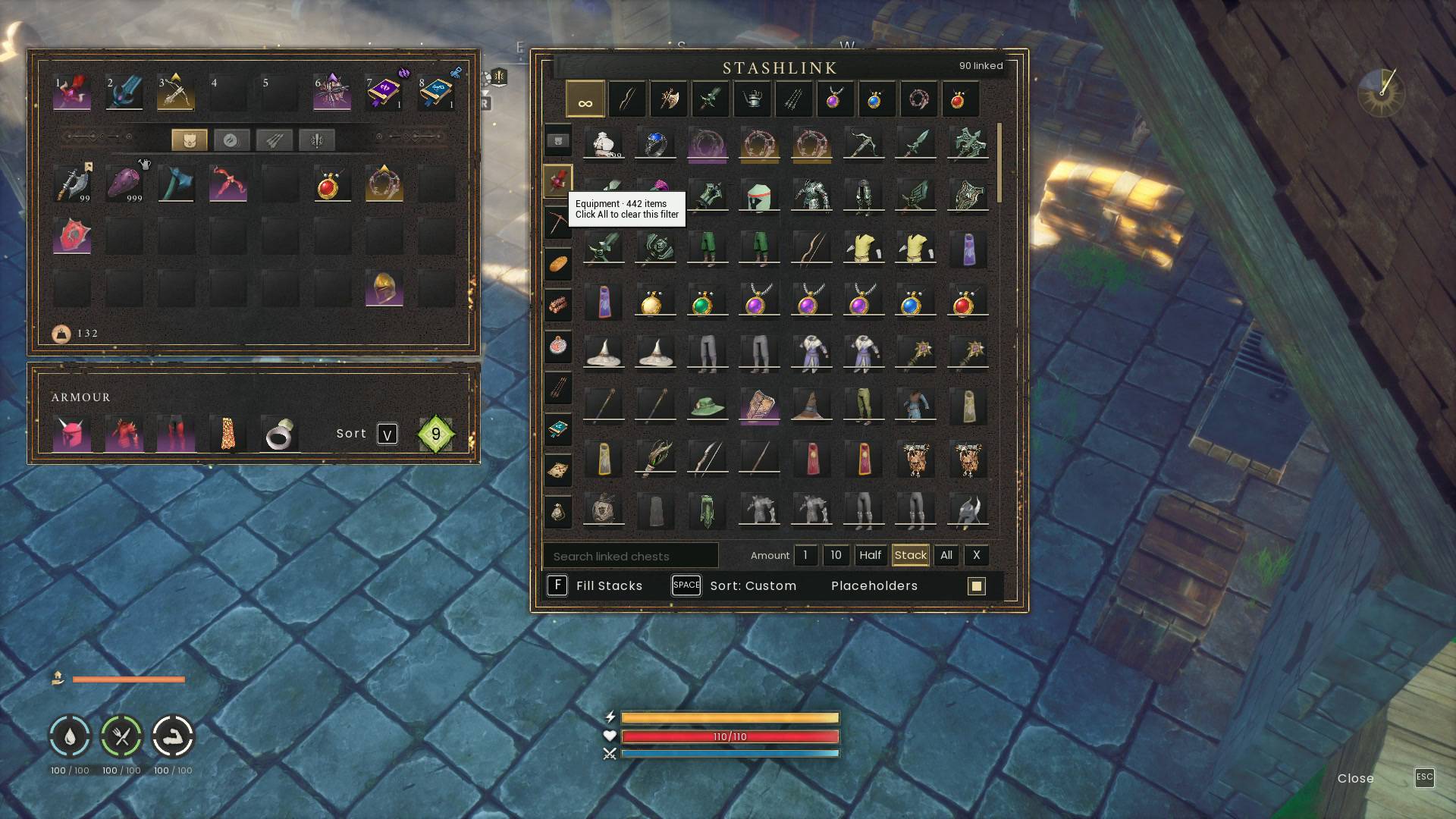
Ten automatic categories separate equipment, tools, food and potions, materials, runes and more. Pick a category in the rail, then search within it.
Watch the category animation in full-quality 1080p60
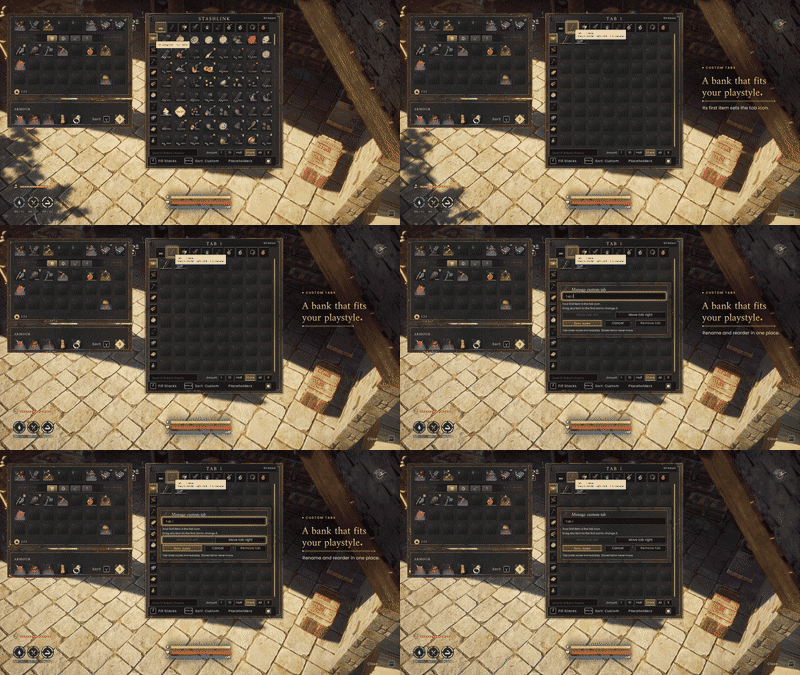
Your tabs, your way
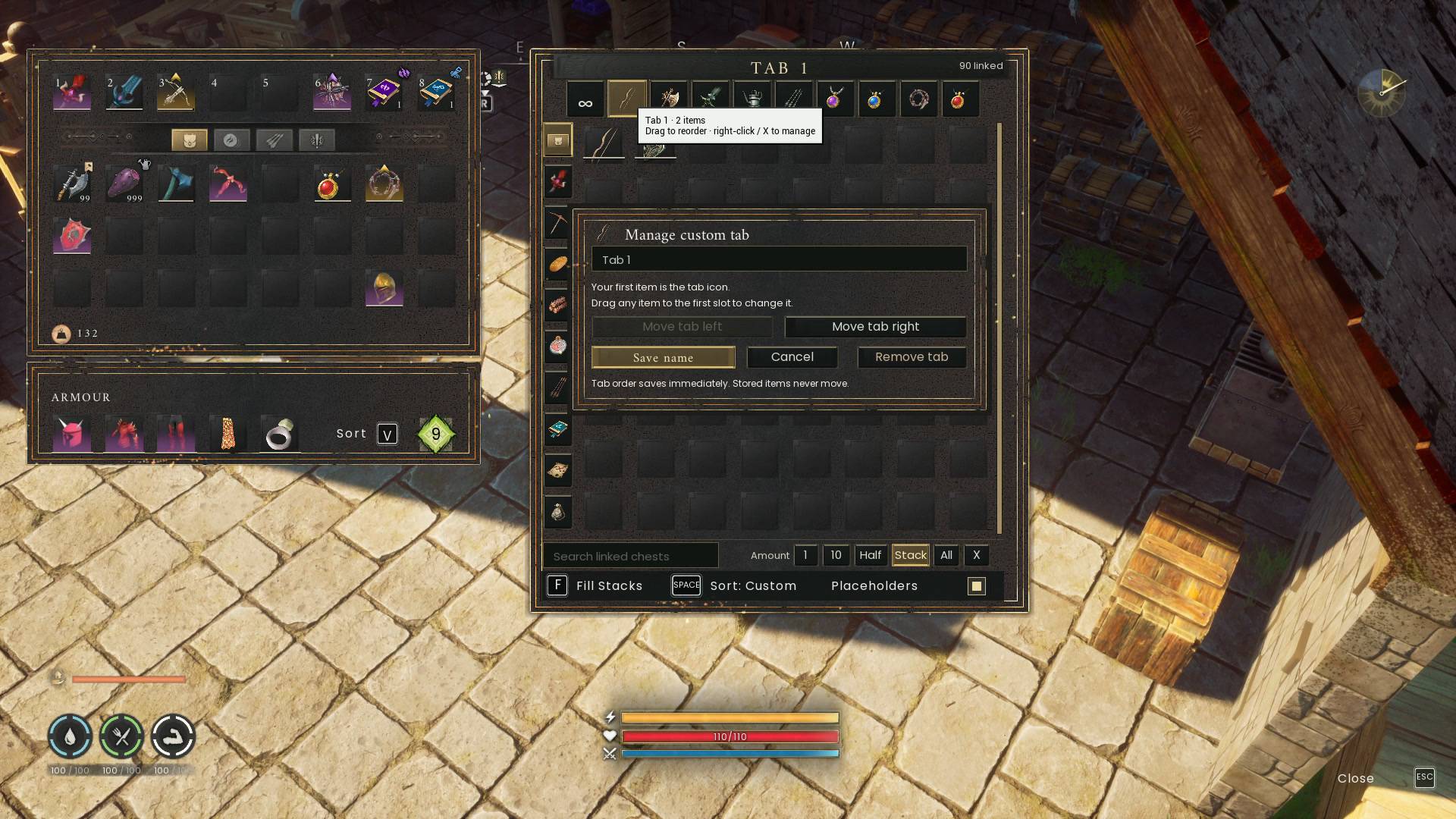
Organize up to nine saved custom tabs. Create a tab with +, then drag items onto it to assign their item type. Arrange items and tabs by dragging; the first item becomes the tab icon. Right-click a tab to rename, move or remove it. Tab edits organize your view; items stay in their physical containers.
Placeholders keep a dimmed, zero-count slot when you withdraw the last item. Your tabs, amount and arrangements are saved locally across restarts. Search filters the selected tab and category.
Watch the custom-tab animation in full-quality 1080p60
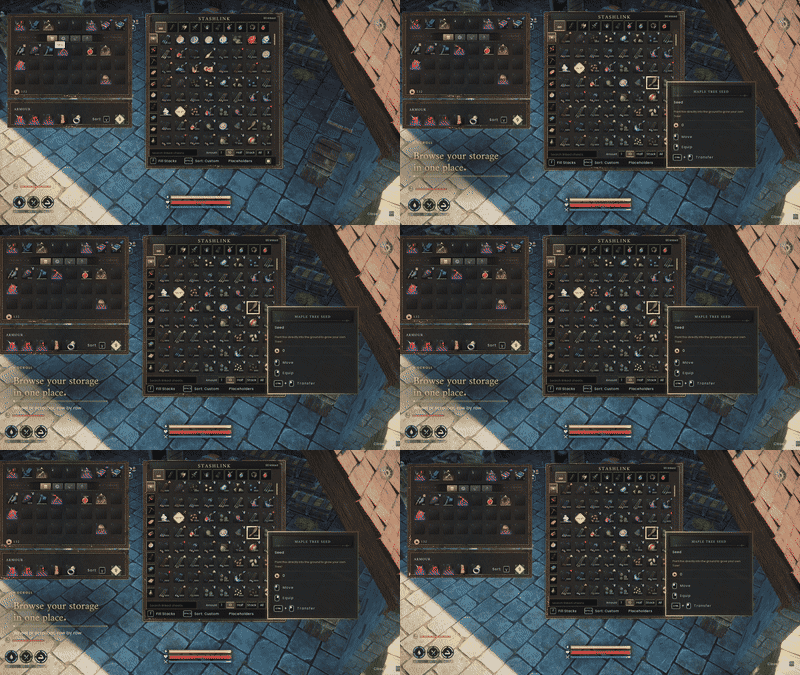
Scroll your whole bank
Browse the continuous storage grid with the wheel or native scrollbar. Controller players can tilt the right stick while the bank is active; clicking RS still switches panels.
Watch the scrolling animation in full-quality 1080p60
Take what you need. Put the rest away.
The Amount row offers 1, 10, Half, Stack, All and X for an exact amount. It controls double-click, Enter and Withdraw. Ctrl-click transfers a stack; drag withdraws, deposits or rearranges; Shift-drag moves half. Use X in the Amount row or F4 for a custom quantity.
Fill Stacks deposits matching backpack supplies into containers that already hold them. Capacity limits still apply. Hotbar items can be transferred manually; Fill Stacks leaves them in place. Equipped armour remains protected.
Tackle Boxes and Fishing Barrels are supported alongside ordinary nearby storage. Compatible stacks show their combined quantities. Detailed native item cards show durability, upgrades and supported use/equip actions.
Mouse and keyboard
- F / F6: open at the ledger / nearby. F while open: Fill Stacks.
- Mouse wheel / scrollbar / Page Up / Page Down: scroll storage.
- F8: Search. F4: quantity controls.
- Space / V: sort storage / backpack. Sorting a hand-arranged bank asks for a second press.
- Right-click: use, equip or eat supported items; edit a custom tab or release a placeholder.
- Escape: dismiss a popup first, then close. F6: close and cancel pending bulk moves.
Controller
- Left stick / D-pad: navigate the active panel. RS / R3 click: switch bank and inventory; move down from the backpack to reach equipment.
- Right-stick tilt: scroll the active bank; stronger tilt scrolls faster. Centring it after a panel or filter change starts a fresh scroll gesture.
- LB / RB: bank custom tabs, or categories if no custom tabs exist; inventory categories while that panel is active.
- A / Cross: pick up or place. Hold to choose an exact split. RT / R2: transfer a stack. X / Square: use/equip or edit a focused tab.
- Y / Triangle: open at the ledger; Fill Stacks while open. LS / L3: sort the active panel.
- View / Touchpad: Search. Menu / Options: the full Options drawer. B / Circle: cancel or close.
Native button glyphs and dark shadows keep hints readable in bright scenery. Xbox-style hardware was tested; PlayStation glyphs are included, but its hardware remains untested.
Installation
Already using a compatible UE4SS loader? Close Dragonwilds, click Install in CurseForge, then relaunch and open Stashlink at a Storage Ledger.
First UE4SS mod? Set up the shared loader once:
- Close Dragonwilds. Choose the complete UE4SS package for your storefront: Steam (latest) for Steam, or UE4SS 5.6 Xbox for PC Game Pass. Both list version 3.0.1-gf6d5f942.
- Steam: choose Dragonwilds → Manage → Browse local files, then open
RSDragonwilds/Binaries/Win64. PC Game Pass: follow the Xbox loader package’s README to locate your game’s binaries. - Match the selected loader archive’s folder structure to your installation. Keep its supplied settings and
Mods/shared/UEHelpers; preserve existing mods when updating. Use the package for your storefront. - Install Stashlink through CurseForge and restart the game.
For manual installation, extract the Stashlink folder into your loader’s ue4ss/Mods/ folder (Steam example: RSDragonwilds/Binaries/Win64/ue4ss/Mods/). Keep Stashlink/enabled.txt in place. UE4SS is not bundled with the mod.
Use the latest approved Stashlink file. Earlier inventory-core validation used Steam build 25632050 and the complete Nexus Steam 3.0.1-gf6d5f942 loader with its supplied settings. Exact-quantity and unique-item transfers passed, and all 1,629 physical item records and equipment matched after save/reload. UE4SS remains a separate one-time installation; CurseForge installs the Stashlink mod files.
Support and scope
- Solo play on Steam and PC Game Pass for Windows. Use the matching UE4SS package. Co-op and dedicated servers are unsupported.
- Full inventory and save/reload checks were performed on Steam. A PC Game Pass user report confirms the mod loads there; the reported Settings crash is addressed in 1.0.3. A complete Game Pass transfer test matrix has not been run.
- Access covers storage reported by the game around the nearby Storage Ledger. Map-wide access and unloaded remote storage are unsupported.
- Transfers check item counts, identity, and state. Unsupported game changes or unknown item classes stay read-only and produce a reason in the UE4SS log.
No prompt after installing? Check ue4ss/UE4SS.log. PS scan timed out, with no Stashlink ready message, means the loader failed before the mod could start. Install a compatible loader, such as the tested build linked above. For other problems, include the mod and loader versions, item/action involved, and the relevant error excerpt after checking it for personal paths.
Back up saves before installing an inventory mod. To uninstall, close the game and remove the Stashlink folder; stored items remain in their physical containers.
Unofficial RuneScape: Dragonwilds mod. Not affiliated with or endorsed by Jagex. Game artwork belongs to its respective owners. Gallery images show actual gameplay in an offline creative world with items staged for demonstration. The Stashlink icon is original.
The Stashlink Team
