Raid HQ
- By
Raid Head Quarters to allow raid leader to build their roster and every player to be as efficient as possible without missing anything
Dashboard.PNG
BuffTracker.PNG
RaidPlanner.PNG
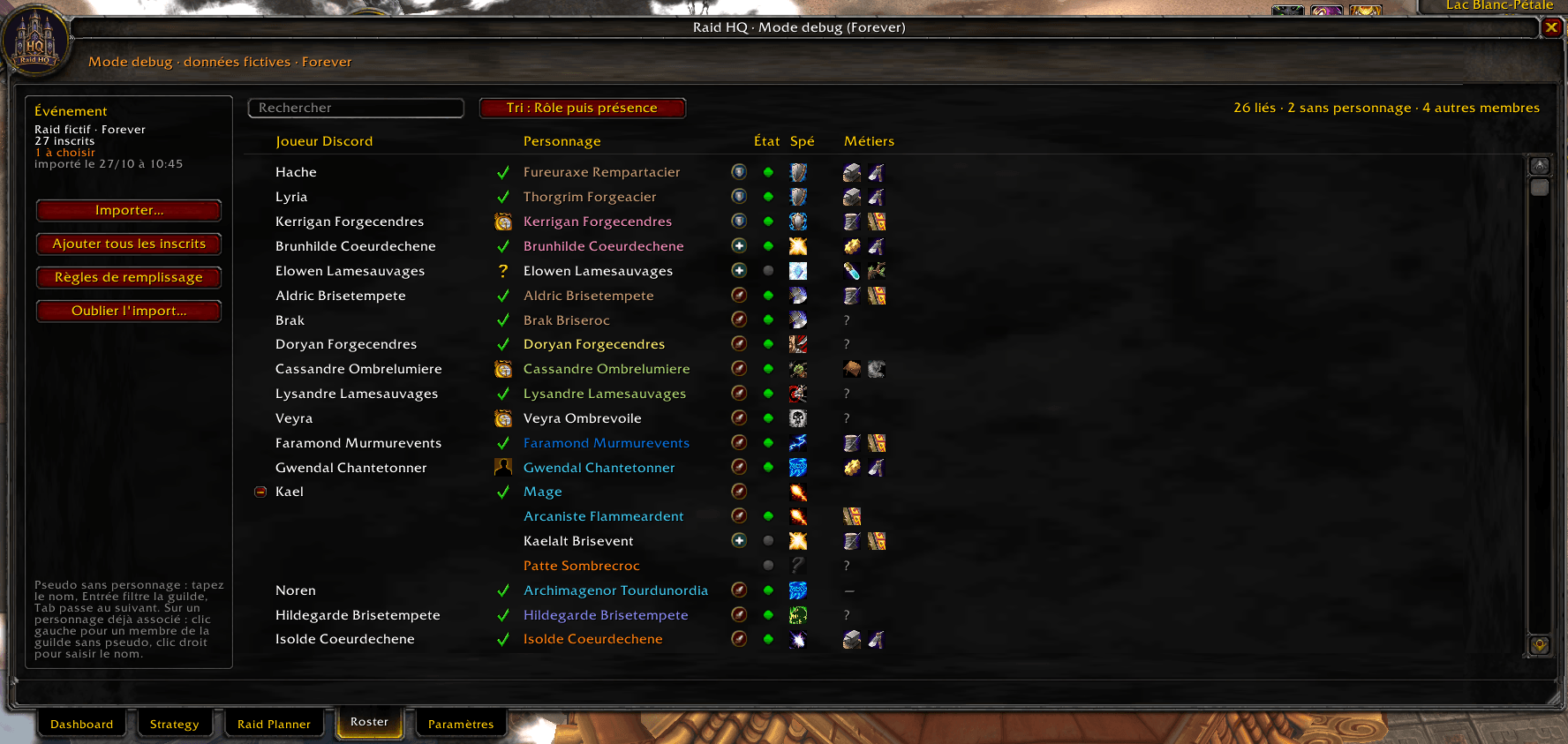
Roster.PNG
Description
Raid HQ
Raid HQ is a World of Warcraft add-on for planning raid rosters, checking composition coverage, tracking buffs, and sharing encounter plans.
- Supported clients: Forever (
16001), Burning Crusade Classic Anniversary (20505,20506), Mists of Pandaria Classic (50504), and the current retail client (120105). - Version:
0.11.0 - Languages: French on French clients; English on other clients.
- Internet access: None. Raid-Helper data is imported by pasting an export into the add-on.
Open Raid HQ with /rhq, /raidhq, the add-on compartment button, or the minimap button (on by default, can be turned off in Settings). For a short player-facing overview, see DESCRIPTION.md. See CHANGELOG.md for release notes.
Features
Raid HQ has five main areas:
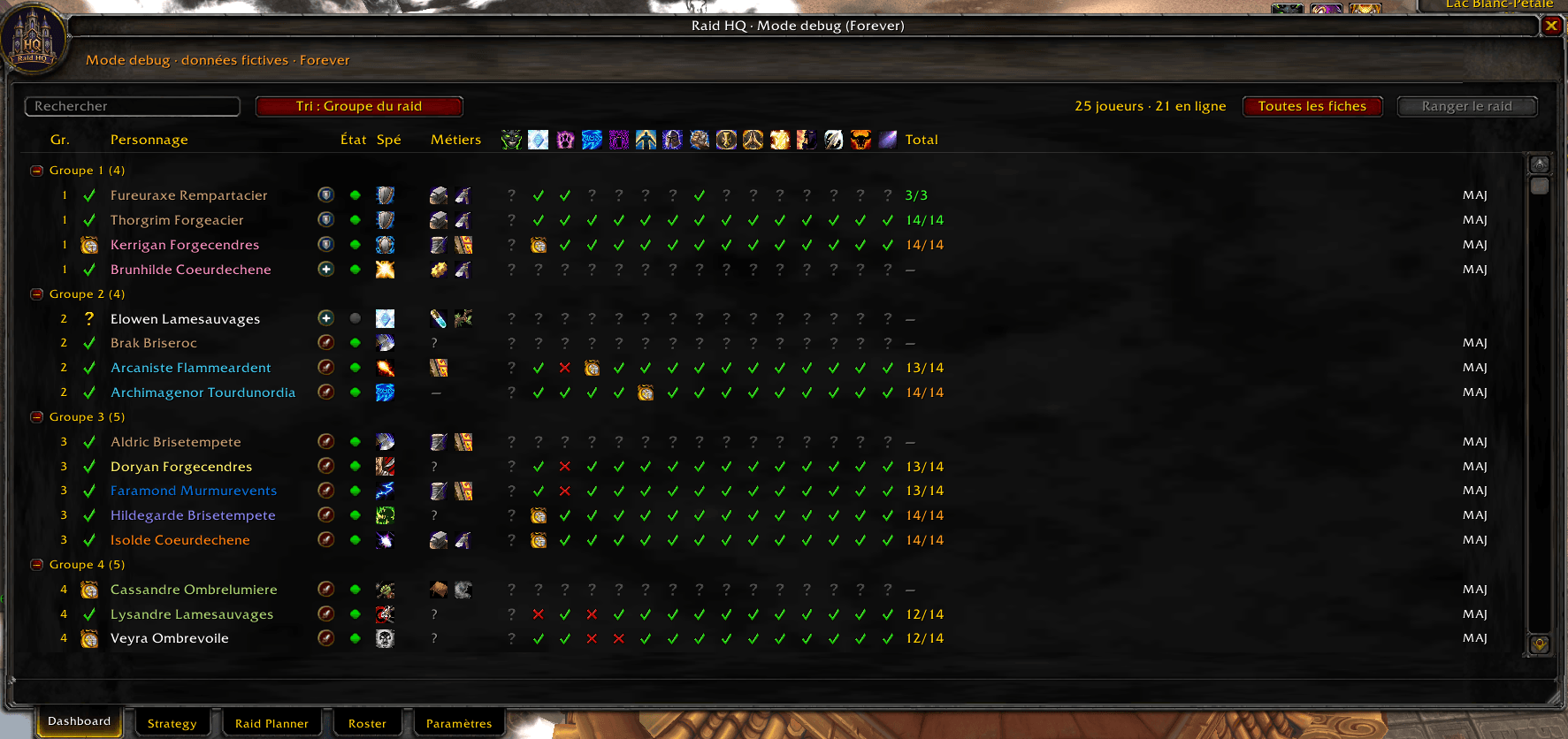
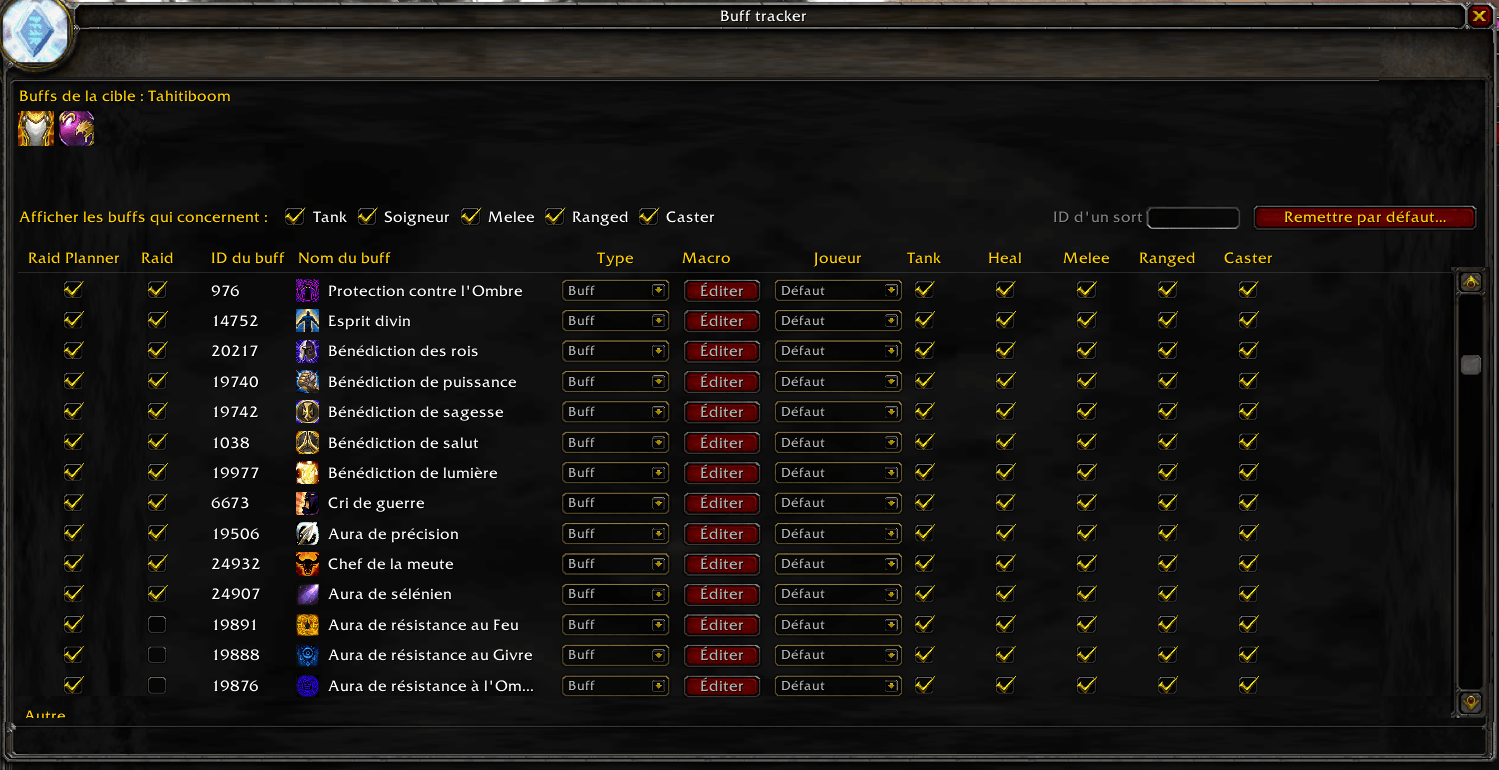
- Dashboard: View your group, including specialization, professions, and tracked buffs: your character alone, the whole party in a party, the whole raid in a raid. The event sign-ups can be listed too (cog of the header, or Settings). Click a specialization to view its talent information. The Buff profile section of the cog picks the profile (Me, Group, Raid, and the ones you create); by default it follows your group. In the Buff tracker, the Tracking column is a menu of boxes that says where each buff is followed: Me (with the characters of the account under it, ticked one by one or all at once), each profile, and the Raid Planner. A buff you add from a target is Me for that character only, in the color of its class. The spell ids of a buff can be edited: several spells can give the same buff, separated by commas. The Minimize arrow keeps a small bar with only the missing buffs, one line per player; a buff with a macro is a button that targets the player and runs the macro.
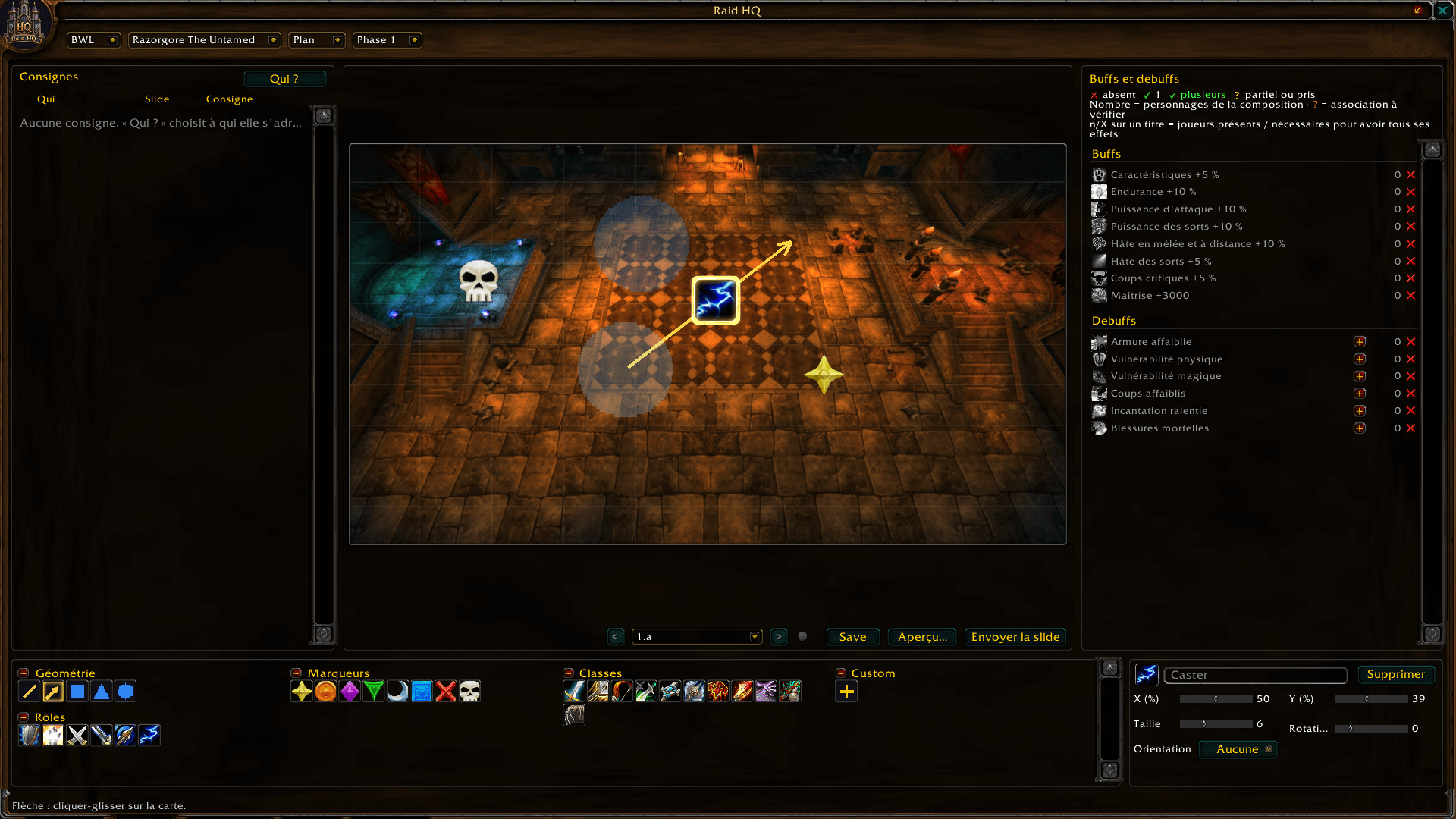
- Strategy: Create encounter plans with maps, icons, markers, lines, arrows, shapes, targeted instructions, and debuff assignments. Send slides to the group for players to view.
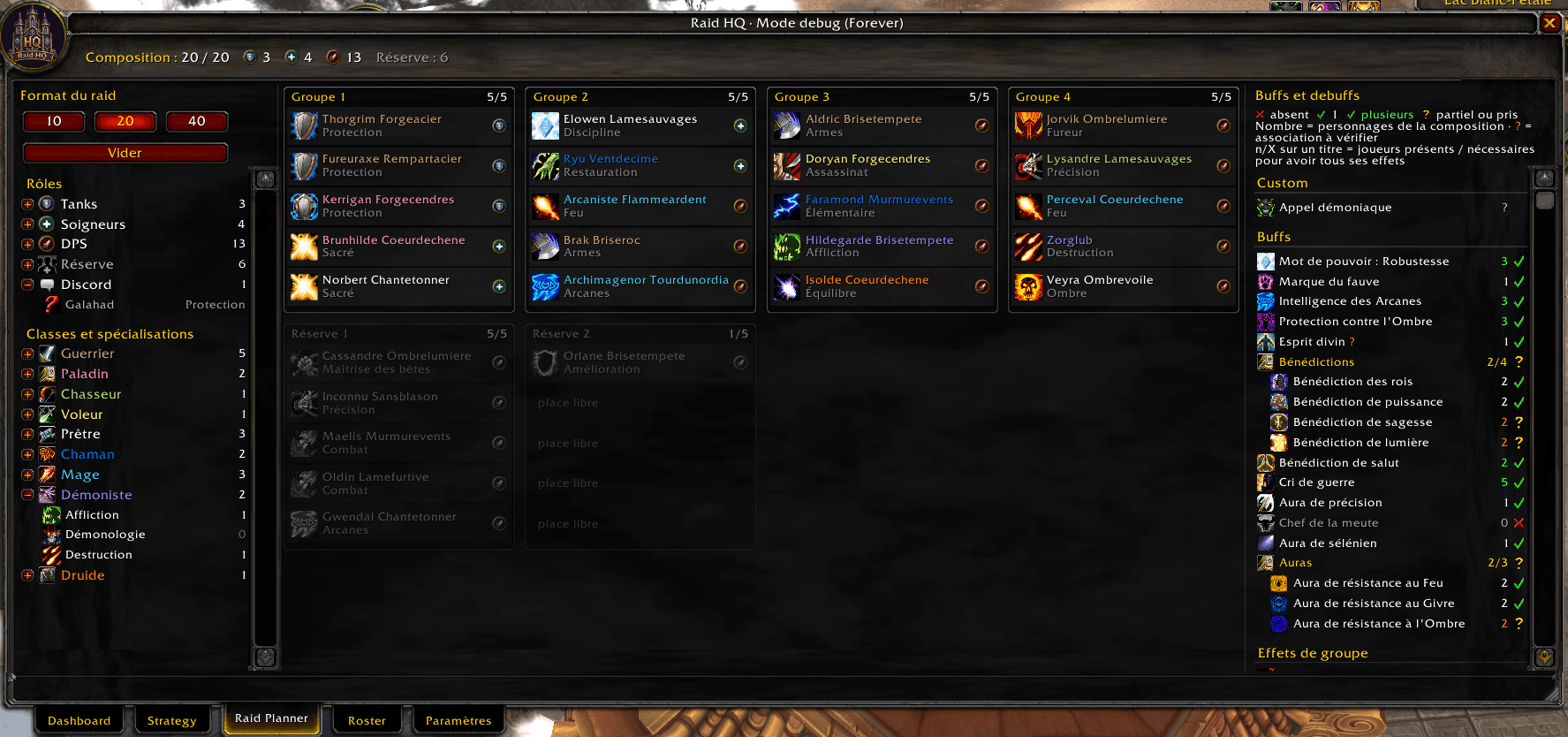
- Raid Planner: Build a raid composition, organize groups and roles, and estimate the buffs and debuffs the composition can provide.
- Roster: Import sign-ups, keep a dictionary of Discord names and their characters (main and rerolls), browse guild members, configure automatic placement rules, and invite the signed-up players automatically.
- Settings: Adjust the interface, buff tracking, automatic invitation, the data, and optional debug simulation.
Installation
Install the add-on folder as RaidHQ in the appropriate World of Warcraft Interface/AddOns directory, then enable Raid HQ from the in-game AddOns list. Its saved data is stored in RaidHQDB.
Two add-ons are optional and only add to the Professions tab: Auctionator (the folder Auctionator) gives the auction house prices, which turn on the cost of a craft, the gain against a vendor or the auction house, the Profitable filter and the gain in the Progression mode; AtlasLoot (the folder AtlasLootClassic) gives the exact skill steps of each recipe (orange, yellow, green, gray), the number of pieces a craft gives, and whether an object teaches the recipe. Raid HQ works without them.
Importing sign-ups
In Roster, choose Import…. In Discord, run the /export command of Raid-Helper on the event, then paste the result. These formats are supported:
- Raid-Helper CSV, including its event title line and header;
- CSV rows without a header, or columns in a different order (columns are identified from their contents);
- One sign-up per line in
name;class;specformat; - Raid-Helper API JSON.
A successful import replaces the current event and its statuses. The dictionary of Discord names and characters is kept; Supprimer l'événement… clears the event only, and Settings → Vider le dictionnaire Discord… clears the dictionary. Supported statuses include signed, late, tentative, bench, and absent. Discord IDs are kept as text.
Names that exactly match a guild member may be linked automatically. Link other sign-ups to characters in the Roster tab. A guild or group character without a pseudo is linked in one click to an existing or a new pseudo: a player's first character is his main one and the next ones are rerolls, and a sign-up made with a reroll is placed with that reroll.
Automatic invitation
Démarrer l'invitation (Roster tab) invites the signed-up and late players: a +1 whisper invites at once; every 1 min 30 the guild members online and not grouped are invited (the scan stops when the event starts and after 30 minutes at most, see Settings); players who declined are whispered from 10 minutes before the event, every 3 minutes; signed-up players outside the guild get a /who every 5 minutes from 20 minutes before, then a whisper. No more than 3 automatic whispers per player. The raid groups follow the Raid Planner. Once the event has started, a player who logs in is invited once. The start time comes from the import; without it only +1 and the scan work, and the Dashboard shows a + button to invite a guild member who is online and outside the raid. Unlinked sign-ups remain visible and can be added manually when their class or specialization is ambiguous.
Building a composition
Each player has a class, specialization, group, and slot. The role normally follows the specialization, but can be overridden for an individual player.
Choose a 10-, 20-, or 40-player format. Changing format does not move players; it only determines which groups count as active:
| Format | Active groups | Reserve |
|---|---|---|
| 10 | 1–2 | Groups 3–12 |
| 20 | 1–4 | Groups 5–12 |
| 40 | 1–8 | Groups 9–12 |
There are 12 groups. Groups 9–12 are always reserve groups, including in 40-player format. Reserve players are excluded from role and coverage estimates.
The composition roles are Tank, Healer, and DPS. Melee, Ranged, and Caster are DPS styles used by fill rules, not separate composition roles.
Adding sign-ups
Use Add all sign-ups to place eligible sign-ups automatically. They are considered in this order:
- Tanks, then healers, then DPS.
- Within each role: signed, late, tentative, bench, then absent.
- Within each status: earliest sign-up time first; entries without a time retain import order.
The role declared in the sign-up is used when available; otherwise the specialization's role is used. There is no built-in rule against duplicate specializations. Use fill rules to control duplicates or direct players to specific groups.
Fill rules
Open the fill rules using the control next to Add all sign-ups. Rules are evaluated from top to bottom for each sign-up. Drag a rule to change its position. Criteria combine, and a rule without a criterion matches nobody.
Rules can match a role/style, class, specialization, or named player. They can direct matching players to a group, limit how many the rule places, and set per-format caps for active groups. A rule with no destination can be used as a cap only. Player-specific rules do not have a count or cap.
Melee, Ranged, and Caster match DPS specializations by their configured style. A forced player role takes precedence over the specialization's usual style. For example, a Feral Druid forced to Tank matches Tank rather than Melee.
If no rule places a player, the add-on uses the first available active slot, or a reserve slot when an active-group cap prevents placement. Sign-ups with multiple possible class or specialization matches are not auto-placed; add them individually.
Buffs and debuffs
The Raid Planner estimates what the composition could provide. This is not a report of which effects are currently active in the game. Actual raid auras are shown in the Dashboard and Buff Tracker.
Raid-wide effects count once for the raid, group effects are evaluated per non-empty active group, and target debuffs count when a provider is present. Some effects share a limited provider pool, so one character cannot provide every effect in that pool at the same time. Debuffs can be assigned to specific players in the Raid Planner; assignments are included with Strategy plans.
Use the Buff Tracker to choose which effects are tracked, arrange them into Buff, Other, or Debuff, reorder them, and choose which roles they apply to. Effects marked as Debuff are omitted from the Dashboard's buff columns. You can also add an effect by spell ID and choose to follow it on a specific raid member, party member, or yourself.
Effect coverage depends on the active game data. Burning Crusade and Mists of Pandaria lists are sourced from external class guides and have not yet been verified in-game. Some Forever talent-to-effect associations are also unconfirmed. Settings can exclude unverified effects from coverage calculations. Mists hunter-pet contributions are noted but are not counted.
Strategy plans
On the map: Ctrl+C / Ctrl+V (Cmd on a Mac) copy and paste the selected icon, line or shape, Suppr deletes it, and the left / right arrows go back and forward through the slides.
The top bar reads Raid > Boss > Plan > Tab, A bar under the map holds Consigne (the instructions and the attributions, in their own window) on the left, the slides in the middle, and Save, Aperçu… and Envoyer la slide on the right. The map has the whole width; under it, the palette and the settings of the selected object. Each segment is a drop list; choosing an entry loads it and updates the segments after it. Raid and Boss are the installed content packs: you pick them, you do not edit them. Under a boss you make plans: the menu of the Plan list holds new, duplicate, rename, delete and the images of the boss (the map of the plan). The Tab list manages the phases of the plan (new, rename, move, delete). Inside a tab, the slides are the savepoints: Save adds one, the list next to the arrows names them and moves between them. Palette: a band under the map, with the categories you folded remembered.
A plan can contain multiple phases, and each phase can have up to 20 slides. Save a slide to freeze the current view and open the next one. Plans are saved automatically; up to 50 plans can be stored.
Content packs
A content pack brings a raid, its bosses and the maps of each boss (several images per boss are possible), and optionally a plan already drawn on a map, which new plans on that map start from. Disabling or removing a pack hides its entries without error; the plans you made under it come back with the pack. Blackwing Lair is bundled with Raid HQ as the template: copy Pack/BWL to AddOns/RaidHQ_Content_<Name> to make a pack for another raid (see Pack/README.md). /rhq export writes the open plan as text, to ship it inside a pack.
Place icons and markers on the map, draw lines and arrows, or add circles, squares, and triangles. Add instructions targeted to a role, class, specialization, or player. The leader can preview what a selected player will see, including their assigned debuffs.
Outside a group, anyone can prepare plans. In a group, only the raid leader can edit them; assistants cannot. Players view plans received from the leader. Slides are sent explicitly and are not synchronized in real time. A raid call updates debuff assignments but does not resend the current slide.
When the leader sends a slide, the group receives its map, phase/slide number, instructions, and the current debuff assignments. Players can switch between received slides. A new plan replaces the previous received plan.
Guild newsletter
Another add-on, such as the sound pack of a guild, can ship a newsletter: pictures, one per issue. When the Raid HQ window opens, the latest issue of the first newsletter you have not seen opens in its own window, once. What you saw is kept in RaidHQDB.newsletterSeen, so it does not come back after a relog. The window has < and > to read older issues, and the add-on can give a slash command to open it again (/<command> reset makes the latest issue open by itself once more). Nothing is shown when no add-on ships one. How to make one: Pack/README.md.
Add-on communication and live data
Raid HQ does not connect to Raid-Helper or any other Internet service. Imports are manual.
Players using Raid HQ share specialization and profession information with the raid leader through the in-game add-on channel. The leader must also have the add-on installed to receive this information. Complete character sheets are sent on request or during a raid call, with requests throttled to limit traffic.
Buffs are normally read from raid-unit auras, like the raid frames. If a player is out of range or their auras cannot be read, their data may be unavailable; the row can remain unknown. The Update control can request information from that player's add-on, when available.
By default the Dashboard lists the group you are in: only your character when you are not grouped, the party members in a party (their sheet and buffs are asked from their add-on when the Dashboard opens and now and then), and every member of the raid in a raid, including players who are not guild members or sign-ups. Choose Group and sign-ups in the cog of the header (or Settings > Dashboard) to list the event sign-ups and the players of the active composition groups too. Use Arrange raid to move raid members toward the planned groups; this requires raid leader or assistant privileges and cannot be used in combat.
Debug simulation
The optional debug mode is available under Settings → Development. It substitutes a fictional guild, raid, sign-ups, character sheets, and buffs for the selected game version. Your real composition-related data is saved and restored when debug mode is disabled. Switching the simulated game version requires a UI reload.
Game-specific data
The add-on selects class, specialization, talent, and effect data for the detected game client. Talent displays vary by game: Forever includes talent grids, Burning Crusade shows points by tree, and Mists of Pandaria shows the selected specialization. Some effect lists and talent associations are unverified; treat coverage estimates accordingly.
Development notes
The add-on's load order and supported interface versions are declared in RaidHQ.toc. The local simulation scripts are under .check/ and are not included with the add-on. Talent and texture utilities under Tools/ read data from a local World of Warcraft installation.
Raid HQ Team