


Inventive Inventory

Sort your inventory with R (default key). You can configure the sorting criteria in the config screen.
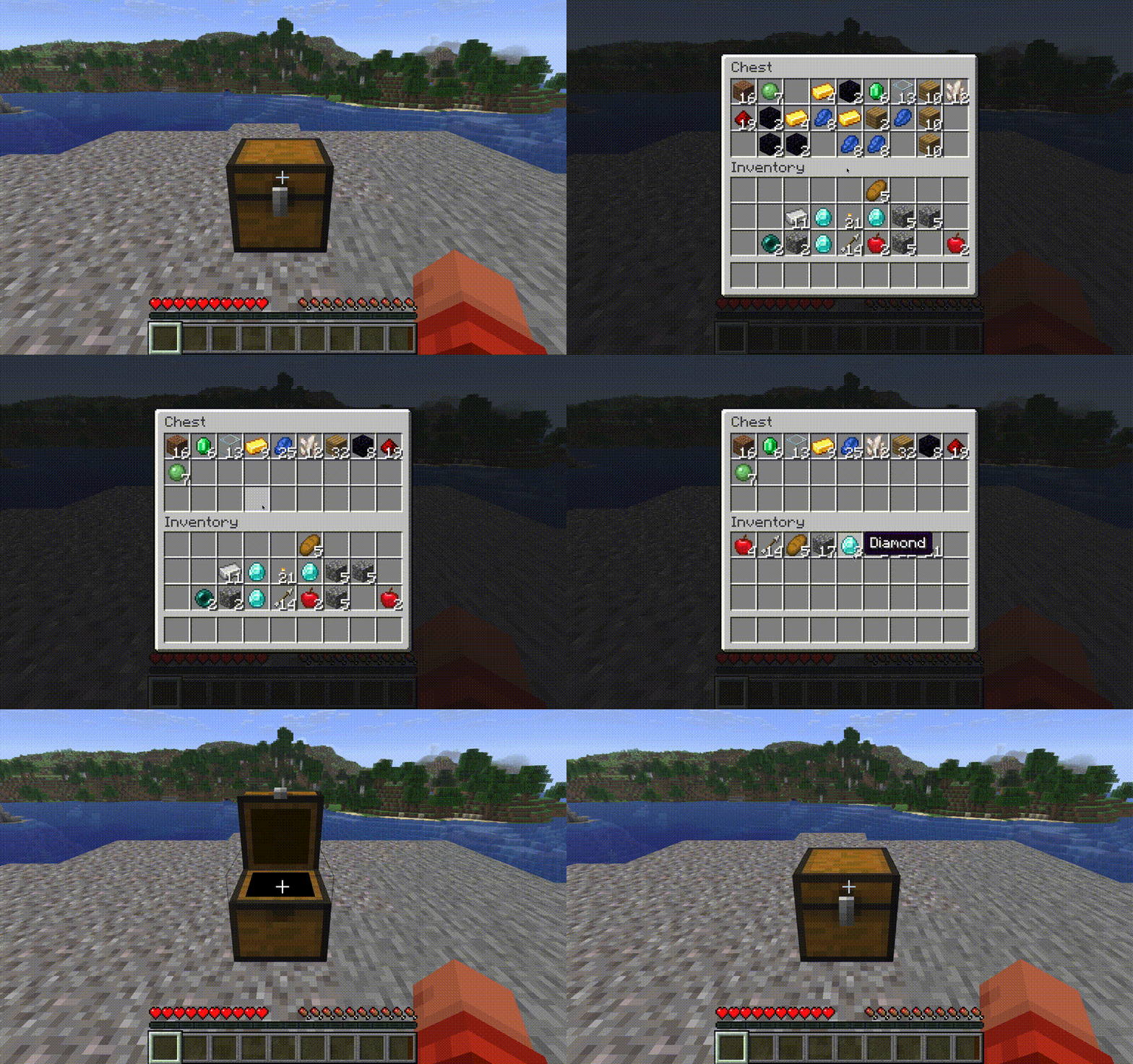
You can sort any container by just pressing R. If you hover over your own inventory in such a screen, you will sort your inventory though.

Locked Slots are skipped when sorting. Use that to keep items in their place in the inventory or to keep slots free.

You can create profiles using the Profiles Screen (Default Key: V) which will save your current hotbar state. To load just select the profile in the profiles screen.

You can create Profiles using our own command. You can also load or delete via command.

The small number in the hotbar slots indicates how many items of that type you have left in your inventory (excluding hotbar)
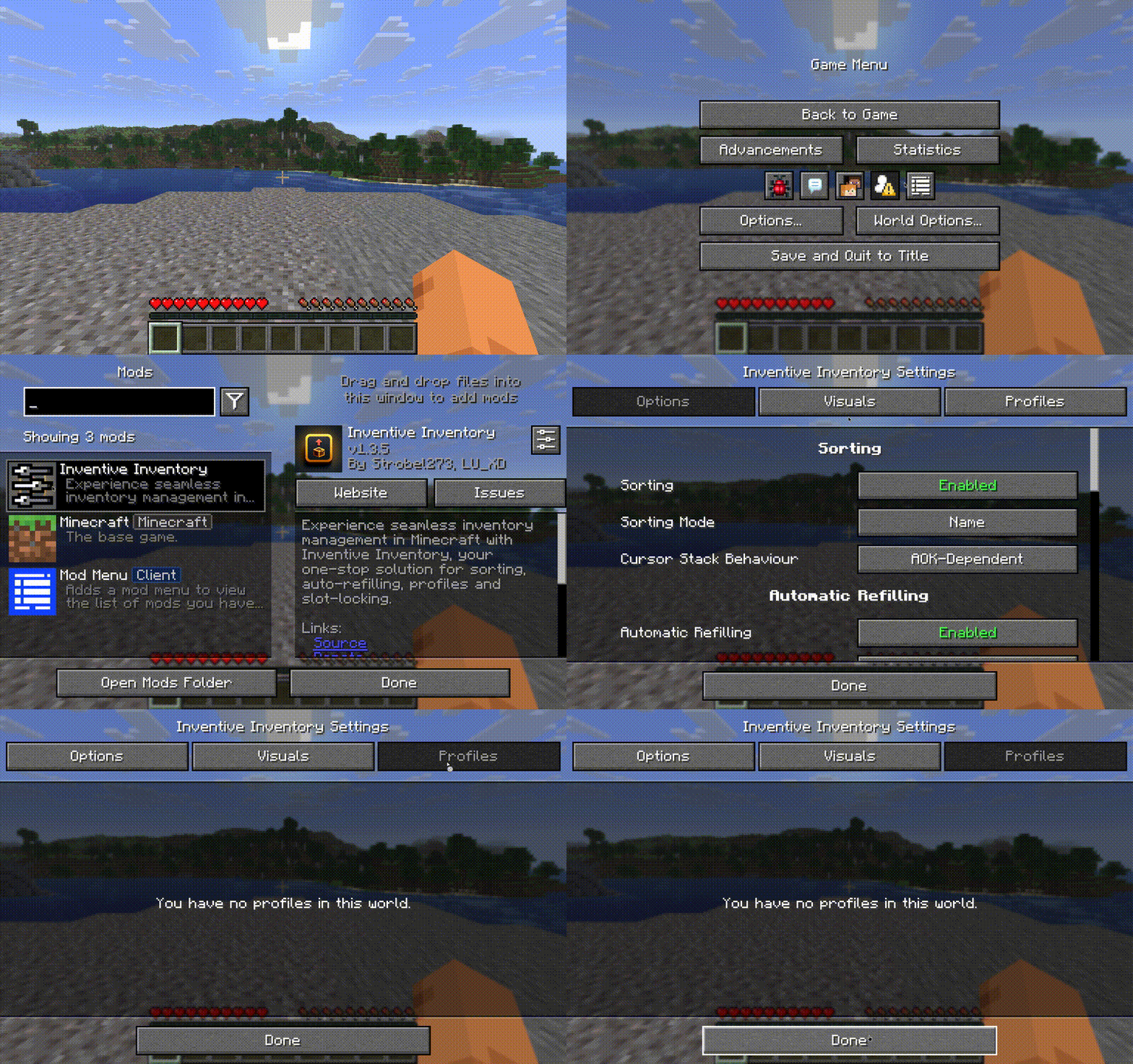
You can reach our config screen via the mod menu mod.


Description
Inventive Inventory
Discord | GitHub | Modrinth | Curseforge
Experience seamless inventory management in Minecraft with Inventive Inventory, your one-stop solution for sorting, auto-refilling, profiles and slot-locking.
⚙️ -> Configurable Option
DISCLAIMER: Future features will only find their way into 1.21 version and above! Bugs will still be fixed in older versions!
Features 🚀💡
Sorting 🔀🔠
There's a mess in your inventory? No problem, a simple key press (Default: R)⚙️ will it get organized.
Sorting your inventory:

The sorting function is aware of the cursor’s position. This means that if you’re in a container and hover over your inventory, the inventory will be sorted instead of the container. In all other scenarios, the container will be sorted.
Sorting containers:

By pressing the Advanced Operation Key you can keep your cursor stack while sorting. ⚙️
This feature is compatible with all types of containers.
Locked Slots 🔒🚫
You can lock slots in your inventory by holding the Advanced Operation Key (Default: Alt) and clicking on the slot. Items in such a slot will not be affected by sorting, automatic refilling or profile loading. ⚙️ (for every feature seperatley)
Locked slots during sorting:

Additionally, picked-up items or quick-moved won't be placed in such a slot either and will rather get dropped. ⚙️
Picking up items with locked slots:

Profiles 📋📂
Save your current hotbar and offhand state and load it anytime back.
Profile Screen (Radial Menu)
By pressing and holding 'V'⚙️ you can open the Profile Screen where you can create, load, overwrite or delete profiles.

- Create: Just hover over '+' and release 'V'⚙️. A Profile should be created. (Optionally, you can press ALT additionally to name your profile)
- Overwrite: Hover over an existing profile, hold Left CTRL and release 'V'⚙️ to overwrite this profile.
- Delete: Hover over an existing profile, hold ALT and release 'V'⚙️ to delete this profile.
Commands
- Save:
/inventive_inventory profiles create <name> [keybinding] - Load:
/inventive_inventory profiles load <profile> - Delete:
/inventive_inventory profiles delete <profile>
Loading a profile using commands:

Keybinds
You can bind customizable keys to your profiles for loading.
- Loading: Loading Key (Default: ALT)⚙️ + (Profile Key (Default: 1-3)⚙️)
Alternatively, you can activate Fast Load where you don't have to press the loading key. ⚙️
View and update your created profiles in the Profile Tab of the Config Screen.
You can access the Config Screen with this command /inventive_inventory config or via ModMenu.
Open the Config Screen via ModMenu:

Open the Config Screen via command:

Automatic Refilling 🔄📦
Replenishes your current stack with items from your inventory. Useful for building with many materials or just to always have some food ready. Works with buckets, bowls and bottles as well as tools. You can press the Advanced Operation Key (Default: ALT)⚙️ to prevent the stack from refilling.⚙️

Item Counter 🔢📊
Keep track of your resources at a glance! The Item Counter sums up all identical items in your inventory and displays the total amount (unit is items or stacks depending on config ⚙️) directly in the hotbar. Perfect for builders and miners who want to know exactly how much they have left without constantly opening their inventory.

If you have more feature suggestions or found a bug, join our Discord or open an issue on the GitHub Repository!
Inventive Inventory Team
