
VR Craft
- By
a77470a7f9adfba2c6b339cad5a9b0b538e9cd29_350.png
Description
🕶️ VR Craft
Playing with an Adventure on VR? Then that pack is for you! Whatever you imagine on VR, there. Say goodbye to the Ugly Minecraft!
🚀 About the Pack
VR Craft is a highly optimized, immersive visual pack designed specifically for players using VR headsets (like Vivecraft). This pack removes annoying screen clutter and focuses on pure, real-life immersion while standing inside the blocky world!
🎬 YouTube Video (pack review)
uhhh... it doesn't exist! :( still we haven't got the VR.
Wait! Are you sad? No! Still you can use the resource pack, but our VR is gonna be delivered in 1 day.
✨ Features
🎯 Ultimate Immersion
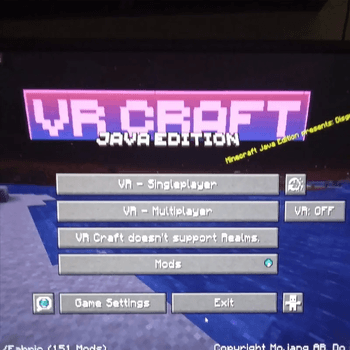
- Invisible Crosshair: Removed the floating white plus sign from the middle of your face. Now you can aim naturally with your actual eyes without a clunky game UI blocking your field of view!
- Classic HUD: Kept the legendary default hearts and food bars so the game still feels like Minecraft, but without overwhelming your vision in 3D space.
🛠️ Future-Proof Design
- Built with a highly advanced, clean folder structure to prevent visual glitches and ensure smooth frame rates while rendering in a heavy virtual reality environment.
📦 How to Install
- Download the
.zipfile from this page. - Open your Minecraft game directory and drop the zip into the
resourcepacksfolder. - Boot up your game (Works brilliantly with VR mods like Vivecraft), go to Options -> Resource Packs, and move VR Craft to the top of the active list!
🔨 How the resource pack was made
- Invisible Crosshair
- By making the Crosshair invisible in the files (erasing the data inside).
- Custom Splashes
- By changing the splashes.txt file to add new splashes.
- Menu New Text
- By changing the lang folder to support almost every language to change the Menu's Text.
- Beautiful New Minecraft Title (VR Craft)
- By making the Title in Blockbench and then saving it as an image then putting it into
textures/gui/title.
- By making the Title in Blockbench and then saving it as an image then putting it into
- Different Enchantment Glint Color
- By downloading the pack from John Paul Inso for changing Enchantment Glint Colors and then choosing the pink (instead of purple).
- Credits to creator also!
Also, watch out for the Changelog since that's where new features will come!
😡 BRUH ERRORS WHILE CONNECTING TO VR HEADSET
If you installed Vivecraft already and clicked the VR: Off button to turn it on, it may commonly give an error, why?
- Vivecraft requires you to have SteamVR so it can translate your real-life moves into the game.
So how to fix this?
Simple!
- Go to Steam
- Tip: If it requires you to sign in, just sign in!
- Install SteamVR
- Once it's installed, click the little VR icon on whatever position on the Steam app
Still?
If it still gives you errors, it may be maybe this reason:
YOU DIDN'T CONNECT TO THE WIFI.
- Connect to the WiFi on both the VR (Headset) and your Computer
- Once you're done, if needed, do the settings the VR asks you (though optional maybe)
😵💫 But I'm spinning
If that happens, CHANGE YOUR SETTINGS IMMEDIATELY!!! There's an option on some VRs which are an IPD (Interpupillary Distance) thing. Change it to something like 1 or 2.
HOWEVER. If it's a value that makes it very blurry, you will get Motion Sickness (feel dizzy)
But isn't playing VR easy?
It's actually a bit hard if you're trying to open GUIs or interact. So to help you out, check this official YouTube video:
BEFORE YOU INSTALL THE VIVECRAFT MOD, INSTALL FABRIC API OR NOTHING WILL WORK ON THIS VIDEO!!! THE VR MOD NEEDS THE API TO WORK. AND INSTALL STEAMVR TOO AS INCLUDED IN THE VIDEO.
And not our channel.
VR Cratf lol
VR Craft Team
