
Tensura: Reincarnated - Glintless white Hihi'Irokane gear
- By
Hello everyone!
This is a simple resource pack that removes the animated glint effect and gives a black and white recolor for the Hihi'Irokane armor, tools and weapons from the [Tensura: Reincarnated] mod.
It changes the following:
Tools
- Hihi'Irokane Axe
- Hihi'Irokane Pickaxe
- Hihi'Irokane Shovel
- Hihi'Irokane Hoe
- Hihi'Irokane Sickle
Armor:
- Hihi'Irokane Helmet
- Hihi'Irokane Chestplate
- Hihi'Irokane Leggings
- Hihi'Irokane Boots
Weapon:
- Hihi'Irokane Sword
- Hihi'Irokane Short Sword
- Hihi'Irokane Long Sword
- Hihi'Irokane Great Sword
- Hihi'Irokane Katana
- Hihi'Irokane Kodachi
- Hihi'Irokane Tachi
- Hihi'Irokane Odachi
- Hihi'Irokane Spear
- Hihi'Irokane Scythe
Tutorial and credits:
In case you also want to do your own changes to any of the other armors, tools or weapons, I will teach you how to do it from zero. As an example we will do the recolor of the [Hihi'Irokane Sword].
Requirements:
Tools needed
- Winrar or 7zip
- Paint.NET
- Notepad++
Sites used
That's the tools we will need. After downloading and installing them, open your File Explorer, in the top left click "view" and check the box "File name extensions". Ok, now let's start by setting up the folders. I recommend opening 3 windows since we will move files a lot.
On the first window, create a new folder called My edit files. Inside this folder, create another one called Tensura Mod Files.
On the second window, go to your Minecraft Mod folder were Tensura: Reincarnated mod is and copy and paste the .jar file inside the Tensura Mod Files. folder. (As the time of writing, the name file is tensura-1.19.2-1.0.0.8.jar, to avoid any confusion, from now own I will refer to the mod file as tensura.jar)
Now, back to the Tensura Mod Files folder, you have only the tensura.jar file. We need the files inside it. First, right click tensura.jar and click "extract here" (if using winrar). Wait a few moments while it extracts the mod files, it may take a while.
While you wait, download the 1.19.2 Resource Pack Template that I made. (Click "Show alpha files" in the Download section for it to show up)
(Well, I HAD to make since I couldn't find any and I just realized that there isn't one while writing this.)
Create new folder called White Hihi'Irokane Sword inside the My edit files folder. (That's why it is good to have 3 windows open). Rick click and select "Extract here". Delete the Resource Pack Template.zip. (Yes, the assets folder is empty.)
By now the .jar finished extracting, hopefuly, so go to that window. In you screen you now have 3 windows open.
- Tensura Mod Files window
- White Hihi'Irokane Sword window
- (Minecraft) Mods window
Let's start in the first window. Time to locate the Hihi'Irokane Sword file. Go to assets > tensura > textures > item. In this folder are all items textures from the mod. From the adamantite_axe.png to zane_blood.png. We need Hihi'Irokane Sword .png file so let's find it. If you are in the right place, you should be seeing 3 files with Hihi'Irokane sword in its name.
- hihiirokane_sword.png
- hihiirokane_sword.png.mcmeta
- hihiirokane_sword_inactive.png
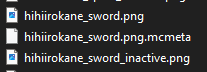
We just need the first two. Copy hihiirokane_sword.png and hihiirokane_sword.png.mcmeta. (Don't paste it yet)
(DISCLAIMER: You can change multiple items, if you wanted you could get the sword, katana and shovel at the same time, no need to make a resource pack for each item.)
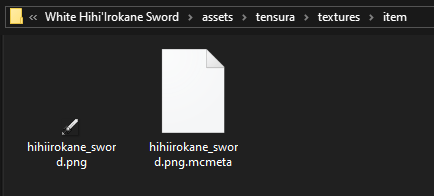
Go back to the White Hihi'Irokane Sword folder. Open assets. It's empty. Create new folders depending of the file and mod you want to edit the textures off. In our case, we will create 3 new folders tensura and inside it, textures and inside it, item. You folder should be looking like this: White Hihi'Irokane Sword\assets\tensura\textures\item.
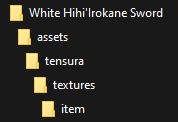
Now, paste hihiirokane_sword.png and hihiirokane_sword.png.mcmeta in your newly created textures folder.
By this point, if you were to create a .zip file from the folder, you would had sucefuly made a new resource pack, and even tho no changes were made to the files itself.
Alright, time to edit the files. First, right click hihiirokane_sword.png.mcmeta and click Edit with Notepad++ (I am SURE this part is useless since when I change it without editing the image nothing happens but I do it anyways. Seriously, I'm just making you do it so you get to see it too, I even tested now again and it does nothing. Someone in the comments will probably teach me what is the correct thing to do and what this does). Were it says "interpolate": true, change it to "interpolate": false. Click Save. Close it. Done with hihiirokane_sword.png.mcmeta.
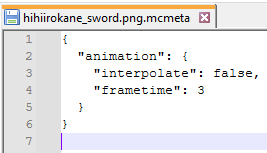
Second is time to edit the image. As you can see the image is a 16x160 image, with multiple swords images on top of each other. This, in my understandin is what gives the glint/ animation effect. We need to crop the image to leave only one sword to stop it. (DISCLAIMER: If you LIKE the animation effect and want to put you own colors, DON'T crop the image. I also tested it and it had the animation when I painted white, reinforcing that editing the .png.mcmeta does nothing here).
To rop the image, go to the iloveimg site in the link. Click select image and select the hihiirokane_sword.png in the White Hihi'Irokane Sword\assets\tensura\textures\item folder. In the right side, under Crop Options, put this values:
Width (px) 16
Height (px) 16
Position X (px) 0
Position Y (px) 0
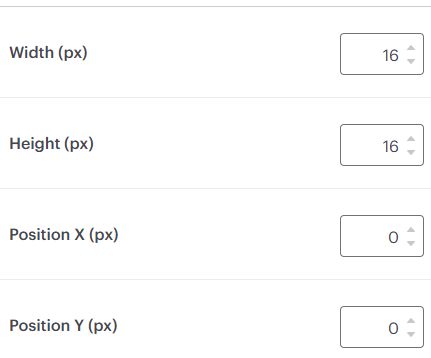
This will select only the first sword and will put the crop area from the top postion.
(DISCLAIMER: In case you are editing another image that isn't 16x160, you need to do this: in Width (px) put "99999" it will ignore you and put the maximum automaticaly. In our case, 16. Now, in Height (px) put the same number it gave you in the Width (px). In out case, 16. Now we have a perfect square. If the image was 48x480 you would have to put 48,48,0,0 for example)
With the selection made, click Crop IMAGE. Download the cropped image and replace the one you just edited it. You MUST use the same name and put in the same place, so in our case, put the cropped image in White Hihi'Irokane Sword\assets\tensura\textures\item folder and name it hihiirokane_sword.png. There can be only one file with the same name and type so don't forget you have to replace it.
You folder should be looking like this:
Recolor time! Right click the hihiirokane_sword.png image and click "open with>" and select Paint.NET.
You are now seeing this  . The zoom is in the bottom right XD. Take you time to learn the controls if you want. For the white recolor we just need a couple of clicks. On the top left click Adjustments > Black and White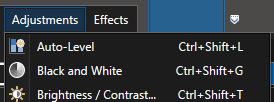
Click Save, don't change anything in the popup, click Ok. You can now close Paint.NET. Done with hihiirokane_sword.png.
Now, go back to your White Hihi'Irokane Sword folder. Right click pack.mcmeta. Things you need to know. Version Minecraft 1.19.2 "pack_format" is 9, so it needs to stay 9. Description is the text that will appear under the name in the resource pack menu. "description" : "Type here your description." will look like this:
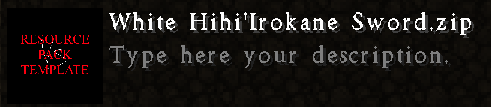
Since we are doing a hihi'irokane sword recolor, lets just put this there. No need to go overly decriptive since the .zip file name will probably be enough already. Change to "Type here your description" to "White recolor for the Hihi'Irokane Sword." or whatever you want. For mine I just put "by Vanyor Storm" since the file name was enough.
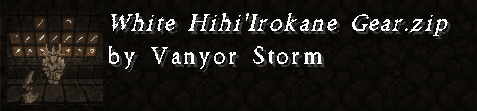
Save it and close. If you want a thumbnail, just replace the pack.png file with your own. Even if you don't like it, don't delete it, just use the blank one I provided (don't forget to rename the blank one to pack.png, again, there can be only one).
Update 1: The enchantment effect is different. I forgot to orignigaly put this here so i'm going to add it now:
Inside assets folder, create new folders until it looks like this assets\minecraft\textures\misc
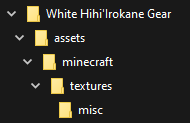
(ignore that the folder says "gear" and not "sword", I'm from the future, things change.)
Inside the misc folder just add a blank one, just like the one I provided and name it enchanted_item_glint.png.
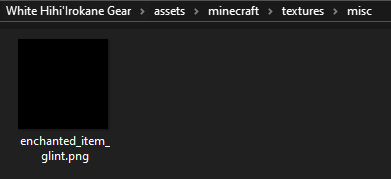
(Again, ignore that the folder says "gear" and not "sword")
With the image chosen, we are almost done. We just need to create the .zip file. Drag and select the 3 files in the White Hihi'Irokane Sword folder and right click "Add to Archive"
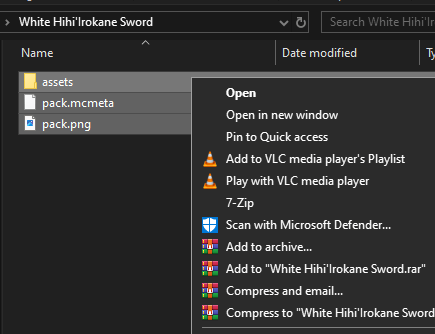
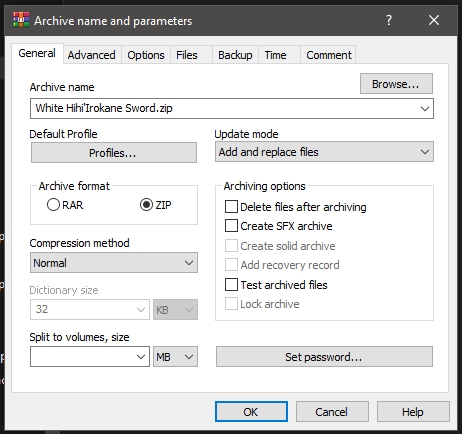
Change Archive format from RAR to ZIP and click "ok"
You folder should now look like this:
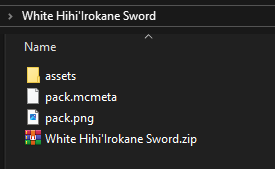
It is? Good. If it's not try again, you probably skipped a step.
Now go to you Minecraft folder (That should still be open since you are in the mods folder) and go to resourcepacks folder and capy and paste your "White Hihi'Irokane Sword.zip" file.
In the game menu, it will look like this:
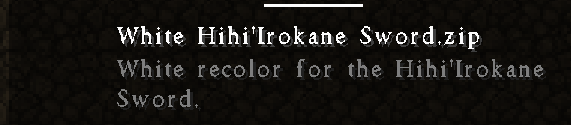
As you can see I used the blank pack.png and the description I chose for the pack.mcmeta file is also here.
And in game it looks like this (without my resource pack of course):
Third-person:
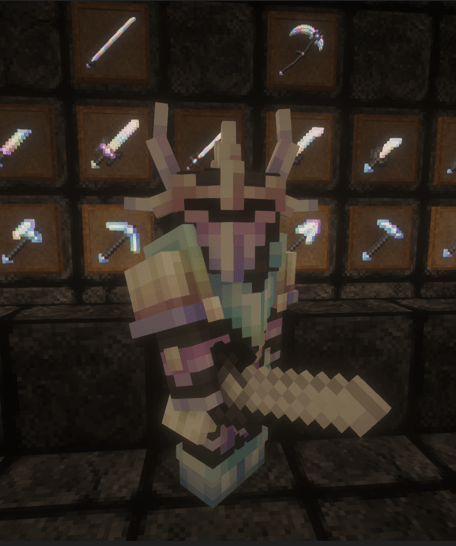
First-person:
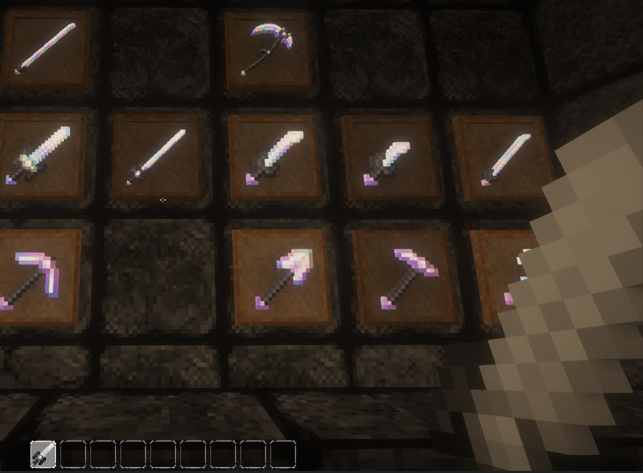
And if you are also having the same resoults in game as me, CONGRATULATION! YOU DID IT!
Now go out there and don't be a bad slime!
Big shout out to Viciel and Born for the help and permission to share it! And thank you to all the Tensura: Reincarnated team too!
The Tensura: Reincarnated - Glintless white Hihi'Irokane gear Team
