The Forgey Bones Modpack. It includes magic, tech, exploration, and more. This conglomeration of mods is intended for the PEF Server. Modpack name inspired by Tommy Jones.
Tommy Jones and the Enderman King stood atop a jagged cliff overlooking the desolate wasteland of the past. Surrounded by nought but dust and memories, a spark of influence stirred between their hearts. Look to the future, and forge a new world of fantasy, science, and ascension. Leave no Benson unturned, no Balla unscathed, no Aztecross stream unwatched, and no Emma Frost fan art unseen. Become the ultimate sorcerer. Or don't. There are plenty of other things to do.
Note: Do not manually update or install any mods
How to copy your settings and explored map from version 1.0 to 1.3
Step 0 (Only required for JourneyMap progress).
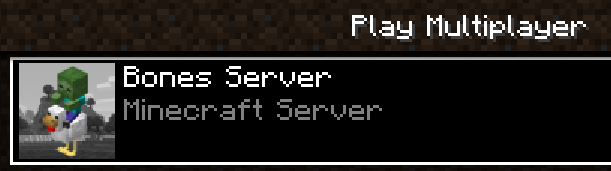
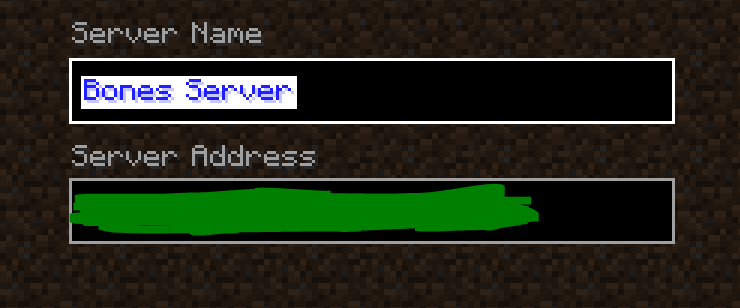
Log into your old Forgey Bones 1.0 profile once more with the original icon. Go to Multiplayer, and make note of the exact server name you used to connect to the PEF Server.
Step 1. Open the instance folders for the old and new Forgey Bones modpacks.
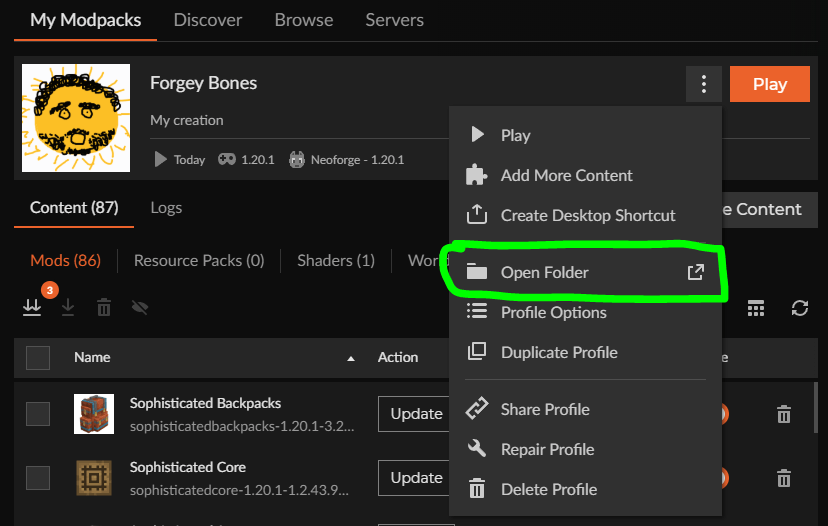
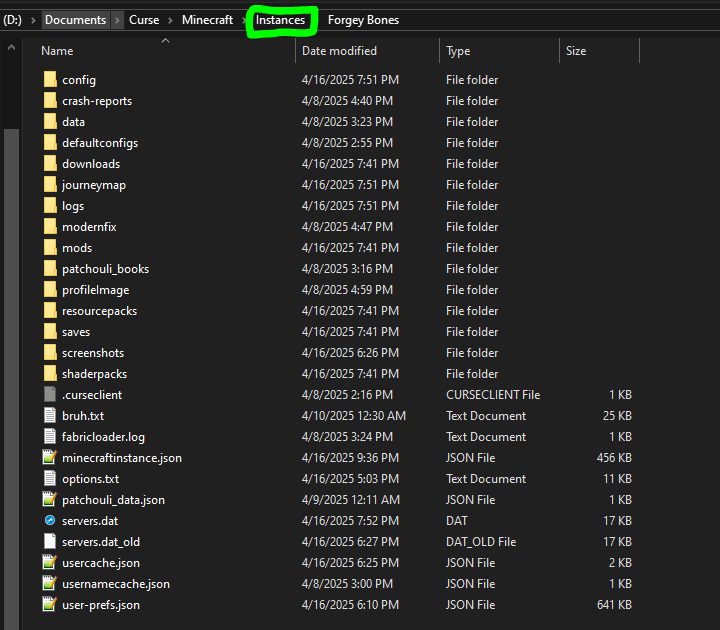
Navigate to original Forgey Bones instance folder. On CurseForge, go to the Forgey Bones modpack, click the 3 dots next to Play, and then Open Folder.
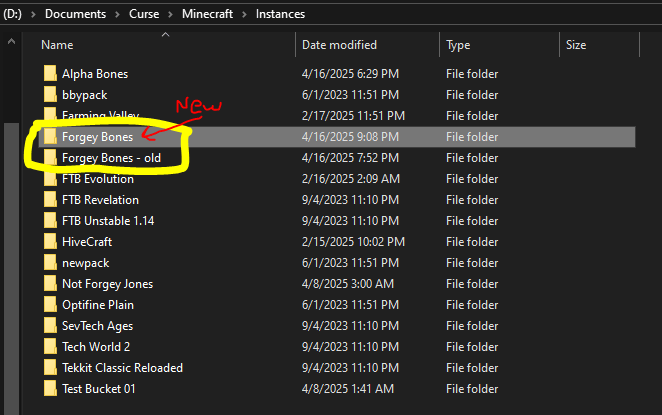
You can go up one level to Instances, then rename the "Forgey Bones" folder to something else like "Forgey Bones old" if you would like. Do not delete the old folder (yet).
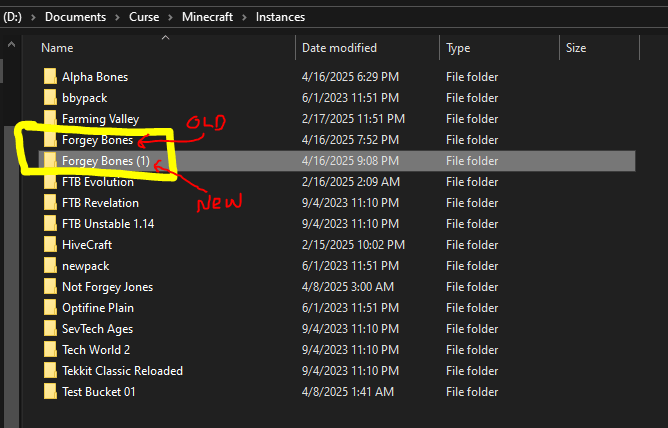
If you have already installed the new Forgey Bones before renaming the old version, it may have installed in the Instances folder as "Forgey Bones (1)" or something like that.
If you have not, then after the installation the new pack would be called "Forgey Bones" and the old pack would still be whatever you renamed it to.
This renaming is optional, it just reflects the name of your personal profile you use to launch the modpack on CurseForge.
Step 2. Copy "config", "journeymap", and "options.txt" from the old folder into the new folder.
Config contains mod configuration, journeymap holds your map data, and options.txt has your Minecraft settings.
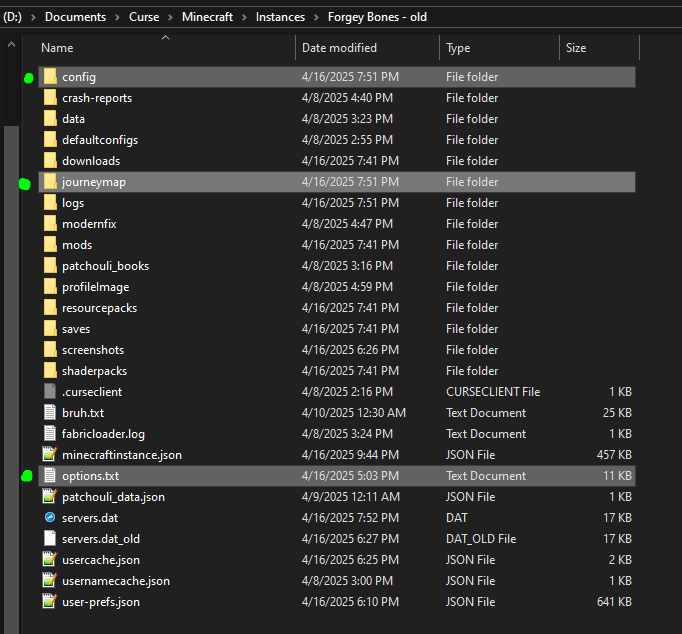
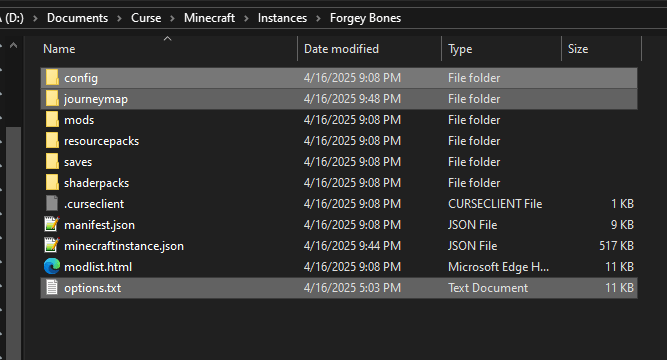
Replace any files in the destination with the same name.
Once you have this, launch the new Forgey Bones modpack.

Step 3 (for JourneyMap enjoyers). When you add the server in Multiplayer, make sure it is named exactly the same as what you had in Step 0.
Otherwise, JourneyMap will write your mapping data to a new folder and it will not build upon what you have already.
If you are not sure what it's named, you can navigate to \journeymap\data\mp\ and see the start of the folder name corresponding to your server progress. It won't be exact but will give you the right idea. If that does not help you, then copy the contents of the old folder in \mp\SERVER_95d3,...etc into the new generated folder you see when you join the server.
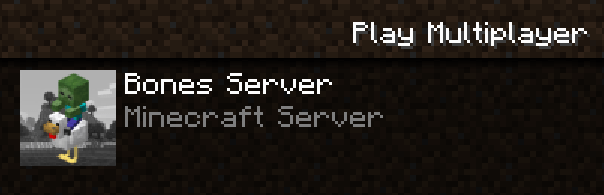
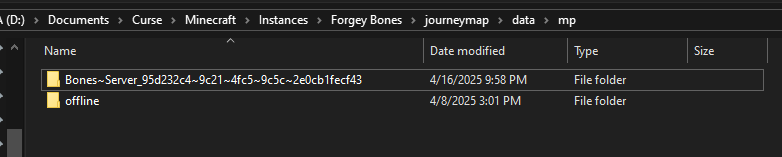
Once you can confirm that you can load into the PEF Server, you can delete the old profile (optional).
Make sure that you click "Day" in the JourneyMap to ensure that you can see your currently explored map from earlier.
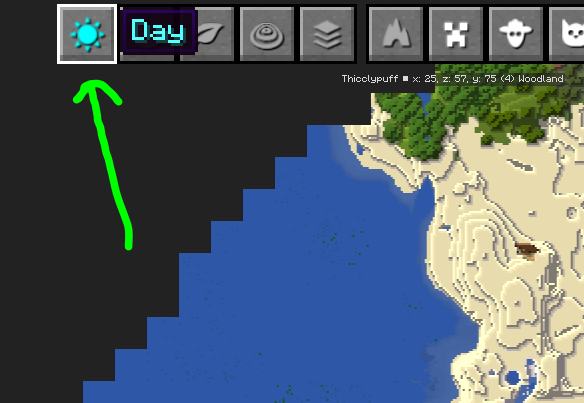
After this, you are all set! Probably.
Forgey Bones Team