Cinematic Creator's Toolkit: Elevate Your Streaming Visuals
- By
The Cinematic Creator's Toolkit is a modpack for content creators, enhancing visuals with high-quality shaders, dynamic lighting, and advanced camera controls. Perfect for crafting engaging, cinematic gameplay videos with a professional touch.
🎥 Cinematic Creator's Toolkit: Elevate Your Streaming Visuals
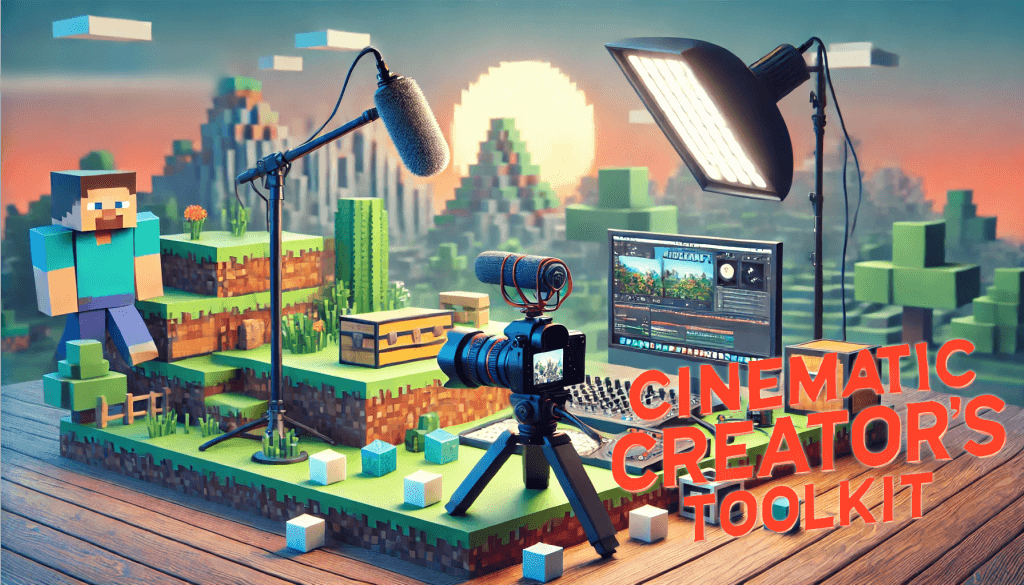
The Cinematic Creator's Toolkit is a comprehensive mod pack crafted for streamers and content creators who want to enhance their visuals. This collection focuses on in-game aesthetics and advanced camera controls to help creators produce engaging, cinematic-quality videos.
With high-quality shaders, dynamic lighting, and customizable camera angles, this toolkit transforms your gameplay into an immersive experience that captivates viewers and elevates your content.
- 🖼️ Perfect for Showcases and Tutorials – Ideal for setups featuring single mods or tutorial-style content.
- ⚠️ Not for Large Mod Packs – For optimal performance, use this pack as-is to maintain the creator's intended quality.
- 🚫 Avoid Using on Public Servers – Some mods in this pack may lead to bans if used on servers you don’t own or manage.
📖 Usage Guide
Step 1: 📥 Download and Setup
- Download the Mod Pack – Go to the release page and grab the latest version.
- Run the Mod Pack – Launch it to confirm everything loads smoothly.
- Enable Content Management – In the settings, select Edit and ensure Allow Content Management for this Profile is checked.
Step 2: 🔧 Customize Your Experience
- Add Additional Mods – Feel free to add mods for specific showcases or testing but keep it lightweight.
- Explore Features – Familiarize yourself with the mod pack’s camera tools and interactive elements for smoother content creation.
Step 3: 🎬 Start Recording
- Launch and Record – Start your recording software, open the game, and begin capturing your cinematic moments.
> 💡 You can reuse this mod pack or create multiple copies for different content projects.
📸 Camera Controls
The mod pack includes several camera mods for optimal recording and cinematic angles. The primary mods are Camera Utils and Free Cam, covering most creative needs.
🔧 Camera Utils
Hot Keys:
-– Toggle Cinematic CameraRIGHT ALT + -– Cinematic Camera SettingsZ– ZoomZ + Mouse Wheel– Adjust Zoom factorF6– Custom Third-Person Camera 1RIGHT ALT + F6– Adjust Custom Third-Person Camera 1F7– Custom Third-Person Camera 2RIGHT ALT + F7– Adjust Custom Third-Person Camera 2Keypad 0– Detach Camera
🎥 Free Cam
This mod is useful for recording from specific angles, enabling versatile shots.
Hot Keys:
*– Configure Free CamF4– Toggle Free CamF4 + 1...9– Switch between multiple camera perspectives
🧑🎨 Skin Editor
Customize your character with two skin-editing mods: Armors Workshop and Customizable Player Models.
🛠️ Armors Workshop
1. Download a Skin Model
- Use
/give @p armourers_workshop:skin-library-globalto get the global skin library. - Open the library, select a skin, and press Download Skin to save it locally.
2. Access the Skin in Inventory
- Run
/give @p armourers_workshop:skin-library-creativeto add the skin library to your inventory. - Open it, go to Downloads, select the skin, and click Load. Move the item to your inventory.
3. Apply the Skin
- Press
Pto open Armors Workshop wardrobe. - Drag the item from your inventory to the appropriate slot, and your character will wear the skin.
🎭 Customizable Player Models
- Access the Skin Editor before starting the game or in Skin Customization under Open Skin Editor.
Hot Keys:
G– Gestures Menu
> 🎨 Tip: Experiment with different skins to match your video themes!
Cinematic Creator's Toolkit: Elevate Your Streaming Visuals Team

Owner