
WE Assist
- By
2026-10-16_23.03.13.jpg
2026-10-16_23.02.42.jpg
2026-10-16_23.02.28.jpg
2026-10-16_23.03.57.jpg
Description
WE Assist — WorldEdit with your mouse
Описание на русском — ниже, после английского.
WE Assist is a client-side helper for WorldEdit. Resize your selection with the mouse wheel, see the selection box right in the world, use a radial menu for common commands, and see a hologram of where your paste will land after you copy. The usual Ctrl+C / Ctrl+V / Ctrl+Z work just like in any editor, so you rarely have to type commands.
Requirements
| Mod | Needed? | What for |
|---|---|---|
| Fabric Loader 0.18.1+ and Fabric API | required | |
| MaLiLib | required | settings and hotkeys |
| WorldEdit | for singleplayer — yes | in singleplayer, WorldEdit (Fabric) goes into your client; on a server, WorldEdit must be on the server and you need permission to use it |
| Litematica | optional | paste hologram |
| Mod Menu | optional | open settings from the mod list |
The mod is client-only — don't put it on the server. You don't need WorldEditCUI: the mod draws the selection box itself.
How to use
Everything works while you hold the WorldEdit wand (a wooden axe by default; the item can be changed in settings). Set two corners as usual — left and right click on blocks — and from then on edit the selection with the mouse.
Mouse wheel — edit the selection
| Input | What happens |
|---|---|
| Wheel | the side you are looking at moves out or in (like //expand 1 me / //contract) |
| Ctrl + wheel | the whole selection moves where you look (//shift) |
| Shift + wheel | two opposite sides move at once — the selection grows or shrinks evenly |
| Alt + wheel | step size: 1, 2, 3, 4, 5, 8, 10, 16, 32, 64 blocks per click |
- Up and down are picked when you look steeply up or down (the angle is configurable). There is also a "side under the crosshair" mode.
- The selection never shrinks below one block.
- With no full selection, or without the wand in hand, the wheel scrolls the hotbar as usual.
- Click the wand in the air to set a corner on a far-away block under the crosshair — up to 160 blocks. Handy for big builds.
In singleplayer, changes go straight through WorldEdit — instant and with no chat messages. On a server, the mod merges several clicks into one command (5 clicks = one //expand 5) and hides WorldEdit's replies to keep your chat clean.
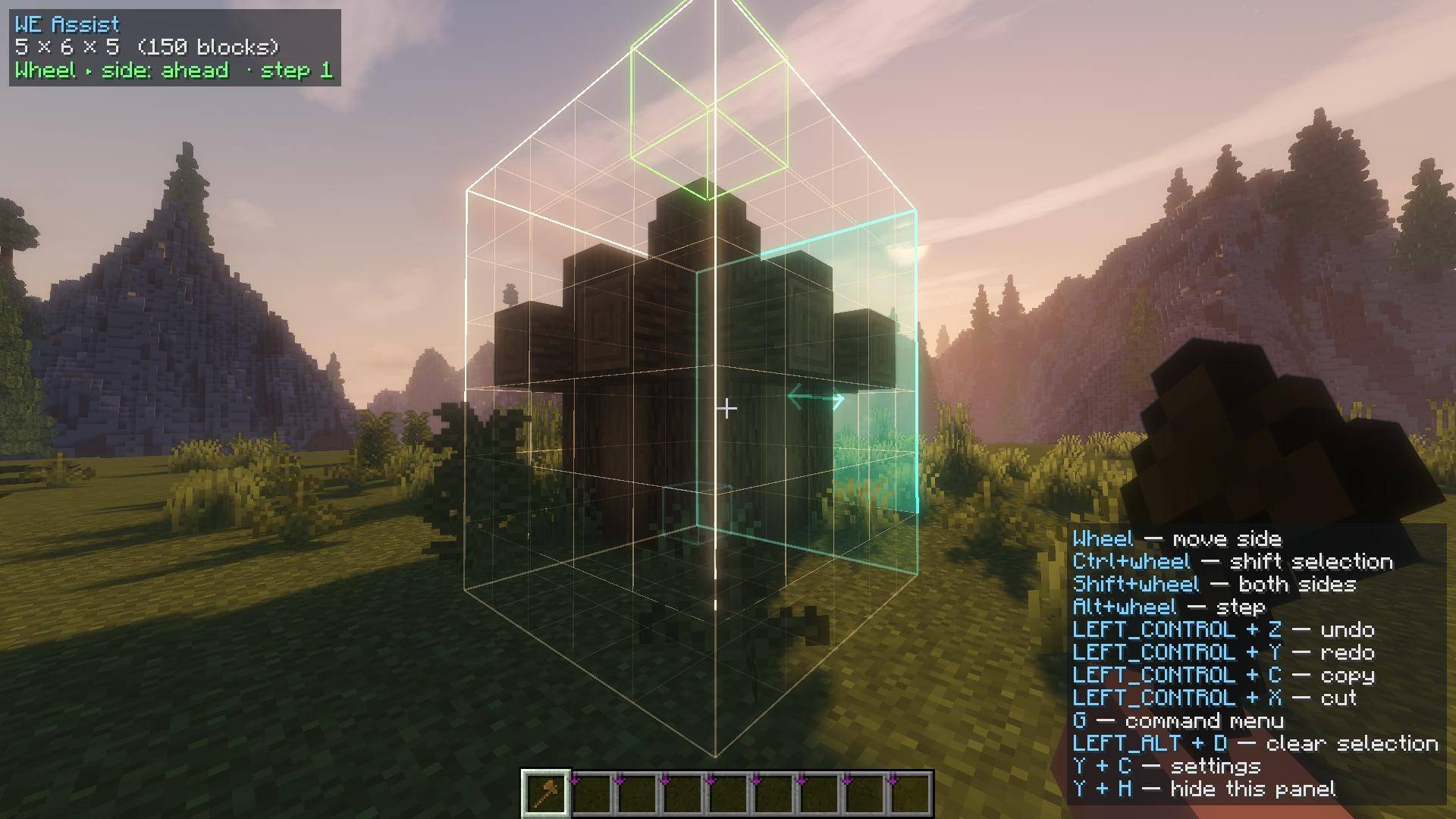
Selection box
- Edges and the pos1 (green) and pos2 (blue) corners, visible through blocks.
- It highlights what the wheel will do: a cyan side — resize, orange — move the whole selection, purple — both sides. An arrow shows the direction.
- Optional grid on the faces. Colours, line width and see-through rendering are configurable.
- Other WorldEdit shapes work too: polygon (
poly), cylinder (cyl), ellipsoid/sphere (ellipsoid,sphere) — the box, the HUD and the wheel, as far as WorldEdit itself supports them. - The box is visible under Iris shaders too (tested on 1.21.11).
Status panel and hints
- In the screen corner: selection size and volume, what the wheel will do right now, the current step, clipboard and hologram.
- The key panel shows your actual key bindings and changes with the situation: with a clipboard you get rotate and flip, with a pinned hologram — its keys. Hide it with Y, H. The screen corner is set in the settings.
Hotkeys
By default they only work while you hold the wand, so they never get in the way of normal play. Every key can be rebound.
| Keys | Action |
|---|---|
| Ctrl + Z / Ctrl + Y | undo / redo (//undo, //redo) |
| Ctrl + C / Ctrl + X | copy / cut (//copy, //cut) |
| Ctrl + V | paste (//paste) |
| Ctrl + R | rotate the clipboard 90° (//rotate 90) |
| Ctrl + F | flip the clipboard in the direction you look (//flip) |
| Alt + D | clear the selection (//sel) |
| G | command menu |
| Ctrl + G | pin the paste hologram in place |
| Ctrl + Shift + V | paste into the pinned hologram |
| Alt + C | hide the hologram (the clipboard stays) |
| Y, C | settings |
| Y, V | toggle the hologram |
| Y, H | show / hide the key panel |
Hotkeys also work while moving — with W, Space or Shift held. A longer combo never triggers a shorter one: Ctrl+Shift+V doesn't act as Ctrl+V, and Ctrl+G doesn't act as G.
Paste hologram (needs Litematica)
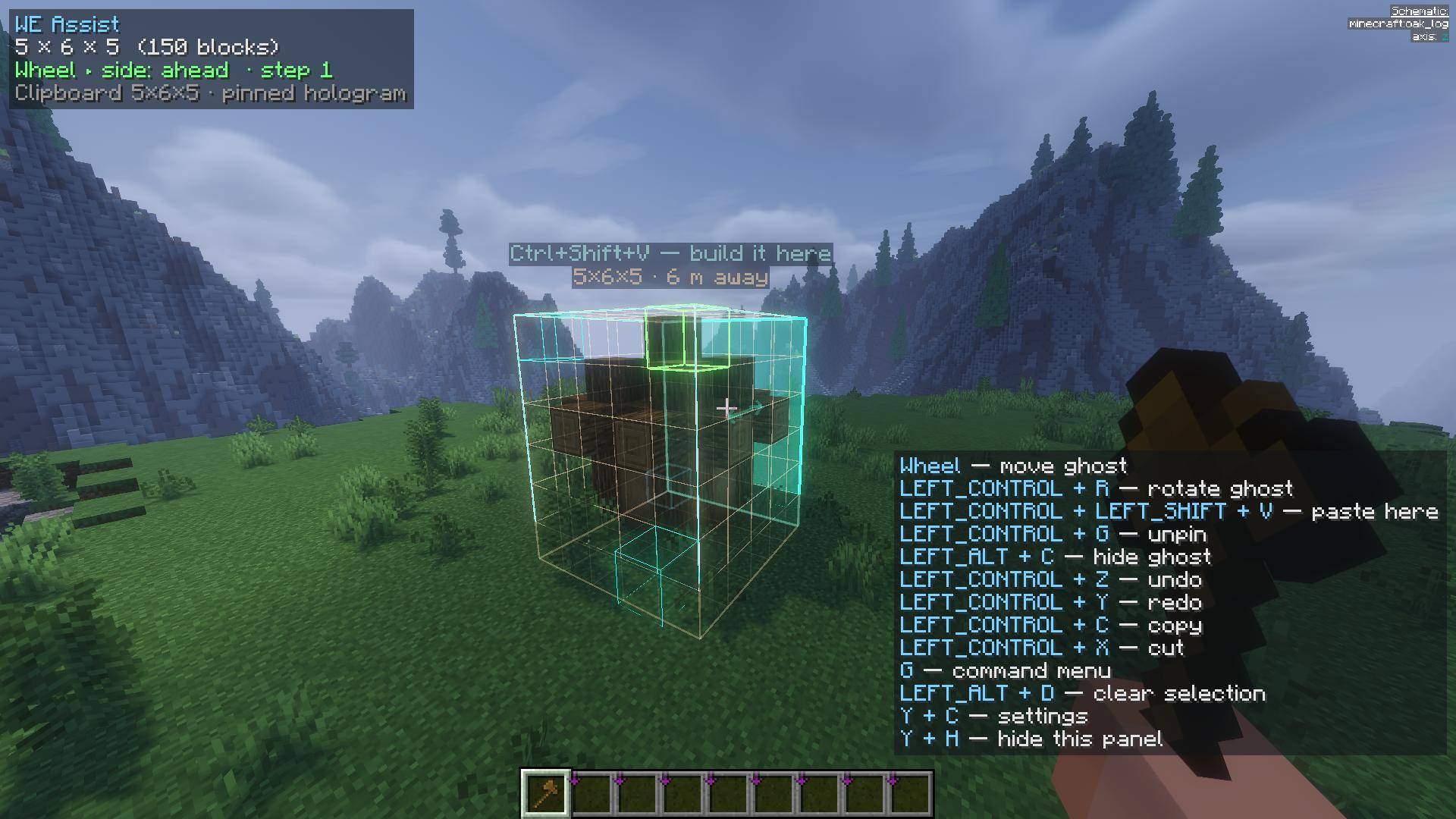
After //copy or //cut (or Ctrl+C / Ctrl+X) the clipboard is shown as a hologram exactly where //paste will put it. The hologram follows you and rotates and flips along with //rotate and //flip, so you see the result before pasting. In singleplayer it also appears after //schem load, and //toggleplace and //placement are taken into account.
Pin it in place — Ctrl + G. The hologram stops following you. Then:
- the wheel moves it (with the same step as the selection), Ctrl + R rotates it;
- Ctrl + Shift + V pastes the build exactly there (singleplayer only);
- a label floats above it: size, distance and the paste key. It is visible through blocks and can be turned off.
Alt + C hides the hologram, pinned or not. The clipboard is kept — Ctrl + V still pastes, and the next //copy shows the hologram again.
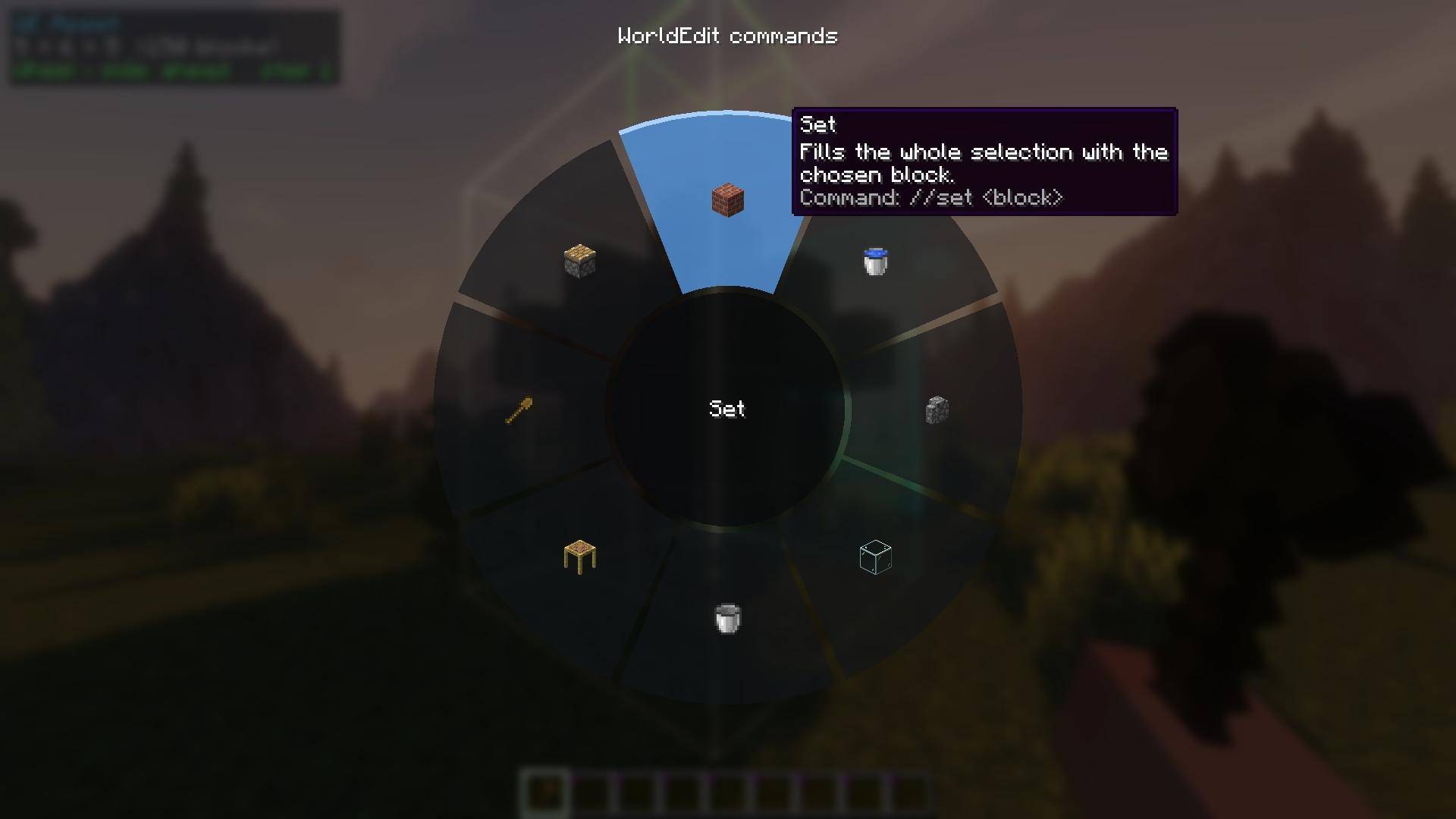
Command menu — G key
A radial menu of common commands. Hover a sector and after half a second a tooltip shows what it does and which command it sends.
| Sector | Command | Asks for |
|---|---|---|
| Set | //set |
a block |
| Replace | //replace |
which block to replace and with what |
| Walls | //walls |
a block |
| Faces | //faces |
a block |
| Hollow | //hollow |
wall thickness |
| Stack | //stack |
how many times (in the direction you look) |
| Smooth | //smooth |
how many passes |
| Move | //move |
how many blocks (in the direction you look) |
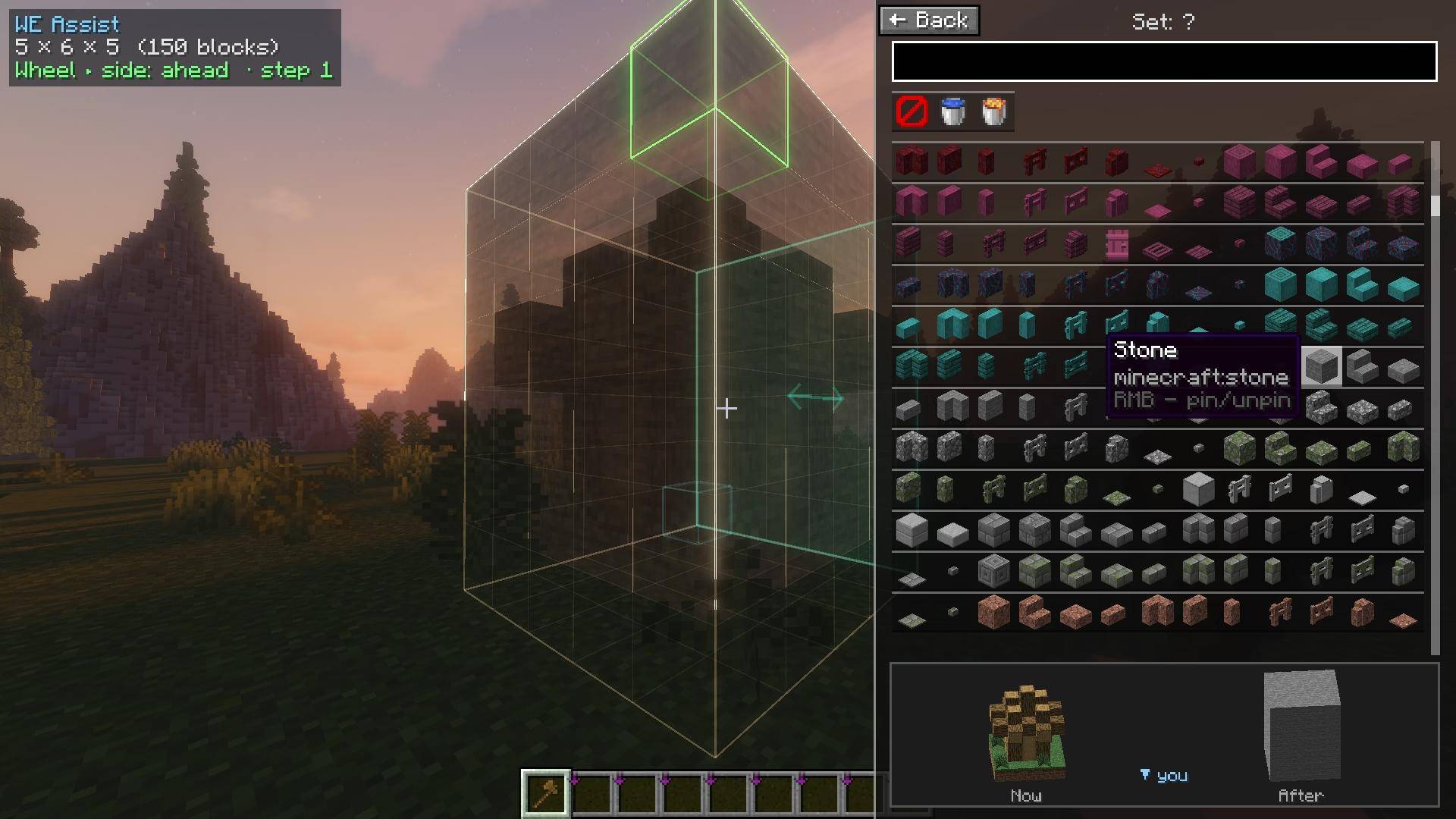
Steps: sector → block → block state → number → the command is sent. Esc or right click goes one step back. A line at the top shows your choices so far ("Replace: Stone → ?"); click it to choose again.
Block picker:
- search by name or id; every block in creative-inventory order, including blocks from other mods;
- an "in hand" row (hotbar and offhand) and a "Pinned" row — right-click a block to pin it;
- separate tiles for Air, Water and Lava, and Any block when choosing what to replace.
Live preview in the world. While you pick a block for Set, Walls, Faces or Replace, the result is drawn semi-transparent right inside the selection. The world isn't darkened — the menu sits on the right side of the screen. Under the block list there is a small "Now / After" view of a corner of the selection.
Block state. For slabs, stairs, logs, furnaces and so on you get buttons: top / bottom / double, axis, direction. Directions are labelled relative to you ("towards you", "away from you", "left", "right"), next to a 3D model of the block in the chosen state, turned the way you are looking. If there is nothing to change, the step is skipped. Leaves are placed persistent.
Auto-connect (singleplayer). Fences, glass panes, iron bars, walls and stairs placed from the menu connect to their neighbours on their own — WorldEdit doesn't do that. One //undo reverts it together with the command.
Hollow. The outer layer of the selection stays and the inside is removed; the number is the wall thickness (1 by default). If the selection is too thin (any side shorter than 2 × thickness + 1), the mod does nothing and tells you why. In singleplayer it is a single operation, reverted with one //undo.
Singleplayer and servers
| Singleplayer | Server with WorldEdit | |
|---|---|---|
| Wheel, selection box, panels, hotkeys, G menu | ✔ (direct, no chat) | ✔ (through commands, replies hidden) |
Hologram after //copy / //cut |
✔ | ✔ |
Hologram after //schem load |
✔ | — |
| Paste into the pinned hologram (Ctrl+Shift+V) | ✔ | — (the panel says so) |
| Auto-connect for fences etc. | ✔ | — |
Settings
Y, C or the button in Mod Menu. Tabs:
- Generic — wand item, how the side is picked, up/down angle, inverted wheel, far-click distance, hotkeys only with the wand, command delay on servers, block state step, auto-connect.
- Visuals — the box: colours, width, through blocks, grid, arrow; live preview and its limit (3000 blocks by default).
- Paste — hologram, only with the wand, maximum volume, label over a pinned hologram.
- HUD — when to show it, corner, offsets, background, key panel.
- Hotkeys — every binding, plus unbound extras: "pos1 here", "pos2 here", "step +/−", "re-read selection".
Languages: English and Russian.
FAQ
The wheel scrolls the hotbar instead of editing the selection. You are holding the wrong item (see the wand item setting) or the selection isn't complete — both corners are needed.
A hotkey doesn't work. Make sure you hold the wand and that no other mod uses the same combo. Settings have a detailed key log option (debugKeys) that shows who caught the key press.
"Selection is too thin". Thickness is the wall thickness, not the size. A 9×9×9 cube with thickness 1 leaves a 7×7×7 hole; with thickness 9 the walls fill the whole cube, so there is nothing to remove.
Smooth ate my thin pillars. That's how WorldEdit's own //smooth works: it smooths the height map, so a pillar one block wide drops almost to the ground. Wide hills turn into gentle slopes.
Versions
| File | Minecraft | Java |
|---|---|---|
weassist-0.1.0+1.20.1.jar |
1.20.1 | 17+ |
weassist-0.1.0+1.21.1.jar |
1.21 – 1.21.1 | 21+ |
weassist-0.1.0+1.21.4.jar |
1.21.4 | 21+ |
weassist-0.1.0+1.21.8.jar |
1.21.8 | 21+ |
weassist-0.1.0+1.21.11.jar |
1.21.11 | 21+ |
Known minor issues: on 1.20.1 and 1.21.1 the status panel is drawn under the chat, and the label above the hologram is a bit dimmer.
Our official telegram: https://t.me/modweassist
WE Assist — WorldEdit мышкой (русский)
WE Assist — клиентский мод-помощник для WorldEdit. Выделение меняется колесом мыши, рамка выделения видна прямо в мире, частые команды собраны в круговое меню, а после копирования видно голограмму — куда ляжет вставка. Привычные Ctrl+C / Ctrl+V / Ctrl+Z работают как в любом редакторе. Команды руками набирать почти не нужно.
Что нужно
| Мод | Нужен? | Зачем |
|---|---|---|
| Fabric Loader 0.18.1+ и Fabric API | обязательно | |
| MaLiLib | обязательно | настройки и горячие клавиши |
| WorldEdit | для одиночной игры — да | в одиночке WorldEdit (Fabric) ставится в клиент; на сервере он должен стоять на сервере, а у тебя — права на его команды |
| Litematica | по желанию | голограмма вставки |
| Mod Menu | по желанию | вход в настройки из списка модов |
Мод ставится только в клиент, на сервер его класть не нужно. WorldEditCUI не нужен — рамку мод рисует сам.
Как пользоваться
Всё работает, когда в руке топор-палочка WorldEdit (по умолчанию деревянный топор, предмет меняется в настройках). Отметь две точки как обычно — ЛКМ и ПКМ по блокам — и дальше выделение правится мышью.
Колесо мыши — правка выделения
| Действие | Что происходит |
|---|---|
| Колесо | грань, на которую смотришь, уходит наружу или внутрь (как //expand 1 me / //contract) |
| Ctrl + колесо | всё выделение сдвигается туда, куда смотришь (//shift) |
| Shift + колесо | двигаются сразу две противоположные грани — выделение растёт или сжимается симметрично |
| Alt + колесо | шаг: 1, 2, 3, 4, 5, 8, 10, 16, 32, 64 блока за щелчок |
- Верх и низ выбираются, если смотреть круто вверх или вниз (угол настраивается). Есть режим «грань под прицелом».
- Выделение не сожмётся меньше одного блока.
- Пока выделения нет или топора нет в руке, колесо листает хотбар как обычно.
- Клик топором в воздух ставит точку на блок вдали, под прицелом — до 160 блоков. Удобно для больших построек.
В одиночной игре изменения идут напрямую через WorldEdit — мгновенно и без сообщений в чате. На сервере мод сам собирает несколько щелчков в одну команду (5 щелчков = одна //expand 5) и прячет ответы WorldEdit, чтобы не засорять чат.
Рамка выделения
- Рёбра, углы pos1 (зелёный) и pos2 (синий), видны сквозь блоки.
- Подсвечено то, что сделает колесо: голубая грань — меняется размер, оранжевая — сдвиг всего выделения, фиолетовая — обе грани. Стрелка показывает направление.
- По желанию — сетка на гранях. Цвета, толщина линий и видимость сквозь блоки настраиваются.
- Работают и формы WorldEdit кроме куба: многоугольник (
poly), цилиндр (cyl), эллипсоид/сфера (ellipsoid,sphere) — рамка, панель и колесо там, где это позволяет сам WorldEdit. - Рамка видна и под шейдерами Iris (проверено на 1.21.11).
Панель состояния и подсказки
- В углу экрана: размер и объём выделения, что сделает колесо прямо сейчас, текущий шаг, буфер обмена и голограмма.
- Панель клавиш показывает твои настоящие сочетания и меняется по ситуации: есть буфер — появляются поворот и отражение, голограмма закреплена — её клавиши. Скрыть — Y, H. Угол экрана выбирается в настройках.
Горячие клавиши
По умолчанию срабатывают только с топором в руке, так что в обычной игре ничего не мешает. Все сочетания меняются в настройках.
| Клавиши | Действие |
|---|---|
| Ctrl + Z / Ctrl + Y | отменить / повторить (//undo, //redo) |
| Ctrl + C / Ctrl + X | копировать / вырезать (//copy, //cut) |
| Ctrl + V | вставить (//paste) |
| Ctrl + R | повернуть буфер на 90° (//rotate 90) |
| Ctrl + F | отразить буфер по направлению взгляда (//flip) |
| Alt + D | снять выделение (//sel) |
| G | меню команд |
| Ctrl + G | закрепить голограмму вставки на месте |
| Ctrl + Shift + V | вставить в закреплённую голограмму |
| Alt + C | убрать голограмму (буфер остаётся) |
| Y, C | настройки |
| Y, V | включить / выключить голограмму |
| Y, H | показать / скрыть панель клавиш |
Сочетания работают и на бегу — с зажатыми W, пробелом или Shift. Длинное сочетание не запускает короткое: Ctrl+Shift+V не сработает как Ctrl+V, Ctrl+G — как G.
Голограмма вставки (нужна Litematica)
После //copy или //cut (или Ctrl+C / Ctrl+X) буфер показывается голограммой ровно там, куда его положит //paste. Голограмма идёт за тобой, поворачивается и отражается вместе с //rotate и //flip — видно результат до вставки. В одиночной игре голограмма появляется и после //schem load; учитываются //toggleplace и //placement.
Закрепить на месте — Ctrl + G. Голограмма перестаёт ходить за тобой. Дальше:
- колесо двигает её (с тем же шагом, что и выделение), Ctrl + R поворачивает;
- Ctrl + Shift + V вставляет постройку ровно туда (только в одиночной игре);
- над голограммой табличка: размер, расстояние и клавиша вставки. Её видно сквозь блоки, её можно отключить.
Alt + C убирает голограмму, в том числе закреплённую. Буфер не теряется — Ctrl + V по-прежнему вставит, а следующий //copy снова покажет голограмму.
Меню команд — клавиша G
Круговое меню частых команд. Наведи на сектор — через полсекунды подсказка: что делает и какая команда уйдёт.
| Сектор | Команда | Что спросит |
|---|---|---|
| Заполнить | //set |
блок |
| Заменить | //replace |
какой блок заменить и на какой |
| Стены | //walls |
блок |
| Грани | //faces |
блок |
| Полость | //hollow |
толщину стенок |
| Размножить | //stack |
сколько раз (в сторону взгляда) |
| Сгладить | //smooth |
сколько проходов |
| Сдвинуть | //move |
на сколько блоков (в сторону взгляда) |
Шаги: сектор → блок → состояние блока → число → команда уходит сама. Esc или ПКМ — шаг назад. Сверху строка выбранного («Заменить: Камень → ?»); клик по ней — выбрать заново.
Выбор блока:
- поиск по названию и по id, все блоки в порядке творческого инвентаря, включая блоки других модов;
- строка «в руках» (хотбар и левая рука) и строка «Закреплённые» — ПКМ по блоку закрепляет его;
- отдельные плитки: «Воздух», «Вода», «Лава», а для замены — «Любой блок».
Примерка в мире. Пока выбираешь блок для «Заполнить», «Стены», «Грани» и «Заменить», результат полупрозрачно нарисован прямо в выделении. Мир при этом не затемняется — меню занимает правую часть экрана. Под списком блоков — мини-вид «Сейчас / После» для угла выделения.
Состояние блока. Для полублоков, лестниц, брёвен, печек и т. п. — кнопки: верх / низ / двойной, ось, направление. Направления подписаны относительно тебя («к тебе», «от тебя», «влево», «вправо»), рядом 3D-модель блока в выбранном состоянии, повёрнутая так, как ты смотришь. Если менять нечего — шаг пропускается. Листва ставится неопадающей.
Авто-соединение (одиночная игра). Заборы, стеклянные панели, решётки, стены и лестницы, поставленные из меню, сами соединяются с соседями — WorldEdit этого не делает. Отменяется одним //undo вместе с командой.
Полость. Внешний слой выделения остаётся, внутренность удаляется; число — толщина стенок (по умолчанию 1). Если выделение слишком тонкое (меньше чем 2 × толщина + 1 по какой-то стороне), мод ничего не делает и пишет почему. В одиночной игре — одна операция, отменяется одним //undo.
Одиночная игра и сервер
| Одиночка | Сервер с WorldEdit | |
|---|---|---|
| Колесо, рамка, панель, горячие клавиши, меню G | ✔ (напрямую, без чата) | ✔ (через команды, ответы скрыты) |
Голограмма после //copy / //cut |
✔ | ✔ |
Голограмма после //schem load |
✔ | — |
| Вставка в закреплённую голограмму (Ctrl+Shift+V) | ✔ | — (панель так и скажет) |
| Авто-соединение заборов и т. п. | ✔ | — |
Настройки
Y, C или кнопка в Mod Menu. Вкладки:
- Основное — предмет-палочка, режим выбора грани, угол «вверх/вниз», инверсия колеса, дальность клика в воздух, клавиши только с топором, задержка команд на сервере, шаг состояния блока, авто-соединение.
- Вид — рамка: цвета, толщина, сквозь блоки, сетка, стрелка; примерка в мире и её предел (по умолчанию 3000 блоков).
- Вставка — голограмма, только с топором, предельный объём, табличка над закреплённой.
- Панель — когда показывать, угол, отступы, фон, панель клавиш.
- Хоткеи — все сочетания, плюс свободные: «pos1 сюда», «pos2 сюда», «шаг +/−», «перечитать выделение».
Языки: русский и английский.
Частые вопросы
Колесо листает хотбар вместо выделения. В руке не тот предмет (смотри «предмет-палочка» в настройках) или выделение не полное — нужны обе точки.
Горячая клавиша не срабатывает. Проверь, что в руке топор, и не занято ли сочетание другим модом. В настройках есть опция подробного лога клавиш (debugKeys) — по ней видно, кто перехватил нажатие.
«Выделение слишком тонкое». Толщина — это толщина стенок, а не размер. Куб 9×9×9 с толщиной 1 даёт пустоту 7×7×7; с толщиной 9 стенки займут весь куб — убирать нечего.
«Сгладить» съело тонкие столбы. Так работает //smooth самого WorldEdit: он сглаживает карту высот, и столб в один блок шириной опускается почти до земли. Широкие холмы становятся плавными склонами.
Версии
| Файл | Minecraft | Java |
|---|---|---|
weassist-0.1.0+1.20.1.jar |
1.20.1 | 17+ |
weassist-0.1.0+1.21.1.jar |
1.21 – 1.21.1 | 21+ |
weassist-0.1.0+1.21.4.jar |
1.21.4 | 21+ |
weassist-0.1.0+1.21.8.jar |
1.21.8 | 21+ |
weassist-0.1.0+1.21.11.jar |
1.21.11 | 21+ |
Известные мелочи: на 1.20.1 и 1.21.1 панель состояния рисуется под чатом, а текст таблички над голограммой чуть бледнее.
Наш официальный телеграм: https://t.me/modweassist
WE Assist Team
