


Archive World Downloader
- By
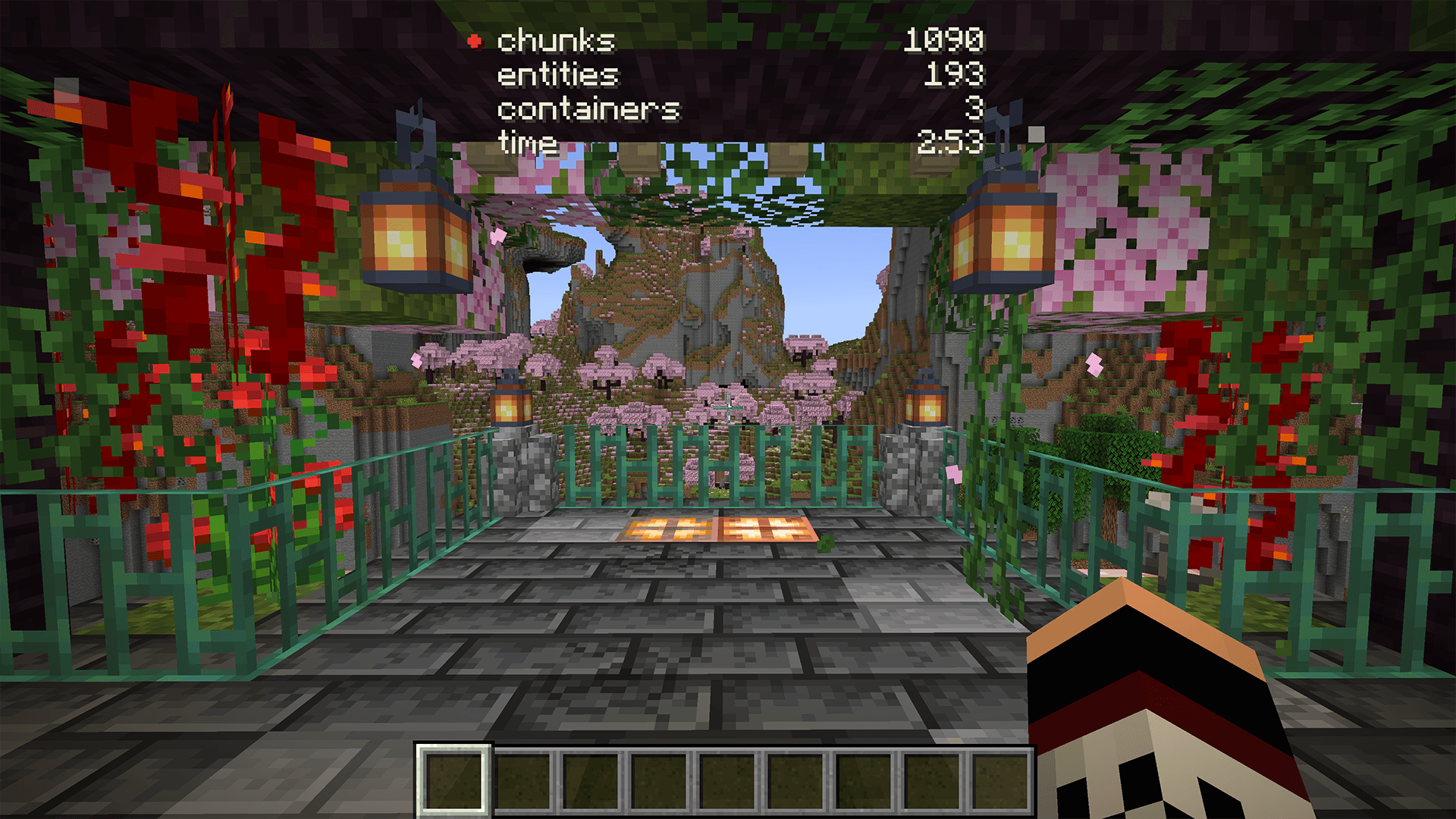
Detailed HUD overlay while downloading.
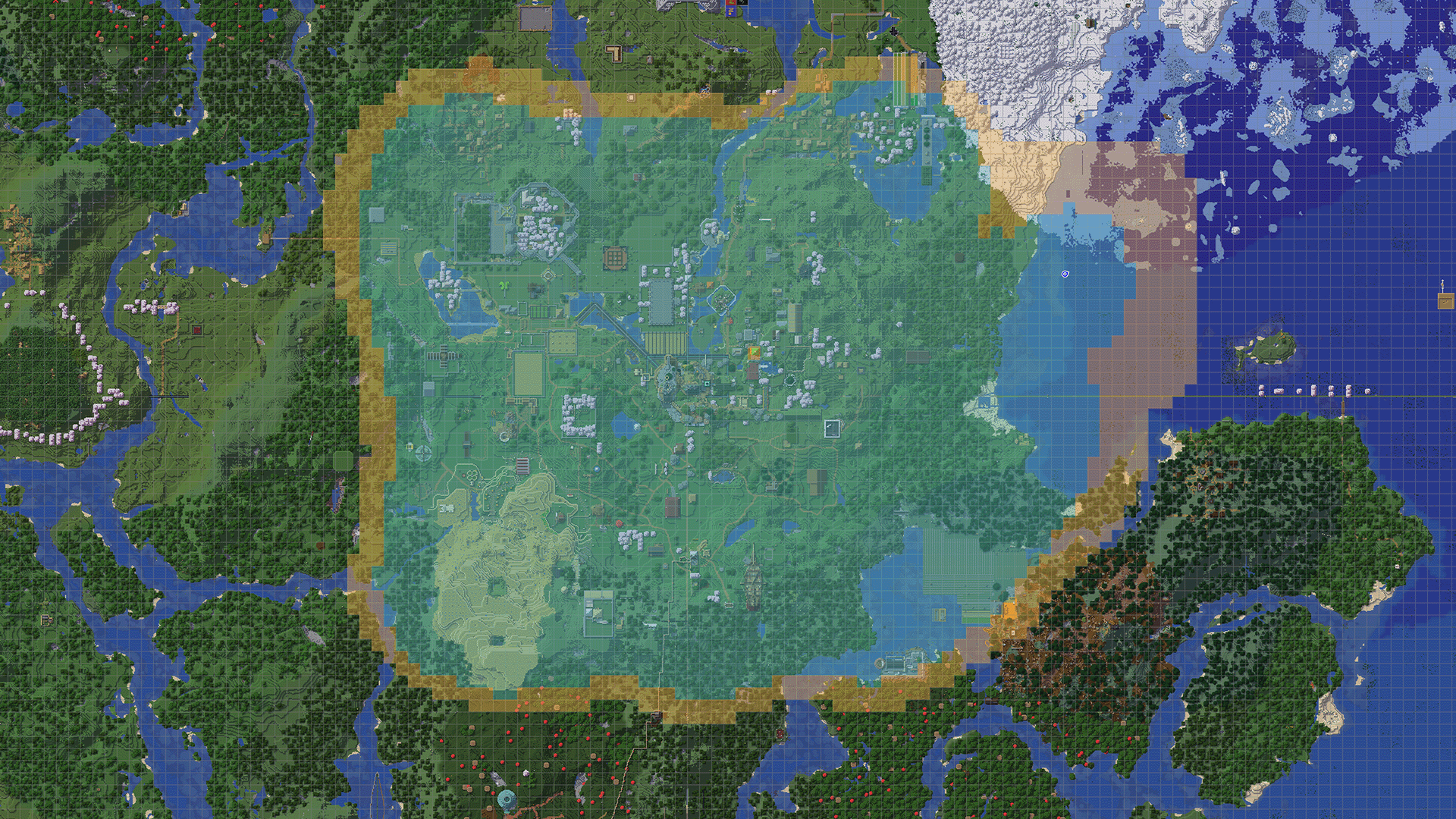
JourneyMap overlay during download, showing chunks you downloaded.
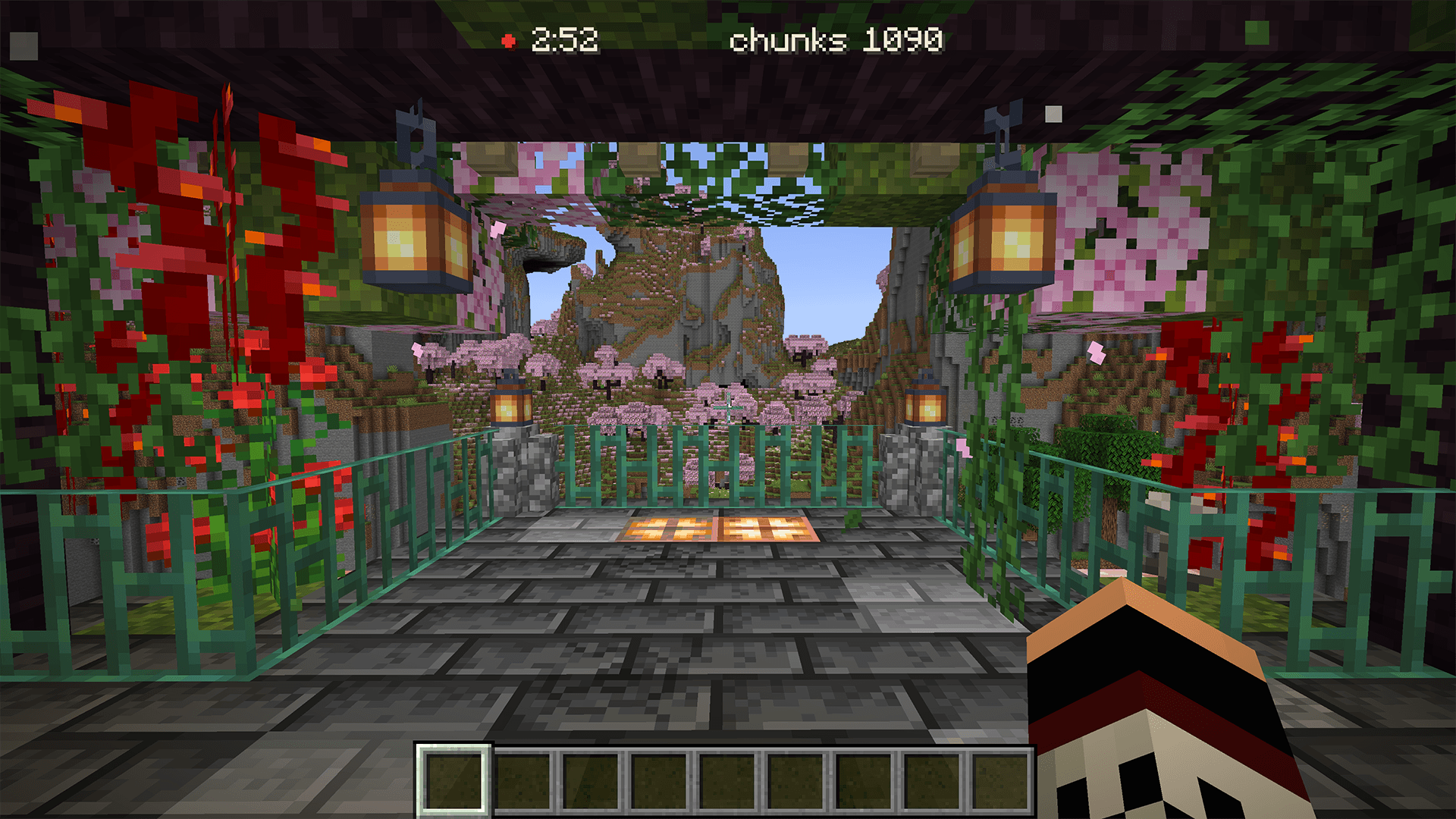
Default HUD overlay while downloading.
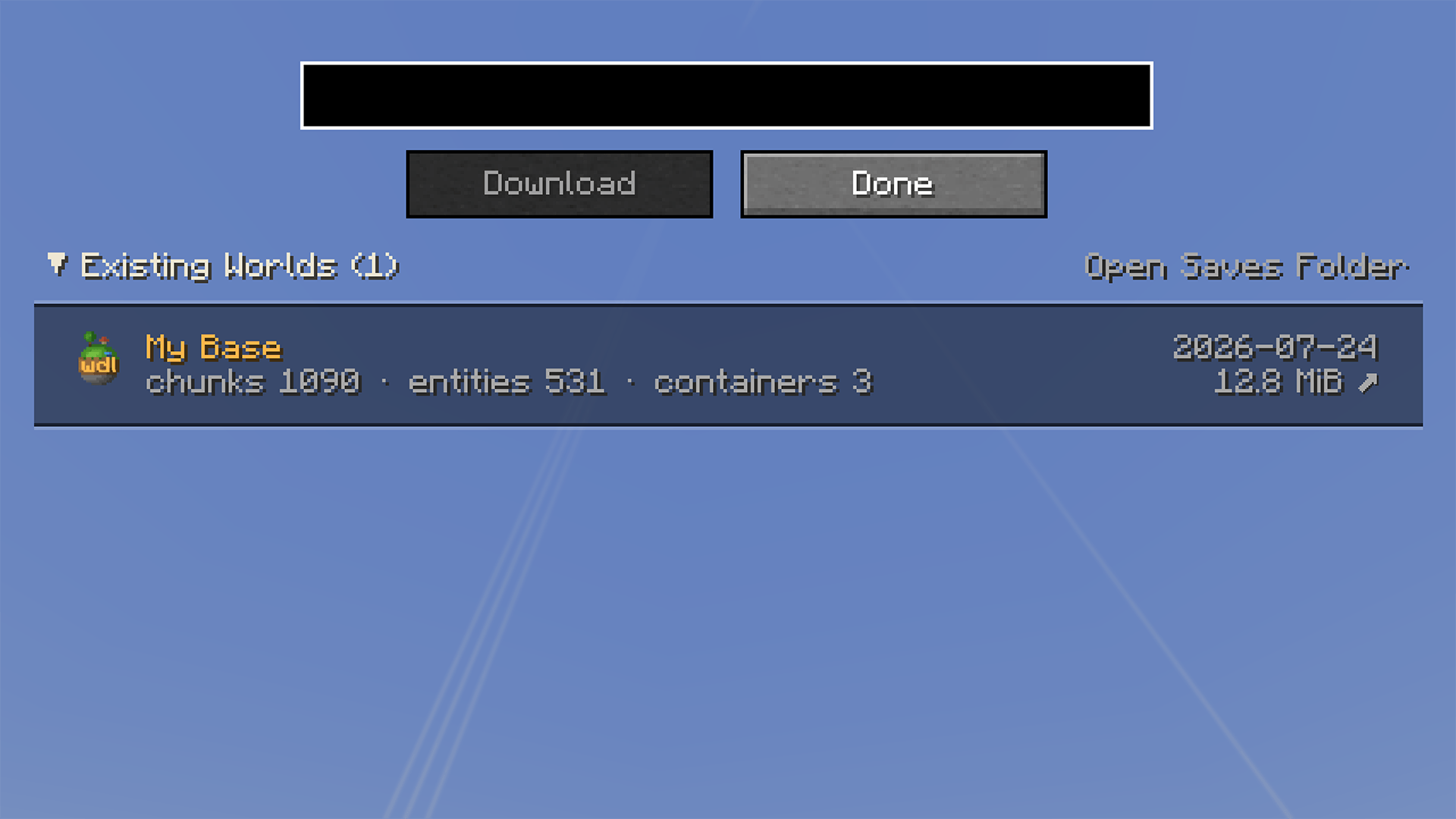
Main download screen where you can start new downloads, resume or restore existing downloads.
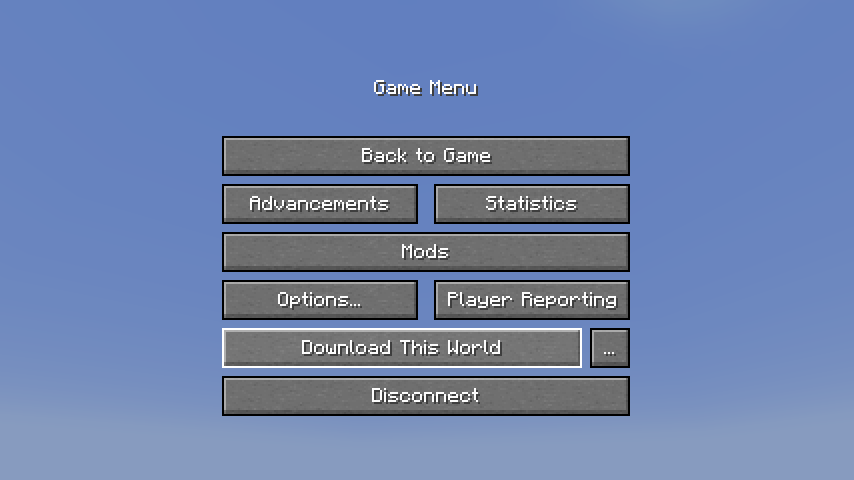
Start downloading through the main menu.
Description
Archive World Downloader
Keep the multiplayer worlds you visit. As you explore, the mod saves the terrain, mobs, and maps around you into a singleplayer world you can open offline. Opening a container saves what is inside it.
Everything comes from your own client. There is no server-side component, no plugin, and nothing to install anywhere but your own game.
What gets saved
The terrain around you is always saved. It is the one thing a download never leaves out. Everything else is data the mod records as it reaches your client:
- Containers you open, with their contents at the moment you open them. A server sends a container's contents only when you open it, so a chest you walked past but never opened is saved empty.
- Mobs, item frames, paintings, and other entities, as far out as the server sends them to you.
- Filled maps you saw, so they show their picture in your copy rather than blank.
- Your inventory, and your Ender Chest while you have it open.
- Your advancements and statistics.
Entities, containers, and player data are each a toggle, so you decide what a download includes before you start.
One download covers the overworld, the Nether, and the End. Walk through a Nether portal while a download runs and the Nether saves into the same world, in its own folder. A server's custom dimension shares one of those three folders rather than getting one of its own, so give it a download of its own.
What you get at the end is a normal singleplayer world. It opens in the vanilla game with the mod uninstalled, the same as any world you made yourself.
Start it, and pick it up later
Downloads run on a multiplayer server. Join one, open the pause menu, click "Download This World", and then play as you normally would. The download follows where you go.
If a disconnect or a crash cuts a download short, resume it later and keep adding to the same world. If you have already opened your copy in singleplayer, you can put the folder back from its clean backup.
See what you have not saved yet
While a download runs, containers you have not opened yet are outlined in the world, in red by default. Each outline clears as you open that container, so what is still red is your to-do list.
With XaeroPlus or JourneyMap installed, every saved chunk is highlighted on your minimap and world map. Teal means the chunk's entities were saved with it. Amber means its blocks are saved but the server never sent its entities, so walk back through the amber before you leave and it turns teal.
Download from a replay
A download can also come from a ReplayMod or Flashback replay, with no server to join. Name it yourself, from the pause menu or with /wdl start <name>, then press play. The recording follows playback, so pausing playback stops it and the chunk counter stops rising.
Record what you want in one forward pass. Seeking backward in ReplayMod looks like a disconnect to your client and finishes the download; Flashback rewinds the world instead, and the download follows it back.
Share a finished download
When a download finishes, the mod packs the whole world folder into a single .zip you can send to a friend. Turn that off in the Output settings if you would rather not have one.
Read this part before you send one. The wdl/ folder inside the download holds its report, and the report names you: your Minecraft username and your account UUID, along with the server's address, its name, its MOTD, and the settings you changed. The world itself holds your inventory, your Ender Chest if you opened it, and it opens at the spot where you were downloading, which is usually your base. No setting redacts any of that, so sharing a download without the record means editing the wdl/ files by hand first.
Settings
The defaults are chosen so a copy opens calm and safe, and every one of them is a setting you can change before you start.
A download opens in Creative with cheats on, at noon, with mobs, weather, and fire held still, and it keeps your inventory when you die. The space between the chunks you explored is left as empty void, so what you saved stands on its own; you can fill it with generated terrain instead. Saves are named with the date, so downloads of the same place on different days sit side by side rather than merging.
Two settings are off by default for privacy. Coordinates stored on items, a Lodestone compass target or the bee positions in a silk-touched beehive, are blanked, because they can point at a base your download otherwise does not reveal. Turn them back on if you want them.
Good to know
- You get the parts you explored. Only the areas you loaded are the server's real land.
- Opening your copy in singleplayer changes it, the way any world changes as you play. Keep the
.zipif you want an untouched copy. - Redstone machinery loads stopped, because its running state never reaches your client. One block update starts it again.
- Downloads need a multiplayer server. There is no download button in your own singleplayer or LAN world.
- A few blocks never send their contents at all, so they are saved from your own right-click: the books you put into a chiseled bookshelf, a disc you put into a jukebox, and what a shulker box or a beehive holds at the moment you place it. A jukebox already spinning a disc, or a hive already full of bees when you arrived, is saved empty.
- On startup the mod asks Modrinth whether a newer version exists. That is its only connection outside your game, it sends nothing about you, and you can turn it off in the settings.
Requirements
Fabric with Fabric API, Forge, NeoForge, or Quilt. Quilt runs the Fabric build, installed alongside Fabric API. One build per Minecraft version, from 1.10.2 to 26.3; the supported versions page lists every build: https://wdl.docs.thearchive.world/reference/versions/. Whatever Java runs your Minecraft runs the mod.
Client-side only. Nothing installs on the server.
Archive World Downloader Team
