✨ VRRW ANIMATION — OBJ ANIM
🎨 In-Game OBJ Animation & Modeling Framework
Import OBJ models, animate them with keyframes, replace entities and blocks, edit models in-game, add behaviors and sounds, and build animated 3D content directly inside Minecraft.
Import. Animate. Edit. Replace. Build.
| 🌐 VRRW.online → Project hub & ecosystem |
💚 Kick → Livestreams & community |
▶️ YouTube → Videos & showcases |
🖥️ Kinetic Hosting → Server hosting • Code VRRW |
| 🎁 Offers → Long-term quizzes & programs |
❓ Reddit Q&A → Questions & discussion |
💜 Patreon → Support development |
Community feedback and votes run across VRRW.online, Kick, Reddit and Patreon. AI Reborn also includes built-in voting, suggestions and bug-report tools.
▶️ WATCH OBJANIM IN ACTION
🎬 See OBJAnim together with the wider VRRW visual systems before diving into the details.
🔴LIVE VRRW EVENTS—FREE TEXTURE PACK GIFTS🎁
During VRRW Live Events, selected VRRW Texture Pack gifts are available completely free.
🔴 WATCH VRRW LIVE ON KICK →
🎁 LIVE GIFTS & REDEEM ON VRRW.ONLINE →
🔴 LIVE EVENT — FREE VRRW TEXTURE PACK GIFTS 🎁
Join the live event on Kick. Current gifts, availability and redemption details are also shown on VRRW.online.
💚 VRRW LIVE & COMMUNITY
📅 Weekly Livestreams — Saturdays • 16:00–22:00 • Berlin Time
Live development • showcases • Q&A • community feedback & votes • event announcements • giveaways
🏆 VIEW VRRW OFFICIAL SERVER EVENTS →
Official VRRW Public Server events are announced on the Events page.
🎟️ Some events may offer unlimited participation, while future events can use limited tickets depending on the event.
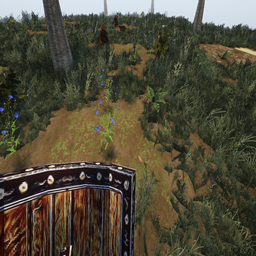
🌄 REALISTIC SURFACE NET & NEW COLLISION SYSTEM
OBJAnim now also includes the Realistic Surface Net / Smooth Terrain system.
The goal is to move beyond purely cubic-looking terrain and create smoother, more natural surfaces together with a new collision approach.
⚠️ Version 2.0.0+ change:
The older in-gameMmode toggle is no longer available in the same way because the new collision system is integrated into the newer terrain implementation.
🔥 WHAT OBJANIM CAN DO
- 📂 Load Wavefront OBJ + MTL models from the OBJAnim import folders
- 🧍 Replace or render entities with custom 3D OBJ models
- 🧱 Use OBJ models for blocks and animated world objects
- 🗡️ Use custom OBJ models for items
- 🎞️ Create animations with an in-game keyframe timeline
- 🧠 Configure behaviors such as sleeping, eating, drinking, wandering, aggression, emotions and following
- 🛠️ Edit models with the Model Workbench
- 🎨 Edit UVs, meshes and textures in-game
- 🔊 Assign custom
.oggsounds to animations and activities - 🖼️ Generate model thumbnails and configure texture overrides
- 💾 Export animation snapshots as JSON
- 🔁 Reload and apply imported models with commands
- 🌄 Use the integrated Realistic Surface Net / Smooth Terrain system
- 🧩 Integrate OBJAnim into other mods through its model APIs
🌍 WANT THE FULL VRRW MULTIPLAYER EXPERIENCE?
🤖 NATIONS & VILLAGERS — AI REBORN →
OBJAnim is part of the wider VRRW project ecosystem.
Nations & Villagers — AI Reborn adds the connected civilization and multiplayer systems used across many VRRW experiences, including AI citizens, nations, economy, diplomacy, public-server gameplay and supported community events.
⬇️ DOWNLOAD AI REBORN ON MODRINTH →
📚 COMPLETE OBJANIM GUIDE
Everything below is organized into expandable sections so you can open only the part you need.
🚀 Core Features — What Does This Mod Do?
OBJ Entity Animator
OBJ Entity Animator provides an in-game animation, modeling and behavior framework for OBJ content.
Core features include:
- Loading Wavefront OBJ + MTL files from
config/objanim/import/... - Replacing entities, blocks and items with custom 3D models
- In-game timeline-based keyframe animation
- Per-part position, rotation and scale editing
- Activity-based animations such as idle, walk, attack, sleep, eat and drink
- Behavior configuration
- Animated OBJ world blocks
- In-game model import and export
- UV editing
- Texture painting
- Mesh editing
- Custom sound support
- Model thumbnail generation
- Animation JSON export
- APIs for integration with other mods
The workflow is designed so that much of the model setup, animation and editing can happen directly inside Minecraft.
🌄 Realistic Surface Net — Smooth Terrain & Collision
Smooth Terrain Integration
OBJAnim includes the Realistic Surface Net / Smooth Terrain system.
This system is intended to create smoother and more natural terrain surfaces instead of relying only on the traditional cubic appearance.
Version 2.0.0+ Behavior
Older versions exposed terrain modes through the M hotkey.
With the newer 2.0.0+ collision system, the old mode toggle is no longer available in the same way.
Current concept: smoother terrain rendering together with a newer collision implementation.
The terrain system and OBJ animation framework can be seen together in the main showcase video at the top of this page.
📂 Installation & Import Folder Structure
Installation
- Install the supported NeoForge version for Minecraft 1.21.x.
- Place the OBJAnim
.jarfile into your Minecraftmods/folder. - Launch the game once.
- OBJAnim creates its configuration and import folders.
- Add your OBJ/MTL files to the appropriate import category.
- Reload the models in-game when needed.
Import Folders
The mod uses folders under:
config/objanim/
Typical structure:
import/entity— models for entities and mobsimport/block— block modelsimport/item— item and handheld modelsimport/custommodels— miscellaneous models, props, tools and Steve-style rigsexport— exported OBJ files and texturescustomsound— custom.oggfilesUIelements— generated GUI/model thumbnails
Additional JSON configuration files can control behavior, video/render settings, debugging and unified configuration.
OBJAnim scans the import directories and builds an internal model index.
🧍 Entity Animator & Behavior System
Open the Entity Editor
Default keybind: O
Inside the editor you can:
- Select an entity
- Load a model manually
- Create activities
- Build animations on a timeline
- Add keyframes to individual parts
- Change rotation
- Change position
- Change scale
- Preview animations
- Save animation data
- Assign custom sounds
Example Activities
- Idle
- Walk
- Attack
- Sleep
- Eat
- Drink
- Custom activities
Behavior Configuration
The BehaviorConfig system can configure behaviors such as:
- Nightly sleeping
- Lying/sleep poses
- Eating
- Drinking
- Aggression
- Attack behavior
- Idle emotions
- Following
- Wandering
Vanilla behavior preservation can be configured with:
preserveVanillaBehaviors = true
This allows OBJAnim behavior systems to coexist with supported vanilla AI behavior instead of simply removing it.
🧱 Animated OBJ Block
OBJAnim includes an Animated OBJ Block for placing animated 3D models directly into the world.
Registered objects include:
- Block:
animated_obj_block - BlockEntity:
animated_obj_block - Item:
animated_obj_block
Possible Uses
- Decorations
- Animated signs
- Displays
- Machines
- Moving parts
- Animated statues
- Props
- Custom world objects
Get the Block
/give @p objanim:animated_obj_block
Basic Workflow
- Place the block.
- Open the block editor.
- Select an OBJ model.
- Select/configure animations.
- Configure orientation.
- Configure scale and other settings.
- Tune performance if required.
Video/render-related options can be stored in:
config/objanim/video/objanim_video.json
🛠️ Model Workbench — In-Game 3D Editing
OBJAnim includes a Model Workbench accessed through the model_editor item.
Get the Editor
/give @p objanim:model_editor
The workbench can provide tools for:
- OBJ import
- OBJ export
- Mesh editing
- Vertex editing
- Transform gizmos
- UV editing
- Texture painting
- Creating PNG textures
- Editing model geometry
- Exporting finished results
Example Steve models are included under:
assets/objanim/models/steve
Typical Workflow
- Open the Model Workbench.
- Import a model from the OBJAnim import folders.
- Edit geometry or transforms.
- Adjust UV coordinates.
- Paint or create textures.
- Export the result to the export folder.
🖼️ Thumbnails, Textures & Custom Sounds
GUI Thumbnails
OBJAnim can generate model thumbnails for use inside its user interfaces.
Thumbnails are stored in:
UIelements/
Possible options include:
- Automatically generated model previews
- Optional inventory icon overrides
- Per-category settings for items, blocks and entities
Texture Overrides
Imported models can use their own textures and category-specific texture configuration.
Custom Sounds
Place .ogg sound files inside:
config/objanim/customsound
Inside the animator you can:
- Open the custom sound selection screen.
- Preview available sounds.
- Select a sound.
- Assign it to an animation or activity.
This allows animated creatures, machines and props to have their own synchronized audio.
🔁 Model Replacement & Commands
OBJAnim can map imported models to supported entities, blocks and items.
Reload Imported Models
/objanim reload
Reloads imported model content.
Apply a Specific Model
/objanim apply <modelName>
Applies a selected model to matching targets.
Apply Imported Models in Bulk
/objanim apply-all
Applies all supported imported model mappings.
These commands are useful while developing models because you can update imported files and reload them without rebuilding the entire mod.
🎮 Player Manual — Quick Workflows
Add Your Own Models
Place model files into the correct category:
- Entities →
import/entity - Blocks →
import/block - Items →
import/item - Miscellaneous models →
import/custommodels
Then reload:
/objanim reload
Animate an Entity
- Press
O. - Select an entity or model.
- Create an activity.
- Open the part animator.
- Select model parts.
- Add keyframes.
- Adjust rotation, position and scale.
- Save.
- Preview the animation.
- Configure behavior if needed.
- Assign sounds if desired.
Use the Animated OBJ Block
/give @p objanim:animated_obj_block
Then:
- Place the block.
- Open its editor.
- Select an OBJ model.
- Select animations.
- Adjust orientation and scale.
- Save the configuration.
Use the Model Workbench
/give @p objanim:model_editor
Use the editor to import, modify and export OBJ content, textures, UVs and meshes.
Add Custom Sounds
- Add
.oggfiles tocustomsound/. - Open the animator.
- Select a sound.
- Preview it.
- Assign it to an activity or keyframe.
🧩 Modder Documentation — Dependency & Model API
OBJAnim can also be used as a framework by other mods.
Example Dependency
Example mods.toml configuration:
[[dependencies.yourmod]]
modId="objanim"
type="required"
versionRange="[0.2.0,)"
ordering="NONE"
side="CLIENT"
For an optional integration, use:
type="optional"
ModModelAPI
Load a model:
OBJModel model = ModModelAPI.loadModel("entity/sheep_custom");
List entity models:
var lists = ModModelAPI.listModels(ModModelRegistry.ModelCategory.ENTITY);
Search models:
var dragons = ModModelAPI.findModels("dragon");
Preload a model:
ModModelAPI.preloadModel("entity/sheep_custom");
Possible uses include:
- Custom renderers
- Automatic model loading
- Large model repositories
- Preloading frequently used content
🧩 Modder Documentation — Registry, Entity State & Item Display API
ModModelRegistry
ModModelRegistry registry = ModModelRegistry.getInstance();
registry.initialize();

var meta = registry.getModelMetadata("entity/sheep_custom");
OBJModel model = registry.getModel("entity/sheep_custom");
The registry can be used for lower-level model metadata and cache handling.
OBJEntityManager
OBJEntityData data = OBJEntityManager.getOrCreate(entity);
OBJModel current = data.getCurrentModel();
String activity = data.getCurrentActivity();
int tick = data.getAnimationTick();
Possible uses:
- Reading current animation state
- Triggering particles
- Context-based effects
- Reacting to entity activities
ItemDisplayAPI
String path = ItemDisplayAPI.getObjModelPath(stack);

if (path != null) {
    OBJModel model = ModModelAPI.loadModel(path);
}
Possible uses:
- Custom item renderers
- Consistent OBJ model loading
- Integrating imported item models with another renderer
🧑💻 Developer Commands & Best Practices
Development Commands
/objanim reload
/objanim apply <model>
/objanim apply-all
These commands are useful for artists and developers iterating on imported content.
Best Practices
- Use optional dependency loading when OBJAnim is not mandatory.
- Follow the OBJAnim import folder structure.
- Load models on the appropriate client-side thread where required.
- Preload large model collections when that improves runtime behavior.
- Keep model and texture sizes appropriate for the target hardware.
- Test complex animated scenes before deploying them to larger multiplayer environments.
✔ Compatibility & Requirements
Current Project Target
- Minecraft: 1.21.x
- Primary published version: Minecraft 1.21.1
- Loader: NeoForge
- Environment: Client & Server supported
- Editors / GUIs: Client-side interfaces
First Launch
After installation, launch Minecraft once so OBJAnim can create its configuration and import folders.
Multiplayer
The mod can be used in multiplayer environments where the required mod setup is installed appropriately.
Editor and GUI functionality is primarily operated on the client.
▶️ Additional OBJAnim Video
🌐 MORE VRRW PROJECTS
🤖 NATIONS & VILLAGERS — AI REBORN →
AI Reborn is the civilization and multiplayer core of the VRRW ecosystem — with AI citizens, settlements, nations, economy, diplomacy, warfare, vehicles and connected public-server gameplay.
🌿 VRRW OVERWORLD — FOLIAGE & TREES →
VRRW Overworld focuses on the environment and visual world — with redesigned foliage, trees, vegetation, rocks and more natural overworld detail.
🖥️ SERVER HOSTING
🌐 Kinetic Hosting →
Server hosting for VRRW projects • Discount code: VRRW
VRRW animation - OBJ ANIM Team